
To activate the history of atrial fibrillation on Apple Watch (AFib), first you have to see some conditions necessary so that the function of monitoring atrial fibrillation can function. In this tutorial you will see step by step all you have to do for activating AFib History.
The function AFib History was first entered on Apple Watch Series 4 in September 2018. This function requires the sensor ECG (EGK) (electrocardiogram) incorporated into the models Apple Watch Series 4 or more recent to work.
So you need at least Apple Watch Series 4 with watchOS 5.0 and one iPhone with iOS 12.0. It is preferable to have the latest models of devices with the up-to-date operating system.
The requirements of device and operating system are not sufficient to activate the history of atrial fibrillation on Apple Watch.
Table of Contents
Minimum requirements for activating AFib History pe Apple Watch
1. Check that the AFIB History feature is available in your country. See here.
2. You must have a diagnosis of atrial fibrillation from a doctor.
3. As I said above, update the iPhone at the latest version of iOS and Apple Watch at the latest version of Watchos.
4. You have to Port Apple Watch at least 12 hours a day, time 5 days a week, to constantly receive estimates.
5. Heart rate (Heart Rate) and the wrist detection (Wrist Detection) must be activated on the Apple Watch.
The function AFib History It is not intended for use by persons under 22 years old.
How do you activate atrial fibrillation history on Apple Watch (AFIB)
In order to activate the history of atrial fibrillation, follow the steps from the tutorial below:
1. Open the application Health On the iPhone, then go down to "Browse", And"Heart"In the list of functions.
2. The "Heart"Run down to"AFib History“.
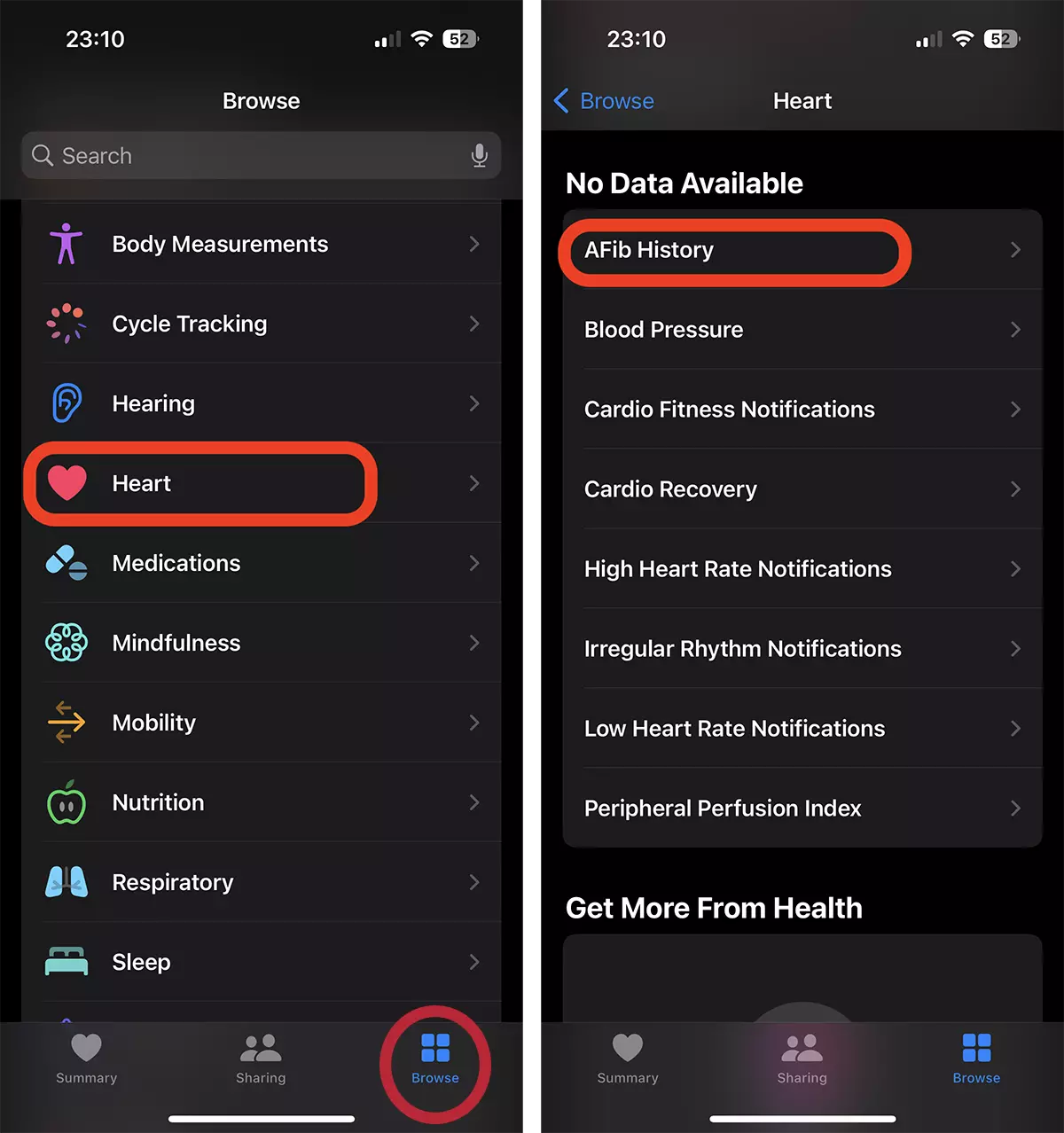
3. “Set up"Then"Get Started“.
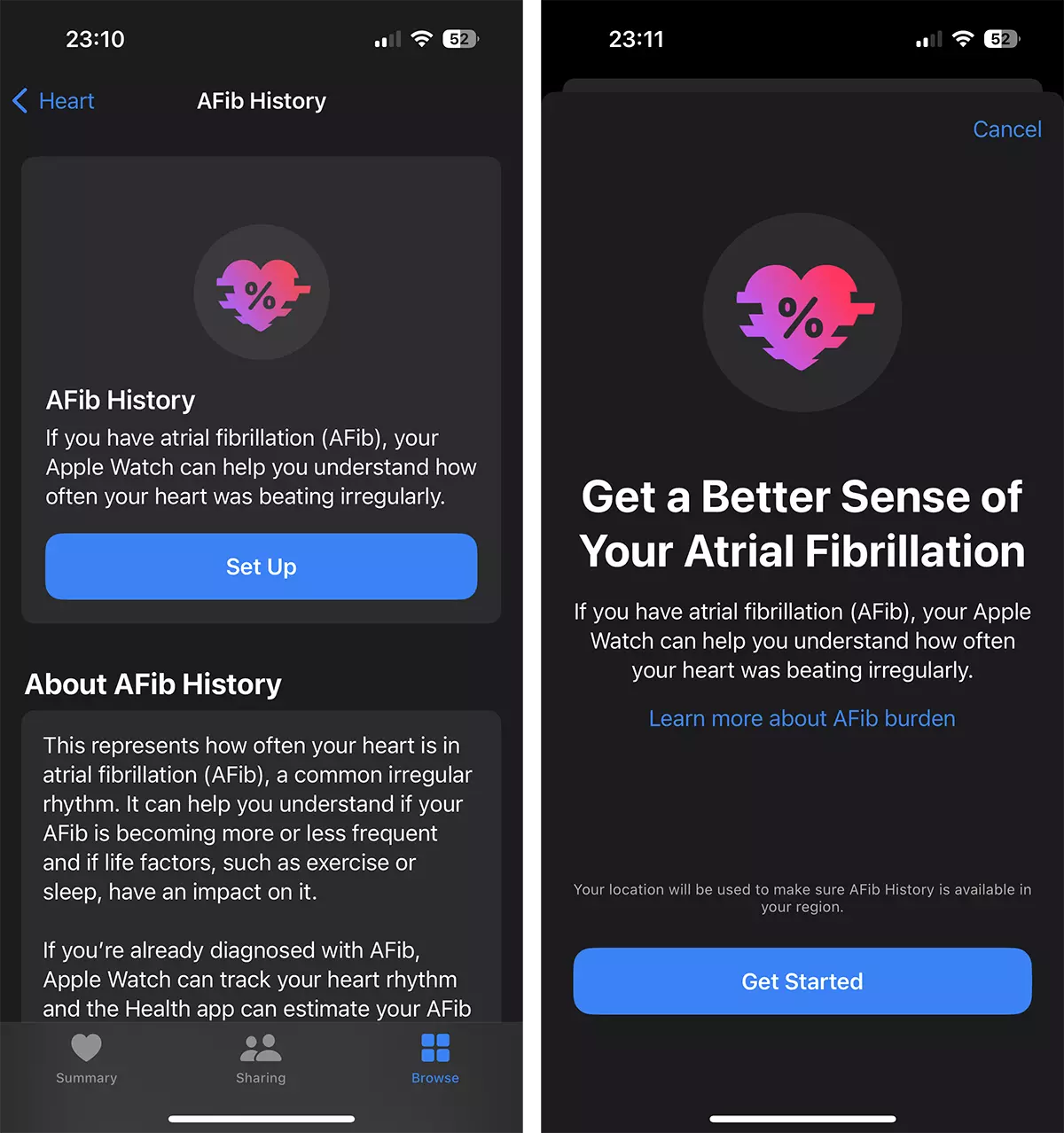
4. Next, you must enter the date of birth and confirm if you have been diagnosed with atrial fibrillation by a doctor. Select ”Yes"For the function to allow you to continue activation.
Activating AFIB History function on Apple Watch, will disable irregular heartbeat notifications. Irregular Rhythm.
5. Press "Ok"si"Continue"To complete the process by which you activate the history of atrial fibrillation on Apple Watch. Done.
Data registered by the function AFib History
The history of atrial fibrillation (AFib History) periodically check the heart rate for signs of AFib. Desi AFib It may occur at any time, there are factors that can affect the percentage of time in which your heart shows signs of AFib for the previous week. AFib History Consider the following life factors that can influence the percentage in which your heart is in AFib:
- The minutes of exercise
- Weight
- sleep
- Alcohol consumption
- Minutes of psychic ralxation (Mindful Minutes)
If you wear Apple Watch constantly when you exercise, sleep or meditate, exercise minutes, sleep and mental relaxation minutes are automatically recorded. You can add in "log" each other factor in your life and you can install from App Store and other "Health" applications to send data.
How do you see the history of atrial fibrillation on the iPhone
After collecting sufficient data, every Monday You will receive weekly alerts on Apple Watch with the estimated percentage of time in which your heart showed signs of AFib from the previous week.
You can also view the history in greater detail in the application Health from the iPhone. Estimation of the historian AFib appears in the form of percentage. A lower percentage means that your heart was in AFib Less time, while a higher percentage means it was more often. history AFib will never be displayed as 0%. Instead, it will be displayed that 2% or less.