
In this guide I will show step by step how you personally activate Hotspot on iPhone or iPad, to allow other internet devices.
We know that for the majority it is very easy to make a hotspot network on iPhone or iPad, but lately, the technology has started to be used by all age groups, and seniors can say that they are novice in various smartphone settings.
Before sharing a hotspot connection you need to consider two aspects:
1.. Devices connected to your iPhone will use from mobile data traffic, which can increase the costs of the invoice.
2. As long as hotspot is activated, the iPhone battery will be consumed much faster.
Table of Contents
What does hotspot mean?
A personal network hotspot will allow it Share (Share) Mobile Internet connection of one iPhone or iPad (the condition is that it is with mobile data SIM) with other devices that support connecting to a Wi-Fi network. For example, if you have a laptop that you normally keep connected to the Woreless router, but it no longer works, PutYou create a hotspot network on iPhone to which you connect the laptop. It will use the mobile internet of iPhone.
You must keep in mind that a laptop connected to a mobile data network will do more traffic than an iPhone or iPad. That is why you have to pay attention to the data consumption in order not to be taxed.
You can also proceed if you are on a trip and have your laptop with you.
How do you work personal hotspot on iPhone or iPad
It only takes a few seconds to activate personal hotspot on iPhone or iPad.
1. Go on iPhone in Settings→Personal Hotspot
2. Comuti on the green the option ”Allow Others to Join"Allow other devices to connect to the iPhone and use the Internet.
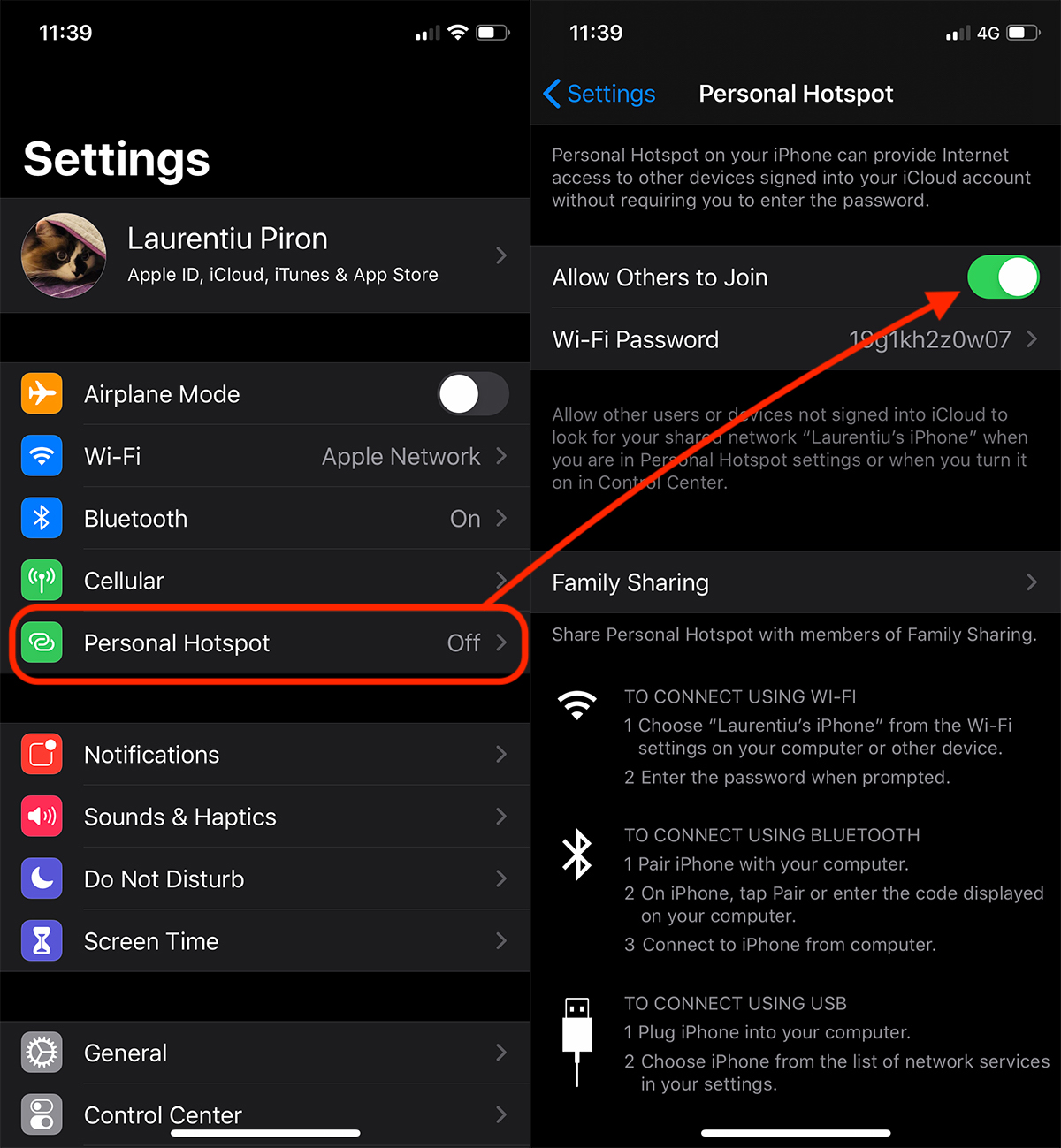
After activating Personal Hotspot, will be created a wireless network with the name of your device ("Laurentiu's iPhone" in our example) to which you can connect with the password from "Wi-Fi Password".
If around the iPhone on which Hotspot has been activated is another Fine Family device, the connection can be shared without the need for password. You just have to accept the connection to the device.
Mobile Internet can be shared both Wi-Fi and by Bluetooth or through Data cable connection to the laptop.
Keep in mind that you cannot share a Wi-Fi connection. The iPhone from which the Hotspot network is created must have a 3G, 4G or 5G connection. Only Mobile Internet can be shared by hotspot, from the iPhone.
On an iPad Wi-Fi the personal hotspot option will not be available, precisely because it does not have a mobile data connection. It requires an iPad Wi-Fi + Cellular.