The new iPhone 15 models have reached the hands of the first buyers. If you are the owner of an iPhone 15, you should know that for these models there is a new version of iOS 17 that solves a rather important bug. Users who select the option to transfer data from the old iPhone to the new iPhone 15, reported that the iPhone 15 got stuck with the Apple logo during installation, unable to do anything.
If you own an iPhone 15, iPhone 15 Plus, iPhone 15 Pro or iPhone 15 Pro Max, you must update it to iOS 17.0.2 during the installation process. This will prevent your iPhone 15 from crashing during the installation process.
iPhone 15 stuck with Apple logo on installation? [How To Fix]
For those whose iPhone 15 devices have already stuck during the installation process and are showing the Apple logo, the company has given a tutorial so that users can fix this error themselves.
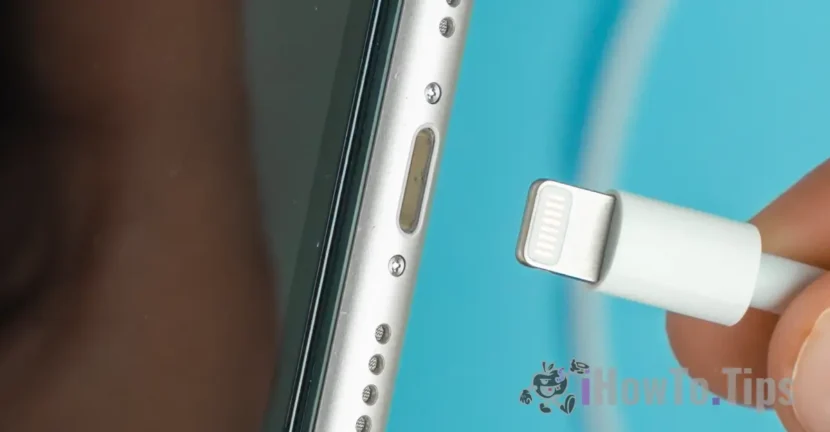
1. Connect your new iPhone to a computer using a cable.
2. Press and quickly release the volume up button. Press and quickly release the volume down button. Next, press and hold the side button.
3. Keep pressing and holding while the Apple logo appears and don't let go until an image of a computer and a cable appears.
4. On your computer, locate your new iPhone in “Finder” or in the app iTunes.
5. Choose “Restore” when you see the option to “Restore"Or"Update“.
After you have restored your iPhone 15 and updated it to iOS 17.0.2, you can resume the data transfer process from another iPhone.
In other words, if iPhone 15 stuck with the Apple logo, the solution is to restore from backup, update to iOS version 17.0.2, then restart the initialization process from the beginning.
iOS 17.0.2 is only available for iPhone 15 models.