

iOS 17 for iPhone 15 Pro brings a novelty that many owners of the new devices are trying to get rid of. This is the Silent bell icon that appears when your device has this mode enabled. In this simple tutorial you will see how easy it is to hide the Silent bell on the iPhone 15 Pro.
On previous iPhone models, when you turn on Silent mode, a notification appears at the top of the screen, and then there's nothing to indicate that iPhone's silent mode for calls, messages, or app notifications is on.
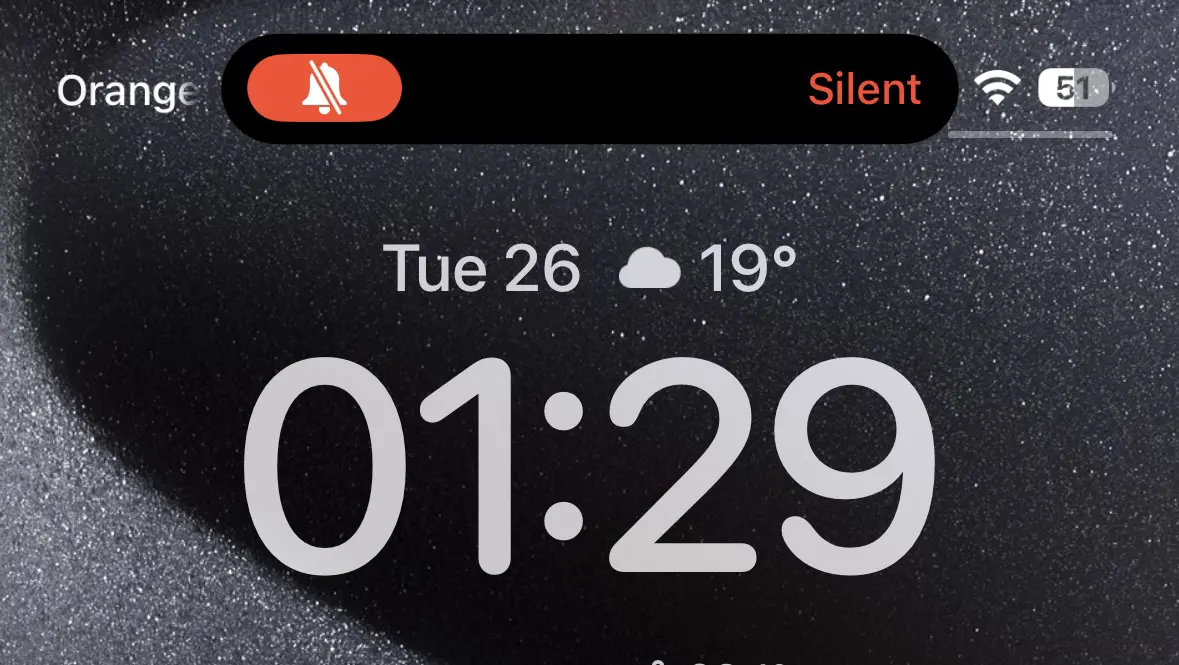
For the new iPhone 15 Pro models, Apple chose to keep a Silent bell icon in the upper left corner of the screen.
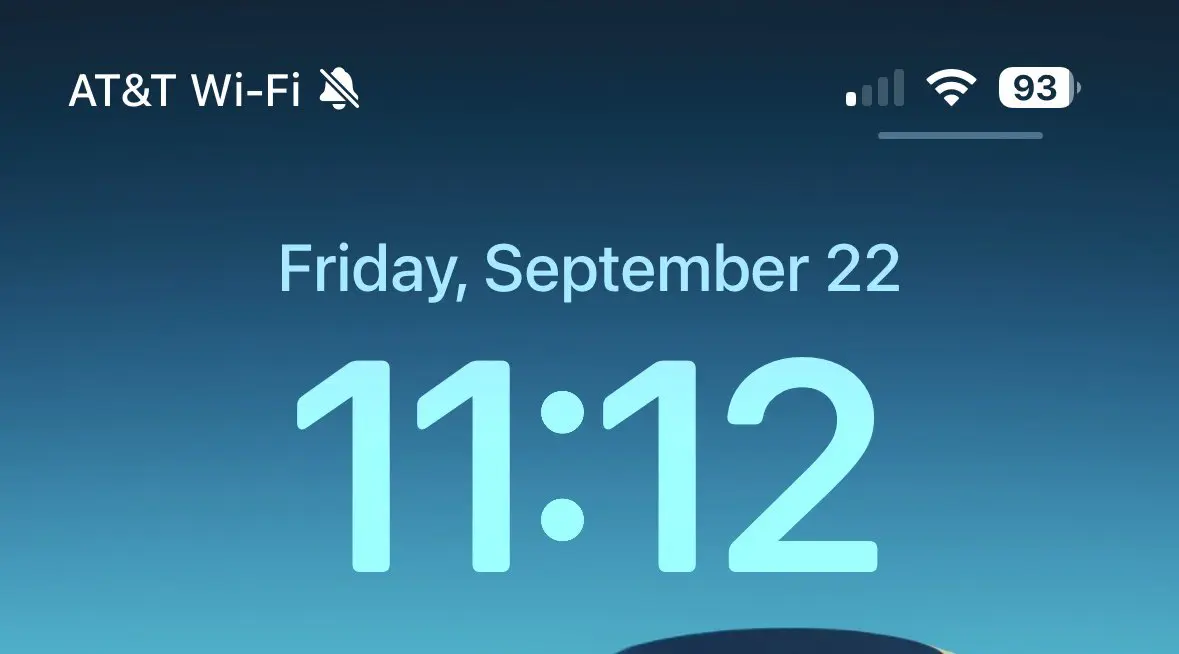
I think this icon is very useful and Apple can also bring it on old models of iPhone devices. This despite the fact that many device owners iPhone 15 Pro they want this Silent bell icon to disappear.
How do you hide the silent bell on iPhone 15 Pro
If this icon bothers you, it's very simple to hide the Silent bell on iPhone 15 Pro, from "Status Bar", follow the steps below:
1. Open "Settings" on your device iPhone 15 Pro or iPhone 15 Pro Max.
2. Go to options “Sounds & Haptics” at the top.
3. Disable the “Show in Status Bar“.
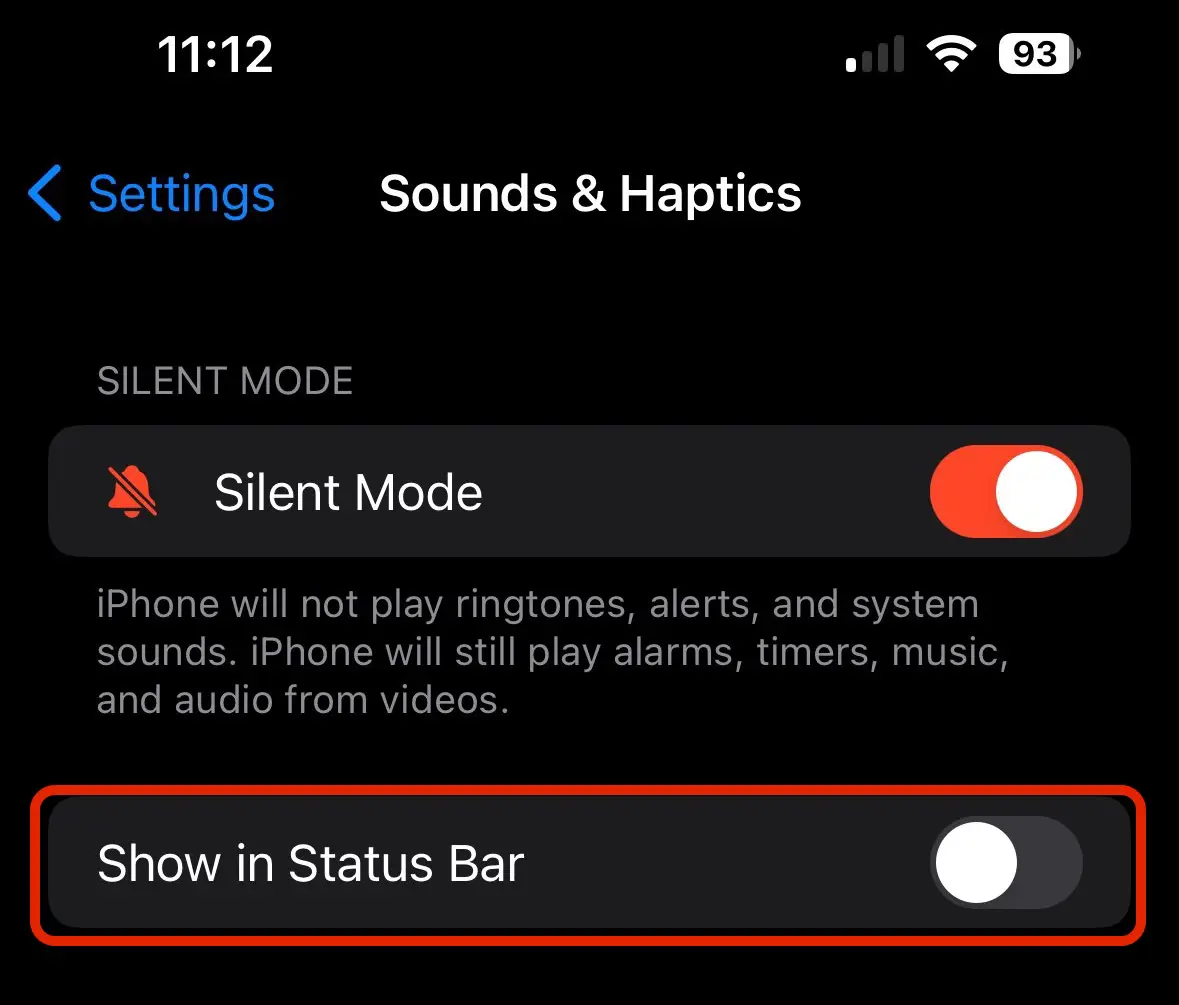
Once this option is disabled, the bell with Silent mode will no longer appear in “Status Bar“.