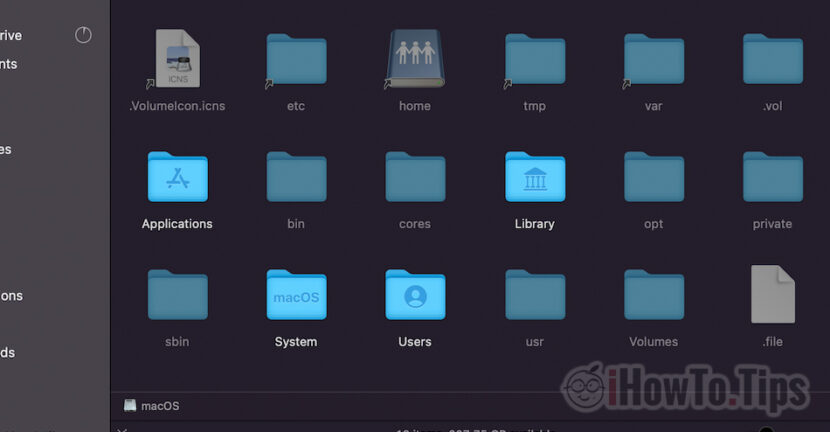

In the scenario in which you need to see the hidden files of Macos, the next tutorial offers you two simple ways by which you can make these files visible in Finder. Show hidden files on macOS.
Windows users have the freedom to access the operating system files through a simple navigation with File Explorer (eg Windows Explorer) in the system partition, then directly in the "Windows" folder in which all the directories, libraries and files that keep it in life and which help it function properly.
On Apple's maccos operating system, the same thing does not happen. The files, libraries and folders of the operating system or applications are not visible to the user. They are hidden at the simple navigation with Finder, precisely because there are few reasons why a Mac user would like to access them and even less to delete them.
When we browse in the Finder Macos, only the folders and files that really interest us are visible and which we can access without affecting the proper functioning of the operating system. Folders and files of system or macos applications are not visible in default (hidden files). These files are hidden, and in order to access them it takes small tricks.
Table of Contents
How we see the hidden files on Macos - Hidden Files
Metoda 1 – Show Hidden Files on Mac via Keyboard Shortcut
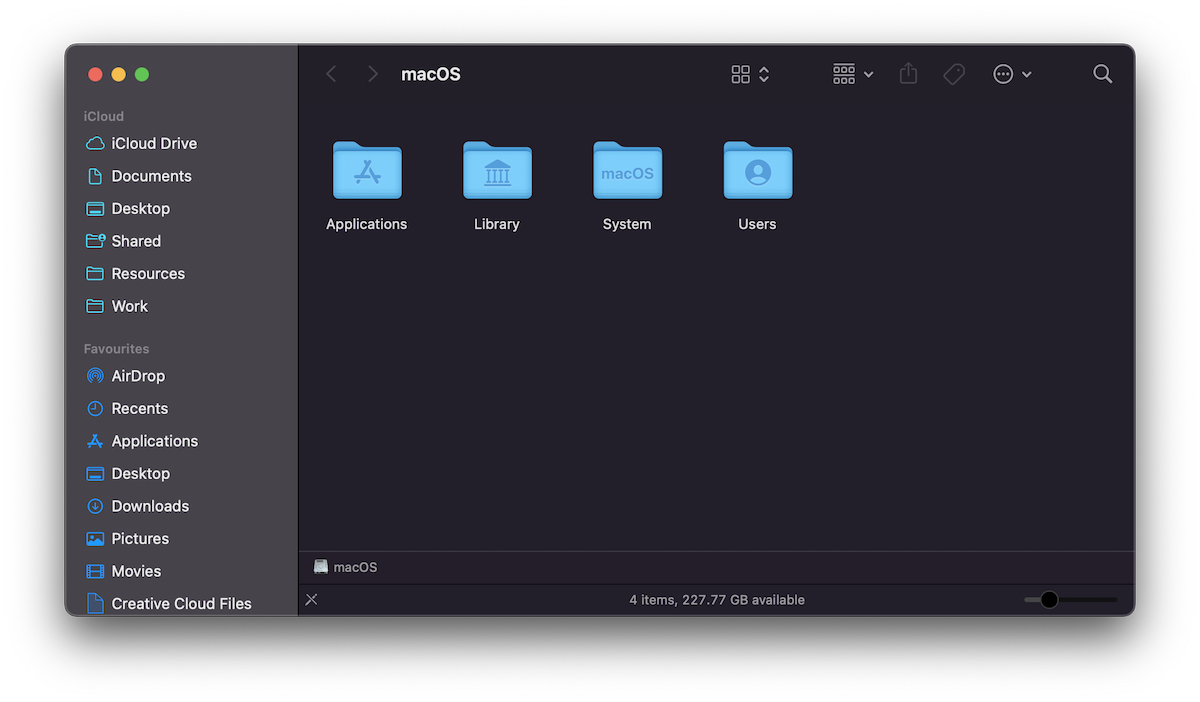
When we access the root partition a macos in Finder, the only visible folders are: Applications, Library, System and Users.
By the keyboard of keys (Keyboard shortcuts): Command + Shift + . (point), we will make visible folders and hidden files.
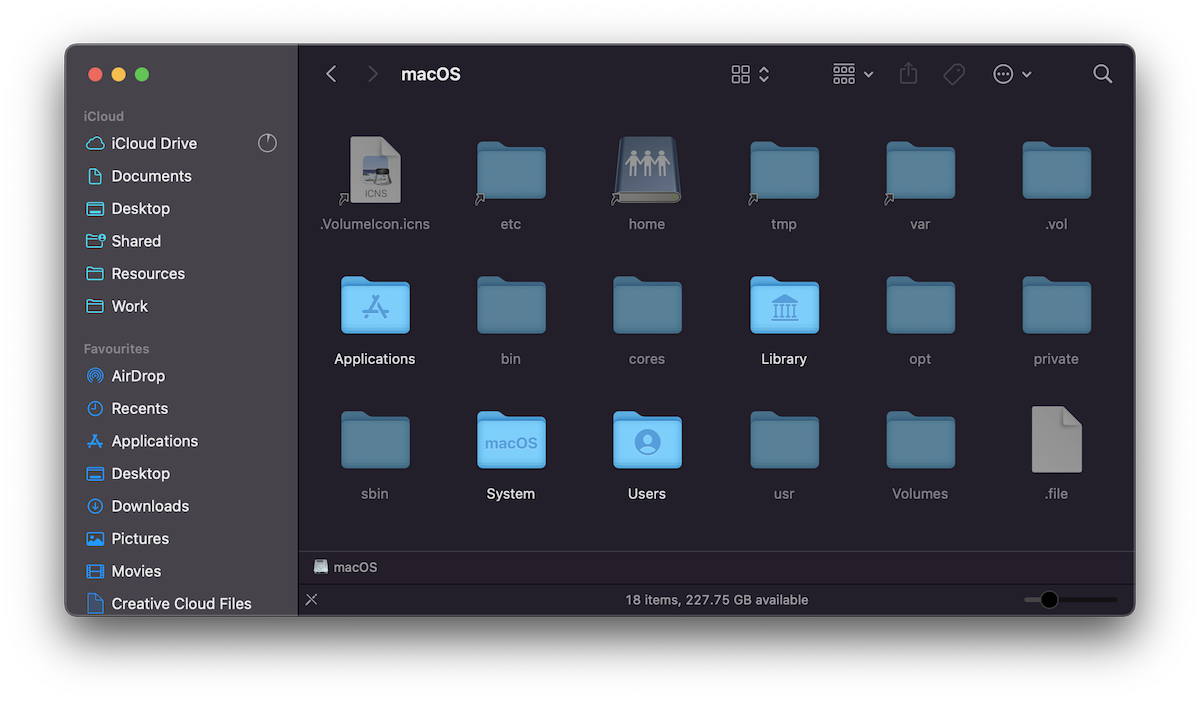
Metoda 2 - Show hidden files via linie of command in terminal
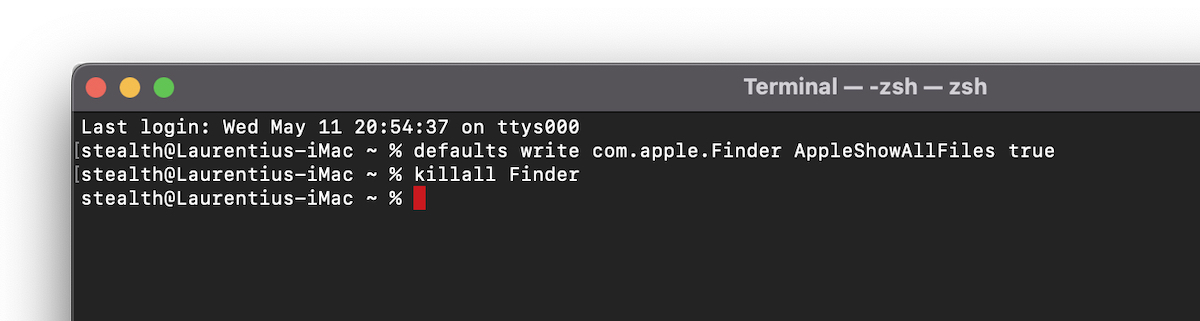
The second method by which we can make folders and hidden files to be visible on macos, is just as simple. Two command lines in the terminal.
We open the terminal and execute the following two command lines:
defaults write com.apple.Finder AppleShowAllFiles true
killall Finder
We press "return" after each order line.
In Finder will be visible and HIDDEN Files.
To make them invisible again, we change in the first order line ”true” cu “false“.
Compared to the first method, in the terminal we have more flexibility and we can choose to hide personal uses specific orders, such as chflags.
These are the simplest ways in which we can see Hidden Files on the macos. Remember that any change in system files can lead to macos rolling errors.




































