

It happens quite rarely to need to disable System Integrity Protection, as this Macos security component does not affect the running of applications or other Macos features and features. SIP is a system that helps prevent unauthorized changes in the operating system and its applications.
With other cities, SIP works by blocking access to certain critical files and folders of the system, as well as limiting the ability of unauthorized applications to modify or execute code. This helps to protect macos against malware and other types of cyber attacks.
How can you disable System Integrity Protection (SIP) on Mac (M and Intel)?
If you need to disable System Integrity Protection on an Intel processor or Apple M processor, this operation can only be done from "Recovery Mode", following the steps from the guide below:
1. Intel: Restore Mac and after the screen appears black, press and hold the keys: Command - R. You have to do this before the operating system loads after the restart.
1. Apple M: Close the Mac and wait 10 seconds, then press and press the start button for 10 seconds.
2. Select the Options icon (Options), then click on the Continuous (Continue) button.
3. In the screen that opens, go up to the bar to utilites (utilities) and open terminal.
4. Execute in the terminal the command below:
csrutil disableYou will need to enter the MAC user password and type ”y"To confirm that you want to disable System Integrity Protection.
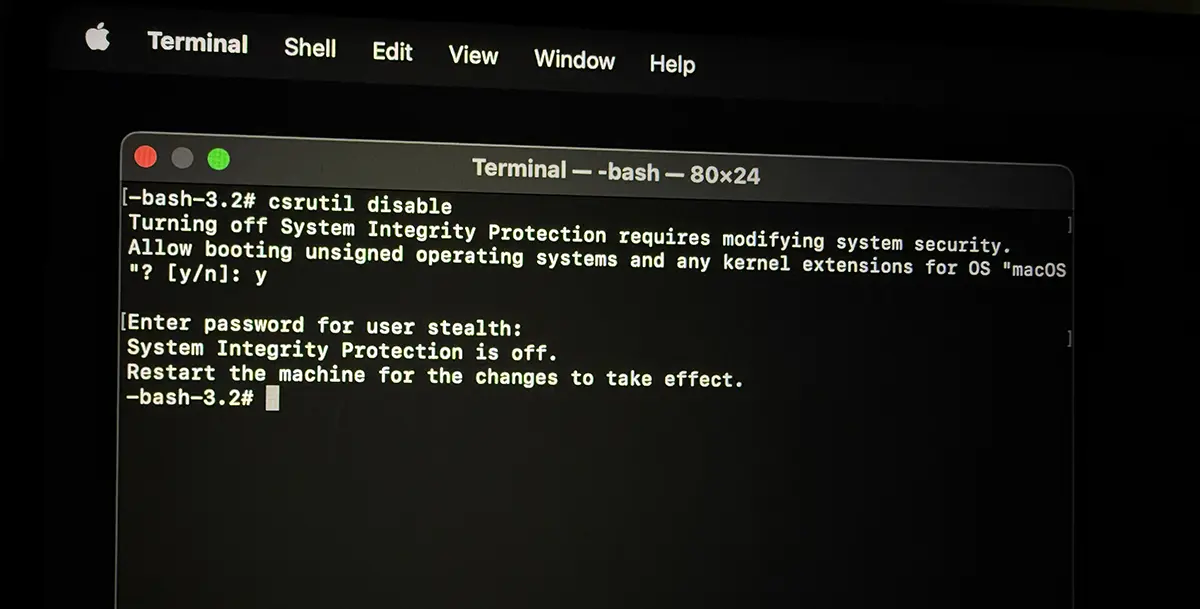
5. Reboot Mac.
System Integrity Protection is disabled, but it is very important that this protection is reactivated as soon as possible to maintain Security and the integrity of the maccos operating system.




































