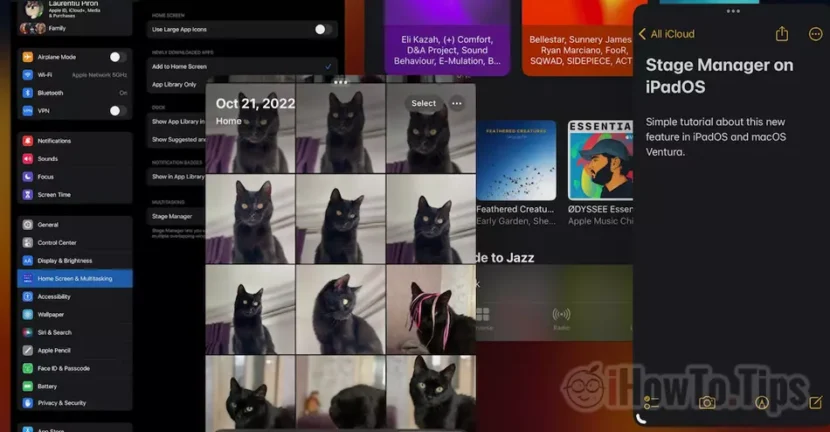

Stage Manager is one of the new Multitasking features entered by Apple on operating systems Ipados and macOS. Before you find out what it is and how you work with Stage Manager on Mac and iPad, the operating systems must be updated to the new versions. Ipados 16 If Macos Ventura (13.0).
Table of Contents
This Este Stage Manager?
This feature helps a new organization of open applications and windows, giving the user better concentration on productivity. Multitasking.
From personal experience so far with Stage Manager, I can say that I do not see Macos useful at all, but maybe it's common. On the iPad, however, it is very useful if used with a few tricks.
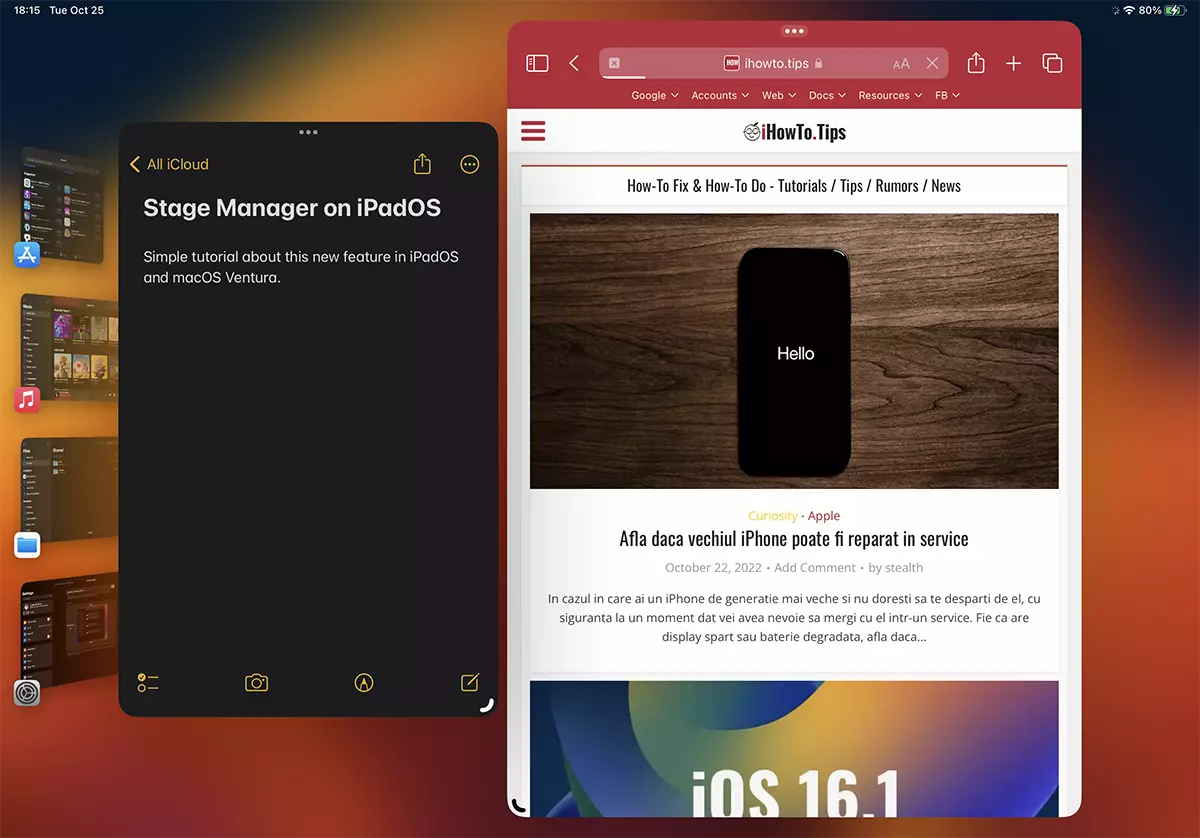
As can be seen in the image above, Stage Manager It allows the opening of several applications whose shortcuts are kept on a left bar so that the user can access them faster. In addition, the windows of active applications can be resized according to the user's needs.
How do you work with Stage Manager on Mac and iPad
First of all, Stage Manager must be activated. Both on Mac and iPad, activation can be done from Control Center or from the settings Desktop & Dock (Mac) and Home Screen & Multitasking (iPad).
How do you activate Stage Manager on Mac
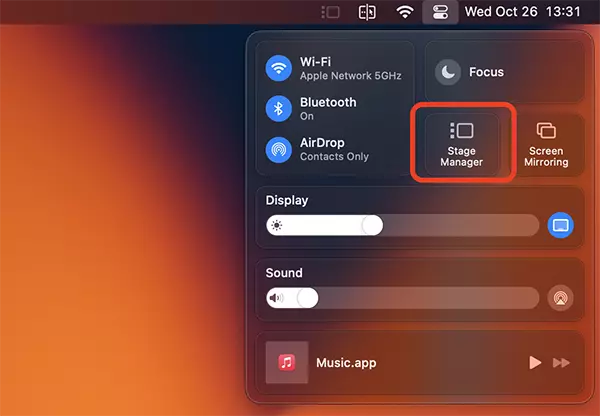
The most handy is from Menu Bar → Control Center, click on the Stage Manager icon.
The feature can be activated from System Settings → Dekstop & Docks → Stage Manager.
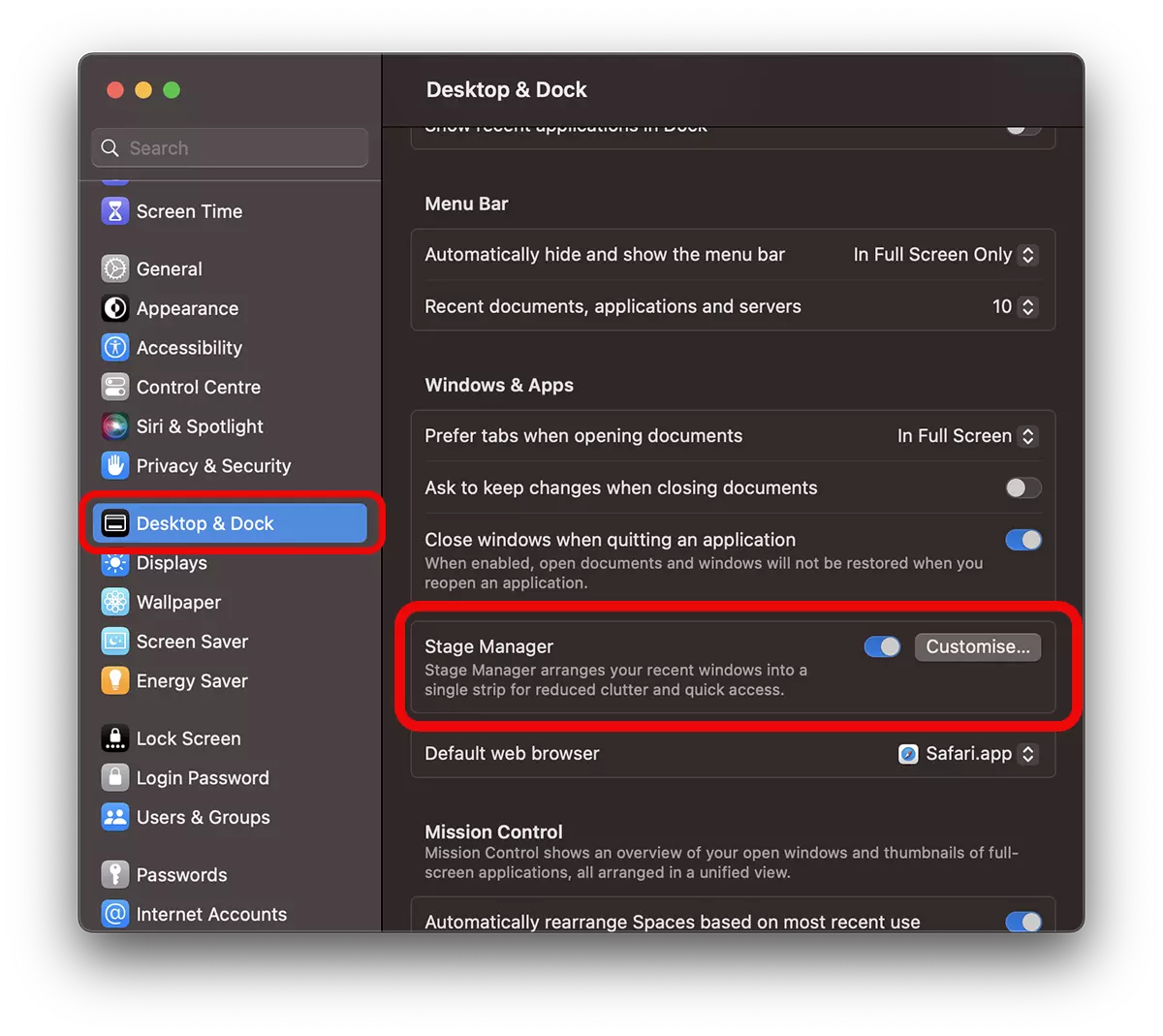
Here we have some customization options.
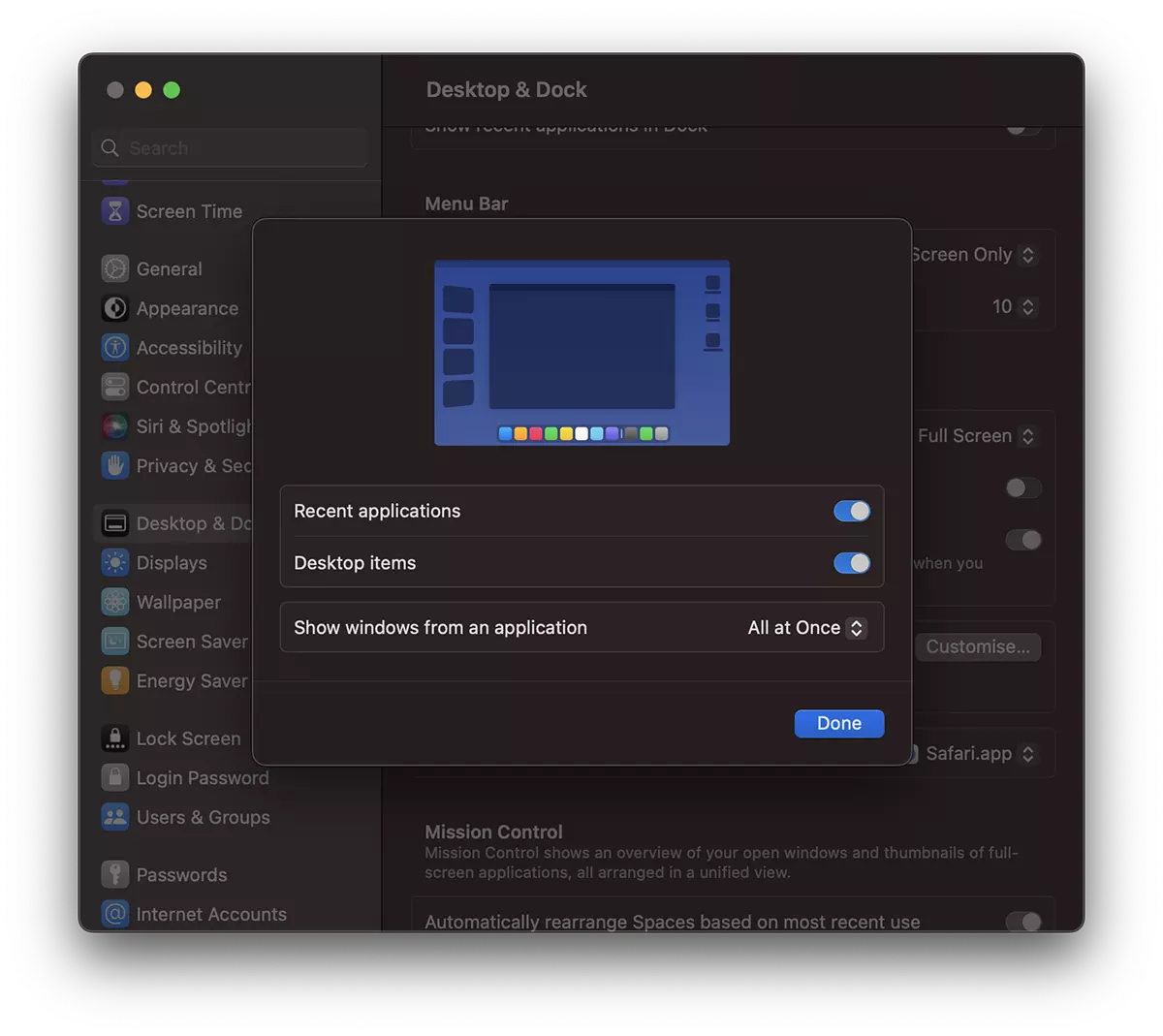
We can choose whether the applications recently open to appear or not in the left side and as well as for the files on the desktop.
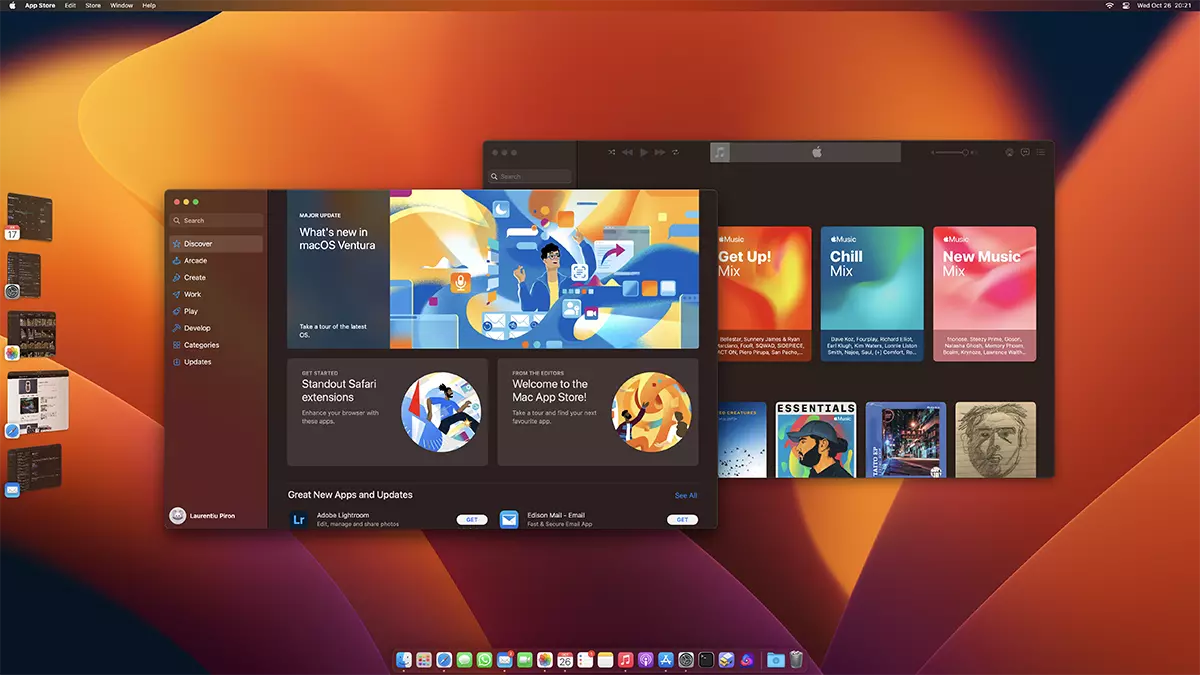
Next, in the left bar we will have recently opened applications, so during a work process we will have access to the applications used.
Not all applications remain in Stage Manager. For example, if we want to eliminate an application from Stage Manager, but we do not want to close it with everything, with Command + H (Hide) We can hide it. It will remain open and we can access it anytime from Dock.
How do you activate Stage Manager on iPad
Next you will see how you work with Stage Manager on the iPad.
If, as I said above, Macos does not see much usefulness, IPAD is a very useful option when we are in productivity.
We are no longer dependent on Dock, we have the opportunity to maintain the applications used in productivity and allows the opening of more applications on the screen.
Activating Stage Manager on iPad can be Daca from Control Center (as well as Macos) or from Settings → Home Screen & Multitasking → Stage Manager → Use Stage Manager on iPad.
After activation, the user has the opportunity to choose whether or not he wants to be recent and / or dock applications.
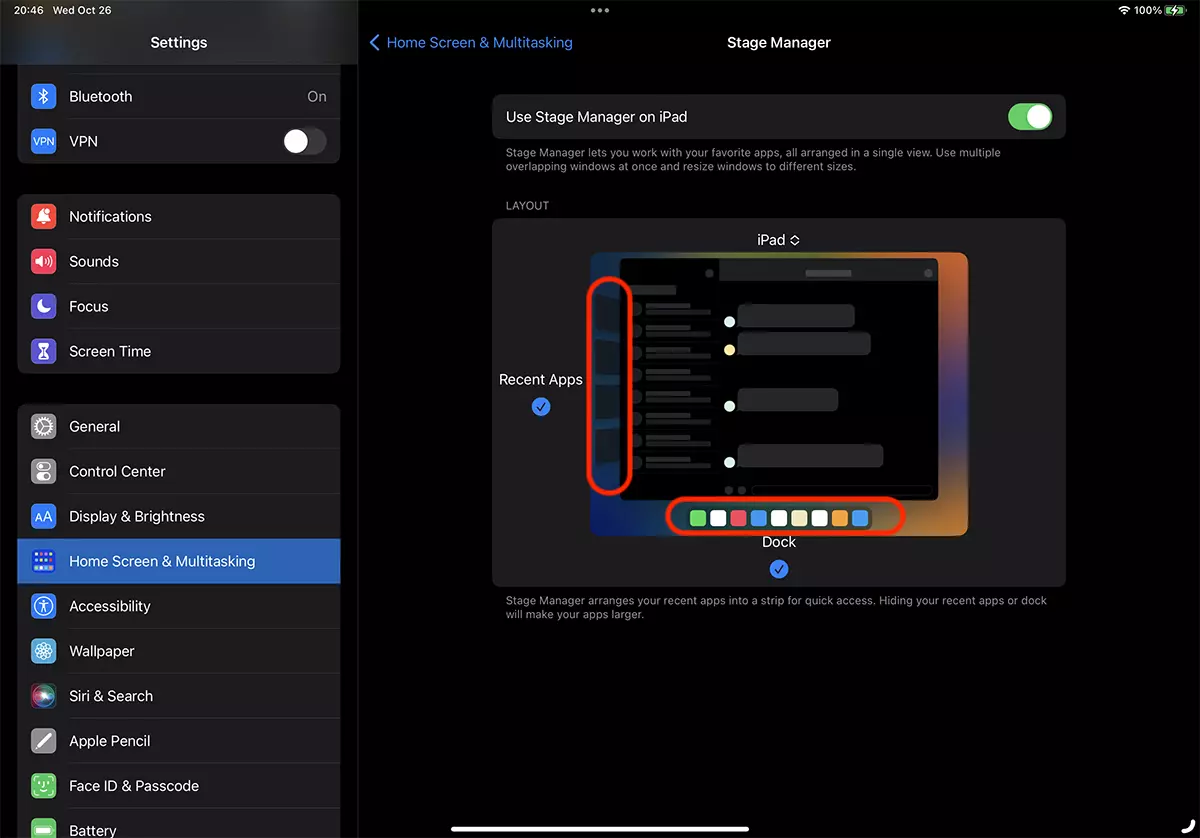
For iPad it is a very useful feature, offering quick access to applications that matter in productivity.
How do you work with Stage Manager on iPad
After activating the feature, the applications that will be opened remain in the Stage Manager in the left side (if you chose the option "Recent Apps") With the recent application on the screen. The windows of the active applications can be resized, pulling the bottom right corner of the window or can be passed in full screen, using the option in the menu that appears at the three points “…” at the top of the window.
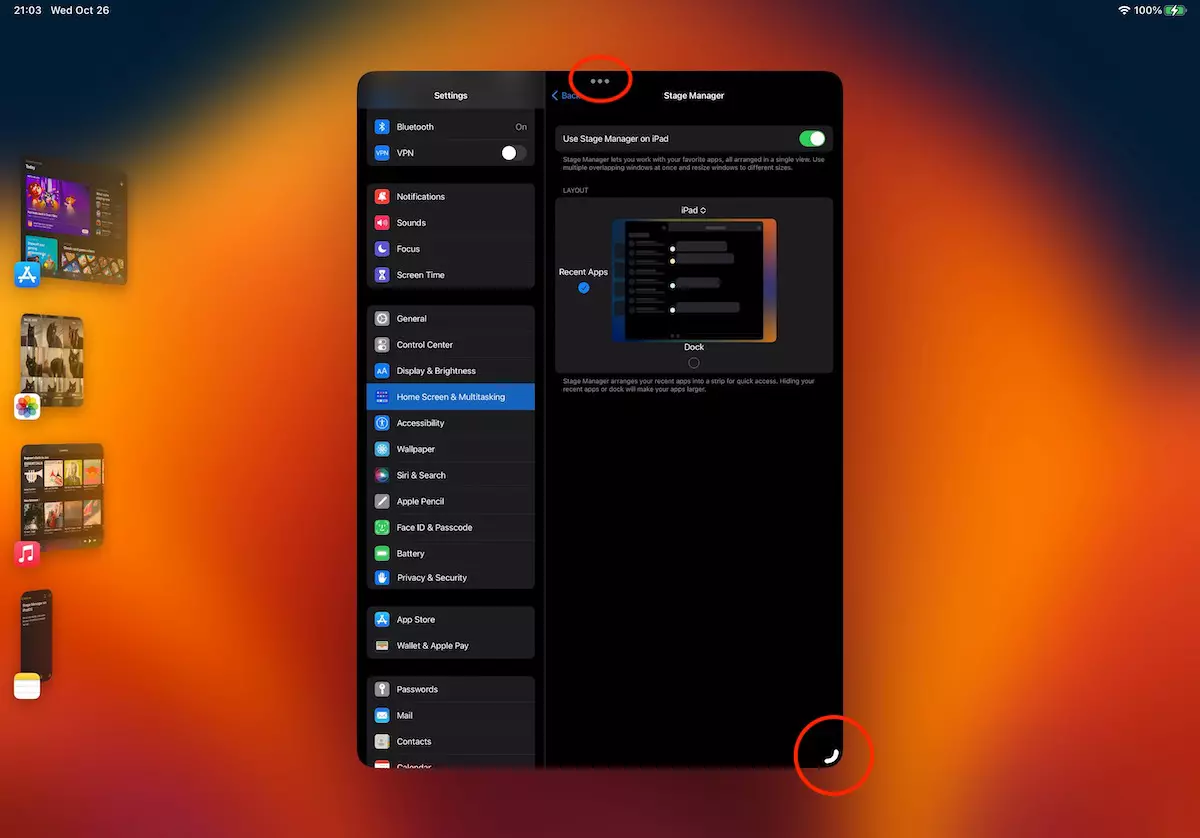
Also from the window menu we can add more applications on the screen. With the option ”Add Another Window“.
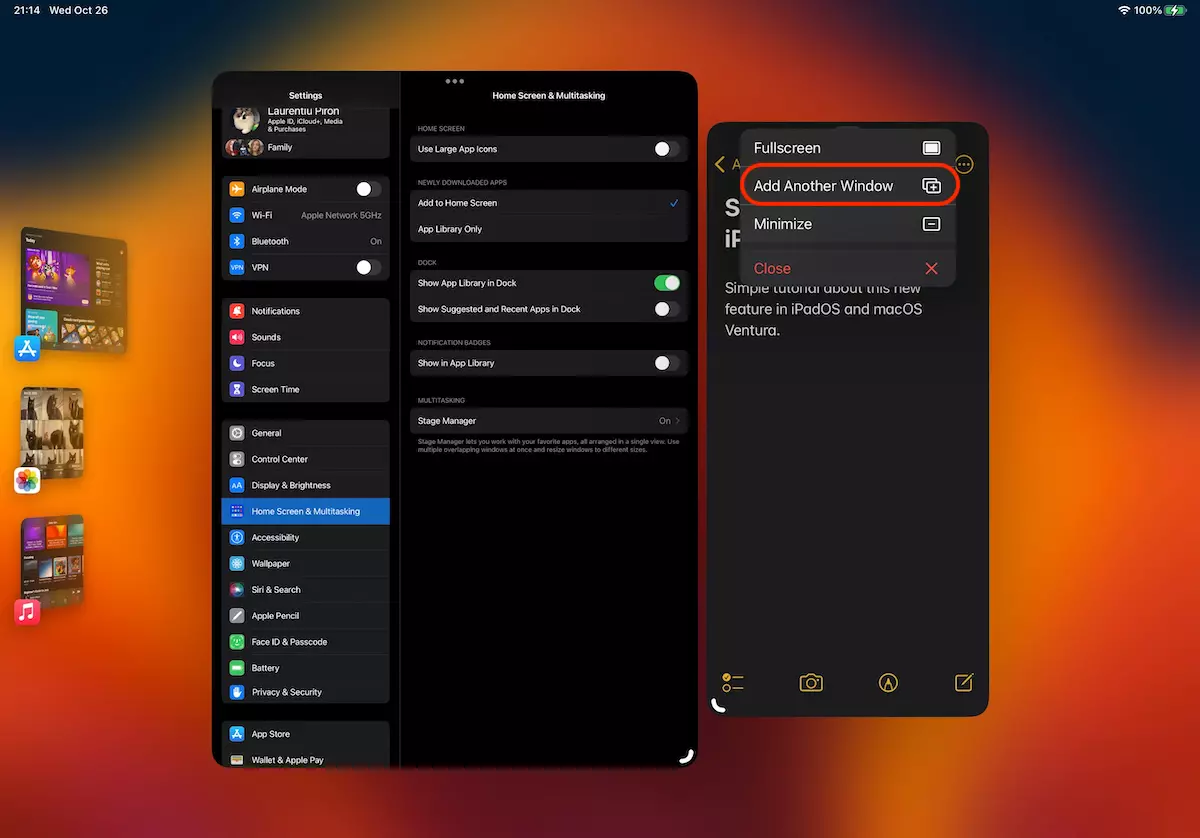
On an iPad Pro 11-inch I could not keep more than four applications simultaneously, but it is sufficient for productivity.
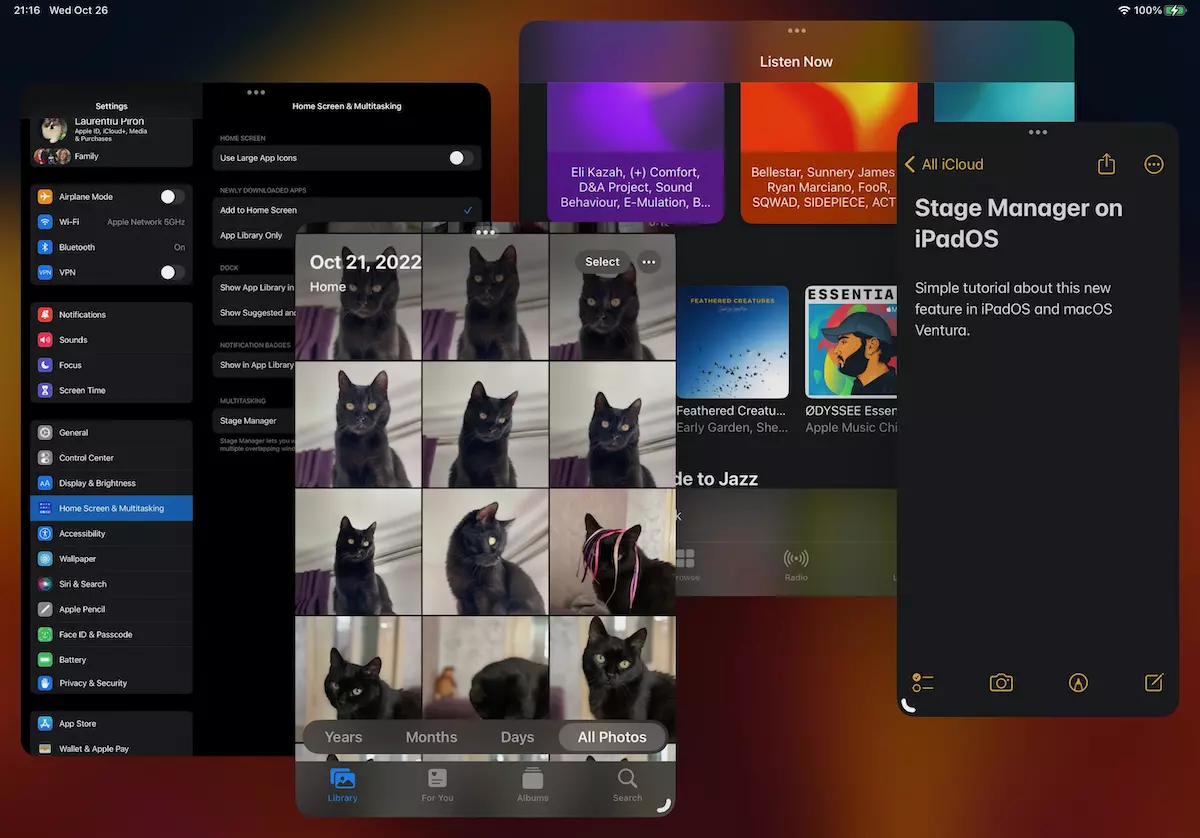
Stage Manager permite drag & drop of files between applications. For example, you can draw files from Files in Notes If the two applications are open on the iPad screen. Pueteti draw pictures from the application Photos in a editing application or document from Files In an e-mail message you compose.
How you work with Stage Manager on iPad I think it depends a lot on the activities of each. I see a very useful feature for office, graphic or even entertainment applications.




































