
On Macos Ventura is an adventure to find certain System options and settings, and to see how you set after the MacBook to enter Sleep Mode when we didn't work on it, it could be a challenge.
Apple wants to be no big differences, at least the interface, between maccos, iPados and iOS, and these decision is best observed on the new macOS Ventura in which System Preferences has been changed with System Settings.
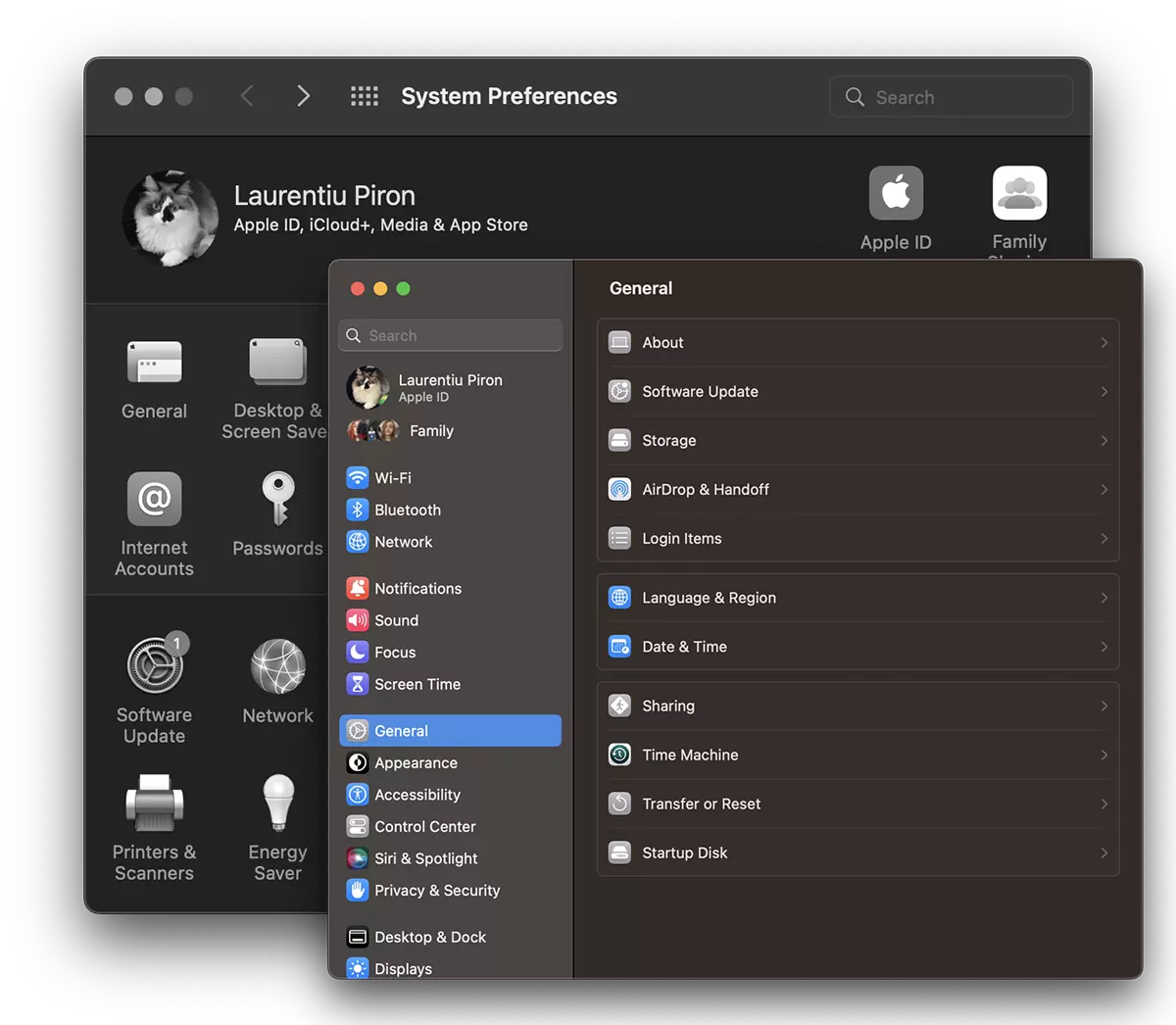
With this change, the positions of options and system settings have changed, while others disappeared from the new System Settings from macos. Including the option by which I could determine that when the display is closed, Mac or Macbook will enter Sleep Mode.
Until Macos Ventura, the option sounds in the opposite direction. “Prevent computer from sleeping automatically when the display is off”. That means practically on Ventura macOS, MacBook or Mac will enter Sleep Mode automatically, as soon as the display is closed.
Table of Contents
How do you set up after how long MacBook to enter Sleep Mode on Macos Ventura
1. Go to logo Apple from the top left and open System Settings.
2. In System Settings GoTo Lock Screen and set the time interval for “Turn display off when inactive.“.
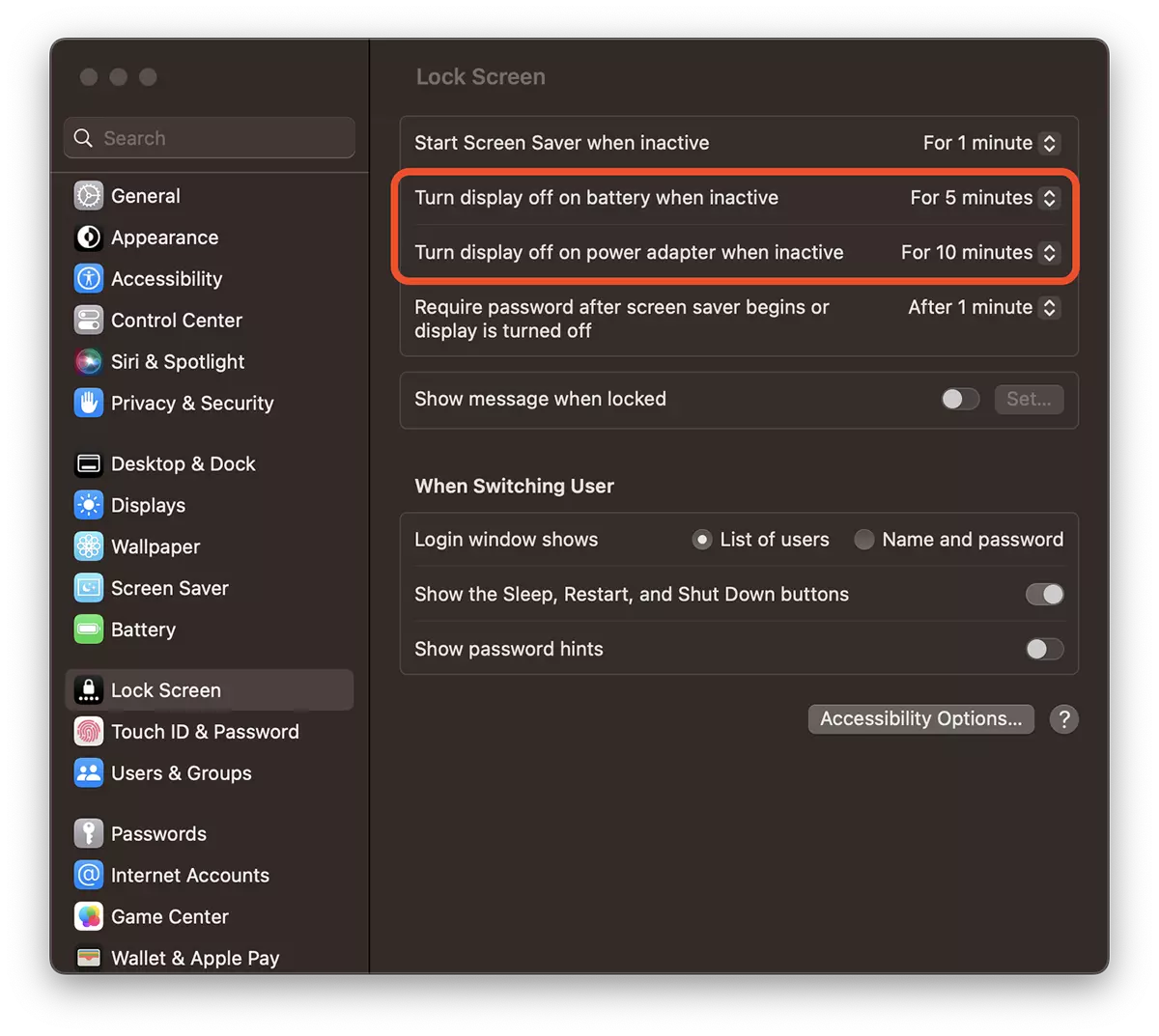
On the MacBook are available the display options display depending on the condition of the power supply. Battery or adapter.
After the display closes, MacBook will automatically enter Sleep Mode.
The conclusion is "How to set after the MacBook to enter Sleep Mode", depends on the time set for closing the display after a time when there is no activity at MacBook. No key is operated, not touched magic mouse or trackpad.
How do you prevent the entrance to the Sleep Mode of MacBook even if the display is closed
If you do not want MacBook to enter the Sleep Mode when the screen is closed and some tasks are not interrupted, then you can disable the entry into Sleep mode.
1. In System Settings → Display → Advanced.
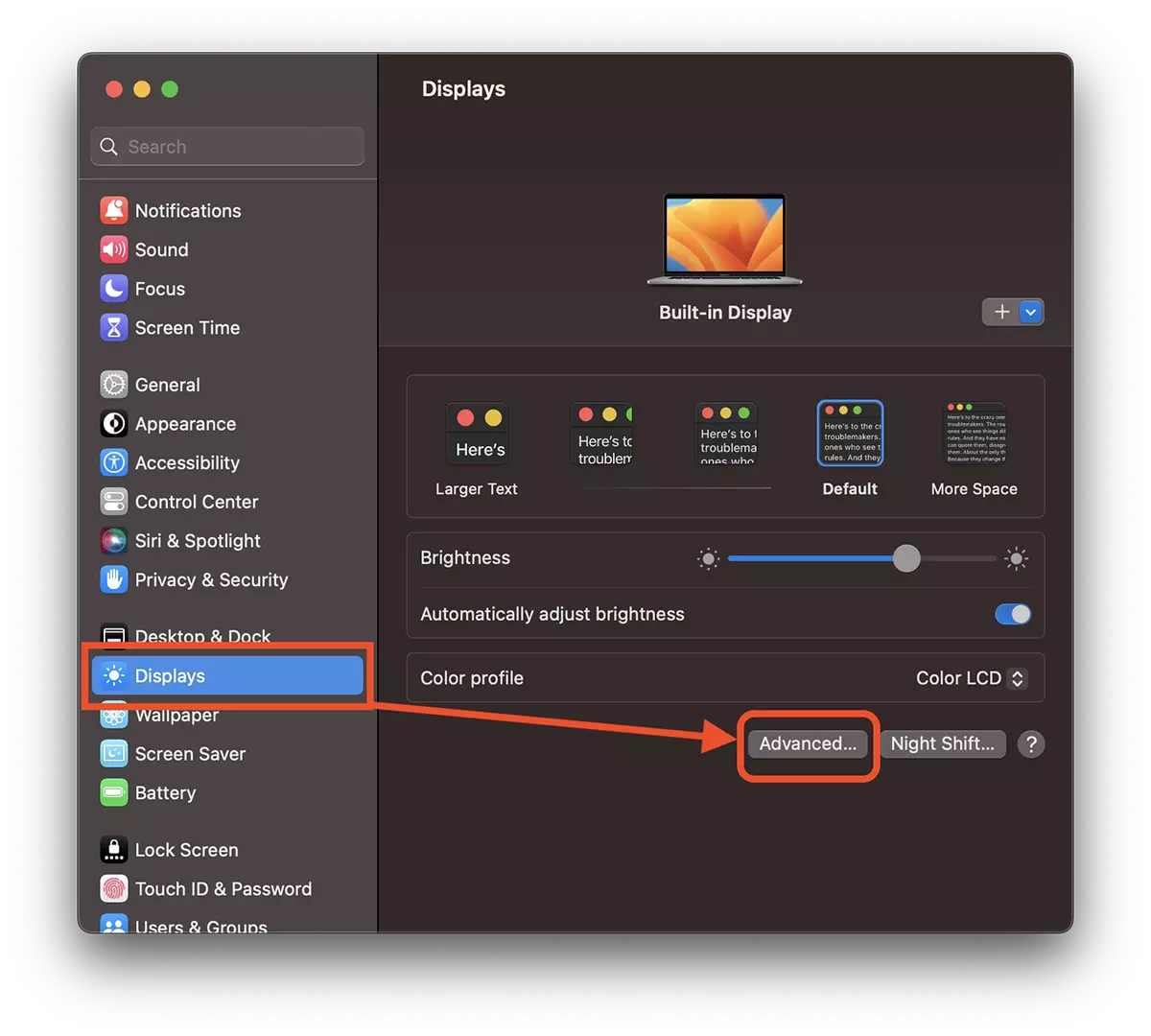
2. Activate the option “Prevent automatic sleeping on power adapter when the display is off”.
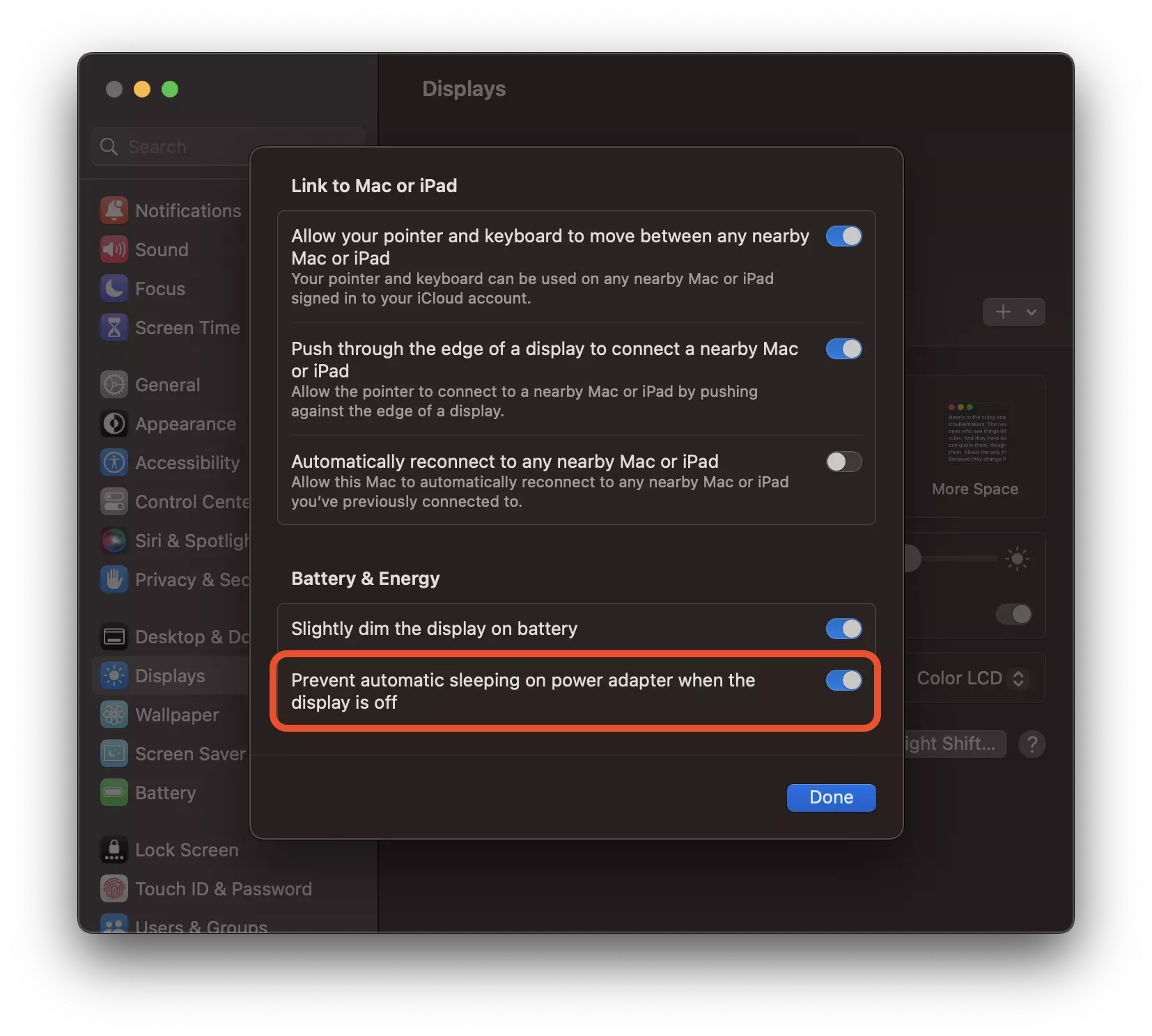
MacBook will no longer enter Sleep Mode if the display is closed when connected to a power supply.




































