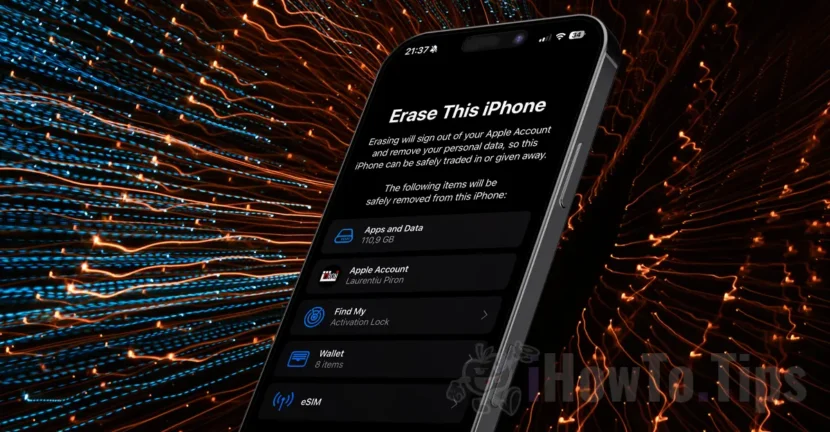

If you want to give up your old iPhone and sell it or give it to another person, a simple reset of the device is not enough. Before giving it to another person, you need to delete the iPhone from the Apple account, in order to be used by it. In the tutorial below you will see step by step, how you can delete all the data from the iPhone and remove it from your Apple account before selling it.
First of all, before deleting all the data on the iPhone, make sure they are saved in your iCloud account or have a recent backup of your device.
Table of Contents
How do you make a complete backup in iCloud of the iPhone data?
Follow the steps below to make a complete backup in iCloud of the iPhone data:
1. Open the Settings application, then press your Apple account from the top (where the account name and profile picture appears).
2. Click on "iCloud", then go to "iCloud backup".
3. In the "iCloud backup" options make sure that backup is activated for your device, then press on the "back up now" option.
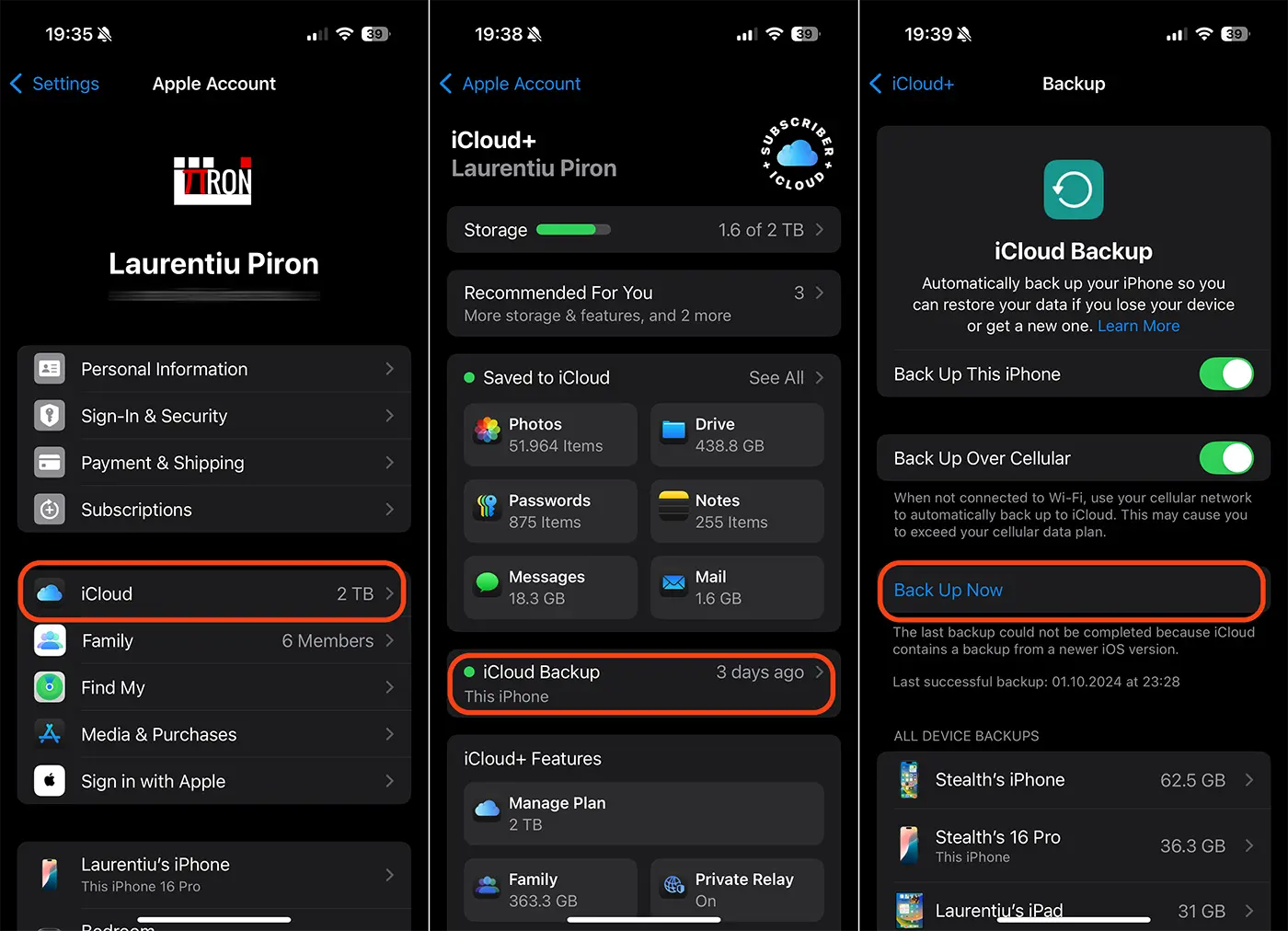
You will need to wait a while until the backup process is completed. Depending on the volume of data on the device, it could take several tens of minutes. It is also recommended that the device be connected to a Wi-Fi network to increase the data upload speed and to avoid any costs if you do not have an unlimited mobile internet subscription.
It is very important to know that if you have saved the pictures, contacts, calendar, notes or files in iCloud, you should not hand them manually. Their manual deletion will be done even from your iCloud account and from other devices you have synchronized to your Apple account.
Pe lângă backup-ul complet al dispozitivului, asigură-te că aplicațiile Photos, Notes, Contacts, Calendar și altele, au activată sincronizarea în iCloud și că aceasta este finalizată. Verifică acest lucru la: aplicația Setări (Settings) > contul tău Apple > iCloud > “Saved to iCloud”.
It disables the security functions "Stolen Device Protection" and "Find My"
The stolen device protection is a security feature implemented by Apple to make your iPhone more difficult to use if lost or stolen. This function, once activated, makes the device practically useless for a person who does not have access to your iCloud account and the associated password.
If you have activated this security feature, you must disable it before deleting the iPhone from your Apple account. It is very possible that you need to wait an hour until this feature will disable. You also have to disable the localization function "Find My".
Cancel the Apple Watch association with the iPhone device
If you have an Apple Watch associated with the iPhone device you want to offer to another person, it is advisable to cancel the association with it. To cancel the association between Apple Watch and iPhone, follow the tutorial below:
After you have a complete backup of the data on your device and canceled the association with Apple Watch, you can remove the iPhone from your Apple account. During this process all the data on the device will delete and it will be connected to another Apple account, of the future owner.
How do you delete iPhone from your Apple account before you sell it
To delete the iPhone from your Apple account before you sell it to give it to another person, you must follow the steps below:
1. Deschide aplicația Setări pe iPhone, apoi mergi la setările generale. “Settings > General”.
2. At the list of general settings, go partly and press "Transfer or reset iPhone".
3. Press on the erase option of content and settings. "Erase All Content and Settings".
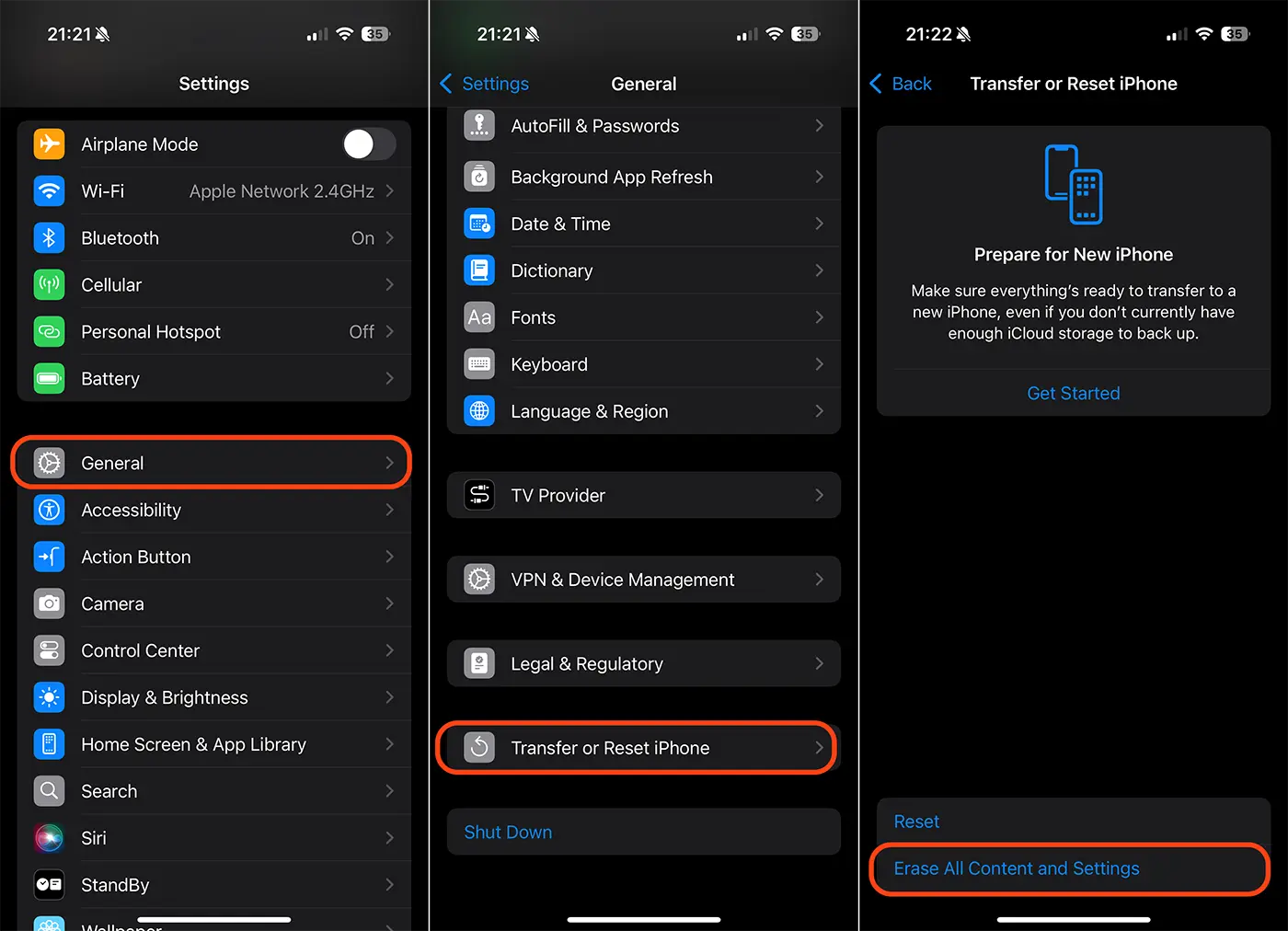
4. Further, the Apple's account authenticated device and password will be required.
After this step, you managed to delete the iPhone from your Apple account. All applications and data saved on the device, your Apple account, bank cards saved in the Wallet app or in other applications, the ESIM profile of the mobile operator will also be deleted.




































