

Fix powerd 100% CPU usage is an anomaly encountered during this period on operating systems macOS Ventura. Excessive CPU resources consumption of process powerd face MacBook / Mac unusually noisy. It is also understandable. The excessive CPU consumption leads to the heating of the processor and the ventilation system is trying to cool it. Fortunately There is also a solution for to solve this excessive CPU consumption of the process powerd.
Table of Contents
Why do PowerD consume 100% - 105% CPU
The problem comes from a feature added by Apple for the mail application on Ventura macOS, iOS 16 and Ipados 16. The new feature of the mail application allows users to schedule the time and date on which an email message is automatically shipped. This operation is possible through a programmed task.
% pmset -g sched
Scheduled power events:
 [0]  wake at 04/12/62 02:47:16 by 'com.apple.alarm.user-visible-com.apple.email.SendLaterDelivery' User visible: true
 [1]  wake at 04/12/62 02:47:16 by 'com.apple.alarm.user-visible-com.apple.email.SendLaterDelivery' User visible: true
 [2]  wake at 04/12/62 02:47:16 by 'com.apple.alarm.user-visible-com.apple.email.SendLaterDelivery' User visible: true
The power system will try to prevent the entrance to Sleep to execute the scheduled task, but things take a little crazy and enter into an endless loop in which the powerd process is used for a long time. Normally PowerD should consume 0.1% CPU, but it reaches 104% - 105% CPU.
% pmset -g assertions
2022-08-07 11:07:05 +0300
Assertion status system-wide:
   BackgroundTask                 0
   ApplePushServiceTask           0
   UserIsActive                   1
   PreventUserIdleDisplaySleep    0
   PreventSystemSleep             0
   ExternalMedia                  0
   PreventUserIdleSystemSleep     1
   NetworkClientActive            0
   InternalPreventSleep           1
....
   pid 115(powerd): [0x000002bf000d90a5] 00:00:00 InternalPreventSleep named: "com.apple.powermanagement.wakeschedule"
	Timeout will fire in 5 secs Action=TimeoutActionRelease
   pid 115(powerd): [0x000002bf000d90a6] 00:00:00 InternalPreventSleep named: "com.apple.powermanagement.wakeschedule"
	Timeout will fire in 5 secs Action=TimeoutActionRelease
   pid 115(powerd): [0x000002bf000d90a7] 00:00:00 InternalPreventSleep named: "com.apple.powermanagement.wakeschedule"
	Timeout will fire in 5 secs Action=TimeoutActionRelease
   pid 115(powerd): [0x000002bf000d90a8] 00:00:00 InternalPreventSleep named: "com.apple.powermanagement.wakeschedule"
	Timeout will fire in 5 secs Action=TimeoutActionRelease
   pid 115(powerd): [0x000002bf000d90a9] 00:00:00 InternalPreventSleep named: "com.apple.powermanagement.wakeschedule"
	Timeout will fire in 5 secs Action=TimeoutActionRelease
   pid 115(powerd): [0x000002bf000d90aa] 00:00:00 InternalPreventSleep named: "com.apple.powermanagement.wakeschedule"
	Timeout will fire in 5 secs Action=TimeoutActionRelease
   pid 115(powerd): [0x000002bf000d90ab] 00:00:00 InternalPreventSleep named: "com.apple.powermanagement.wakeschedule"
	Timeout will fire in 5 secs Action=TimeoutActionRelease
   pid 115(powerd): [0x000002bf000d90ac] 00:00:00 InternalPreventSleep named: "com.apple.powermanagement.wakeschedule"
	Timeout will fire in 5 secs Action=TimeoutActionRelease
   pid 115(powerd): [0x000002bf000d90ad] 00:00:00 InternalPreventSleep named: "com.apple.powermanagement.wakeschedule"
	Timeout will fire in 5 secs Action=TimeoutActionRelease
....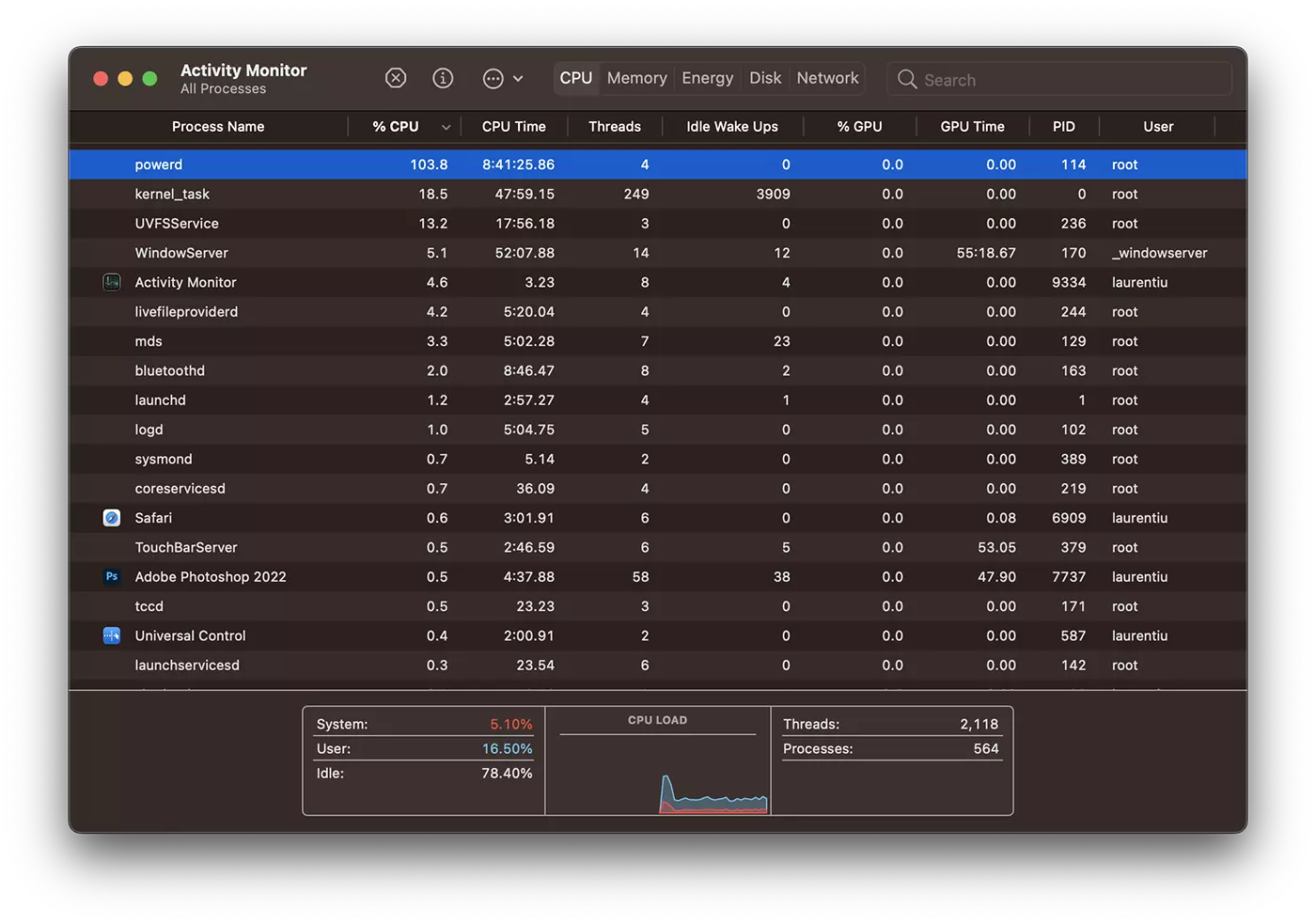
Definitely requires a fix powerd 100% CPU, because it can not be worked on a MacBook, and excessive heating we know that it also leads to battery degradation. t85o381l4ur3n71u
How to fix powerd 100% CPU - MacOS Ventura
The simplest solution is to stop all the programmed power tasks. We execute the command line in the terminal:
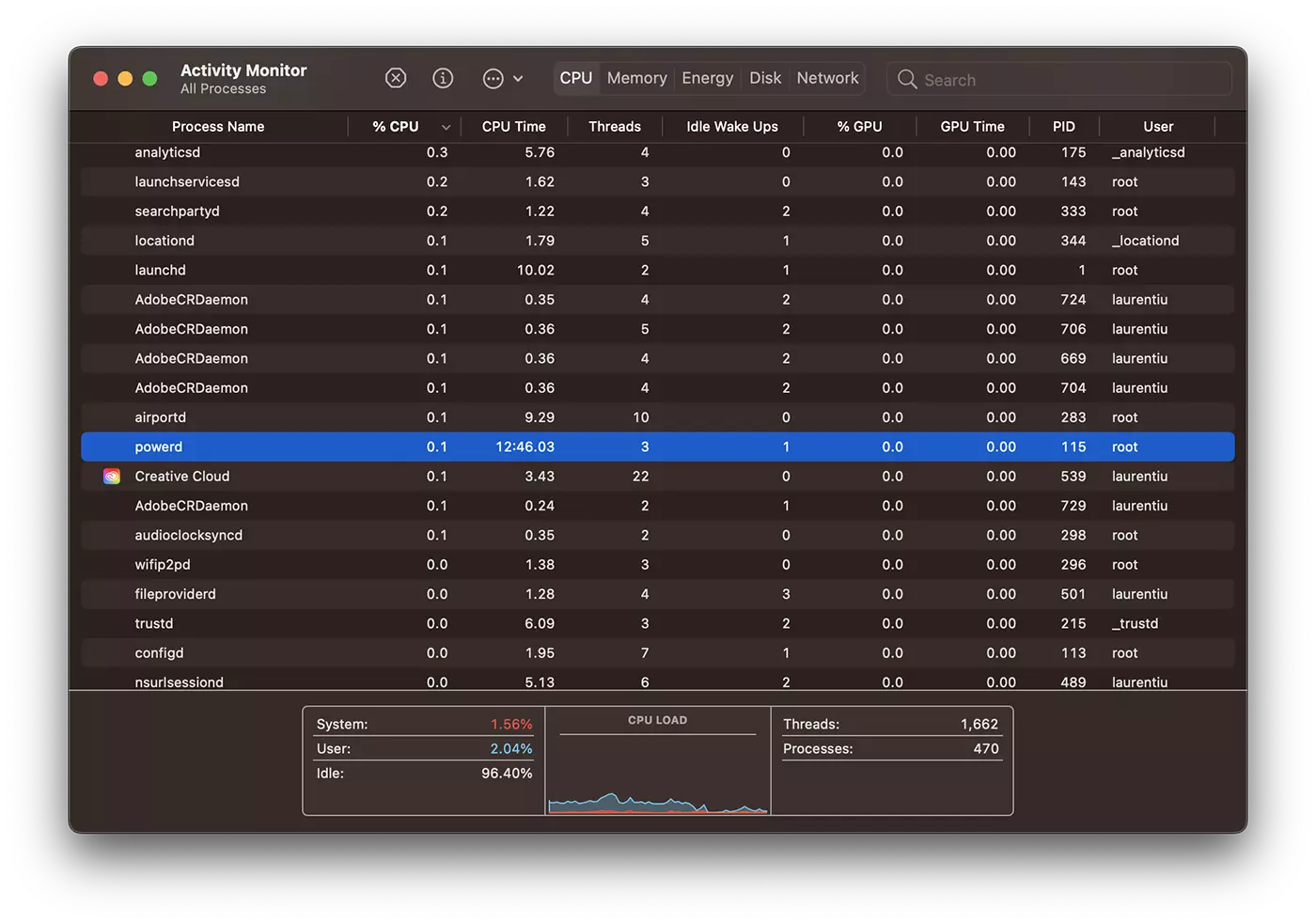
sudo pmset schedule cancelallAfter the order is executed, powerd It will decrease instantly to 0.1% CPU and Mac ventiloers will no longer make noise.
Most likely Apple will solve this problem in a future update of Macos Ventura Beta.
So you don't need tutorials like “How to fix powerd 100% CPU” I do not recommend installing beta versions except on devices that are not intended for productivity.
In my case this problem of the PowerD process appeared after I used the feature Send Later on iOS 16. The synchronization between devices took over the task on MacBook.





































Thank you kind people) And I already changed thermal grease that the Culler was not cut down for the garbage. One nucleus was 100% loaded because of this one core and the rest of the norms overheated and the Culler was turned on to the maximum (
I had exactly this problem. You could see how the battery collapsed. 1% down almost every minute. I was very worried because I couldn't carry out my work with the customer.
I entered the command line in the terminal, then the system password and lo and behold - the process shut down immediately and within 30 seconds the fan followed and the Macbook was quiet and smooth as usual again.
Thank you, thank you, thank you for this great tip.
It's wonderful that there are people like you who make their knowledge and experiences available here for free. you are great!