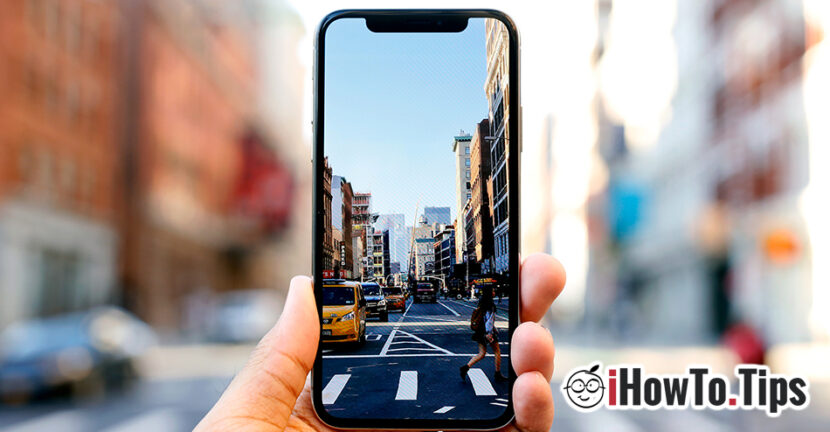

On any device iPhone, access to the application Room the IOS It is made very quickly through different ways. The camera can be opened with a simple right to left swipe on the lock screen (Lock Screen), from Notification Center or directly from the icon of the application on Home Screen.
In the camera application we have several ways of catching (including video): TIME-LAPSE, SLOW MO, VIDEOS, PHOTO, PORTRAIT, SQUARE and PANO. To these ways add the "selfie" of the front camera, Live Photo and filters and other settings specific to the modified modes.
We often have a favorite way we use frequently. Those who are passionate about selfie, obviously use the way for the front camera with the desired visual effects. Those who have a pet at home, when opening the camera application want it to automatically open on video or phototo mode.
In the default (predetermined) settings, the camera opens in Photo mode, without filters or other specific settings.
For iPhone owners who frequently use certain modes and filters for capture, the "Preserve Settings" option is helpful. In "Preserve Settings", the iPhone owners have the opportunity to set the camera application "remember" the latest photo, effects, flash and live phototic settings. This option is available Settings → Room → Preserve Settings.
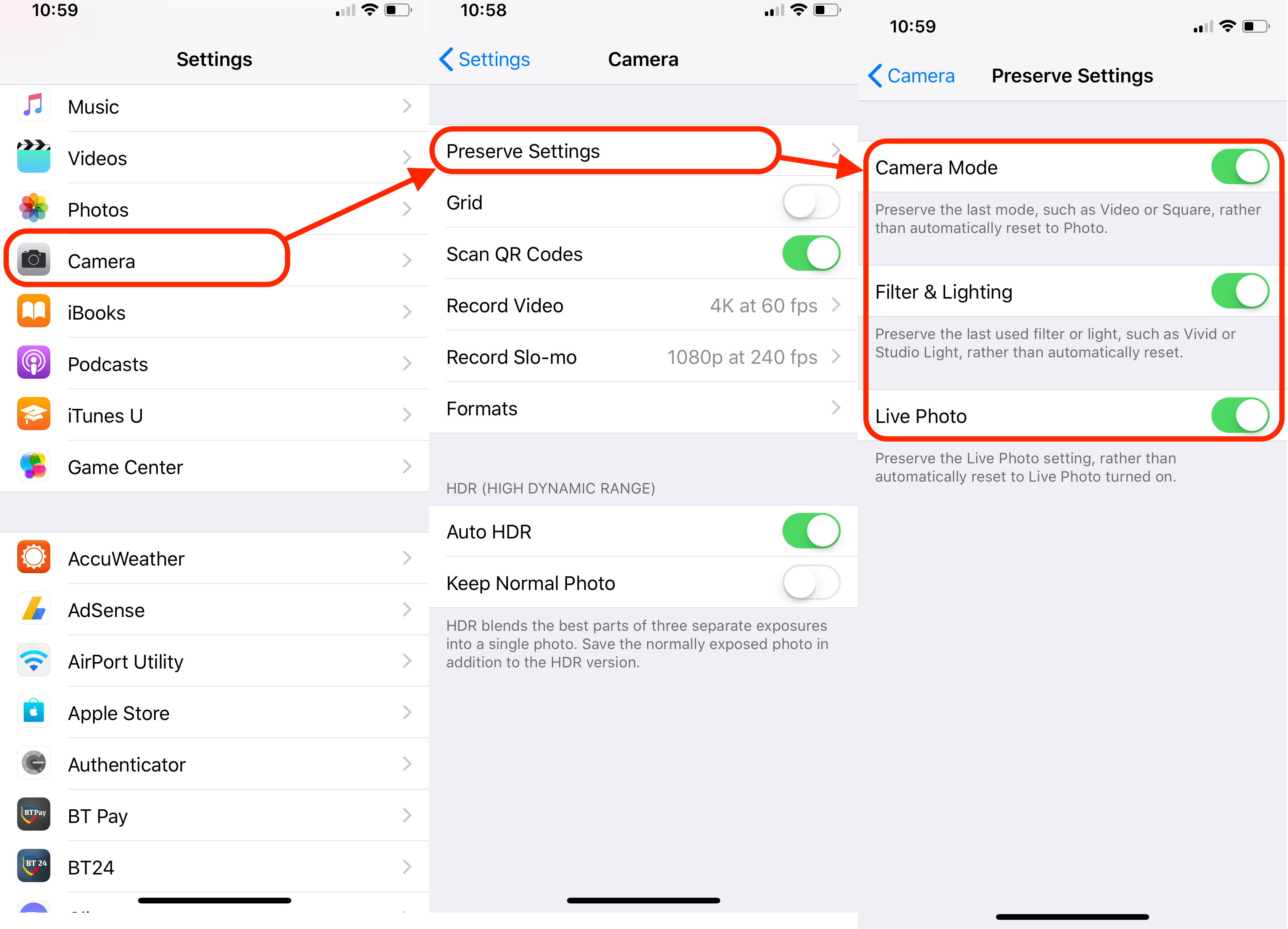
From "Preserve Settings"You can activate:
- Camera Mode - The application will keep in mind the last used way and will use it when opening the room. Video, Sqre, Photo, etc…
- Filter & Lighting – tine minte filtrele si modul flash de la cea mai recenta utilizare a aplicatiei Camera
- Live Photo - remember whether or not Live Photo has been activated.
By sliding the button on the green, the settings will become active, and the camera application will remember your options.