
Like all devices in the Apple ecosystem, synchronization options between Homepod smart speakers and iPhone devices are very simple. By the simple approach of the HomePod iPhone device you can transfer the audio content. However, if you have a homepod speaker on the bedside table and the iPhone, it is good to turn off the music transfer between iPhone and Homepod.
If you do not need this audio transfer feature on the iPhone on Homepod, you can deactivate this option by following the steps in the guide below.
How do you disable music transfer between iPhone and homepod when devices are close
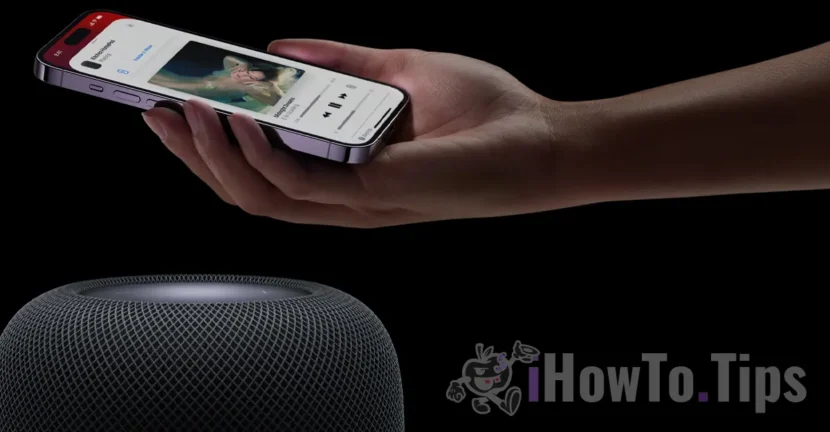
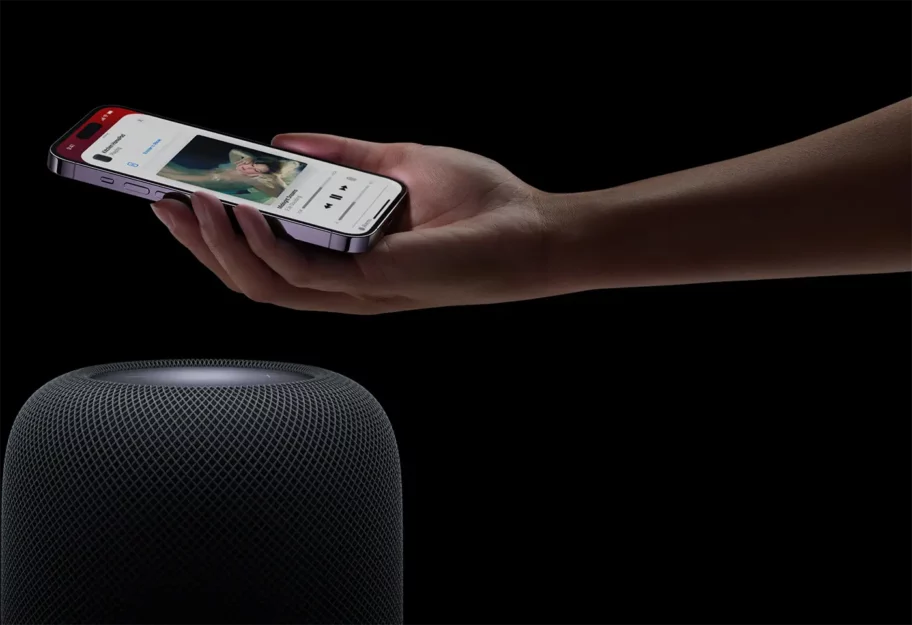
"Transfer to HomePod"Or the transfer of audio content between iPhone and Homepod is done by airplay technology. Thus, when you start music or a podcast on the iPhone and approach the device with a homepod speaker, audio content will be automatically rendered on it. Also, the transfer of audio content is done in the opposite direction, from HomePod to the iPhone, by the simple approach of the IPhone.
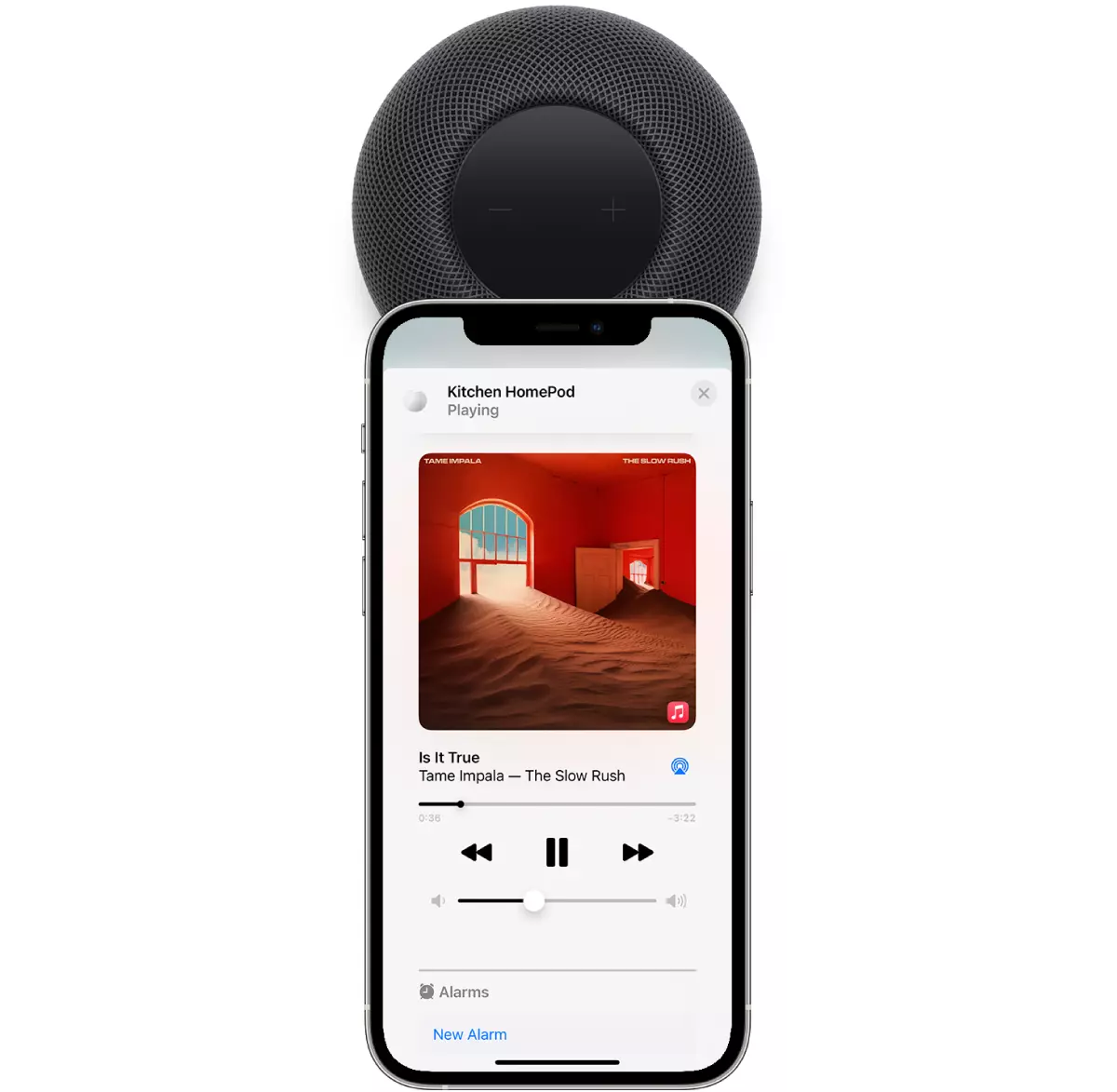
If you do not want to disable the automatic audio content transfer between iPhone and Homepod when the two devices are close, all you have to do is go to the iOS settings menu and disable the "Transfer to Homepod" function.
Settings > General > AirPlay & Handoff > Transfer to HomePod
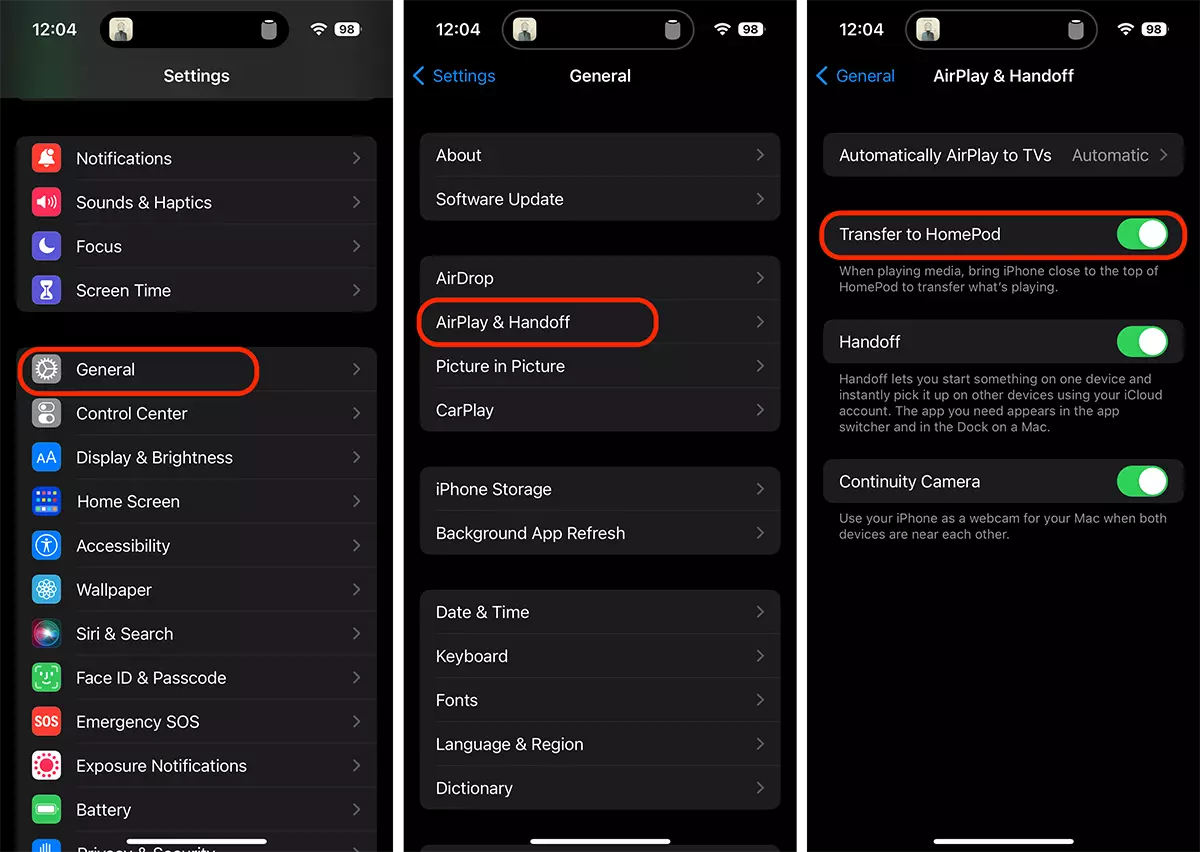
Once you have disabled this feature you can leave iPhone near Homepod without any audio content transfer between the two devices.