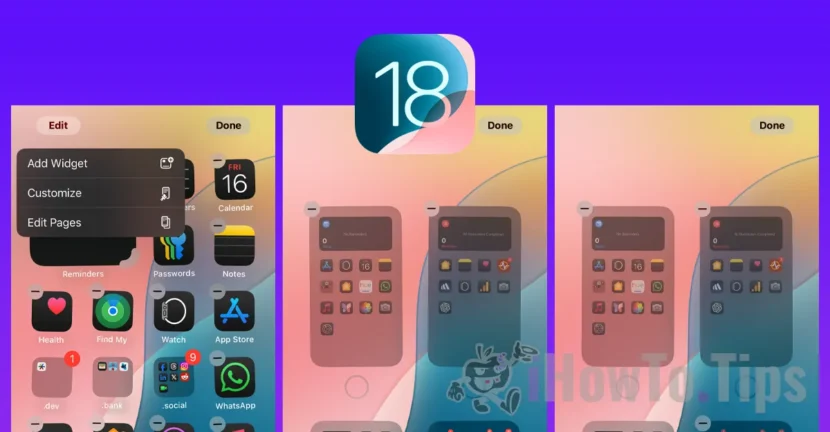

The first beta versions of iOS 18 have revealed significant changes in visual personalization and organization of applications and widgets on the iPhone. With the Beta 6 version, Apple has introduced other new screen customization options for iOS 18 devices, through which users can handle the Home Screen (Home Screen).
How do you access the IPhone screen customization option with iOS 18 (Home Screen)
The iPhone screen editing option is available alongside the customization and adding options. All you have to do is hold on the iPhone screen in an neutral area, until the screen activation is activated, then go to "Edit Pages" (Edit Pages).
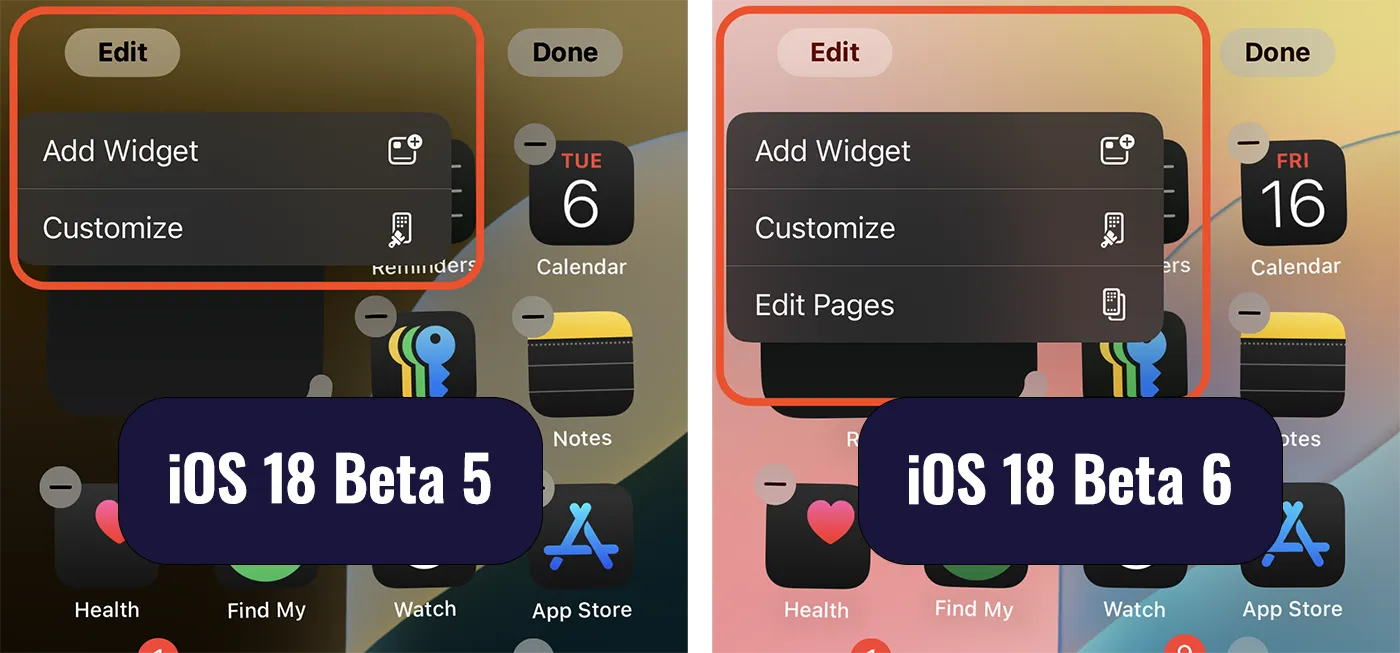
Unfortunately, at this personalization option option iPhone pages, Apple has not added to this option to add new pages. Existing screen pages for all focus modes can be activated and disabled.
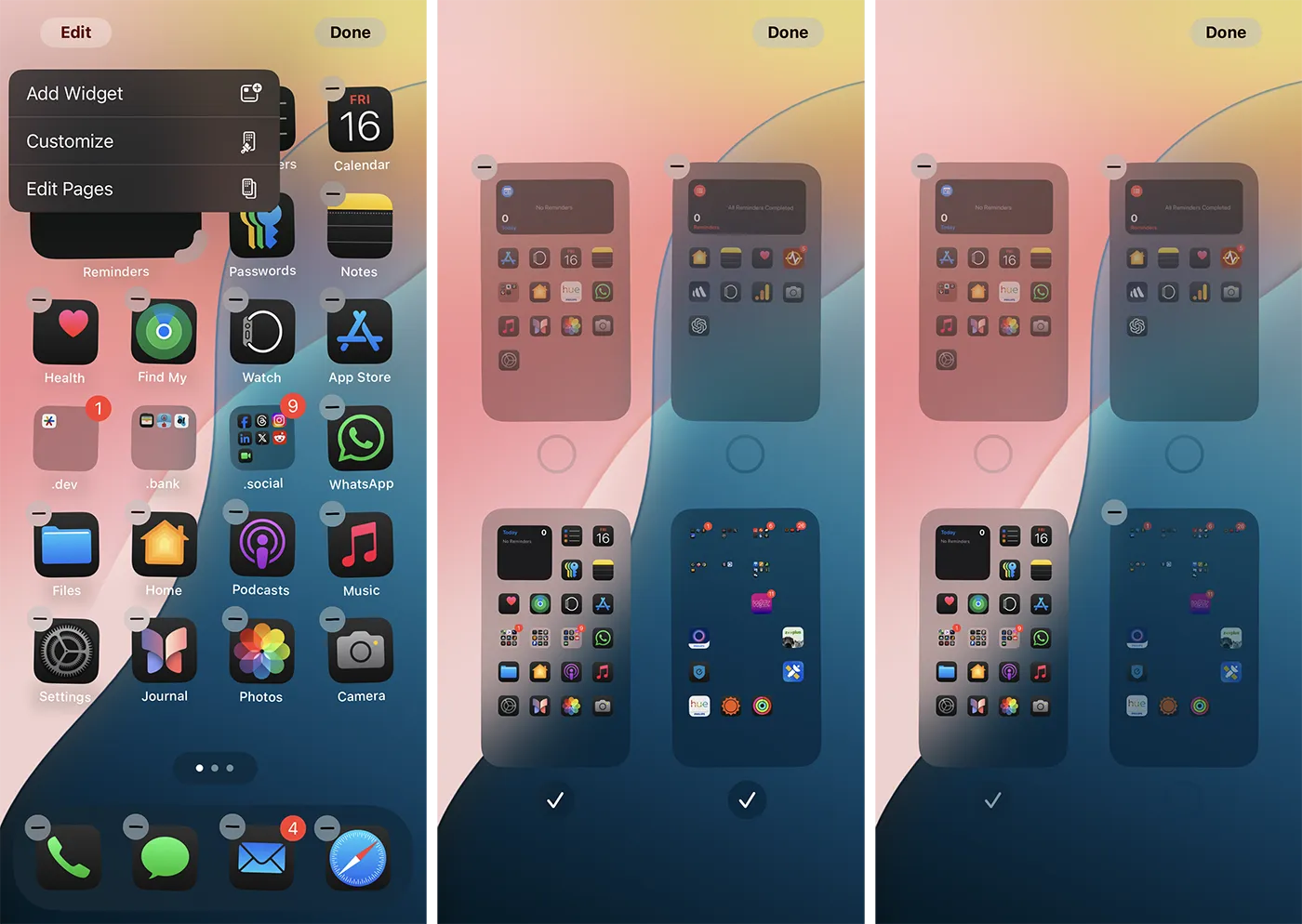
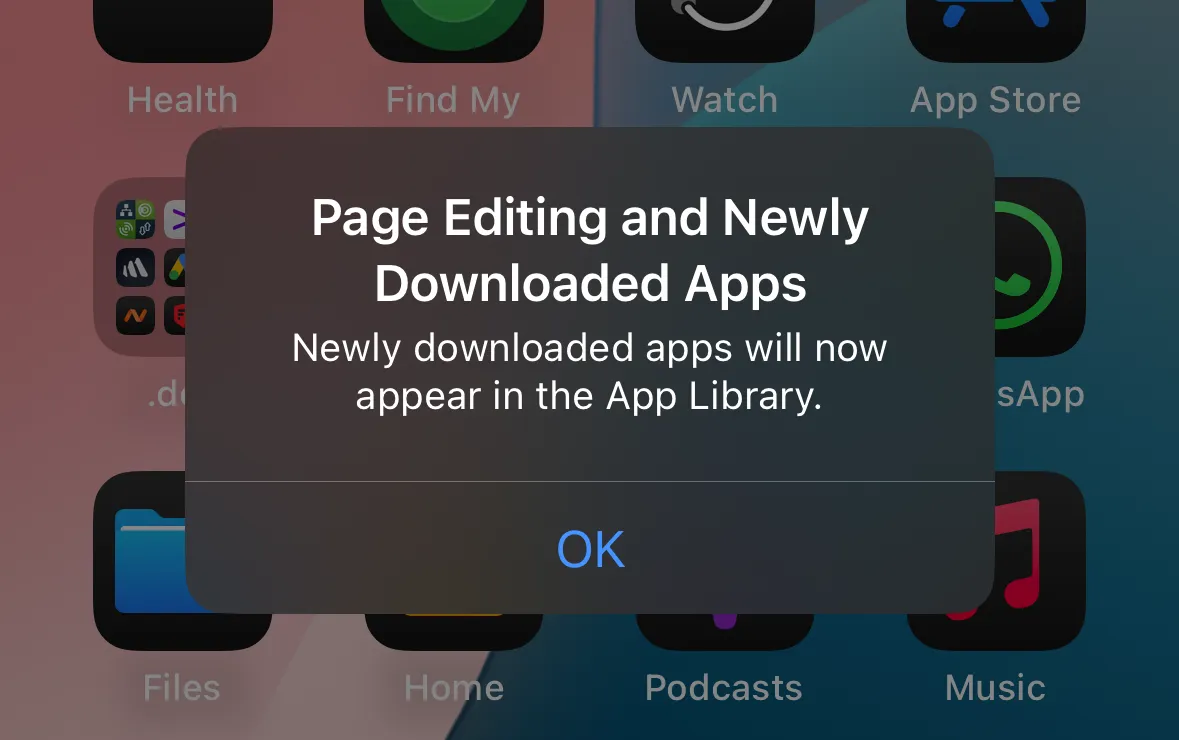
If you choose to use only one page for the iPhone screen, the new downloaded applications will be added automatically to the App Library.
For more iPhone screen customization settings with iOS 18 operating system, visit the guide from the link below, in which you will discover:
- How can you arrange app icons anywhere on iPhone screen
- How do you activate Dark mode for application icons.
- How to choose personalized colors for applications icons on iPhone.
- How to disable the names of applications on the iPhone screen.
At this article, iOS 18 is in the Beta 6 development stage, to be officially launched with the new range of iPhone 16 devices, in the first half of September, 2024. Most likely, the launch event of the iPhone 16 will take place in a day from September 10 to 13.




































