
By default, when you take a screenshot, it is saved in transparent PNG format. If you need a different format, PDF, JPG or GIF, in this tutorial you will learn how to change the format of screenshot files on macOS systems.
IN A tutorial written on Stealth Settings is a tutorial where you can see how you can set key combinations (keyboard shortcuts) to capture the entire screen or a certain portion of the screen.
Both on iPhone, iPad and Android smartphones, screenshots are saved in .PNG format. An image that is very clear and can be processed in high quality. Many times, however, we don't need the quality and properties of .PNG, and it would help us more if screenshots could be automatically saved in .JPG format. On a 13" MacBook Pro, for example, a screenshot in .PNG format is larger in size (no. of MB) than one in .JPG format.
The difference in quality between the two being almost imperceptible to the naked eye.
Screen Shot JPG – 146 KB / PNG Screen Shot – 1.2 MB
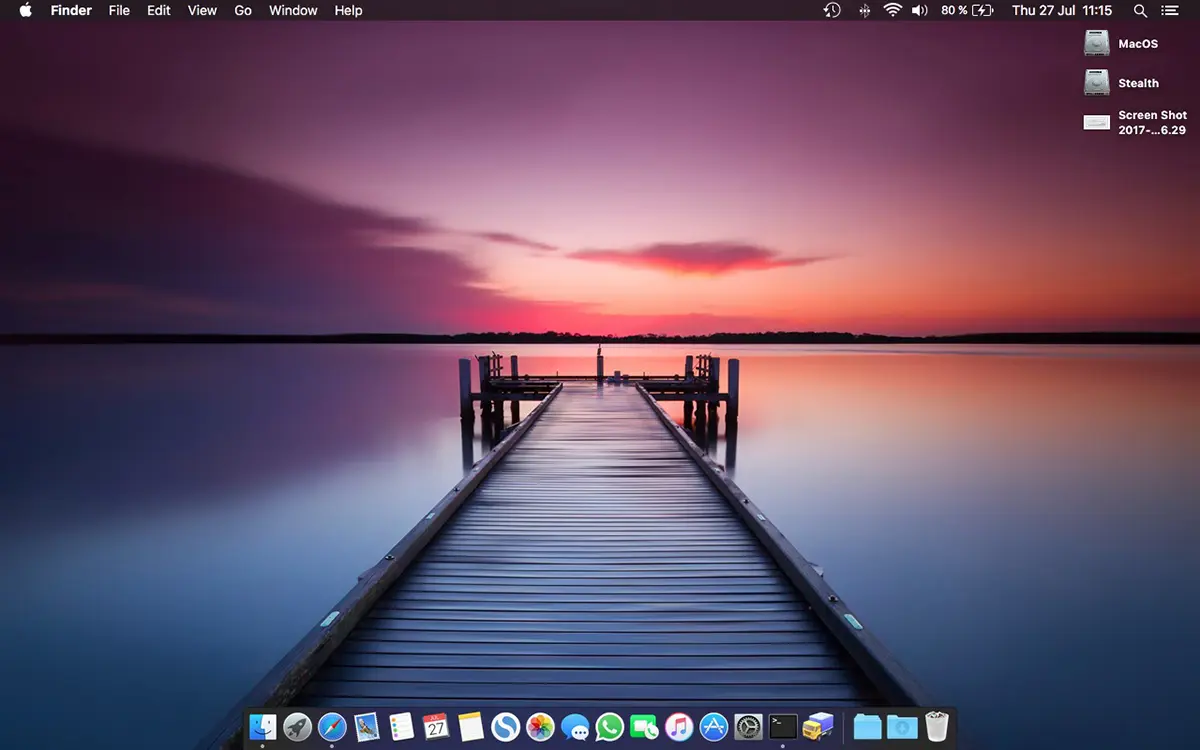
The difference between the two images is imperceptible to the naked eye.
Table of Contents
How to change the format of screenshot files on MacOS systems (JPG, PDF, PNG)
To change the format of screenshot files on macOS systems (JPG, PDF, PNG, GIF), open the utility Terminal then run the command line for each format separately.
How you can take a screenshot in .JPG format:
defaults write com.apple.screencapture type jpg;killall SystemUIServerHow you can take a screenshot in .GIF format
defaults write com.apple.screencapture type gif;killall SystemUIServerHow you can screenshot in .PDF format
defaults write com.apple.screencapture type PDF;killall SystemUIServerHow you can take a screenshot in .TIFF format
defaults write com.apple.screencapture type tiff;killall SystemUIServerThis way you have seen how easily you can change the format of screenshot files on macOS systems.
You can always go back to the format PNG for screenshots by running the command line:
defaults write com.apple.screencapture type png;killall SystemUIServerWe could not say which format is appropriate to use, because each has its own specifics and is used for various purposes. If we need a screenshot of an application and want to put the capture on a website, it is recommended that it be .JPG. Set .TIFF or .PDF only if you want to print the screenshot.
TIFF is a high-volume format dedicated to printing, while PDF is specific to electronic documents that can be printed.
Unfortunately, for the .JPG format we don't have a command line in Terminal through which we can determine the quality of the saved image. Most likely, JPG screenshots are saved at 80% quality, the application's default "Export" value Preview.





































It was a useful but bad translation :I
Thanks a lot for the article. It helped me!
With pleasure! 😊