
Remedying Mac system problems can be resolved by resetting SMC (System Management Controller). From Wi-Fi, Bluetooth connectivity problems, to screen brightness and supply problems, all can be solved in many cases, with a simple SMC resort.
Before we detail the problems of MAC, IMAC or MABAL, which can be solved with the SMC reset, let's see what it is SMC (System Management Controller) And when it is advisable to resort to reset.
Table of Contents
What is it SMC (System Management Controller) And what are the components they control?
SMC (System Management Controller) It is an integrated face on the motherboard, whose role is to monitor and manage almost all the hardware components of a Mac, which use electricity. Specifically, SMC is responsible for everything that the energy administration of hardware components means.
The SMC can monitor and manage the adaptation of the brightness level of the screen according to the light environment, speed of cooling fans, sound, video display, connectivity, plus other Mac functions.
SMC reset to remedy the MAC system issues
By resetting SMC More problems and Mac errors can be solved. But it is recommended that the reset SMC It must be one of the latest options for solving system problems. Before performing a SMC reset, you should try other solutions to remedy the system problems Mac.
Let's see what problems and errors can be resolved with reset SMC:
1. Problems with MAC power supply: If Mac refuses to light up or no longer charges a MacBook's battery, reset SMC they might solve these problems.
2. Problems with the cooling system (fans): Anomalies may occur in the functioning of the cooling system, and they can be resolved by resetting SMC. For example, fans begin unjustified to speed at maximum speed, or, fans do not increase their speed to Avoid overheating Mac.
3. Problems with screen brightness: You can reset SMC When you can no longer control the brightness or when it no longer works Self -regulation of screen brightness, depending on the ambient light.
4. Problems with USB ports: If the ports USB Or other Mac ports work inappropriately, the problem can be solved.
5. Connectivity problems: When there are problems with connection to the networks Wi-Fi or through Bluetooth.
6. Errors and keyboard problems or trackpad: When trackpad no longer responds to tactile commands or illuminated keyboard no longer ignites or works in normal parameters, then reset may be required SMC to remedy the system problems of the MAC.
7. MacBook's battery problems: There are many situations when the battery of a MacBook, either not charging correctly, or the status is displayed incorrectly.
8. Problems with video playback: There are situations in which when you run a video, it looks distorted or a black screen appears. If this problem is not solved after restarting the system or you do not find other solutions, reset SMC It can also solve this problem of playing video content.
9. MAC sound / audio issues: It happens quite rarely that the sound of Mac will no longer be heard or cannot adjust the volume. Most of the time, these abnormalities appear after Mac has been connected to an external audio output.
10. Problems with the mode ”Sleep": When Mac refuses to enter or get out of the mode ”sleep"Or from hibernation, it means that something at the system level works incorrectly, and SMC reset could solve this problem.
These are only 10 of the potential problems that can occur and which can be remedied with SMC reset.
Next, you will see how you can make a correct SMC reset to remedy the MAC system problems.
How do you reset SMC (System Management Controller) on Mac computers or MacBook laptops
SMC reset is done differently at MacBook laptops, compared to MAC computers, precisely because the latter use wireless keyboards that may sometimes be exactly the cause from which this method is used. The method also differs depending on the presence of the security chip (Apple T2 Security Chip).
SMC reset to MacBook laptops provided with chip Apple T2
1. Close MacBook – Shut down
2. On the MacBook keyboard hold down simultaneously for 7 seconds, the keys:
– Control, Option (from the left side of the keyboard.
– Shift (from the right side of the keyboard)
MacBook has to start.
3. With the three keys held, press and hold the Power button until the MacBook will close.
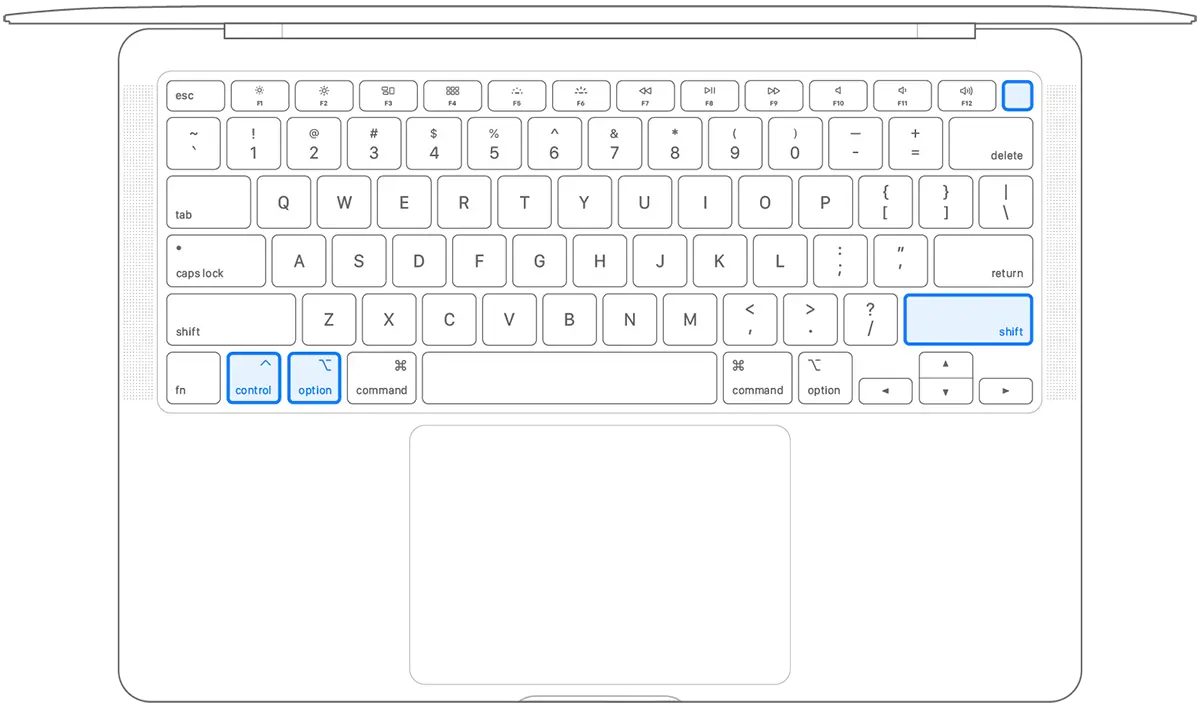
4. Keep pressed for another 7 seconds the four keys, then release them.
5. Wait for a few seconds, then turn on MacBook.
Macbook laptop patterns provided with security chip Apple T2.
MacBook Air (Retina, 13 inch, 2020)
MacBook Air (Retina, 13 inch, 2019)
MacBook Air (Retina, 13 inch, 2018)
MacBook Pro (13 inch, 2020, 2 x Thunderbolt 3)
MacBook Pro (13 inch, 2020, 4 x Thunderbolt 3)
MacBook Pro (16 inch, 2019)
MacBook Pro (13 inch, 2019, 2 x Thunderbolt 3)
MacBook Pro (15 inch, 2019)
MacBook Pro (13 inch, 2019, 4 x Thunderbolt 3)
MacBook Pro (15 inch, 2018)
MacBook Pro (13 inch, 2018, 4 x Thunderbolt 3)
Reset SMC to computers Mac – Apple T2
1. Inchide Mac. Shut down.
2. disconnect the power cord.
3. Wait for 15 seconds, then connect the power cord.
4. Wait for 5 seconds then press the button Power for start -up.
The following Mac models include security chip Apple T2:
iMac (Retina 5K, 27 inch, 2020)
iMac Pro
Mac Pro (2019)
Mac Pro (Rack, 2019)
Mac mini (2018)
Reset SMC For MacBook Laptops without Apple Silicon or face Apple T2
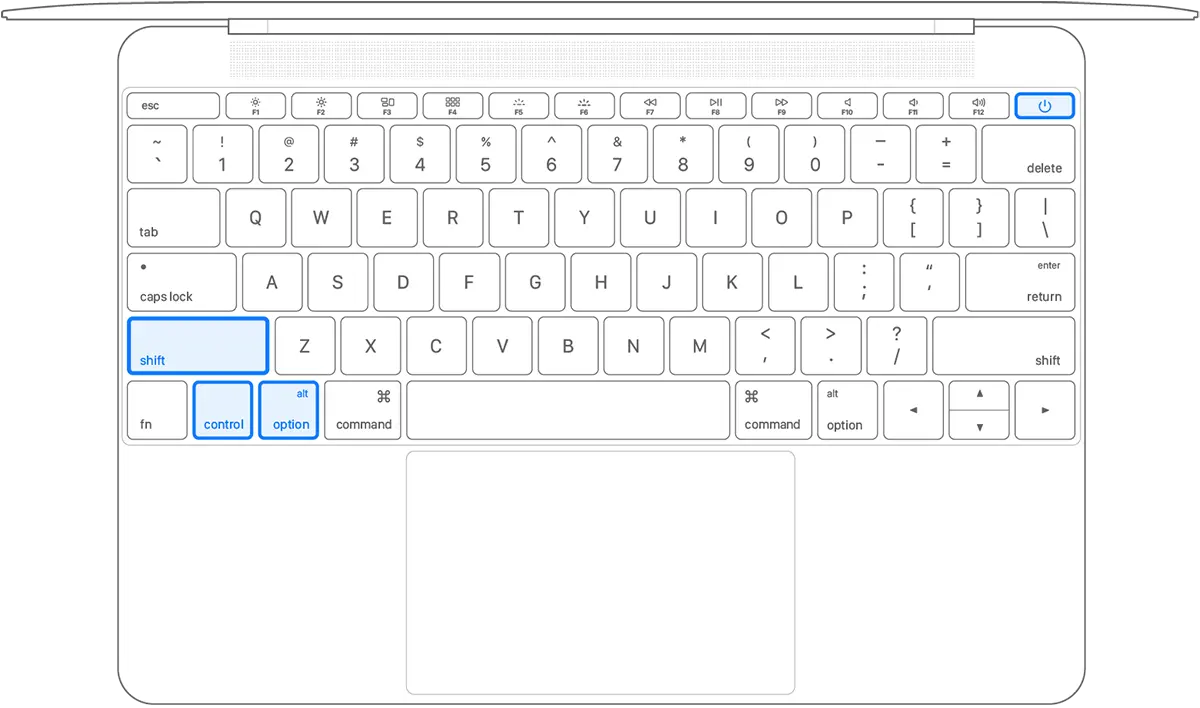
1. Press the keys simultaneously:
– Shift + Option + Control (from the left side of the MacBook keyboard)
2. While holding the three keys, press and hold the button "Power“.
3. Keep the four keys (3 keys + power) for 10 seconds, then release them all at once.
4. Start MacBook.
For mac computers without Apple Silicon or security face Apple T2, reset is done in the same way as those with face T2.




































