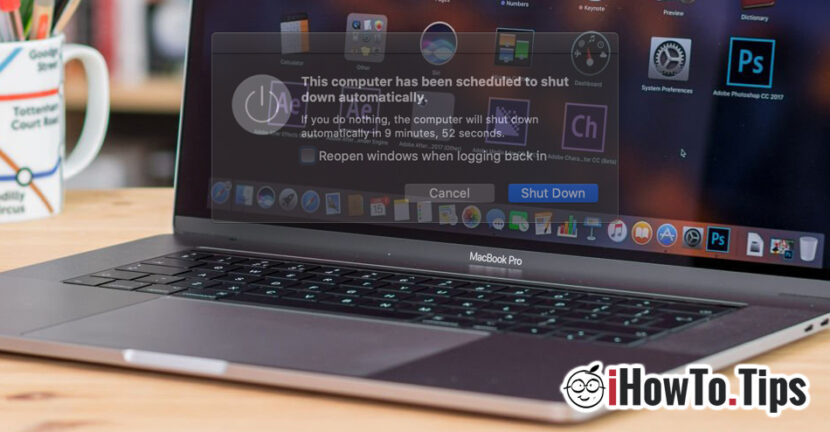

A very useful option for those who work remotely on a Mac, is the possibility to set certain time intervals in which the Mac / MacBook will open by itself (Schedule Start up), restart, enter "sleep" mode or shut down.
This Mac closing/opening scheduling function is equally useful when you let it run processes that require time and you want it to close itself at a time estimated by you.
How to program a Mac to close or open itself at certain times or on certain days – Schedule Start up
First of all, if you want to program a MacBook to open itself at a certain time, you must keep in mind that the flap is open. It will not start at the scheduled time if the valve is closed.
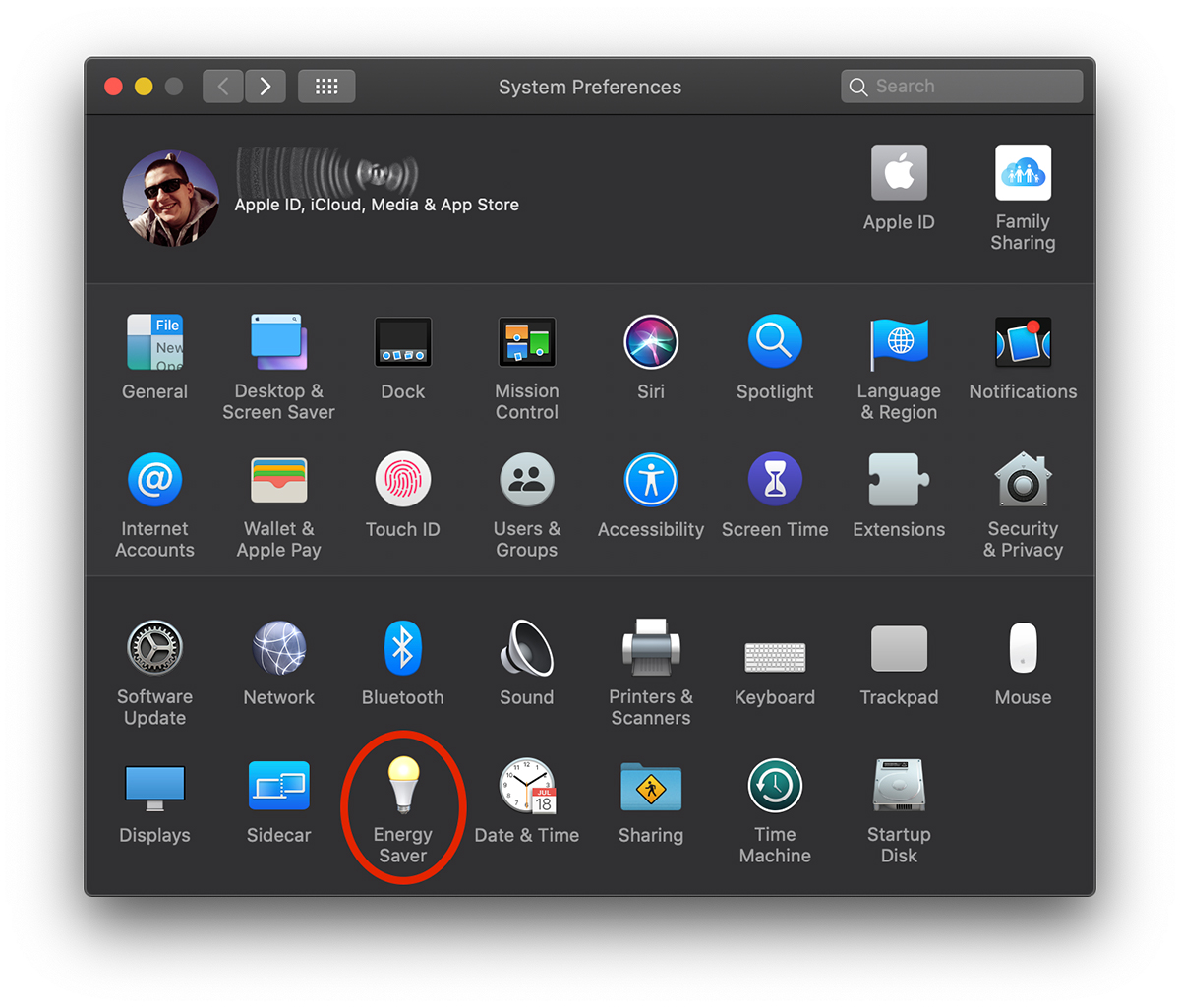
1. We go to the menu Apple →System Preferences →Energy Saver.
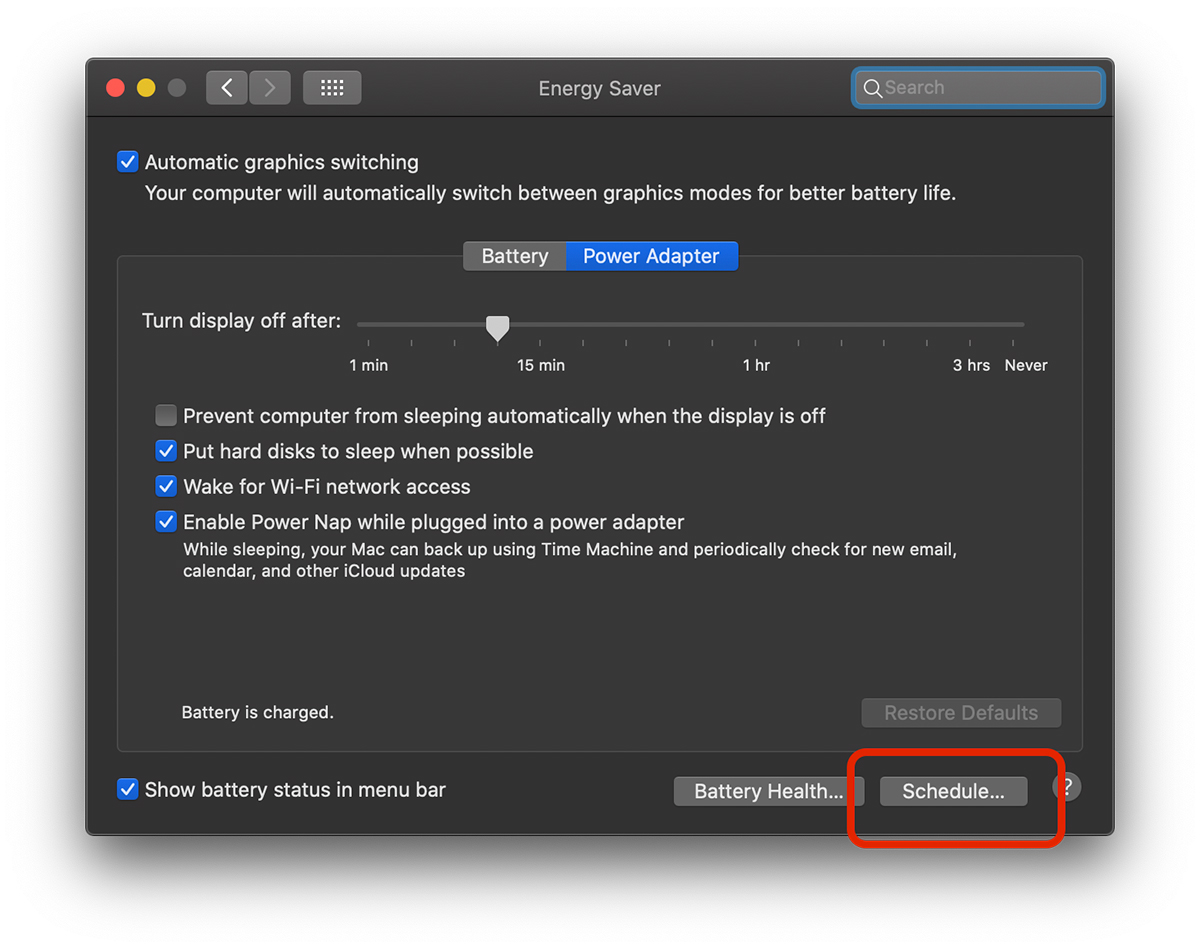
2. In the "Energy Saver" settings, go to the bottom of the panel to the "Schedule…"
3. From "Schedule” we can choose two scheduled actions. Open Mac at a certain time, with the possibility to set a certain day of the week, working days or weekend days.
A second action allows us to we schedule a certain time at which Mac / MacBook to close (Shut Down) to enter "Sleep" mode or restart.
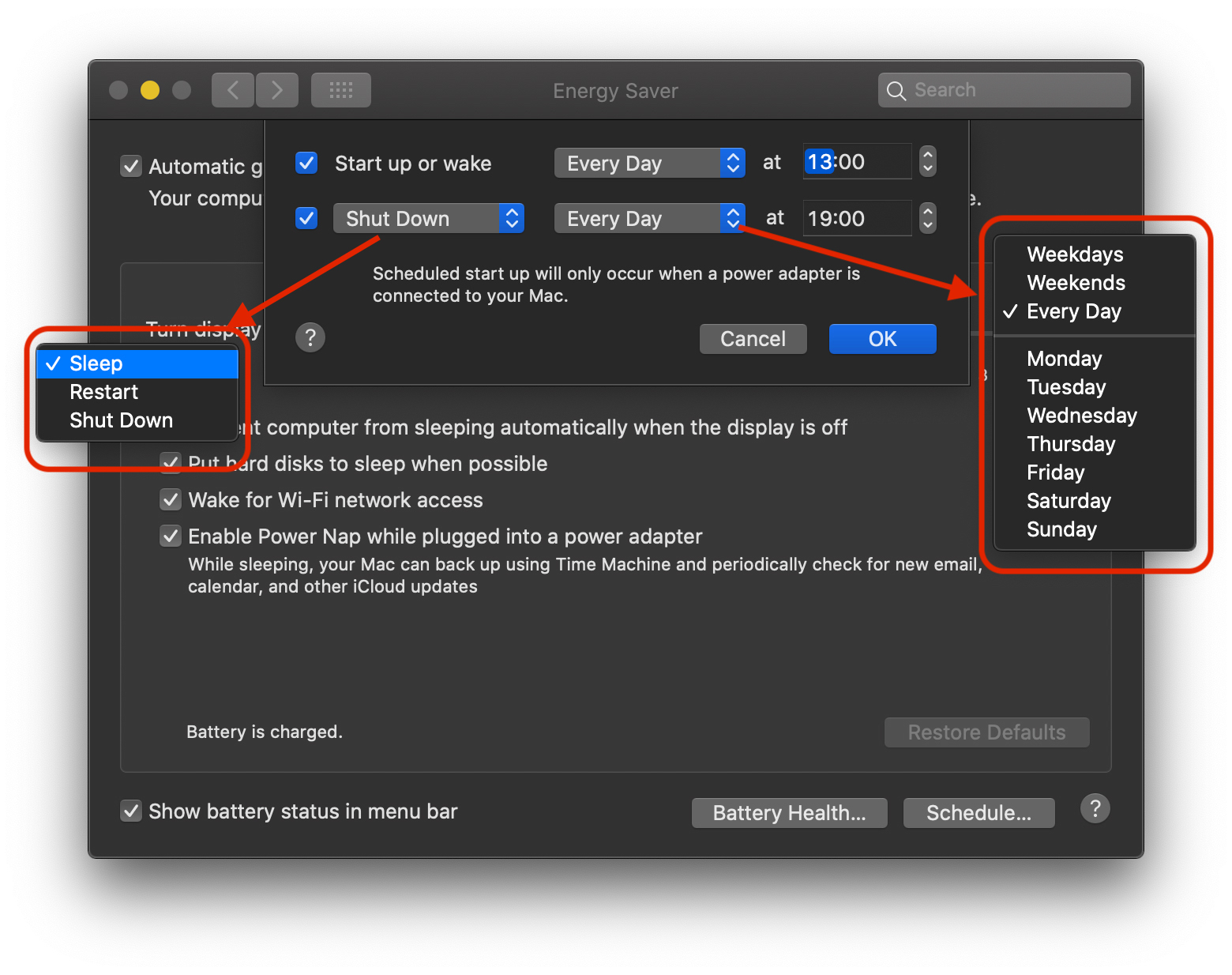
Click "Ok" after making the programming settings for closing / automatic start of the Mac or MacBook.
If you are working at the scheduled shutdown time, a dialog box will appear on the screen warning you that the Mac is about to shut down
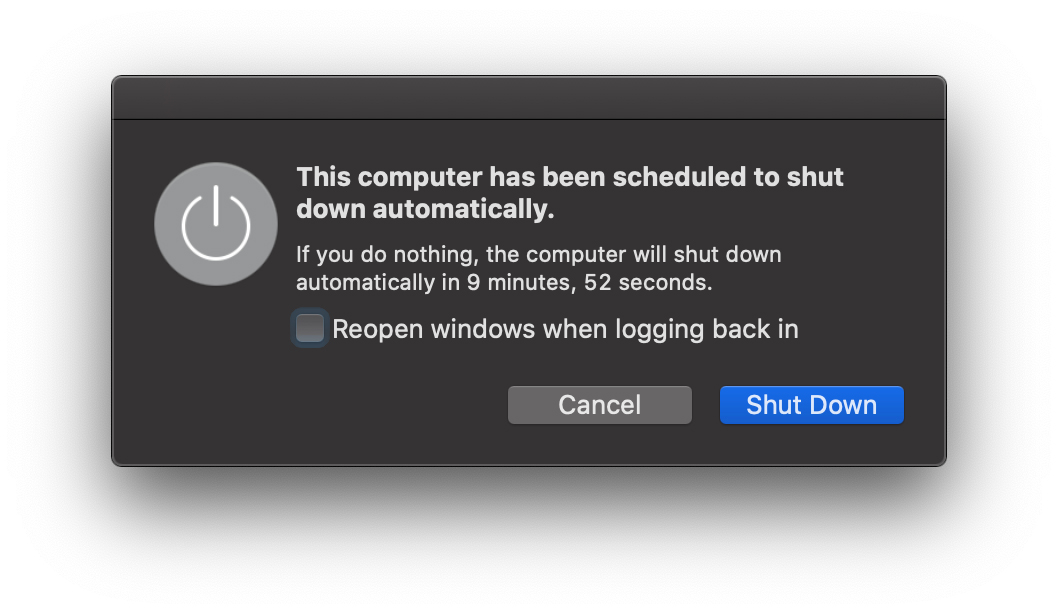
You can stop this action with a simple click on the "Cancel" button.
"Schedule" is a very useful option for protecting the battery. If you leave your MacBook open to complete the download, you can program it to close automatically at the time when this download is estimated to complete.




































