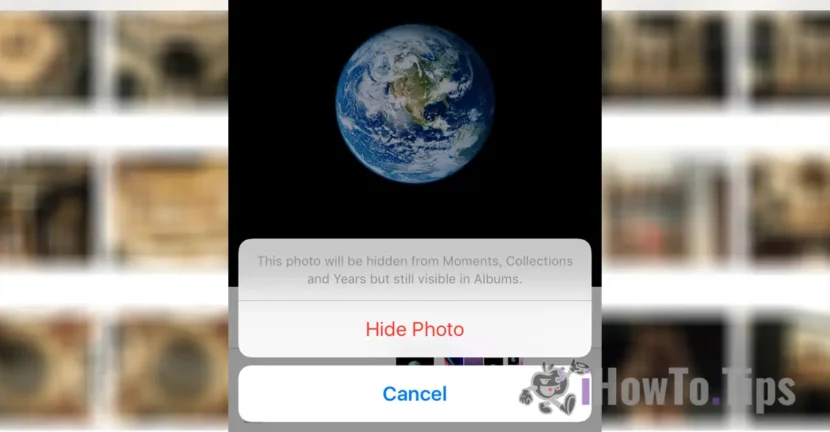

Why would you need to hide photos and videos on iPhone or iPad? The reason is very simple. It often happens that when the phone is unlocked in another person's hand, they are curious and want to see the pictures and videos stored in the photo gallery. In this tutorial you will see step by step how you can hide photos and videos from the Photos (Camera Roll) app on your iPhone or iPad.
In other words, it's a very useful tutorial if you want to hide more sensitive pictures of your lover or lover, girlfriend or boyfriend, or other pictures and videos that shouldn't be visible when another person opens the photo gallery on your iPhone.
Table of Contents
Methods by which you can hide photos and videos on iPhone or iPad
Secure your iPhone with password and biometric authentication
The first method you can use to hide photos and videos on your iPhone, if we can call it that, is to have your iPhone secured with a passcode that only you know. Thus, no one will be able to access the Photos app unless they can unlock the device. Also, for Touch ID authentication (available on older models), it's good to have only your biometrics, so only you can unlock the device.
Use the “Hide” option in the Photos app
In the Photos application (native on iOS), the "Hide" option is available, through which you can hide photos and videos on the iPhone. This is a useful method for devices with operating system older than iOS 16.
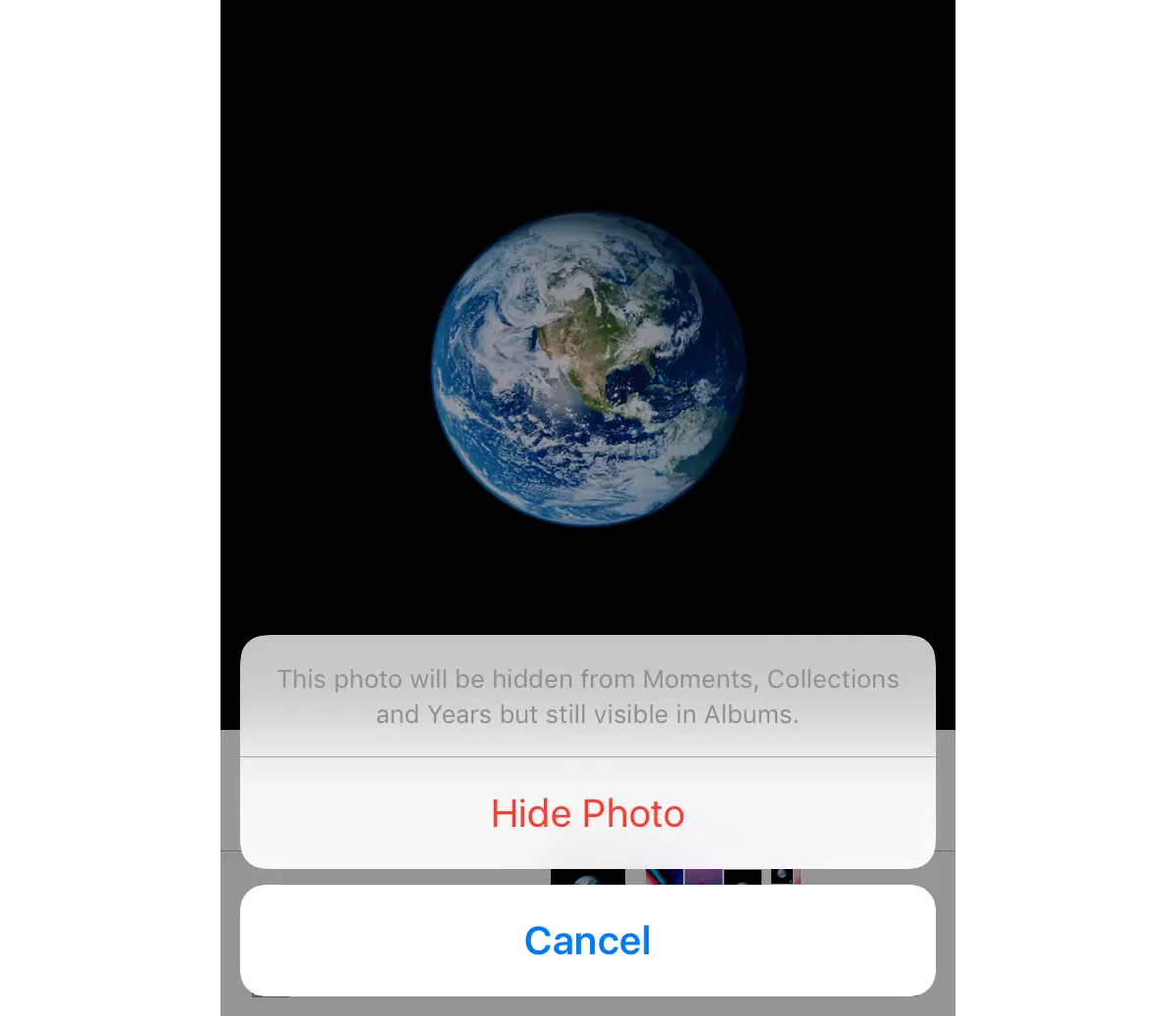
This option will partially hide the selected pictures and videos. They will no longer be available in the "Moments" and "Collections" photo galleries. In the main “Camera Roll” folder, pictures and videos will still be visible. So, the option doesn't create a secret photo gallery, but it's a good option to make your photos no longer visible in all photo galleries.
Starting with iOS 16, Apple introduced a new feature in the Photos app that allows users to hide pictures and videos in a secret photo gallery. The option makes the selected photos and videos hidden from all photo and video albums of the application.
In the link below is the step-by-step guide to hide photos and videos on your iPhone or iPad if your device has iOS 16 or later:
Although the native methods of iOS would be sufficient in most scenarios, the most effective solutions to hide photos and videos on iPhone involve the use of third-party applications. Either cloud data storage services or separate password apps to store the photos and videos you want to hide.
How to hide photos and videos on iPhone using an online storage service (OneDrive, Dropbox, Google Drive)
First of all, in order to do this, you need to have a cloud account (Google Drive, OneDrive) and the application installed to connect to it. Let's take OneDrive as an example in our scenario.
OneDrive is a cloud service provided by Microsoft and has a very complex iOS app available. Through the application you can easily upload photos and videos from the Camera Roll. Once on the cloud server, they can be deleted from your phone.
Next, you need to be a little careful when configuring the application. It supports Touch ID as an authentication method, but it is not recommended to enable it. Use the option to set a personal PIN to access your OneDrive files other than your iPhone's unlock PIN.
That way, even if someone gets access to your unlocked iPhone, they won't have access to the photos or videos that are in OneDrive. You can access them at any time, both on your iPhone and from the web interface or from another device that you have connected to the same OneDrive account. It seems like a cumbersome method, but in practice it is very easy and very safe if you need to hide photos and videos on iPhone.
Hide photos and videos from your Camera Roll using a third-party app
In the Apple App Store you will find many applications that are able to do this. Many of them require payment of an amount of money for a larger volume of photos, but there are also many that allow you to hide up to 200 photos for free.
All you have to do is go to the App Store on your iPhone, iPad or iPod touch and search for "hide photos", "secret photos" or "vault photos", and from the list of apps choose the one you think is suitable.
Many of these apps, capable of creating secret photo galleries and hiding pictures, have names and icons designed to mislead anyone who might see them installed. Most mimic the computer icon in iOS, but there are others that look like a scanner or a video player.
The working principle of these apps is relatively simple: you set a personal password that you are asked every time you access the app, then you have tools to import your photos and videos into a secure space of the app. After the import is complete, delete the pictures from both Camera Roll and "Recently Deleted".
Conclusion
In conclusion, even if the latest versions of the iOS or iPadOS operating system allow you to hide photos and videos on your iPhone or iPad, the safest solution remains to use a third-party photo and video storage application, to which you can set a different passcode than the phone's.




































