
It's quite rare for iPhones to experience major performance problems, but if your iPhone has become frozen, this article will provide you with a solution for iPhone screen frozen and unresponsive. Force restart.
If your iPhone is stuck or the screen is black and no longer accepting any commands, follow the steps below to fix the problem.
iPhone was stuck? IPhone locked screen resolution.
Force restart iPhone 8, iPhone SE (2nd or 3rd generation) or newer.
1. Press and quickly release the volume up button (volume up).
2. Press and quickly release the volume down button (volume down).
3. Press and hold the side button (the lock button, on the right side of the device) until you see the Apple logo.

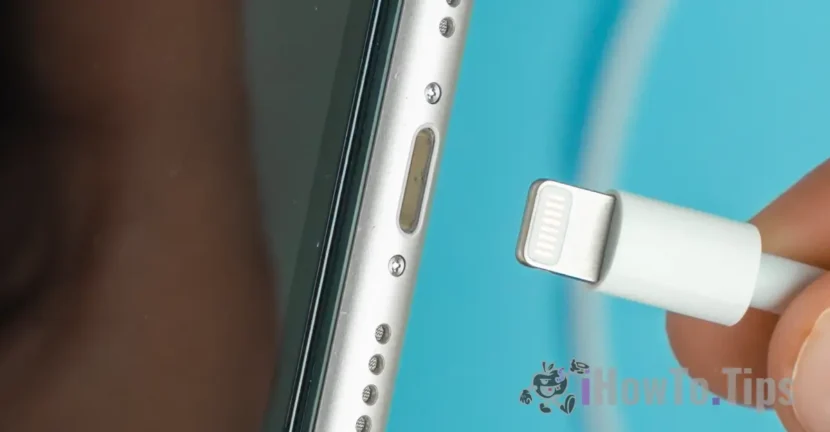
If the Apple logo doesn't appear on the iPhone screen, it's most likely that the battery is not charged or there is a more serious problem.
Force restart iPhone 7 or iPhone 7 Plus
1. Press and hold both the side button and the volume down button (volume down) until you see the Apple logo on the iPhone screen.

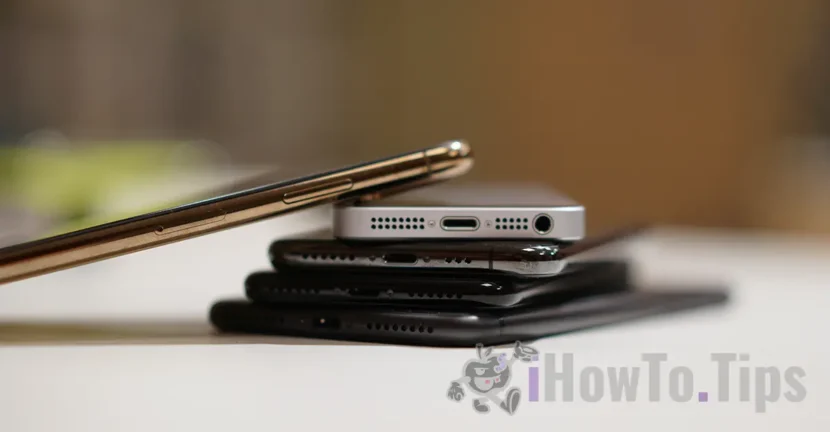
For iPhone 6s and earlier models, including iPhone SE (first generation), press and hold both the button Home, as well as the side button or the top button until you see the Apple logo.
This method will force restart your iPhone and everything should be back to normal.
If your iPhone does not respond to these commands and does not turn on, it means that you need to check if your iPhone is still under warranty and contact an Apple Authorized Service Provider.