
Before you send the defective iPhone to an Apple Authorized Service, the first condition is that it is no longer associated with the Find My Location Service. In this tutorial you will see how you remove the defective iPhone from the Find My before you send it into service. Also valid for devices: iPad, iPod Touch or Apple Watch.
When an iPhone or iPad device is defective and does not open at all, the service disabling can no longer be done from settings. It is necessary for the owner of the device to authenticate from a computer to the iCloud account authenticated on the device.
How to eliminate defective iPhone from Find My before service - icloud.com
If iPhone is defective and you have to send it for repair in service, it must be disabled from the Find My Service.
1. Open icloud.com In the browser from a computer (Windows, Macos, Linux) and you authenticate with your Apple ID account on your iPhone. Sign in.
2. You access the Find MY application online from iCloud.com.
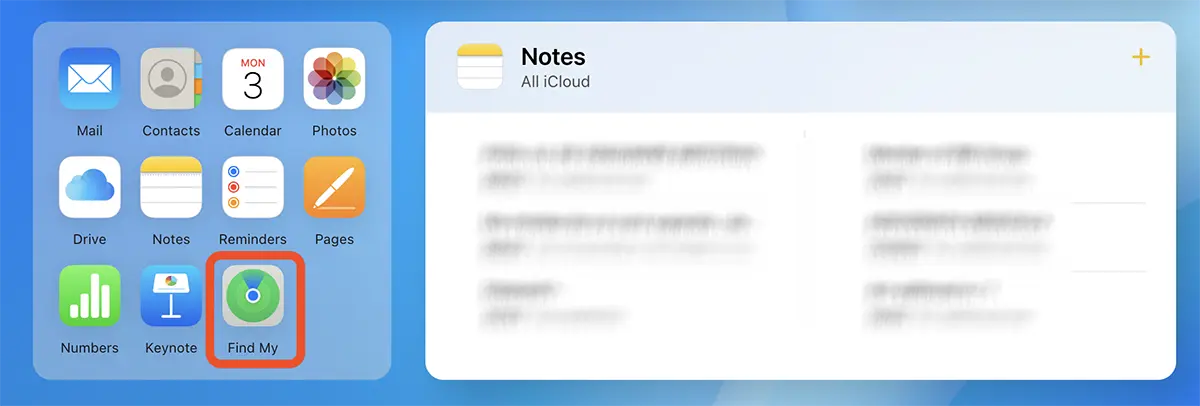
You can access the Find MY service online and from the iCloud.com menu in the upper right corner.
3. From the list of devices, go to the iPhone device for which you have to stop the service, then click on the sign "x“.
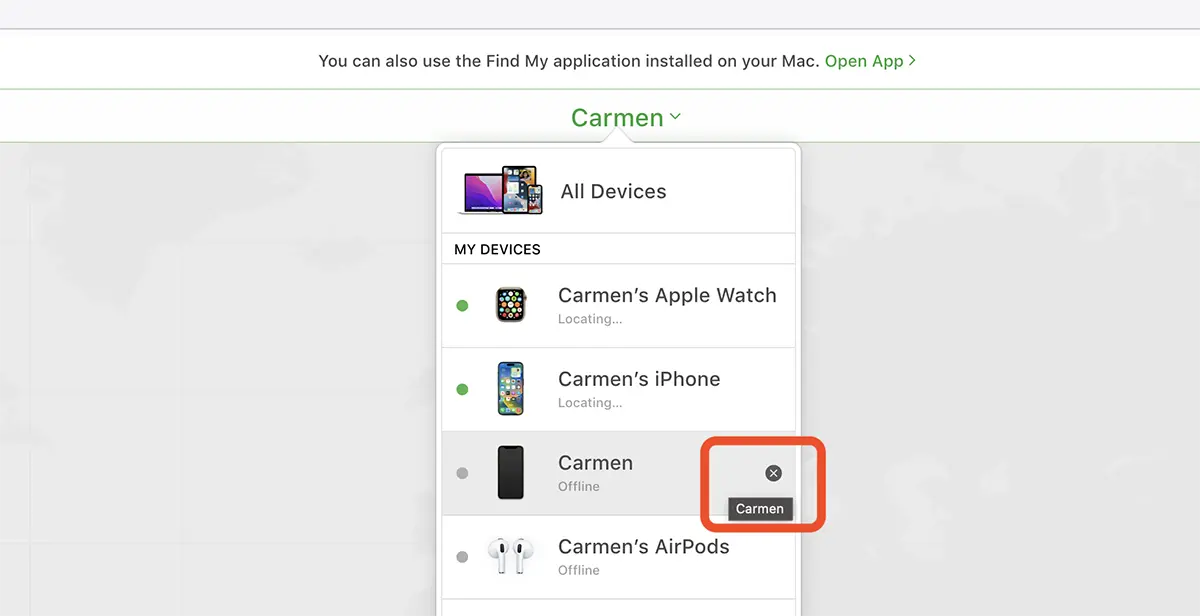
4. “Remove iPhone"Click on the" Remove "button in the dialog box. You will need to re -enter the Apple account password.
Remove iPhone?
This iPhone is linked to your Apple ID.
Removing this iPhone will allow it to be activated and used by another person.
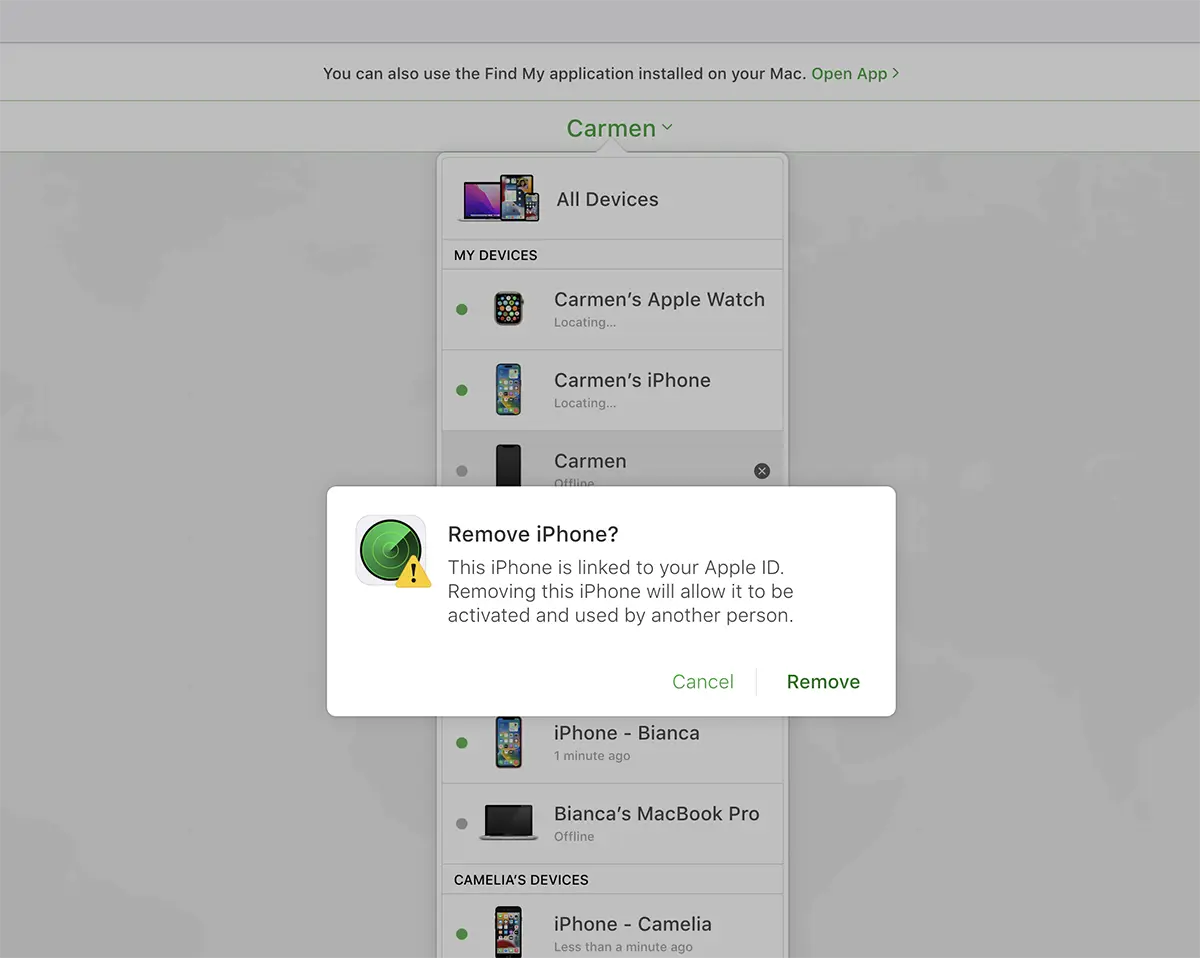
After this step, iPhone can be sent safely into service for repair or replacement.
You need to do the same when you want to vice or provide iPhone, iPad or Apple Watch to another person.