

The battery is one of the most important components of a MacBook, allowing you to work, play and enjoy multimedia content wherever you are. But how can you know if your MacBook battery is working normally?
In this article you will see some simple steps by which you can check the battery status of your MacBook and identify possible problems. Also, depending on the condition of the battery, you'll know if it's time to go to an Apple Authorized Service Provider to have your MacBook battery replaced.
This article is updated in 2024, useful for both MacBook owners with macOS Catalina (or earlier) and new MacBook models with macOS Sonoma.
Table of Contents
Check the condition of your MacBook battery
Up until macOS Mojave 10.14 (and inclusive), there were four status indicators that users could use to see the condition of their MacBook battery and whether it was operating at optimal parameters.
Normal: The battery is working under normal conditions.
Replace Soon: The battery is working normally, but will charge at a lower capacity than when it was new. This is a sign that the battery is starting to show the first signs of wear.
Replace Now: The battery is working normally, but will charge at a significantly lower capacity than when it was new. You can still use your MacBook safely, but you should consider a trip to an Apple Authorized Service Provider to have your MacBook battery replaced.
Service Battery: This status indicates that the battery is no longer working normally, and the displayed charge percentage is very likely not the true one. For example, it may show a charge percentage of 80 – 90%, but the MacBook shuts down unexpectedly. It is recommended that you go to an authorized Apple service as soon as possible to ask for a battery change.
These statuses that indicate the working condition of the MacBook battery can be checked from the Menu Bar, from the icon that shows the battery charge level.
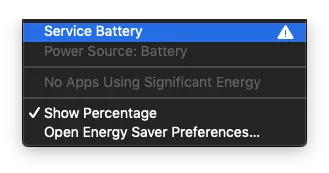
Starting with macOS Catalina 10.15 (including macOS Sonoma 14), Apple left only two indicators for battery health.
Normal: The battery is working under normal conditions.
Service Recommended: This status indicates that the battery has a lower capacity to retain energy than when it was new. You can continue to use the battery without damaging your MacBook, but it is recommended that you have the battery replaced at an Apple or authorized service center.
Checking the operating status of the battery can be done very simply, with a simple click on the battery indicator in the Menu Bar, then click on the "Battery Settings" option. The system settings panel will open, to the MacBook battery health information section. Battery Health.
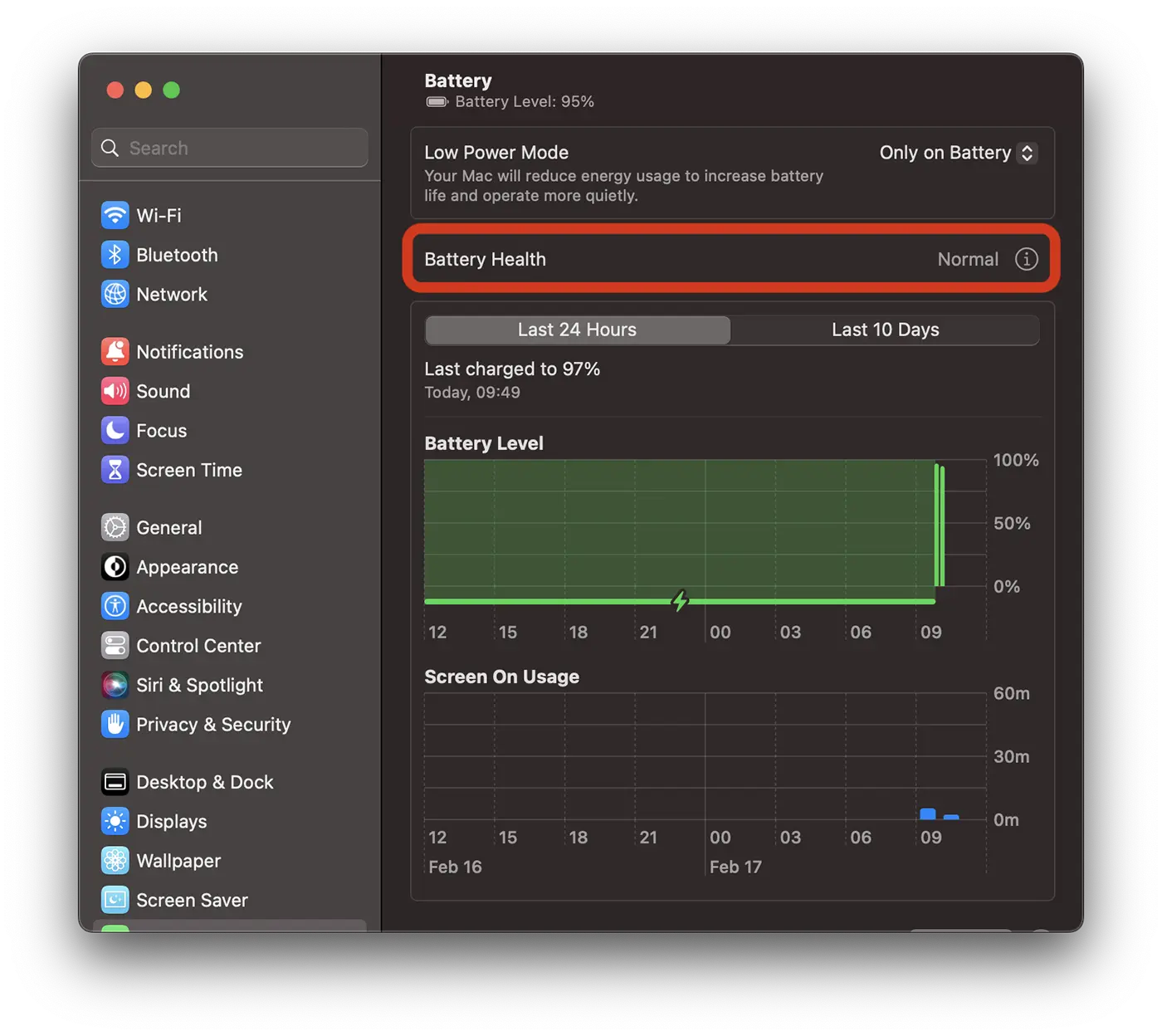
Tot la “System Settings” > “Battery” sunt disponibile și opțiunile prin care puteți să optimizați încărcarea bateriei și să setați administrarea automată a longevității pentru bateria MacBook.
What can happen if you have a MacBook with a worn battery?
First, the high degree of wear and tear on a MacBook laptop battery results in a much shorter lifespan than when it was new. But, in addition to this inconvenience, much more serious problems can occur, such as: the sudden shutdown of the device during work or the swelling of the battery and implicitly of the MacBook case, which can lead to serious operational problems.
Related: MacBook Pro with swollen battery and deformed housing.
Extends MacBook battery life
To keep the health of the MacBook battery in good condition for as long as possible, it is recommended to keep the Optimized Battery Charging and Manage battery longevity functions activated. Also, when the MacBook is not connected to a power source, it is recommended to enable Low Power Mode.
Related: How to extend MacBook battery life.
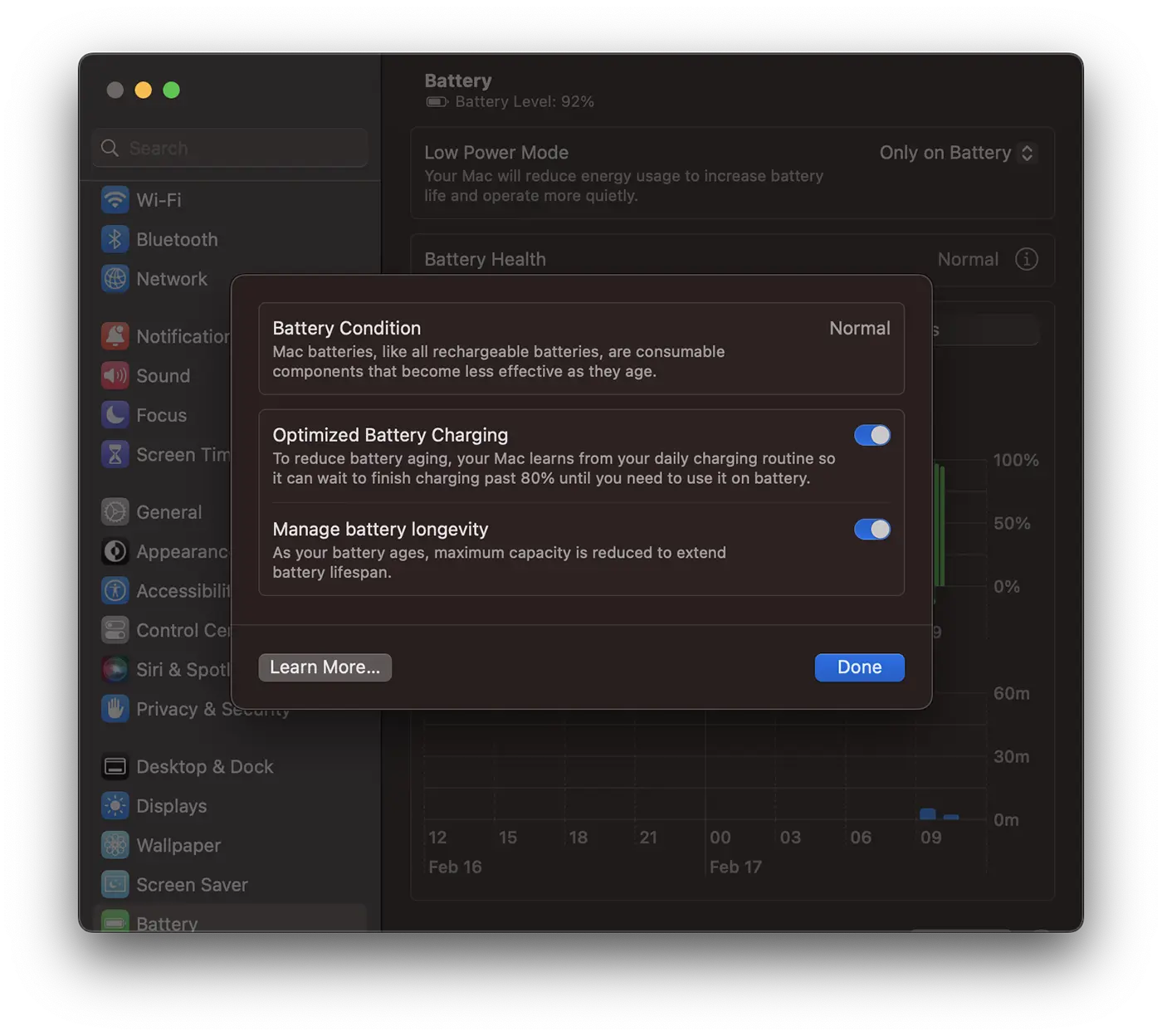
How do you tell how old a MacBook battery is?
Battery wear is determined by its maximum charge capacity, the number of charge cycles and the external factors to which the device has been exposed, especially high temperatures.
Related: How do you tell how old a MacBook battery is?
It is also recommended that you use original or compliant Apple quality adapters and charging cables for power.





































1 thought on “How to see if the MacBook battery works normally."