

FaceTime It is a service used by many poppy users from all over the world. Besides the main characteristics of the application, through which You can affect video and voice calls through the Internet, also through the Facetime application on Mac are taken and Normal calls (GSM) If we have a iPhone In close to the same iCloud account.
As a user of MacBook, iPhone And the wonderful headphones AirPods, it comes to me very simple as Voice calls to initialize them from MacBook. Without having to get my hand on the iPhone, I look for contacts in the agenda and call. Calling a contact from the agenda "Contacts" can be very simple, opening "Spotlight Search” cu Command + Space, written the contact name and click directly on Calling icon.
It is still a problem. Both during the call and after its completion, on the screen on the upper right side remains the notification banner, and it can no longer be closed or moved elsewhere. Basically it makes it impossible to use that Mac screen area during the call and most EORI and after its completion. I don't know for what reasons that Notification Badge Al Facetime cannot be closed. Appears the picture and the name of the caller, the message that the call is made by iPhone (using your iPhone) and the options of "Video“, “Mute"si"End". Even if the call has been completed for a long time.

Disabling or Hiding FaceTime Call Badge Notification on MacBook, Imac
Apple has developed on Mac a system of Alert notifications as interesting as customizable and stress sometimes. All notifications of Mac applications can be controlled from System Preferences → Notifications. As well as the Badge notifications of Facetime.
If you stress your facet notification of the call on the upper right side of the screen, you can cancel it by following a tutorial scrutiny:
1. Go to System Preferences to notifications.
2. Select "FaceTime"From the list of applications on the left side, then Personalize notifications. You can choose the style of notifications: “None“, “Banner"(Default) or"Alerts".Badge app icon“.
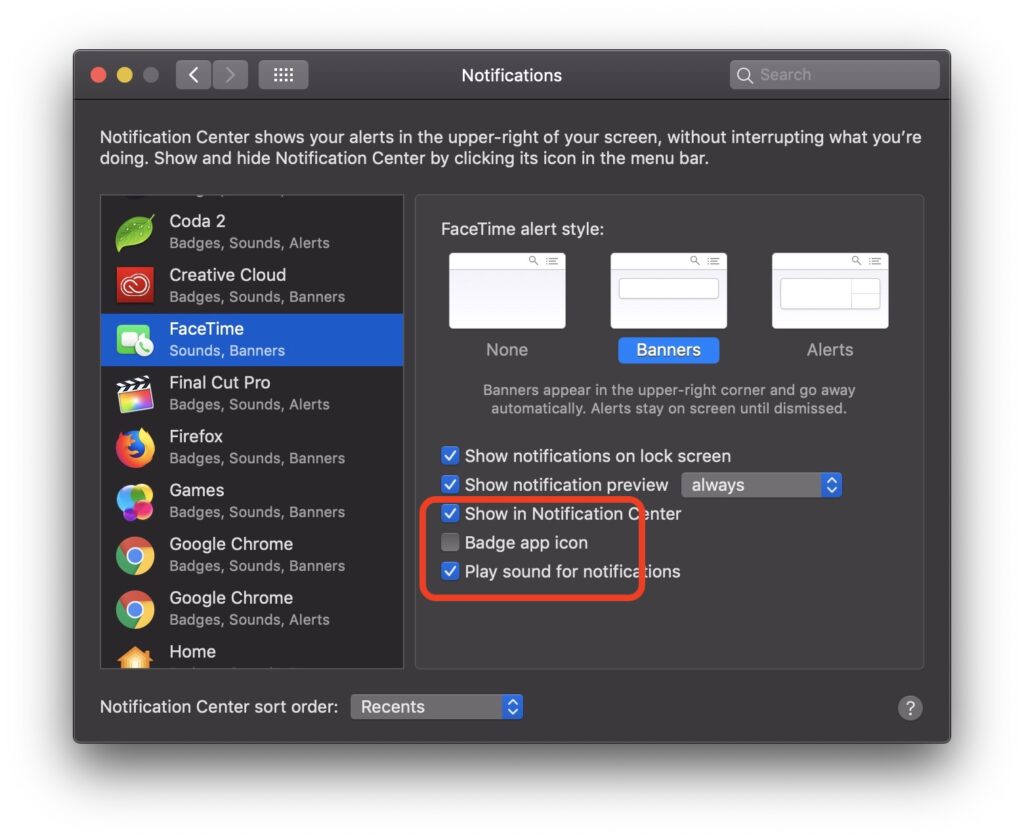
At the next call received or made from Mac, the call notification banner will no longer appear on the top right of Ecrene.




































