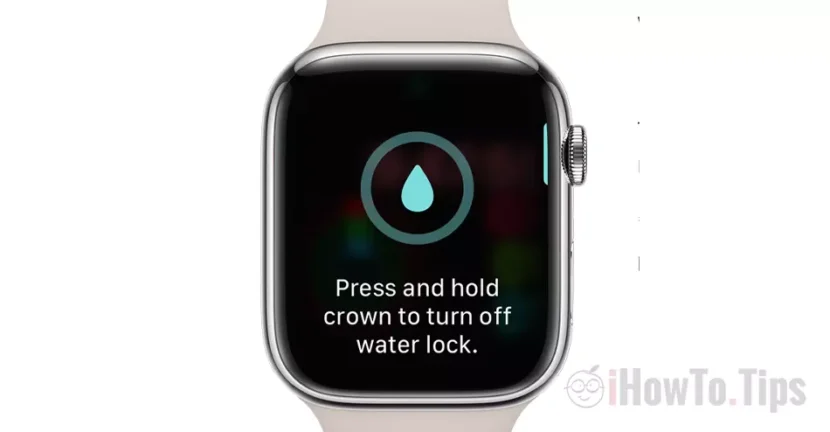

Avoid accidental opening of applications on Apple Watch. A simple tutorial by which you see How to block Apple Watch screen to accidental touch, without having to close it.
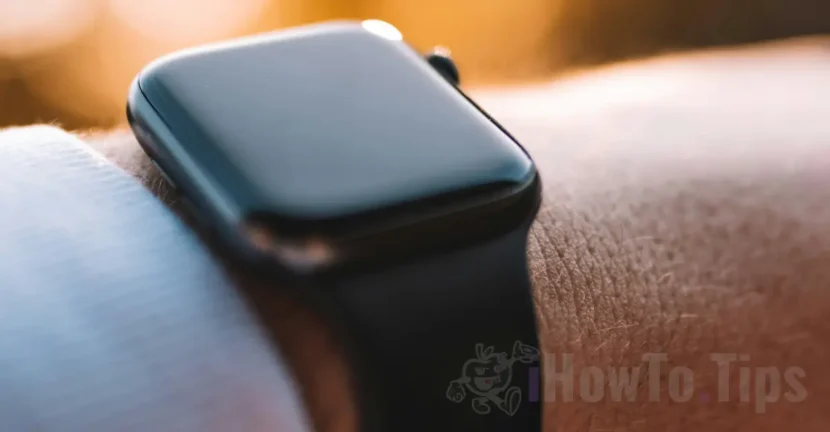
Apple Watch are really smart devices, which give us a lot of useful information. From the weather, workout, pulse, oxygen and calendar, all this information can occur permanently on the screen. It is a problem, however, when the screen is accidentally reached and the applications are open without our will. It has often happened to find the applications of Calendar, Weather or Reminder on the screen Apple Watch.
Many Apple Watch owners do not know that these watches have a function through which the screen remains blocked when submerged. The function can also be used when you do not want to activate any application on the screen when it is accidentally reached.
How to block Apple Watch screen at accidental touch - Water Lock
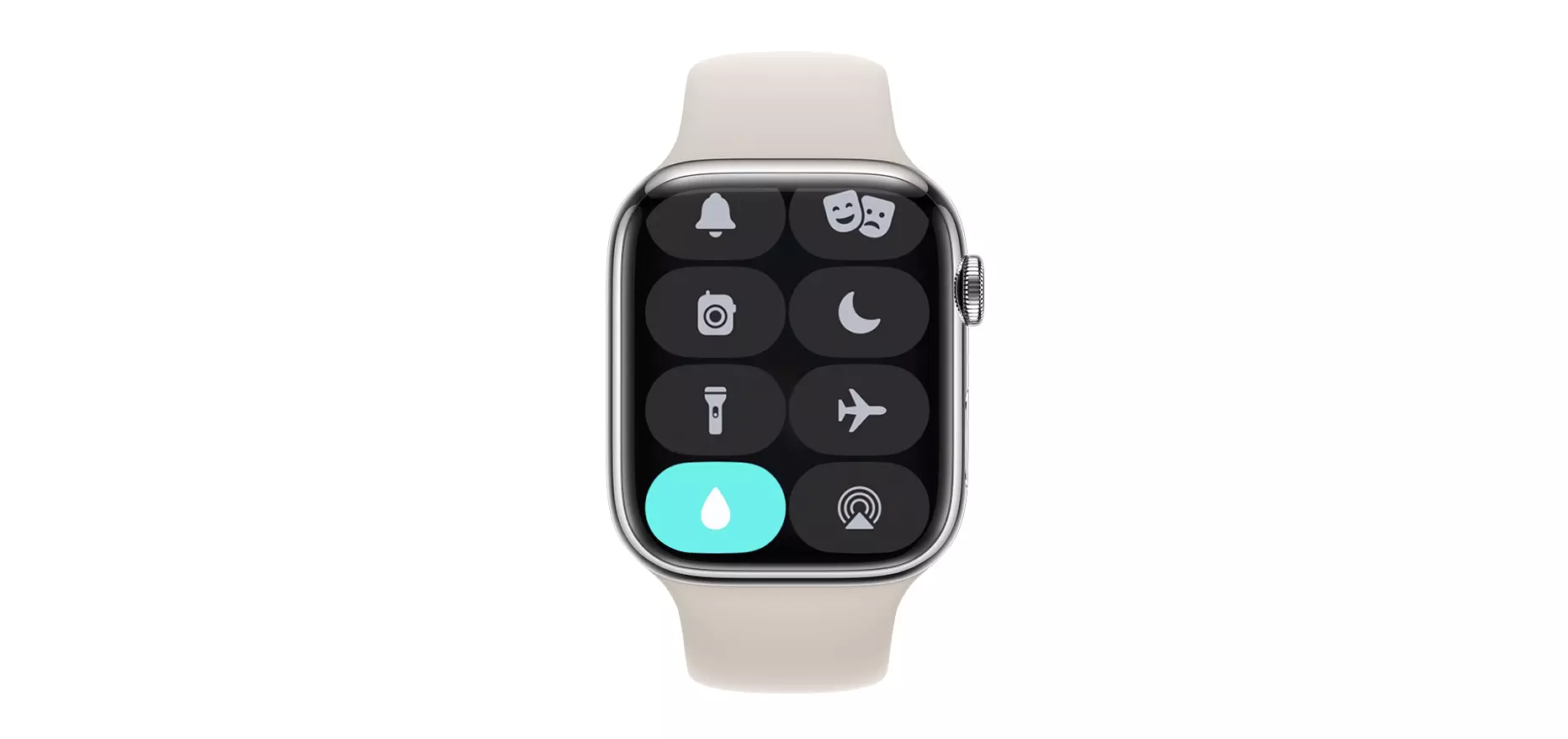
On the Apple Watch in Control Center is a function whose icon has a drop of water. This feature, Water Lock allows you to see the screen information, but will keep it at the touch or when the clock is sought. In fact, this function has been designed for swimming or diving.
When Water Lock mode is activated, at the top of the Apple Watch screen (notification) there is a drop of water in the icon.
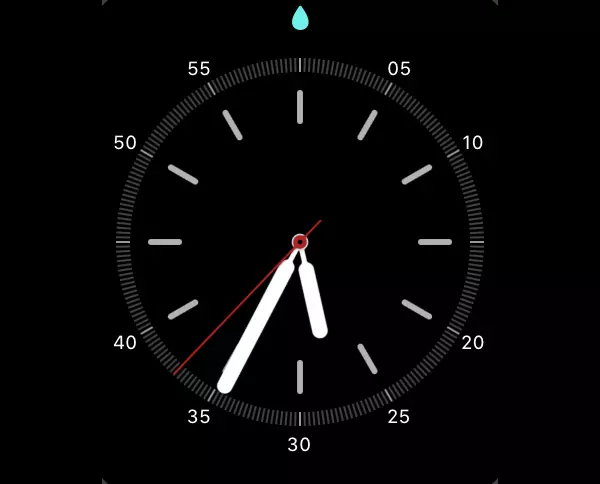
When Water Lock is activated, the Apple Watch screen will open when you touch it or raise your hand, but will not execute any tactile command. This way you block the Apple Watch screen to the accidental touch.
It is an optimized way for diving and swimming, but it can also be used when you are out of snow or when you pure long sleeve clothes that can accidentally open applications.
The disabling Water Lock is done by pressing for a few seconds of Digital Crown.
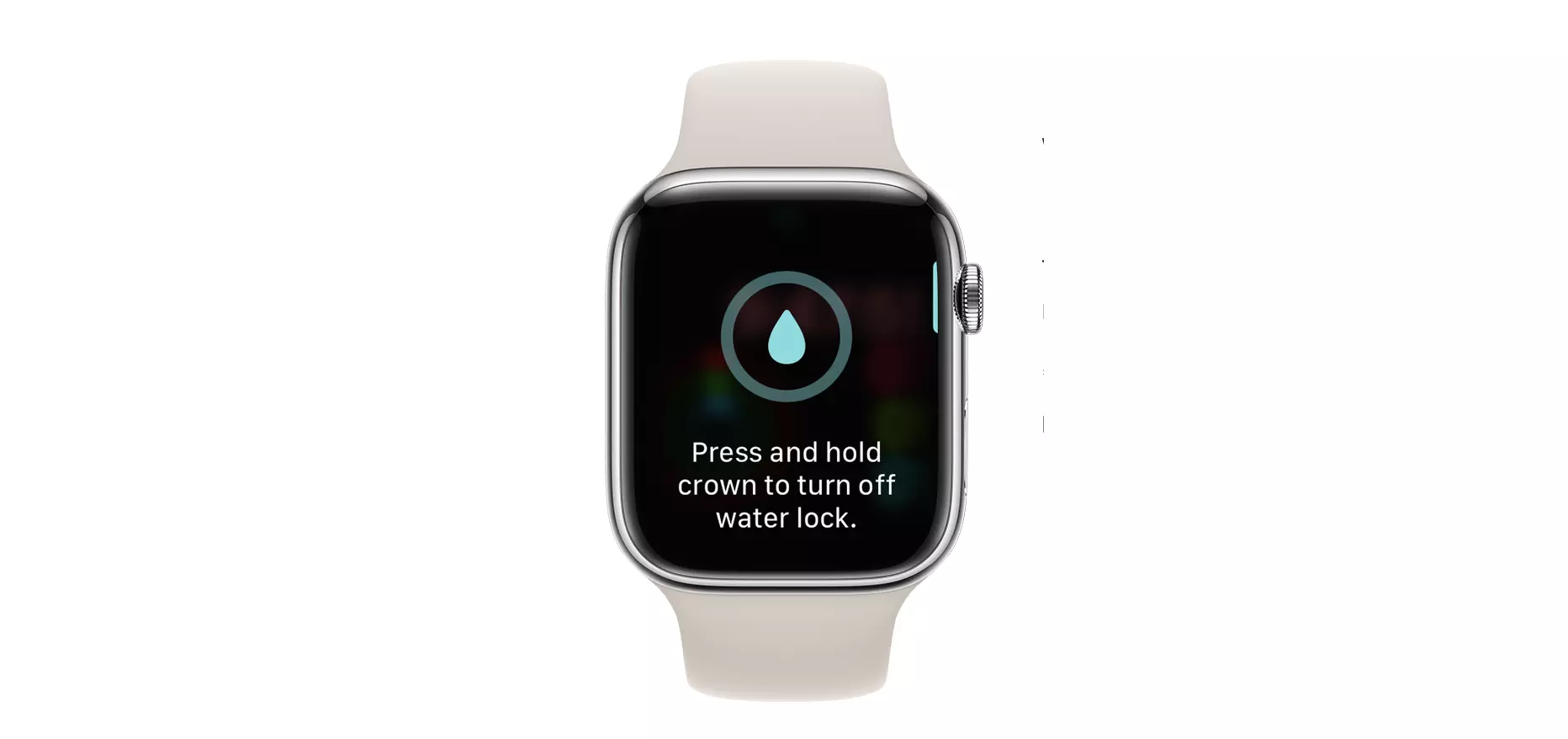
At Apple Watch models with Watchos 8 or older versions, disabling Water Lock is done by Digital Crown.
During disable, Apple Watch will emit sounds and vibrations. These have the role of removing the remaining water in Apple Watch holes.