
In this tutorial you will see How do you set up personalized email on iCloud Mail , what are the limitations of this service Custom Email Domain In iCloud+ and what password does each email address created on iCloud Mail have to use.
Starting June 2021, Apple introduce the service iCloud+ For users with abonamente iCloud. The new service comes with a few new options, including Private Relay, Hide My Mail and Custom Email Domains. The latter service allows iCloud+ subscribers to add a personalized e-mail area in iCloud Mail. Email domain that you will be able to share with family members and can create up to 3 e-mail addresses for each user in the Family Group.
Table of Contents
Custom Domain Email Facilities and Limitations / Custom Email Domains on iCloud Mail
Before you see how you configure personalized e-mail areas on iCloud Mail, you need to know that there are some limitations.
1. You can add Up to 5 fields of Internet to use for email. The customized fields for e-mail can be used either by the organizer or family members (users in the Family Group). This means that Each family member can have up to three email addresses on each customized area added. The limit for family is five members plus the organizer.
2. cannot have different passwords. In the scenario in which you add customized e-mail example.com in iCloud Mail, and you create the email addresses: account1@example.com and account2@example.com, for both accounts access password will be the same from Apple ID. They will have a common inbox in iCloud Mail. However, we can choose from what address we want to send email messages.
3. When you add an e-mail address to a personalized domain for family members, they will be authenticated with their own password of iCloud / Apple ID. Also without the possibility that at the personalized e-mail address you will change the password.
4. The new e-mail addresses created in customized areas will be used for FaceTime, Messages, Calendar and the rest of Apple services.
5. The new e-mail addresses created on the personalized domain in iCloud Mail can be added to customers / e-mail applications such as: Microsoft Outlook, Windows Mail, Mozilla Thunderbird and others.
6. It will not be able to set Separate signature for each email address.
7. If you are wondering How much storage space do you have available for each email added in iCloud Mail, all you have to do is look at how much storage space you have available in your iCloud+account. That is the common storage space used by Photos, iCloud Drive, iCloud Mail and other Apple or third -party applications that have access to iCloud Storage.
Therefore, Custom Email Domain or personalized e-mail areas on iCloud Mail should not be seen as an email hosting service offered to iCloud+subscribers. Custom Email Domain is more of a service of alias email through which users can add their own internet fields to use for receiving and sending e-mail messages. Everything closely tied to Apple ID.
It is not advisable to use this service for an internet field that you already have created e-mail addresses for multiple users. They will not be able to have their own passwords at the iCloud Mail accounts. Unless you have iCloud+ with Family Sharing and all users are in this group.
How do you set up personalized email on iCloud Mail
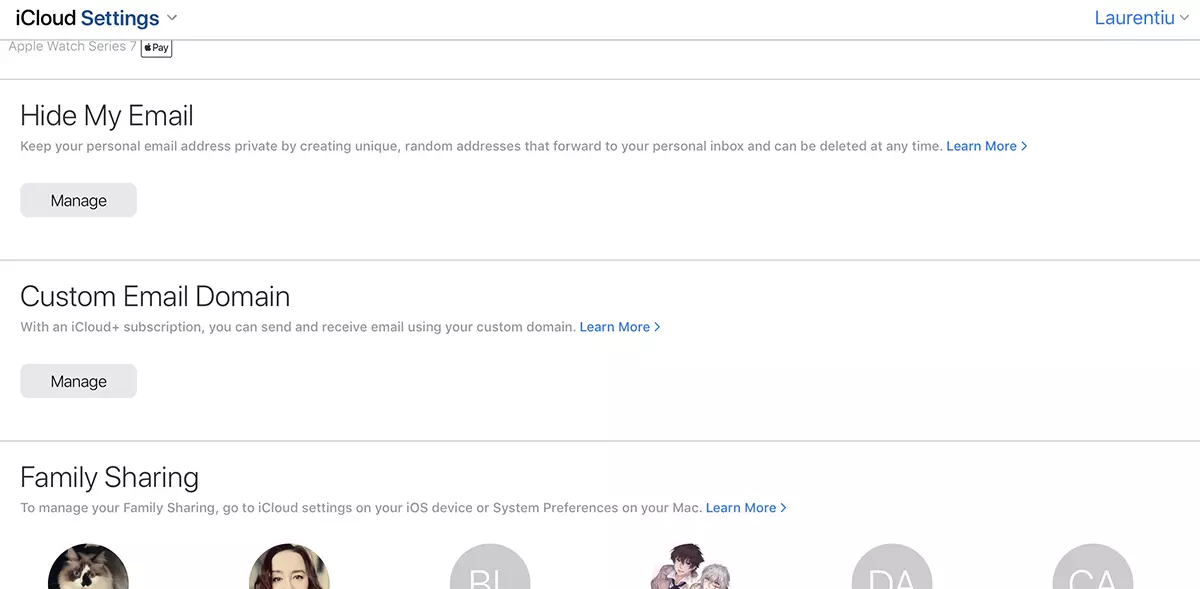
1. Okes in the browser iCloud.com/settings and go to Custom Email Domain → Manage.
2. You choose if the new domain you add for the e-mail can only be used by you or by family members.
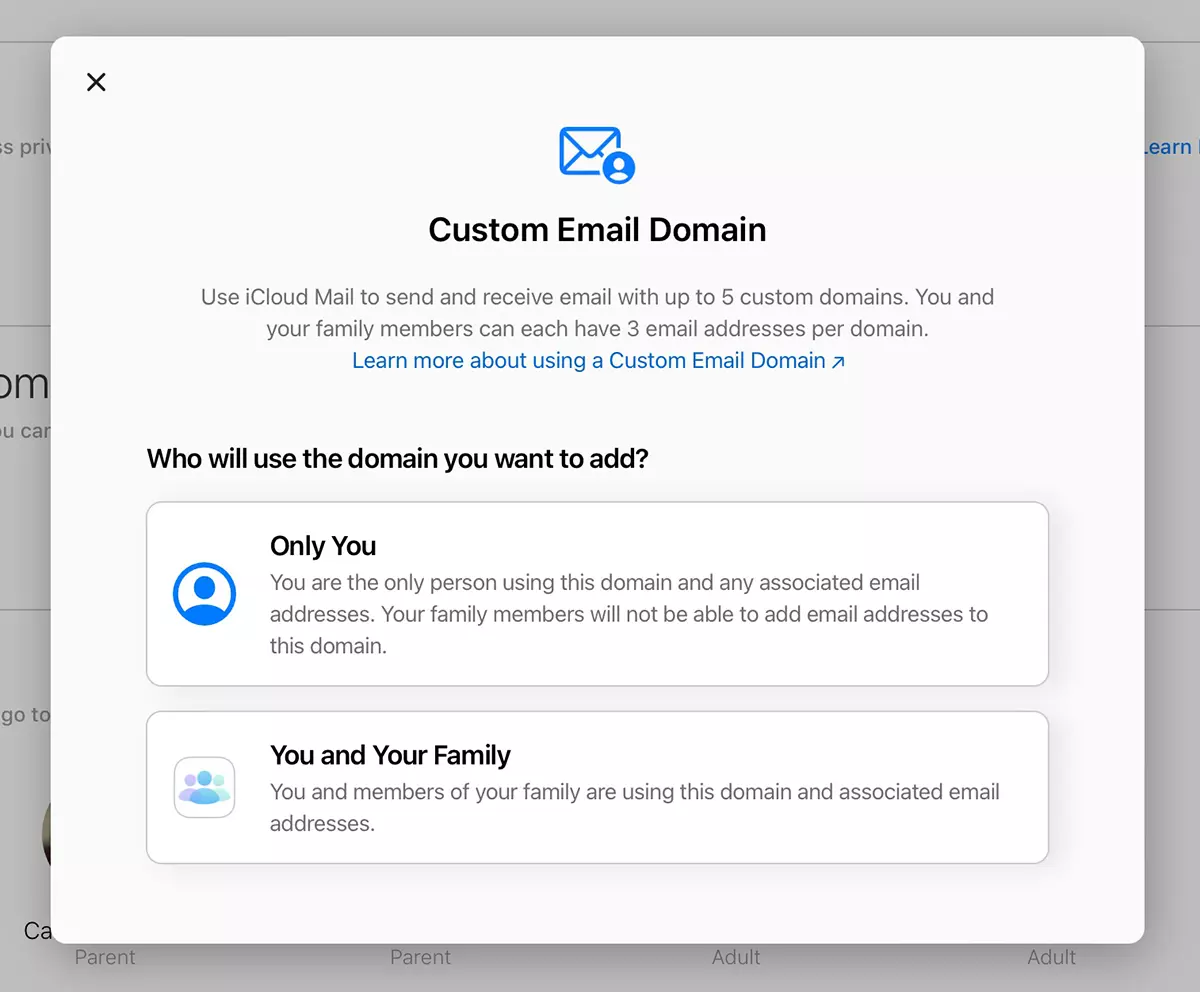
As a very personal internet domain, I chose "Only You"For this tutorial.
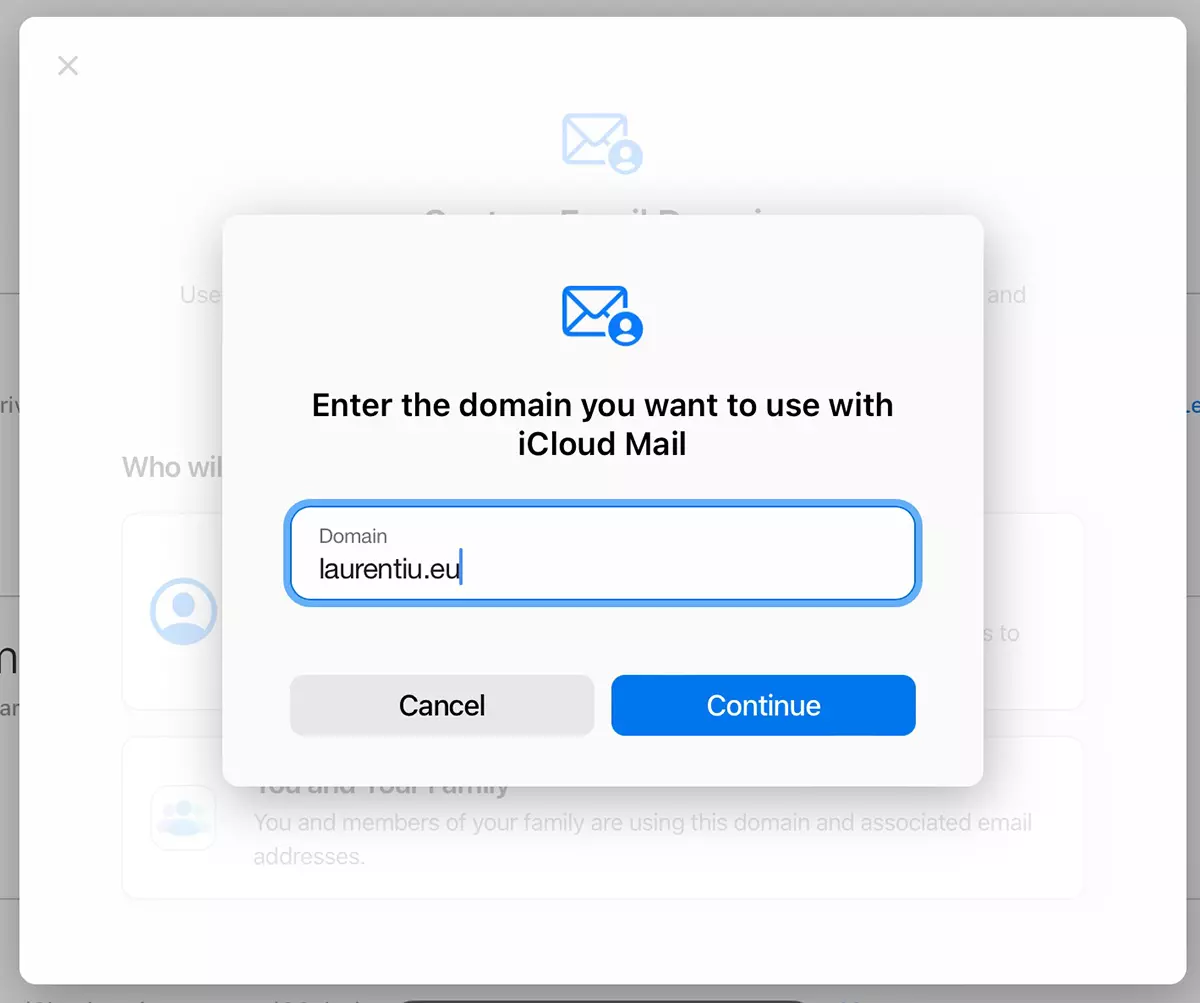
3. At the next step we introduce the field we want to use with iCloud Mail. laurentiu.eu, in my case.
4. We add the e-mail address that we want to use in the added domain. Here we have to be a little careful. If we already have an e-mail account on the Adagat domain, we enter the existing e-mail address. “Add email address”.
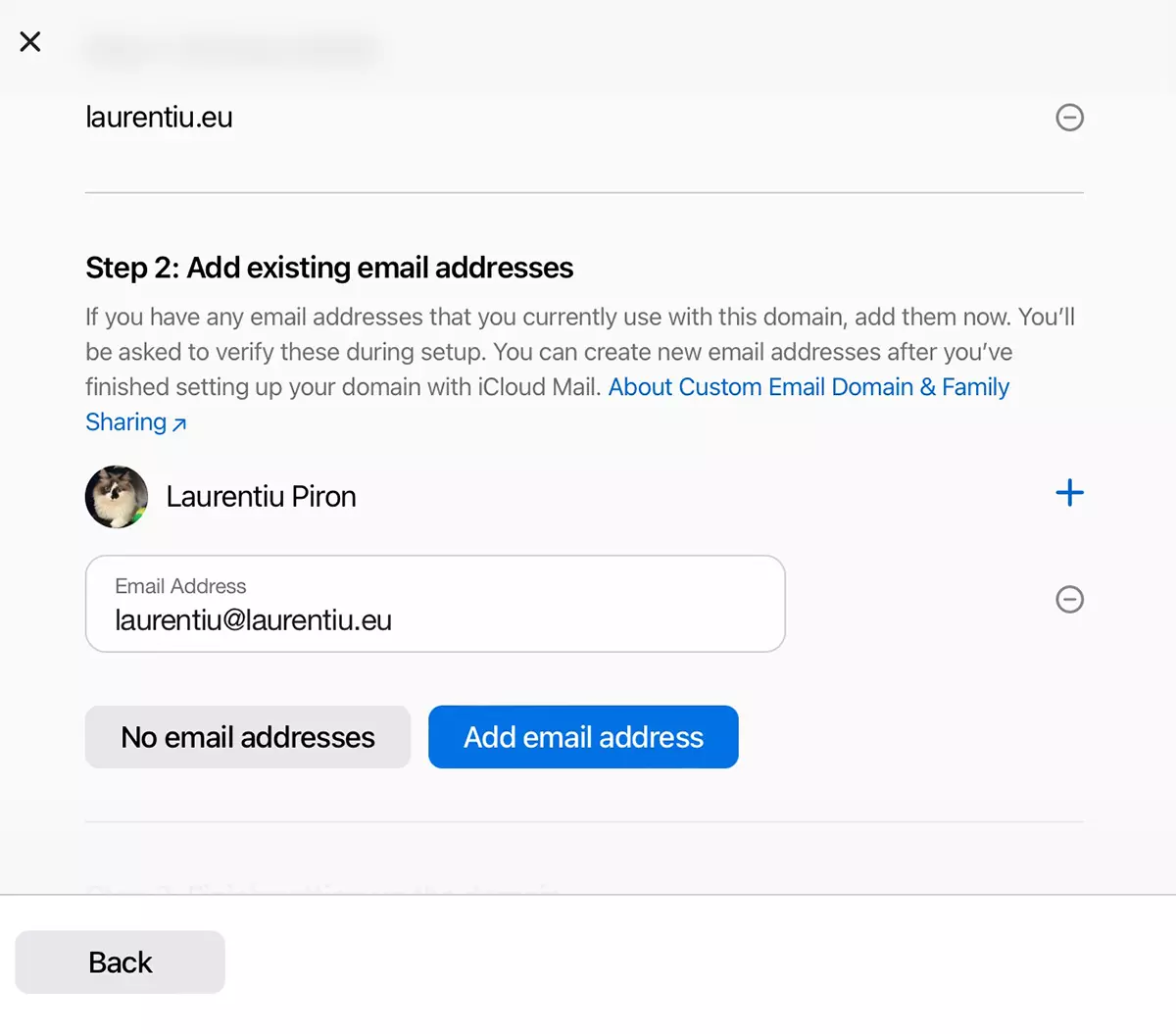
If you do not already have an e-mail address in the domain, choose "No email address“.
5. In the next step you will need to confirm the email address added to iCloud Mail. If the address is already used on another email hosting service, go to the e-mail account and copy the verification code. Make validation in iCloud Mail.
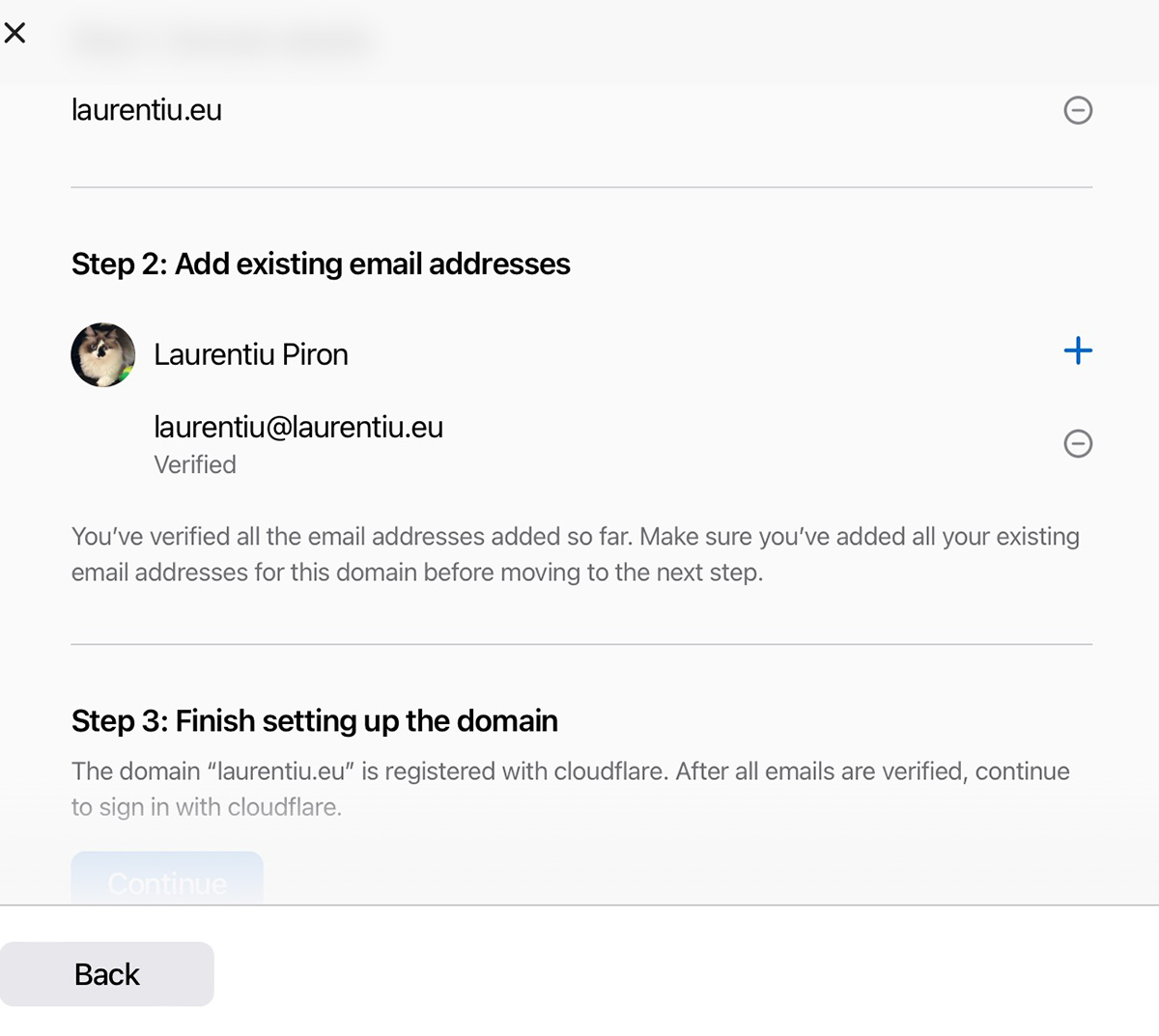
6. If for the added domain you have Cloudflare as manager DNS, then it is best to open a tab in the browser and authenticate in the Cloudflare account. Return to the tab in which you configure the personalized e-mail domain in iCloud Mail, then click on "Continue" from “Finish setting up the domain“.
The new DNS zones for e-mail will be updated in cloudflare.
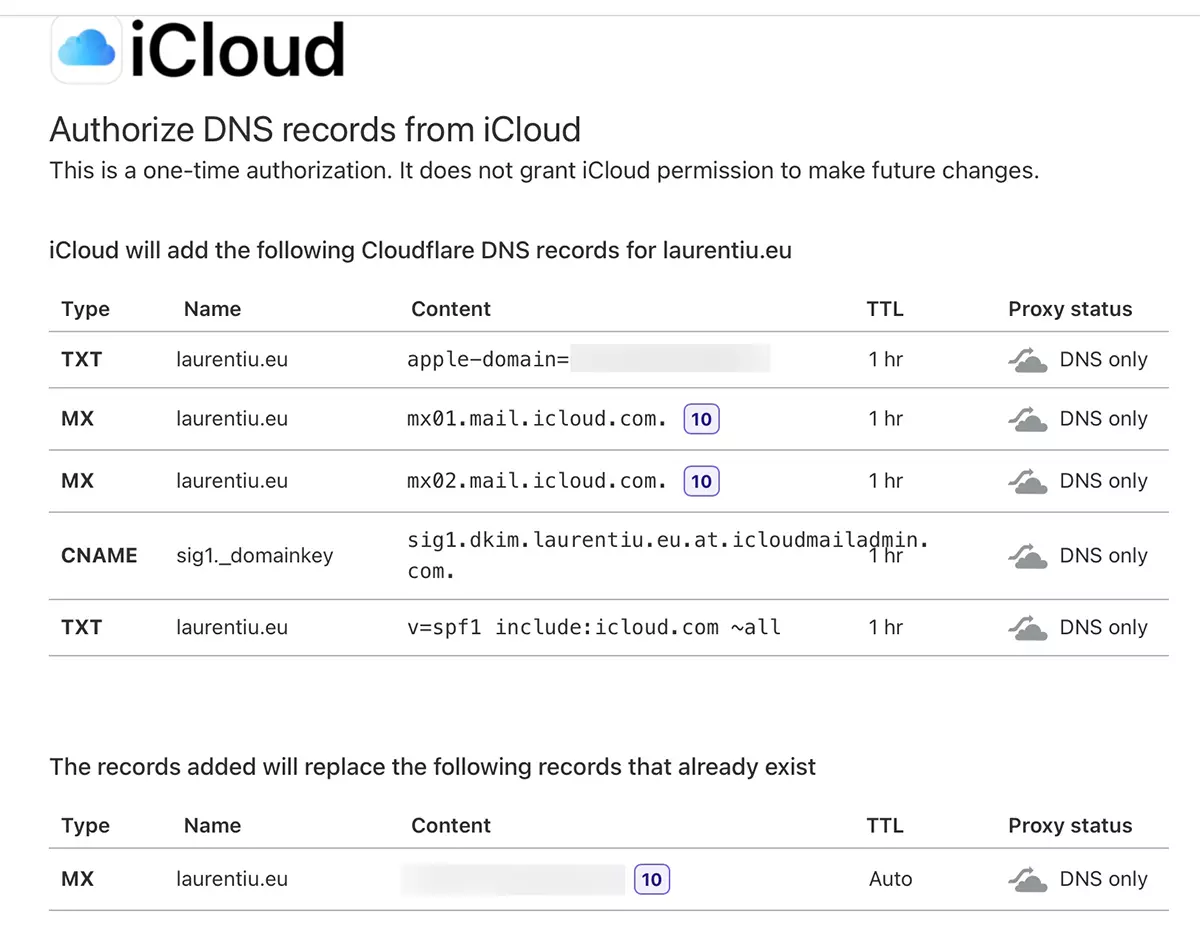
If you do not use Cloudflare, go to the manager DNS of the domain added to iCloud Mail and set the new coordinates there MX, TXT and CNAME (for DKIM).
After this step, your email address will no longer be available on the old server. Old messages will stay there, but they will not be accessed. The new messages received will enter the iCloud Mail.
Next we can choose that the newly created address is used as the default address for sending messages from iCloud Mail and this can also be used as Apple ID.
In this way add and configure personalized e-mail areas on iCloud Mail.
Personalized e-mail areas on iCloud Mail do not affect the existing websites in these fields. As we know, the email server does not necessarily have to be the same as the website hosting server. This is not indicated.