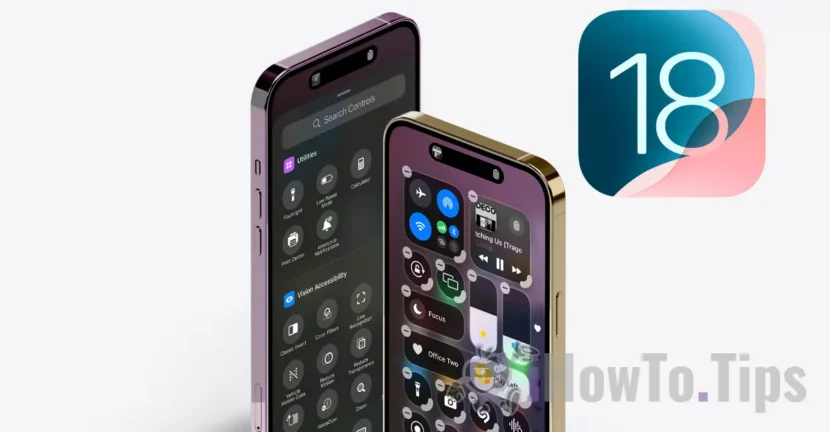

The new Control Center in iOS 18 is completely overhauled, being divided into several pages that users can customize. The first page shows the favorite controls that iPhone users are already used to, such as Wi-Fi, Bluetooth, flashlight, screen brightness, volume and other user-customized functions. By default, the second page is dedicated to media controls and Apple Music. A third page is dedicated to controlling smart devices from the Home app, while the last page shows the connectivity switches.
At the same time, the new Control Center in iOS 18 offers users the possibility to add new pages with functions that they can quickly access. Thus, users can better reorganize shortcuts and even resize them.
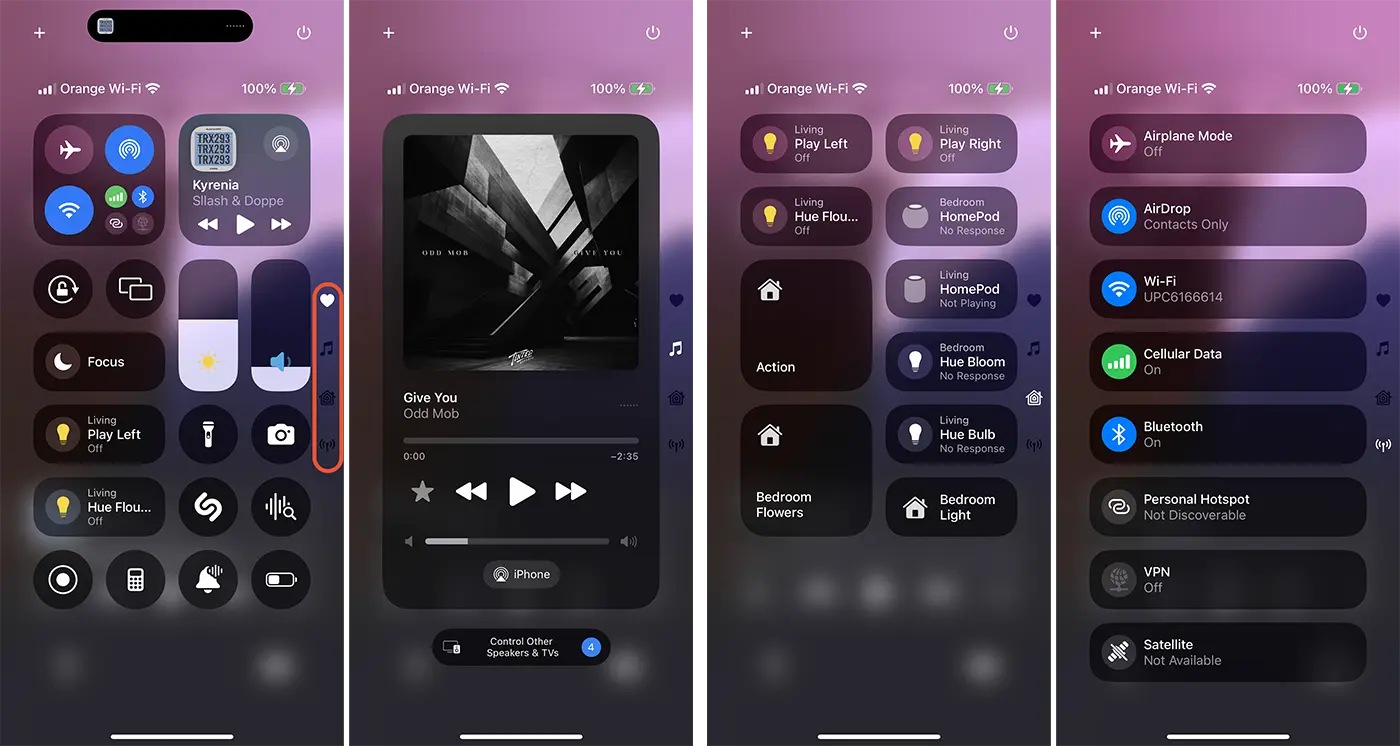
At the top right of the Control Center, Apple has also added a quick shutdown button. This iPhone shutdown button is very welcome because many users forget which combination of buttons to press to shutdown the device.
The most important innovation is the new API for Control Center, which allows developers to create switches for third-party applications. These switches will allow users to control actions in apps without having to open them. Basically, the Control Center in iOS 18 will become a gallery of options for applications and quick access to some functions of the iPhone.
How you can customize Control Center in iOS 18
Customizing Control Center in iOS 18 can be easily done by following the steps below:
1. Swipe down from the top right corner of the iPhone screen to open Control Center.
2. Tap the plus sign (+) at the top left of the screen.
3. At this point the editing feature of Control Center has been enabled and you can customize each page with quick features.
Each quick feature will have a minus sign (-) on the top left of it, where it can be removed from Control Center. Some functions offer the possibility of resizing. On these it appears as a kind of thickened border (or handle) on the right side where you can pull to resize.
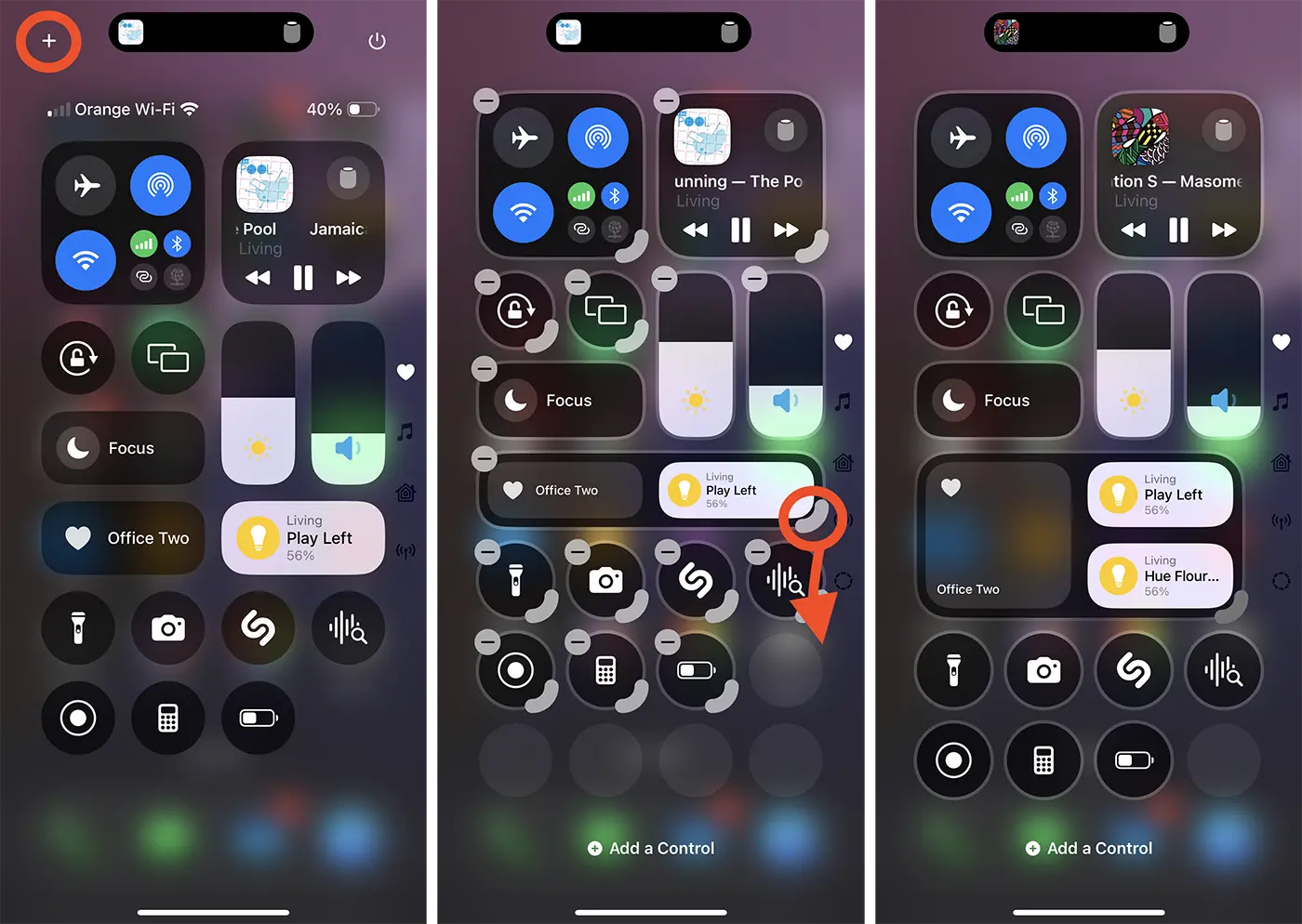
Also, the new structure of the Control Center allows quick functions to be rearranged in each page and new custom pages can be added if you want better organization.
If you want to quickly add new functions to the Control Center, all you have to do is go to the Add a Control option at the bottom of the screen. This will open a gallery of quick options that can be added to Control Center in iOS 18.
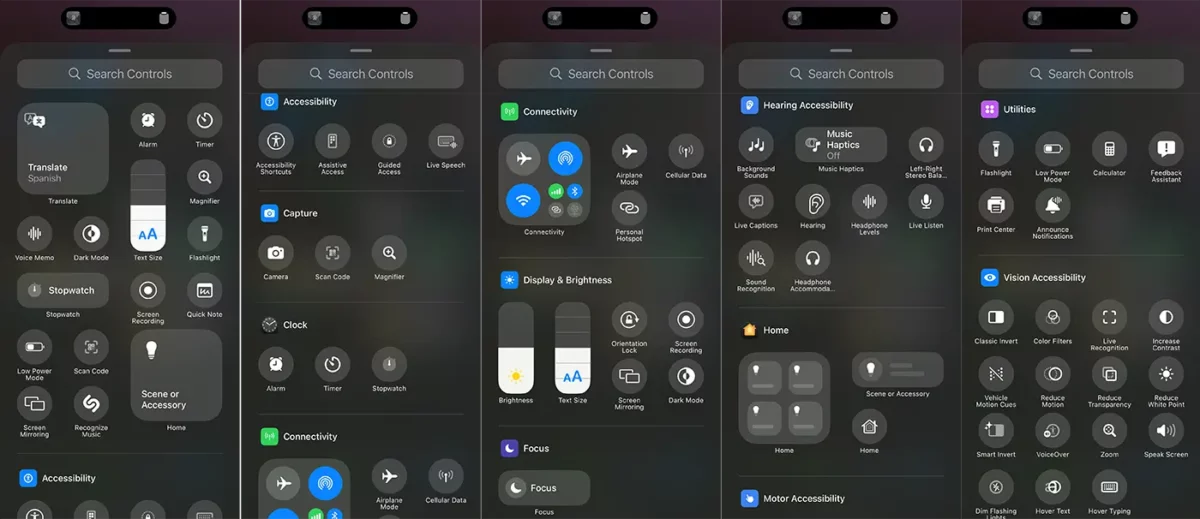
In addition to these options for editing and categorizing quick features in Control Center, Apple provides an API for developers to create their own app quick features. In this way, some functions of the applications will be accessible from the Control Center, without the need for the user to open the application.
Related: Customization Home Screen on iOS 18.
In conclusion, Control Center in iOS 18 is quite different from previous iOS versions. It's much more dynamic, offering a simple interface to customize and organize quick features. This change to Control Center is also present on iPad devices with iPadOS 18 operating system.




































