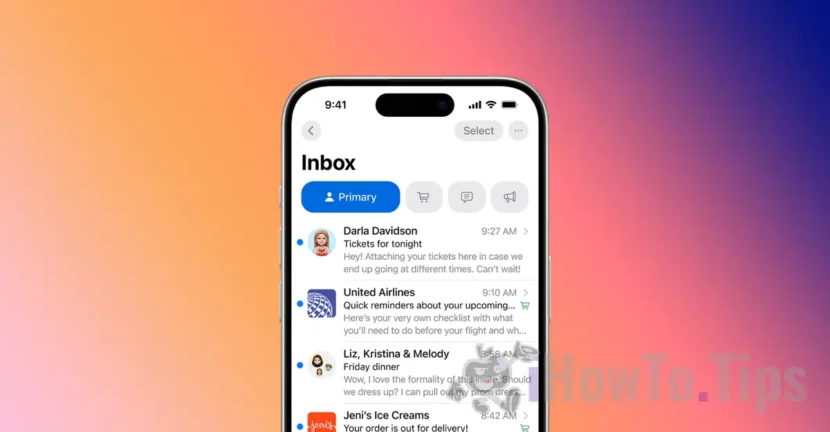

One of the most important features of iOS 18.2 is the sorting of emails by category in the Mail app. This option allows users to keep incoming messages better organized in the Mail app on iPhone devices and receive notifications only for important messages.
"Categories in the Apple Mail app sort messages to help you prioritize the most important messages," Apple wrote in the release notes for iOS 18.2. If you don't like the way categories work in Mail, don't worry—you can go back to how the app looked before the update.
Before we see how you can turn off email sorting in the Mail app on iPhone, let's see how this feature can help you.
Table of Contents
What are categories in the Apple Mail app on iPhone
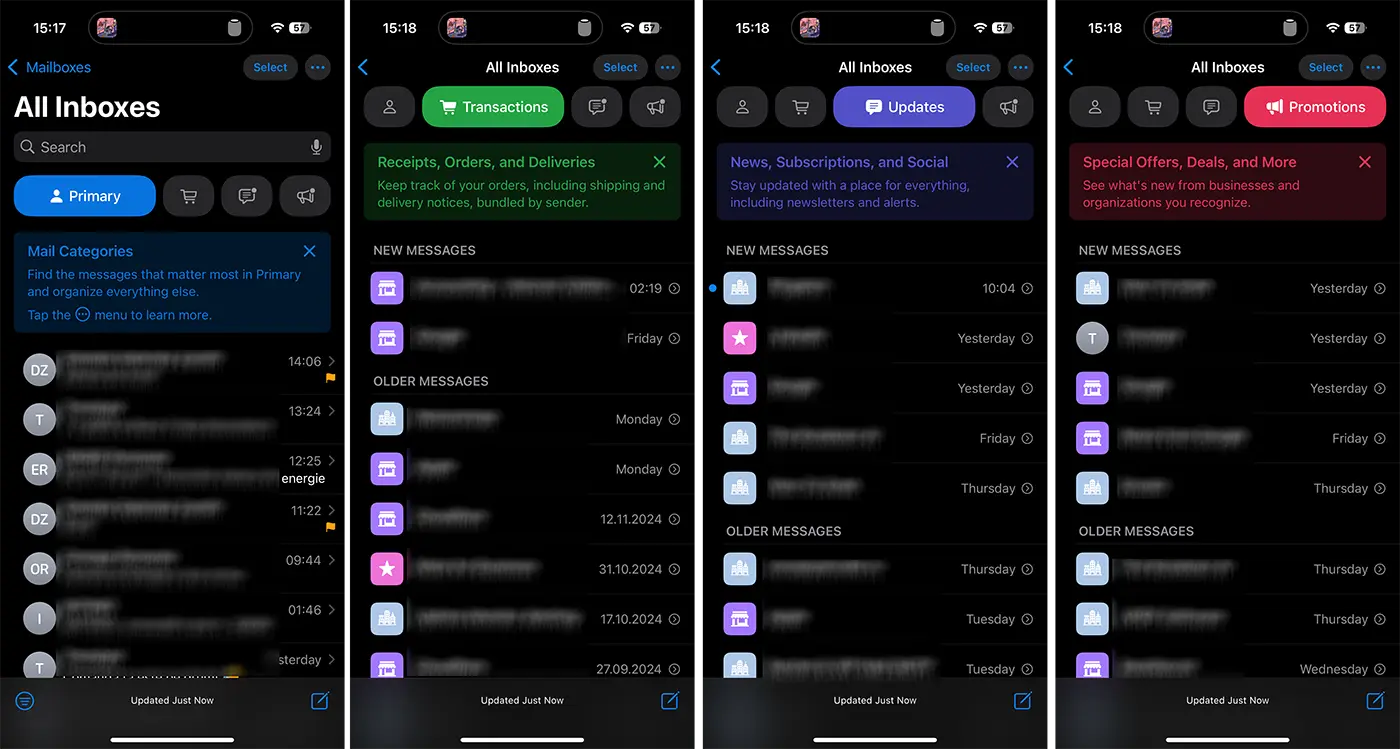
Emails with receipts, information about orders and deliveries are placed in the category Transactions, and news, social emails and other subscriptions arrive in update. Mails with special offers and promotions are placed in Promotions.
Category Principal is a little harder to define. Apple says that in the category Principal "Messages that matter the most" are found. For example, if email messages are received from friends, colleagues, or other important messages, they will be displayed in the Primary category.
When a message does not reach the right category, it can be moved to another category. Messages that will be received later from the same sender will be automatically moved to the chosen category.
Another important feature when sorting messages by category in the Mail application is activated, is the badge notification only for important messages, from the Primary category. The red notification dot will only show the number of unread messages in the main category (optional).
How to turn off email sorting on iPhone
If you don't like the categories in the Mail app, you can remove them so that Mail looks like it did before the iOS 18.2 update.
1. Open the Mail app on your iPhone.
2. Tap the three dots in the upper-right corner of the Mail app.
3. Select List View.
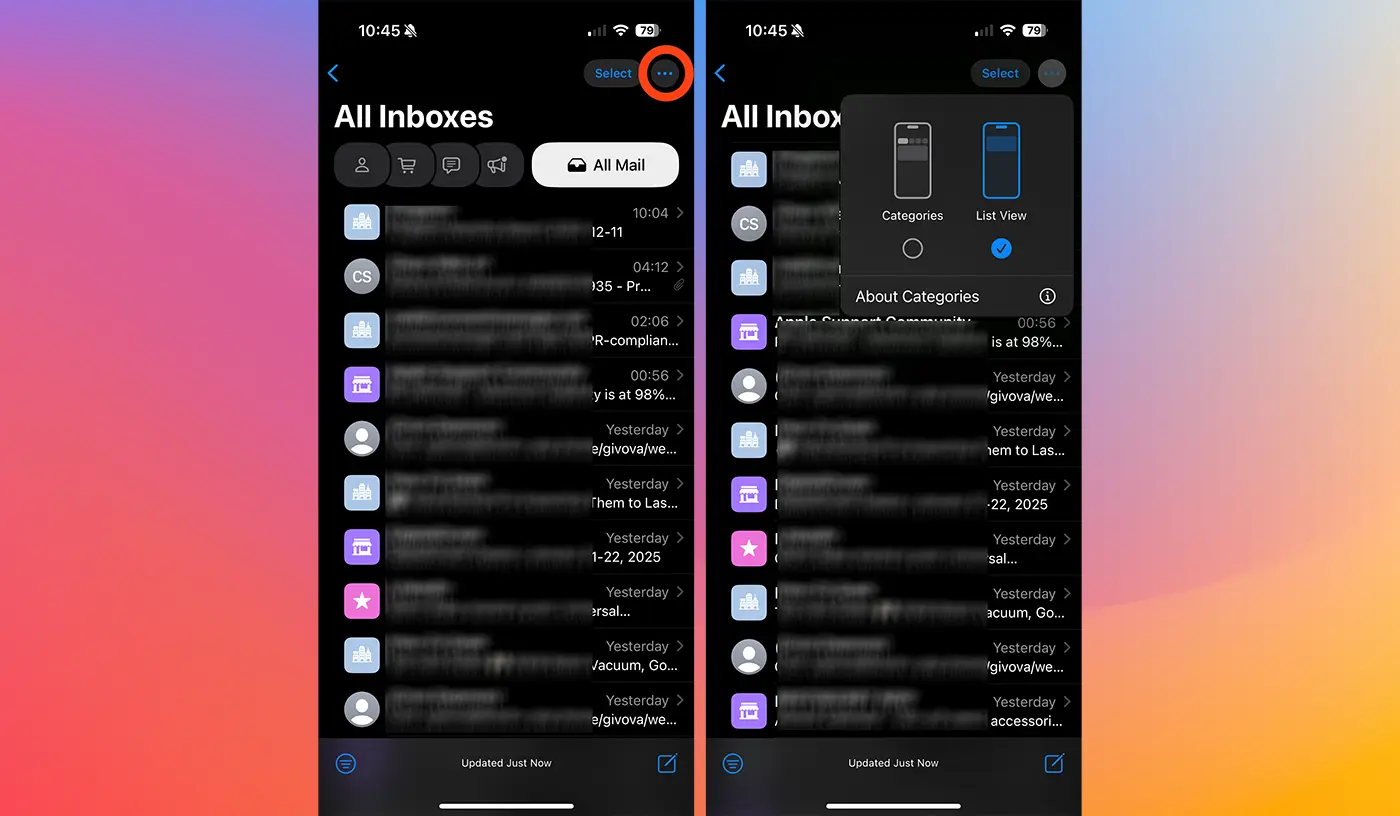
After this step, you have successfully disabled email sorting on iPhone with iOS 18.2 (or later). In the Mail app, all messages will be displayed in a single list, as it was until the iOS 18.2 update.
However, even if you have activated the new interface with sorting by category, with a simple swipe from right to left on the category bar you can view all messages (All Mail).




































