

It's good to know how to disable autoplay video in Safari, if you do not want to be distracted from the content of the web page.
A stressful thing when accessing it page web is to automatically start a video. Most of the time, it's an advertisement that doesn't interest us or an influencer that otherwise can't make itself visible.
How to disable video autoplay in Safari on Mac
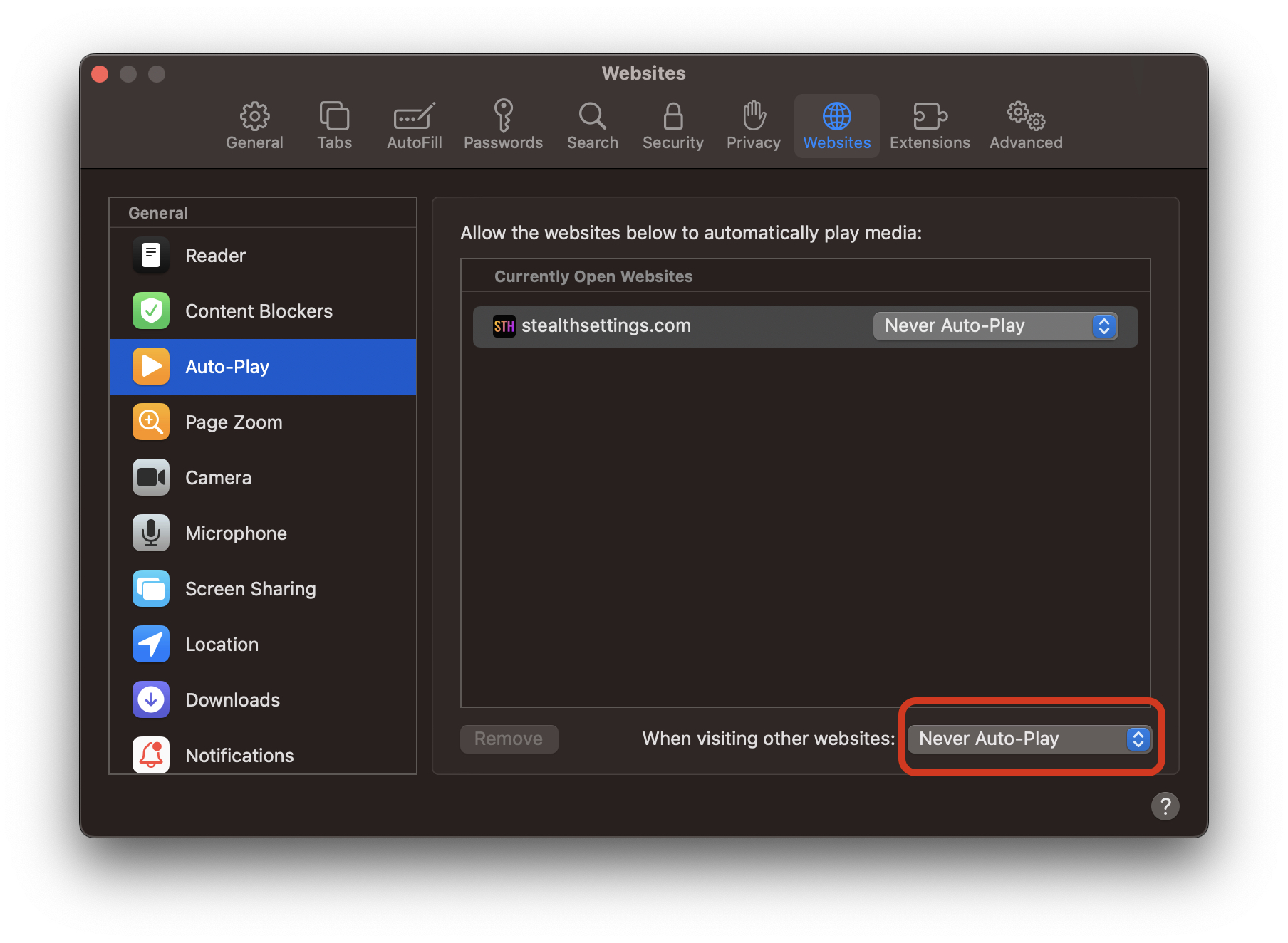
1. We open “Preferences” in Safari. Shortcut: Command + ,
2. We go to “Websites“, then in the left bar at “Auto-Play“.
3. In the first part, the websites that are open in tabs and for which you can choose: Allow All Auto-Play, Stop Media with Sound or Never Auto-Play. From here you will be able to preferentially set whether a video content should start automatically or not for open web pages.
4. At the bottom we have the possibility to set “Never Auto-Play“ for all websites.
- Cum Stergem Safari History, Cookies Si Cache (Safari Privacy)
- Safari 15 with "compact" and "separate" tabs on Macos Monterey
- How to prevent the accidental closure of Safari (Command - Q) - Change Keyboard Shortcuts
After you make this setting in Safari, when you visit a web page, the video content will no longer play automatically. Autoplay.
We hope that the "How to disable autoplay video in Safari" tutorial saved you from a little stress when surfing the Internet.




































