
There are not a few users who use it Safari ca browser default pe Mac, despite the fact that Apple has not made substantial improvements over time, nor has it paid attention to details related to reliability.
One of the most useful features of the Opera Browser and Google Chrome, is the function by which prevents accidental closing of the browserwhen defending the shortcut: "Command + Q". In these browsers, if we press "Command + Q" by mistake, we are prompted to hold down for a while or to press again for the close command to be executed. On Safari, this does not happen. If we have many web pages open in tabs and we press "Command + Q" by mistake, the browser will close altogether. And there are not a few situations in which "Command + Q" is accidentally pressed in Safari, as long as the close command of an active tab is: "Command + W". The key close to "Q".
"Keyboard Shortcuts"I am key combinations which once pressed executes certain commands. For the tabs open in the browser, perhaps the most used keyboard shortcuts are: "Command + R” to refresh the open web page (refresh) and “Command + W” to close the current tab.
Some of the shortcuts are general, they execute the same command in all applications. For example, "Command + Q" is a general shortcut, through which we can close any application open on Mac. However, this shortcut can be modified for each individual application or even disabled. By changing the "Command + Q" shortcut for Safari, we can prevent accidental closing of the browser.
How to prevent accidental closing of Safari when pressing "Command + Q".
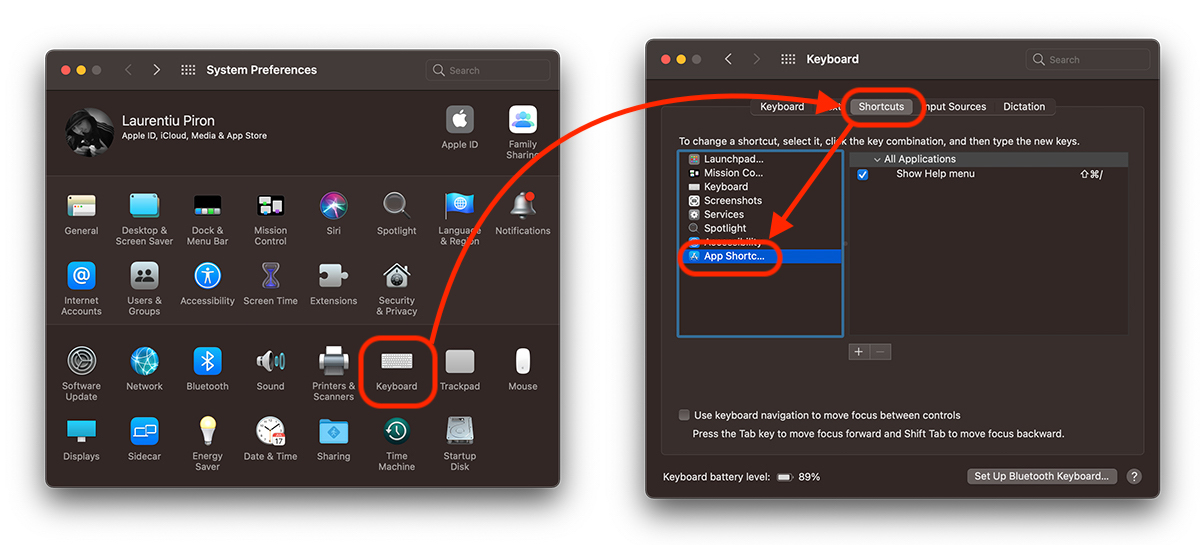
1. We open "System Preferences” → “Keyboard” → “Shortcuts” (tab) → “App Shortcuts” (in the left bar).
2. Press the "+" button from the list of shortcuts, select the "Safari" application, then under "Menu Title" enter the exact name of the command, as it is in the application. "Quit Safari" in our case. Select the "Keyboard Shortcut" field, then press the new key combination for the desired command. "Options + Command + Q“.
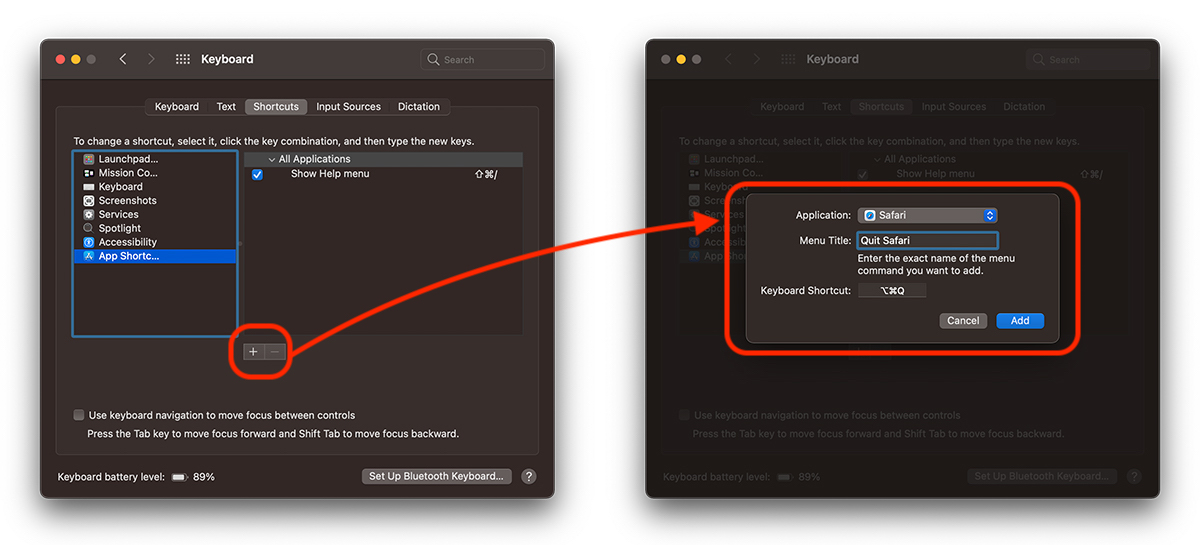
3. Once the "Add" button is pressed, the new keyboard shortcut will become active. Safari no longer closes with the old key combination and thus the accidental closing of the application will be avoided.
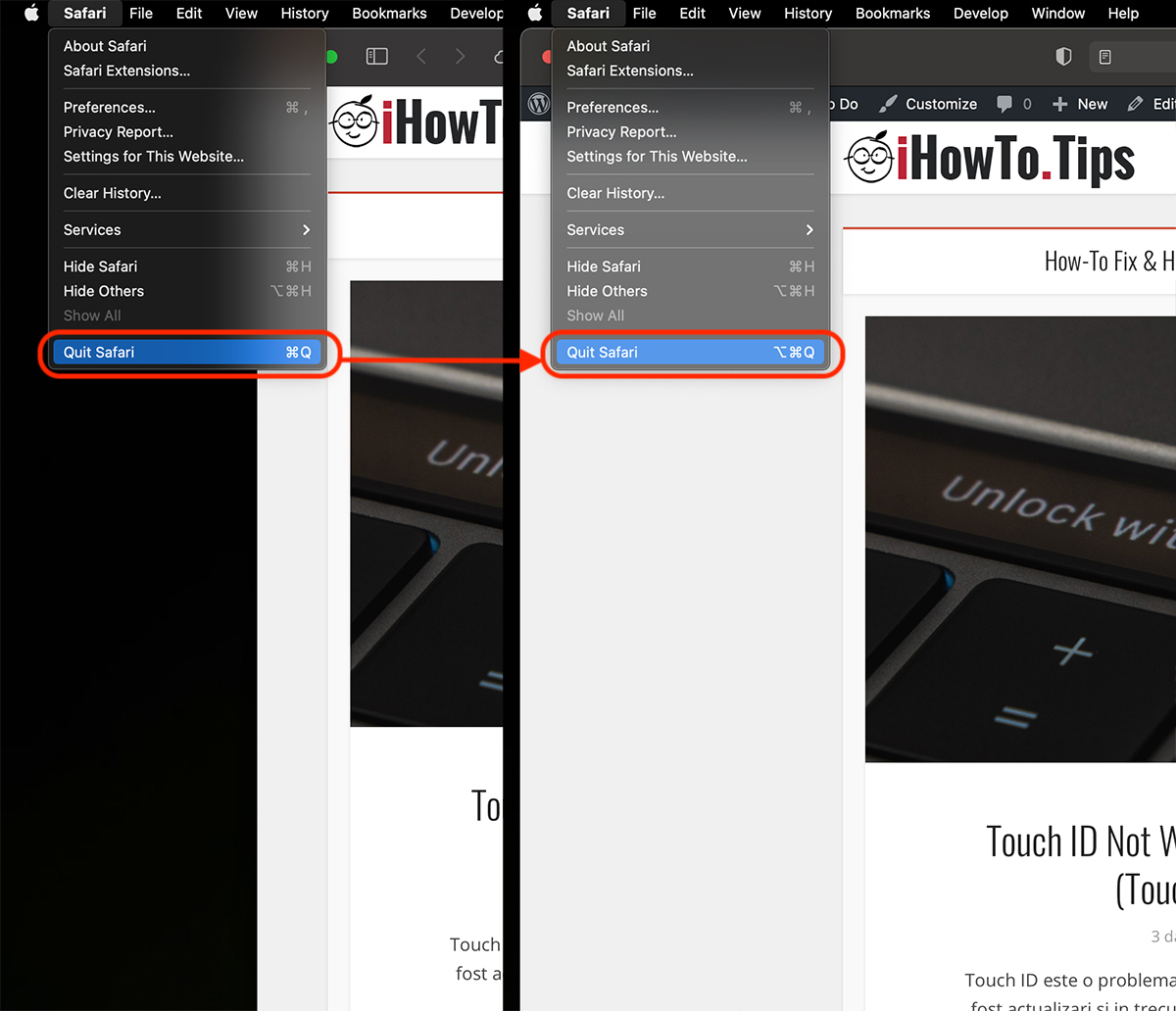
You have to be a little careful when you choose noul keyboard shortcut, it should not be used by another function of the application or the operating system.
In the same way, you can create or modify keyboard shortcuts for other functions or applications. You can make your own keyboard shortcuts for functions in Mail, Photoshop, Illustrator, Final Cut Pro X, Photos or other applications.





































I DARK I SUPER