
The function that is responsible for the automatic closure of the iPhone screen is extremely useful for saving the battery and protecting the privacy, especially when you leave the phone unattended on the desk or in a common space. However, it may be disturbing for the screen to extinguish exactly when you read or check a shopping list. To avoid this disadvantage, the simplest solution is to temporarily disable the automatic locking function.
Table of Contents
How to disable the Auto-Lock feature to disable the iPhone's automatic closing
The reason why your iPhone screen darkens and closes is the function called auto-rock. It automatically puts the iPhone in Sleep mode after a certain period of time. Two thirds before the expiration of this period, the screen will be reduced to half the brightness. To solve the problem, you must disable this function.
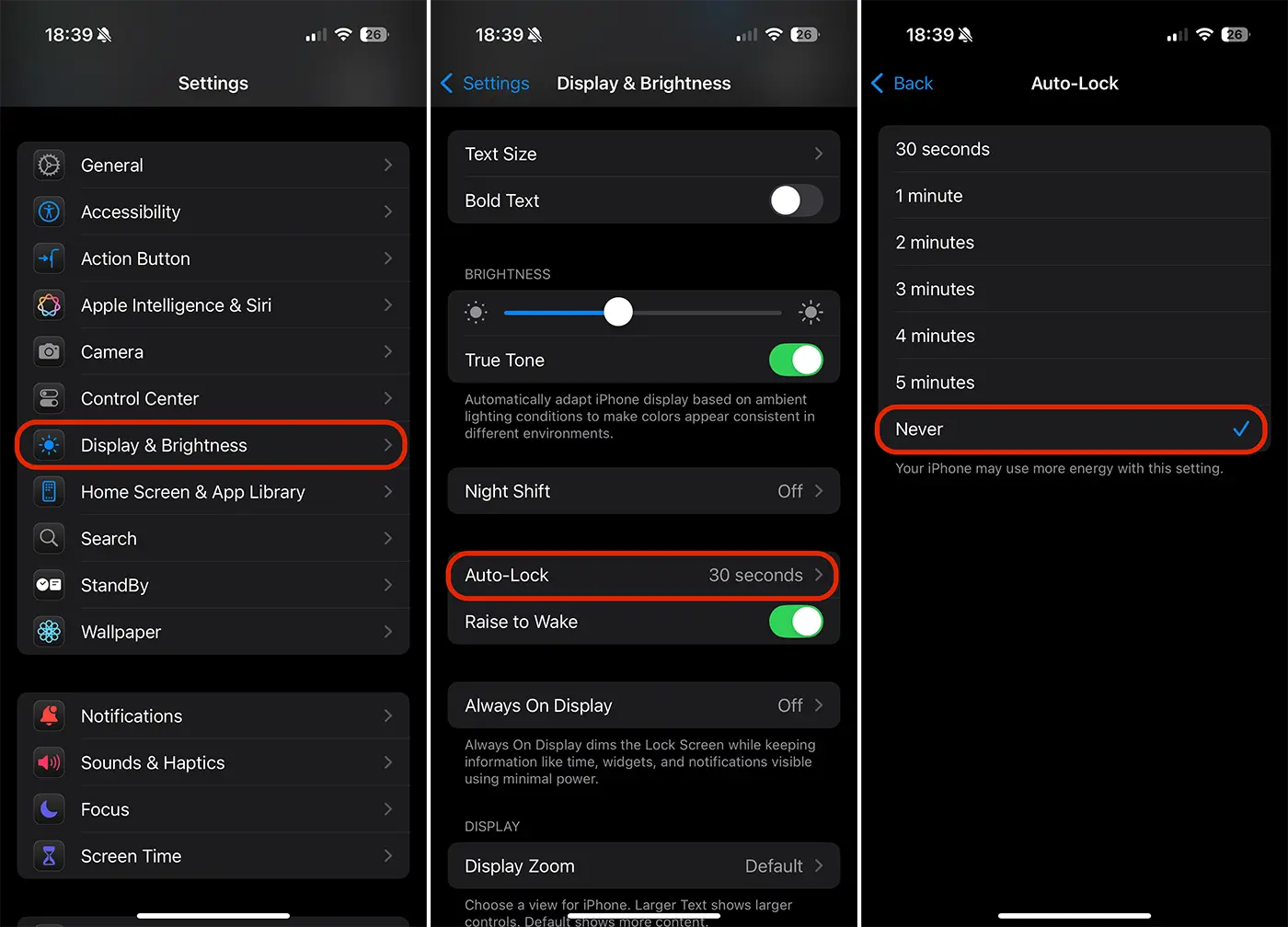
1. Open the Settings Application on your iPhone. If you do not find the application, you can use the Spotlight search function by sliding down the main screen and typing "settings".
2. Press on Display & Brightness (Screen and brightness).
3. scrolls down and pressing on Auto-Lock (Automatic lock).
4. Under the Auto-Lock settings, you will see a list of time options. They determine how long the screen remains before closing automatically. To completely disable this feature, select the option Never (Never).
Note: Dacă modul Low Power (Economie energie) este activat, opțiunea Auto-Lock va fi setată automat la 30 de secunde, iar opțiunea nu va putea fi modificată. Pentru a schimba această setare, dezactivează mai întâi modul Low Power mergând la Setări > Baterie.
Now, whenever you unlock the iPhone, the screen will remain lit until you close it by handing the side button.
How do you disable the Auto-Brightness function
If the screen continues to darken even after you disable auto-lock, the function may be activated Auto-Brightness (Automatic brightness adjustment). To turn it off, go to Setări > Accesibilitate > Display & Text Size (Display and text size) and deactivates the "Auto-Brightness" option at the bottom of the page.
Why is it good to activate the Auto-Lock function again
Although it is useful in certain situations, deactivating the auto-lock function that is responsible for the automatic closing of the iPhone screen comes with some disadvantages.
1. Battery autonomy:The iPhone screen is one of the largest energy consumers. Leaving it constantly lit, the battery will be consumed much faster.
2. Security: If the iPhone does not get stuck automatically, anyone can use it if it remains unattended. When the iPhone screen closes, in order to be reopened and accessed, Face ID or Device Unlock Password is needed.
To avoid these problems, it is advisable to reactivate the auto -lock function after you have finished using the device. Repeat the steps above and choose a time interval from the list instead of "never".
Related: Activates Always-On Display according to Focus mode on iPhone
Also, normally, the iPhone screen will not close automatically when you watch videos, when you are during a video call or run interactive applications and watch the screen.




































