
By the method presented in the tutorial below you can hide applications on iPhone or iPad, including WhatsApp, Instagram, Photo Galleries, streaming applications or iOS games.
The iPhone devices can be secured with password and biometric authentication Face ID, Touch ID, so as not to allow other people to unlock the device and access applications, games, pictures or other personal data. Even with these security measures of iOS or iPados, there are situations where you need sled to be applied on iPhone or iPad, in order not to be found by someone who managed to unlock the device.
Table of Contents
How can you hide apps on iPhone or iPad
In order to hide applications on iPhone or iPad, first of all you have to turn off their notifications, remove them from the main screen of the device and from Siri suggestions.
For this tutorial I will choose to hide the Mypics app on the iPhone. This is an application that allows you to store photos and videos, separately from the Photos, native iOS and iPados app. Access to the Mypics application can be done with password or code authentication, separate from that of iPhone or with Touch ID biometric authentication, Face ID.
App Store: MyPics
With all these measures of security offered by Mypics, I want this app not visible on the iPhone, when my device is in another person's hands.
The first step is to disable the application notifications. You do not want to receive a notification from an app you want to keep hidden when your iPhone is at another person.
How do you disable notifications for an app on iPhone or iPad
To disable notifications for an application installed on iPhone or iPad, follow the steps below:
1. Open "Settings", run to the application and open its access settings.
2. In the application access settings disable all notifications.
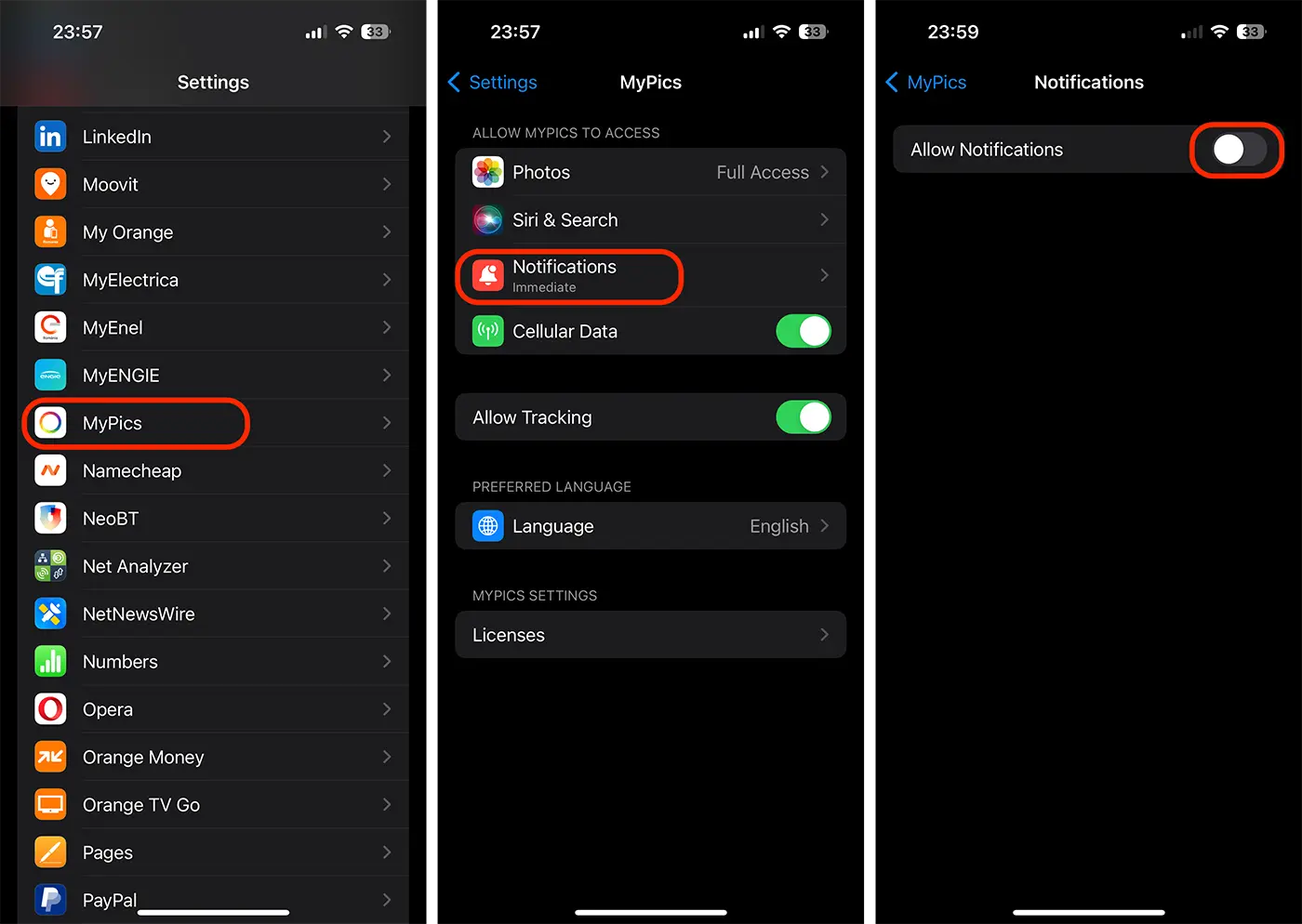
Now the application will never issue notifications.
The next step is to remove the application from the Siri suggestions and the results of the searches.
How do you eliminate an app from Siri and Searches suggestions?
To provide quick access to the most commonly used applications, the iOS operating system uses a user indexing and learning system. When you want to look for an app on the iPhone, the most commonly used will be presented the first in suggestions. This is not an advantage when you want to hide applications on the iPhone.
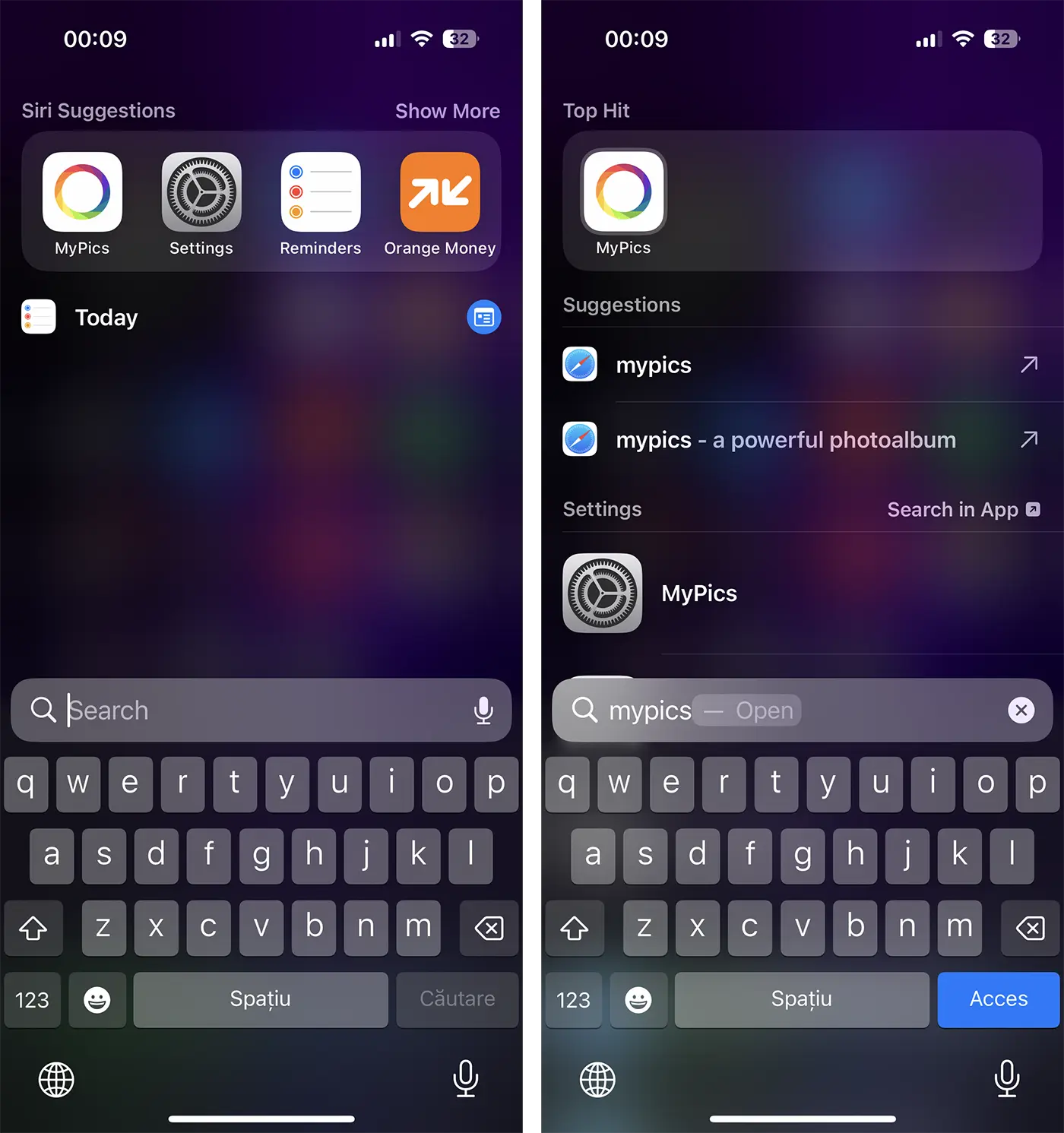
As with deactivation of notifications, go to the application settings, then disable all options from "Siri & Search“.
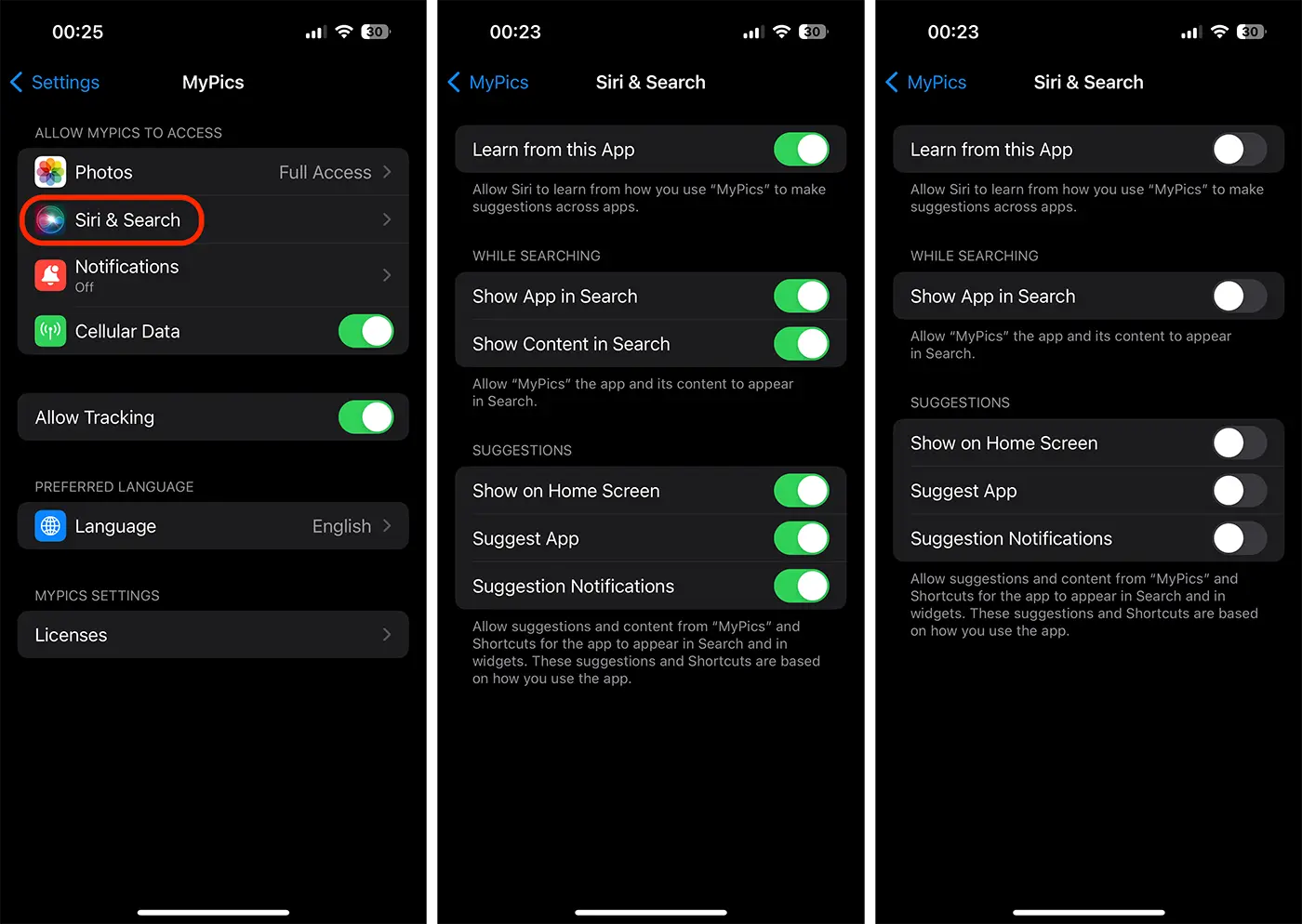
After this step, the app you want to hide will no longer appear in Siri suggestions and searches. The application will also be removed from the share menu suggestions.
The next step is to delete the app from your iPhone's home screen, regardless of which page it's on.
How to remove an app from the main iPhone or iPad screen
To remove an app from your iPhone's home screen, press and hold the app's icon until the options menu appears and select “Remove App". A dialog menu will open in which you choose "Remove from Home Screen“.
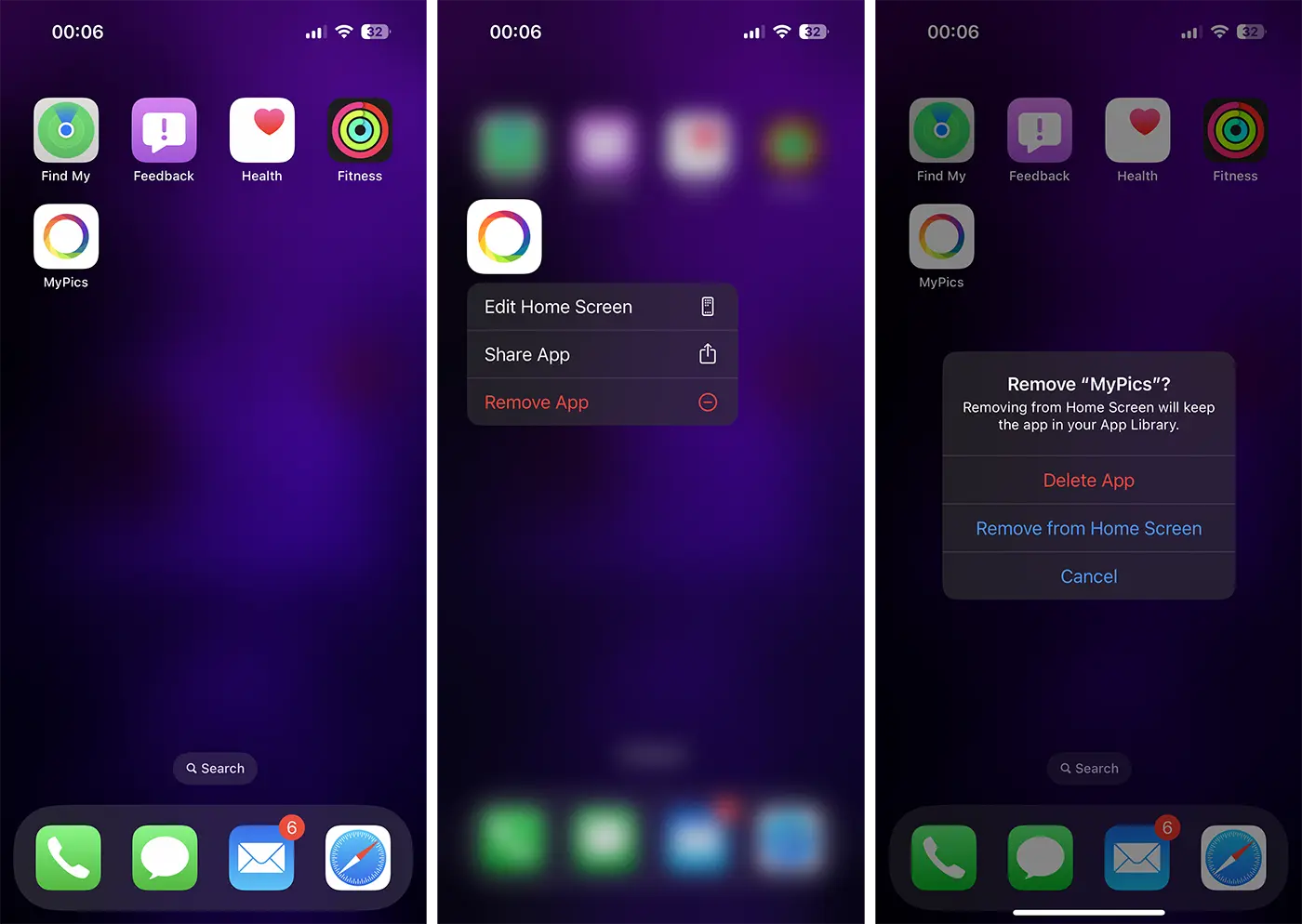
We can consider the app is hidden. This no longer appears in the Siri suggestions, in the searches, on the main screen and will no longer issue notifications.
However, there is a small inconvenience. The application can be accessed from "app library", but here it will not be highlighted. It will be quite difficult to find someone else, except you.
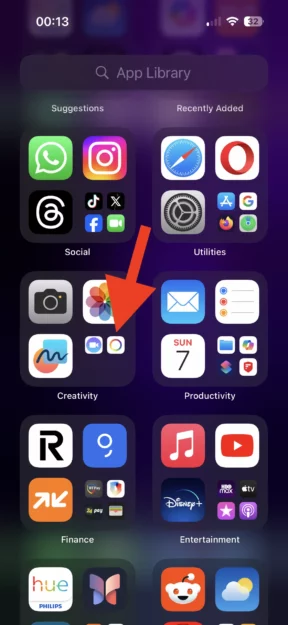
I know that many ask yourself the question "Can the app library be disable on the iPhone?". Unfortunately, the APP Library feature has been introduced for the first time on the iOS 14 operating system and cannot be disabled.
Related: How can you hide pictures and video in the Photos, native app on iPhone, iPad, Mac.
In conclusion, to hide applications on iPhone or iPad, you must disable their notifications, eliminate them from Home Screen and disable them from Siri's suggestions and search results.