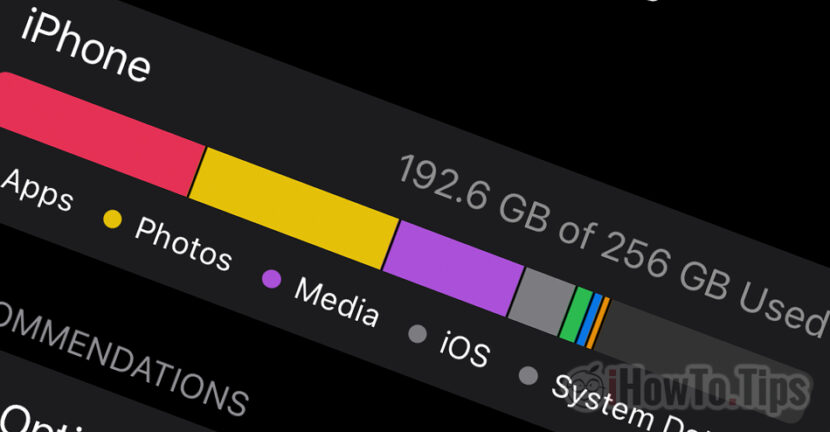

Offload Unused Apps is a feature entered by Apple with iOS 14 and iPados 14, to leave More free storage space on iPhone and iPad, by uninstalling the applications and games that we do not use frequently. So, to release the storage space on the iPhone, this tutorial will be of great help to you.
Many of us happen to have installed on iPad and iPhone so called "zombie apps".
Table of Contents
How the option "Offload Unused Apps" works on iPhone and iPad works
When this option is active, when the space on iPhone or iPad is almost 100%occupied, applications and games that are not frequently will be erased. In their place will remain a shortcut on screen or in “App Library” from where we can install them immediately with a simple access.
Very important to mention is that you will not lose data from the application or game. The documents and settings associated with the application will be kept, as well as the savior of a profile in a game. When the iPhone or iPad space is filled, only the application files will be deleted, not the personal ones created by the application.
With an active Offload Unused Apps on iPhone and iPad (Enable)
1. We go on iPhone or iPad in: “Settings” → “General” → “iPhone Storage“
2. Here all we have to do is press on the option “Enable“.
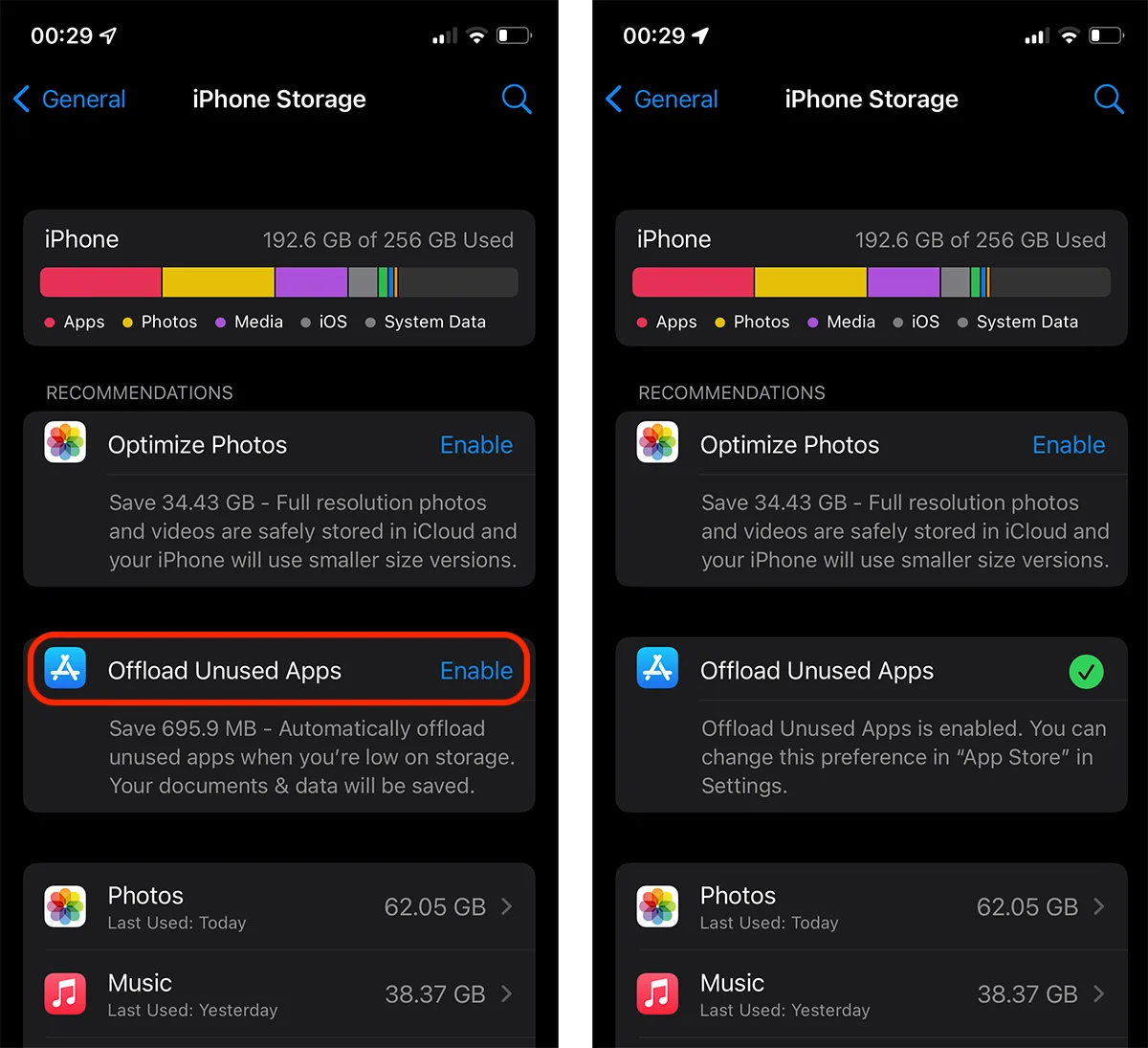
From what can be seen, in my case, I will earn about 700 MB when the space on the iPhone will approach 100%.
How to disable offload unused apps on iPhone and iPad (Disable)
If we do not want the applications to be erased from iPhone When the storage space of the iPad or iPhone deals in close to 100%, we can deactivate the option.
Go to the “Settings” > “App Store” > debifam optiunea.
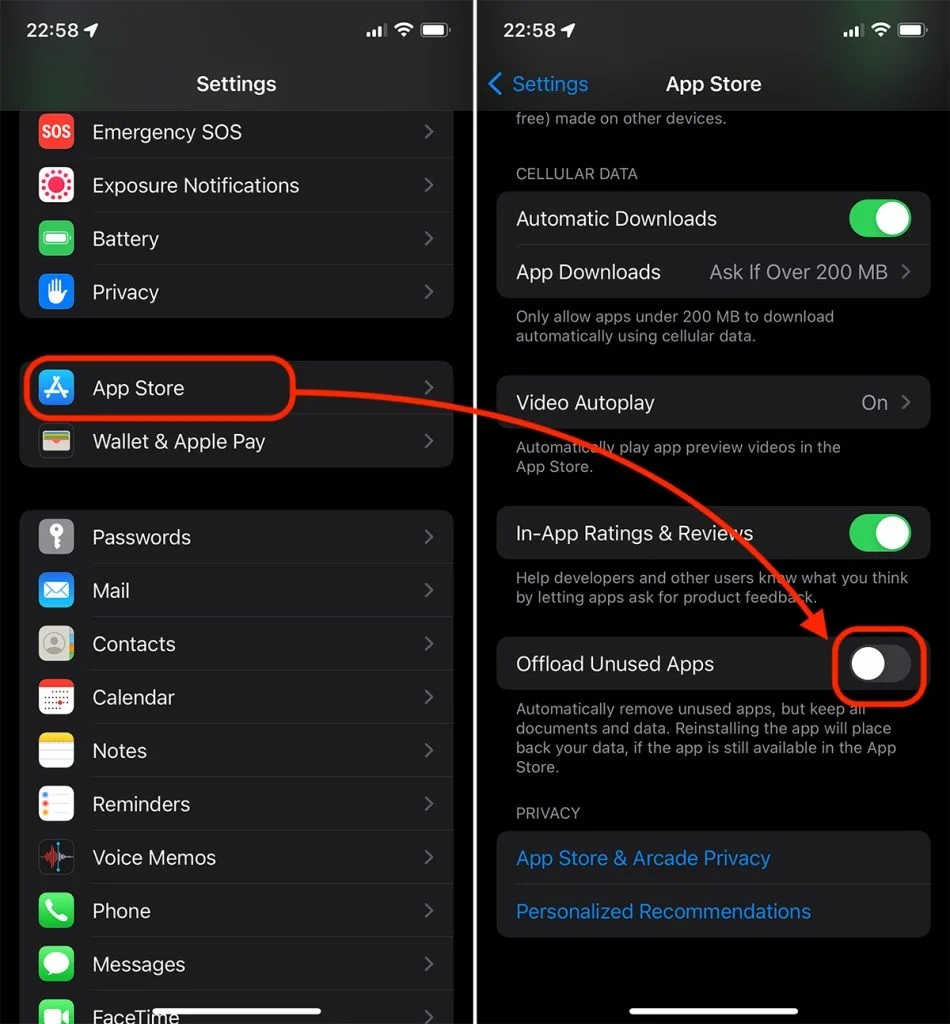
We can reactivate this option at any time when we need more storage space on iPhone or iPad.