

In recent years, notebook / laptop manufacturers have given up the classic hard disks with 5400 rpm or 7200 rpm and made the transition to drives withSSD technology (Solid-State Drive) for data storage. Much more efficient, but also much more expensive.
The differences between an HDD and an SSD (Brief description and presentation)
As a small parenthesis, we say that the use of the terms "hard"Or"hard disk" is totally wrong when referring to an SSD storage unit. The differences between a HDD (Hard Disk Drive) and oneSSD (Solid-State Drive) are huge. From the principle of data storage to energy consumption and especially to speed reading and writing. In some situations, this can be hundreds of times higher than the speed of an HDD.
While the HDD data are stored electromechanicalwith rotating plane, on SSD the data is stored on more memory chipswith semiconductors. Although it was not a standard for SSD drives to use the same connection interface as HDDs, most of them support SATA connection. So that on a PC or a laptop we can very easily change the old hard disk with an SSD storage unit.
However, there is only one drawback. The price of a SSD it is much higher than that of an HDD, and it is directly proportional to the volume of data that can be stored.
because production cost increasedof memory chips, manufacturers had to limit the storage capacity in order to obtain a accessible price for the end users or for the companies that are going to implement these storage units on the devices in production.
This is also the case with Apple, which in recent years has launched many MacBook and MacBook Pro models with modest storage space on the market. Even for MacBook Pro models that exceed 2,200 EURO, Apple has chosen to equip them with 256 GB or 500 GB SSDs.
We can ask when buying a MacBook that it be equipped with 1 TB instead of 256 GB SSD, but the price increases by at least 400 $, reaching fish 1.200 $ for 2 TB.
Optimizing storage space on Mac / Save space by optimizing storage
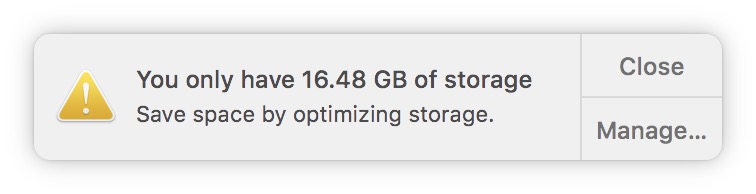
The cheapest solution available to all Mac owners is to optimize and manage the existing storage space as best as possible. Especially if we have a MacBook with a modest 256 GB SSD.
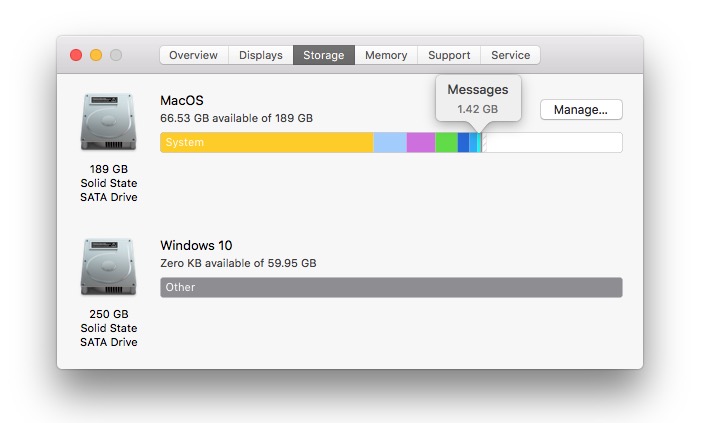
Fortunately for users, Apple offers a lot data storage solutions in iCloud and a very efficient space management system. To see how much space our system, documents, music, movies, applications and other files occupy on the storage unit, we go to the Apple menu on the top left: "About This Mac” → “StorageHere we will see a graphical summary of the total space on the SSD.
Identification of files and applications that occupy the most space
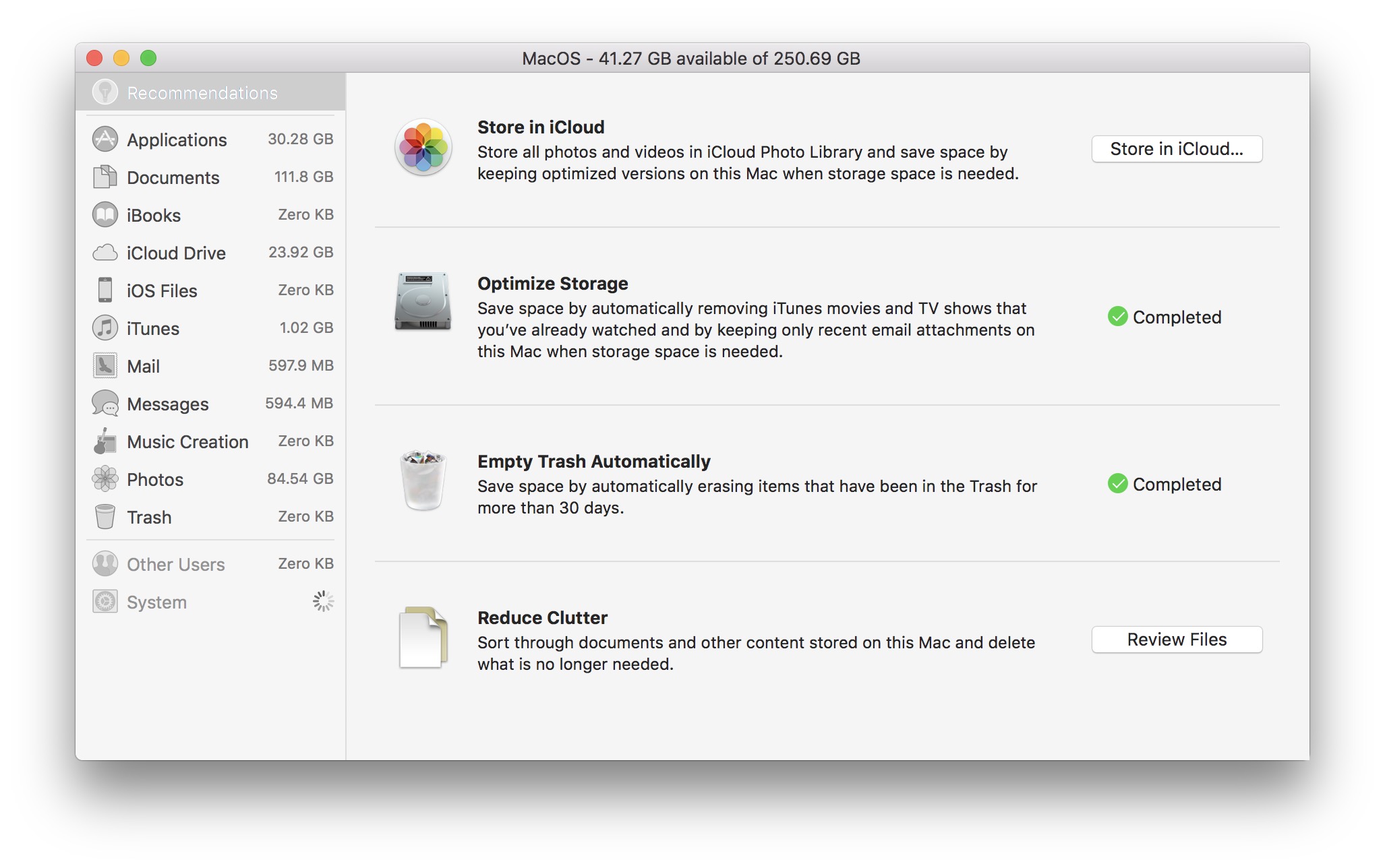
By going to the button "Manage…"we open"System Information". Here we find a list with very useful information about the space occupied by all applications and stored files. It is a very simple utility and very effective in detecting files that occupy the most space storage, of applications and other elements from iTunes, Messages, Photos, etc. Also here, the first option"Recommendations” offers us some very good solutions by which we can keep the storage unit as free as possible.
Saving photos in iCloud through the application Photos a macOS, automatic deletion from iTunes movies and TV shows watched, stop automatic downloading attachments old Mail, Automatic emptying trash (Trash) after a period of 30 days and the identification of documents and other useless content occupying the storage space.
Saving pictures and videos in iCloud - Store in iCloud
Activating this feature from “System Information” will automatically save all the pictures and videos in the application Photos inicloud Photo Library. When the storage space on the Mac is low, it will only be kept in the Photos application an optimized (reduced) copy of the original files. The original pictures and videos can be downloaded whenever you want.
"icloud Photo Library” you can activate it on Mac and directly from the Photos application: “Preferences” → “icloud” → tick: “icloud Photo Library"si"Optimize Mac Storage". You also have the option to save the media content in iCloud without deleting the originals from the storage, but this option will not help you save space at all.
Another advantage of activating this function is the synchronization of photo / video content on all devices on which you have this option activated. This function is also available on iPhone, iPad and iPod touch in "Settings” → “Apple ID” → “icloud” → “Photos” → “icloud Photo Library“.
Keep in mind that Apple offers a free storage space of only 5GB in iCloud. You can always upgrade to a higher package for a fee:50GB:0.99 €,200GB:2.99 €,2tb:9.99 € / luna.
Optimize Storage
This function will automatically delete the media content viewed in iTunes. Movies and TV shows will be deleted after viewing, and in the Mail application only attachments from recently received messages will be downloaded locally. The others will remain stored on Apple's servers and can be accessed at your request whenever you want.
Empty Trash Automatically
The files in "Trash" will be automatically deleted after 30 days.
Reduce Clutter
The option helps us quickly identify the documents that take up the most storage space. Including here: archives, media files stored in folders, pictures stored outside the Photos application and office documents.
Sincronizare Desktop & Document in iCloud
With the release of macOS High Sierra, Apple introduced the possibility synchronization and storing all of folders in folders Documents si Desktop in icloud. They will be available on all devices on which you have connected your iCloud account (including on Windows), and on Mac they will be kept only frequently used files. For the others, only a "shortcut" will be kept that will allow you to download them instantly from iCloud. I said about this function in the article here(What is and how do we use the macOS Purgeable Storage's High Sierra).
We can also find out from "Storage" → "System Information". What are the applications we handle most storage space (simply click on "Applications" in the left bar), media files from iTunes, messages received on Mail and Messages.
With the launch of iOS 11.3 and macOS High Sierra 10.13.4, will also be introduced saving messages in iCloud. This new option will save even more of the space occupied on iPhone, iPad and Mac.




































