

Even though the name of the Windowserver process takes us to the Windows Server or something related to the Windows operating system, this is a basic process of the macOS operating system. In this tutorial you see detailed what is the role of this process and why Windowserver uses many CPU and RAM resources.
Starting with the MacOS 10.10 Yosemite operating system, Apple first introduced the Windowserver process as an intendant process. Before Macos Yosemite, this process was the integrated part of Kernel. The separation of Windowserver from Kernel was done in order to improve the performance and stability of the operating system. With Macos Ventura, Apple decided to pass this process again as part of Kernel, but with significant improvements, providing an extra security, stability and more efficient resource consumption. Therefore, for users with Macos Ventura operating system, the Windowserver process is not visible in the utility Monitor.
Returning to a topical of our days, the Windowserver process uses a lot of CPU and RAM resources on the Macos Sonoma operating system, which is reintroduced as a separate process. In addition to the high consumption of resources in the processor and RAM, many users complain that Windowserver leads to system errors. "WindowServer quit unexpectedly“.
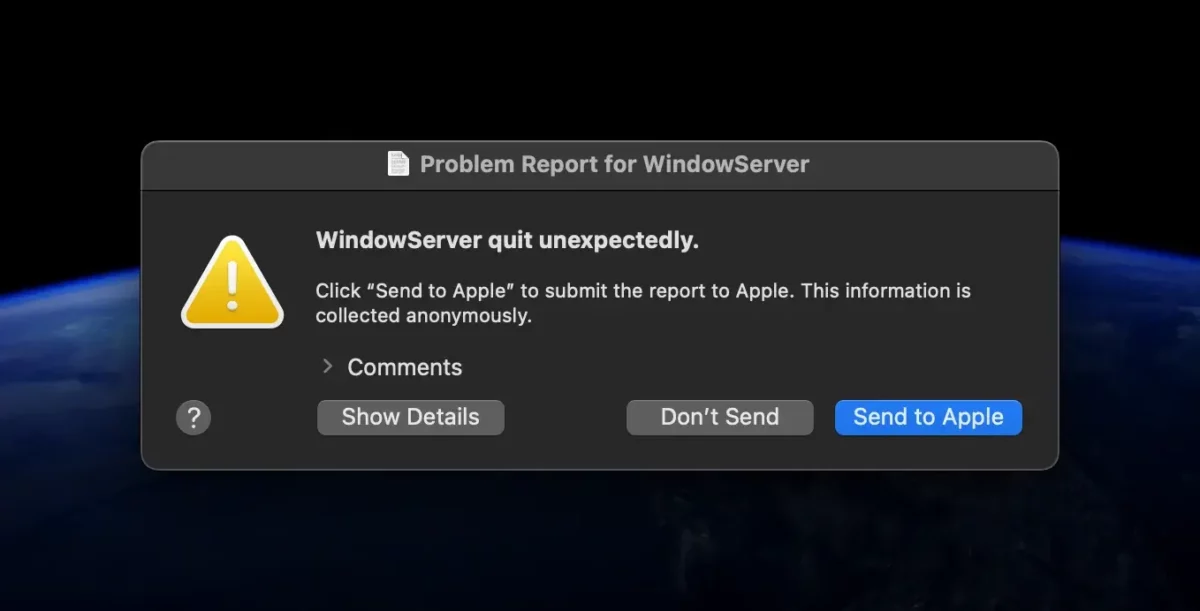
What is it and why Windowserver uses a lot of CPU and RAM resources?
The Windowserver process is a basic component of the macos system, being responsible for managing windows and other graphic elements on the screen. Practic, WindowServer este responsabil cu gestionarea interfeței grafice a utilizatorului (GUI) și redării elementelor de pe ecran, de la ferestre deschise (Finder) și până la diverse efecte vizuale.
Unfortunately, in many situations, Windowserver uses a lot of CPU and RAM resources, leading to decreased performance of the entire system or execution errors.
Most of the time, the Windowserver process uses a lot of CPU and RAM resources because it constantly process and update the graphic elements on the screen. All folders and files that are on the desktop, the transparency effects of Dock and Menu Bar are administered by Windowserver.
Each time you open an app, create a new window or change the screen look, Windowserver needs to update the information that is displayed on the screen. This requires a significant amount of processing and memory power, both on MAC computers with Intel architecture and Apple Silicon (IMAC or MacBook with M1, M2 or M3).
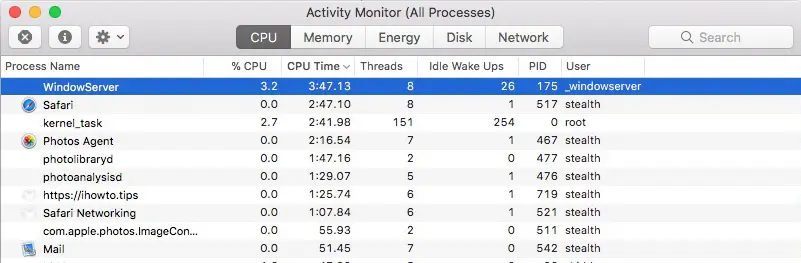
When Windowserver uses a lot of CPU and RAM resources you need to consider potential factors, such as: large number of open windows (Finder), open windows, visual and transparency, use of several external monitors or external graphics cards (EGPU).
We present some tips to reduce the consumption of CPU and RAM of the Windowserver process.
1. Reduce the number of open windows.
The more open windows you have, the more Windowserver has to do more work to update them. Especially if these windows (Finder) also contain many graphic elements that are previewed. Windows containing many graphic elements, such as images, videos or 3D graphics, can consume more resources than simple windows.
2. Disconnect external monitors.
If you use several external monitors, their temporary disconnection can help reduce the increased use of resources by Windowserver.
3. Disable the visual effects of transparency and other graphic effects.
Visual effects, such as animations and transparency, can also increase the consumption of Windowserver process resources.
4. Disconnect external GPU.
The connection of an external graphic processing unit to a Mac can influence the consumption of Windowserver resources, especially when the EGP is used for graphically intensive applications.
5.. Graphic applications with intense resources consumption.
If you use an app that requires a lot of graphic resources, such as a game or video editor, try to reduce graphic quality settings.
6. Update the MacOS operating system and applications.
Make sure the maccos operating system and applications are updated to the latest versions. Apple launches updates to fix performance and bug problems, so running the latest version could solve the problem.
Related:
- What is Nsurlsessiond and why do you use many CPU and Network resources on Mac?
- What is and why does the MDWRITE process use 100% CPU?
In conclusion, Windowserver is an essential component of the maccos operating system, having the responsibility to manage the user interface (GUI) and to deal with drawing and playing the elements displayed on the screen, windows and visual effects. Windowserver plays an important role in ensuring a fluid use experience on macos. However, Windowserver uses a lot of CPU and RAM resources because it continually processes and updates the graphic elements on the screen, including managing windows, animations and other graphic effects.
To limit the excessive resources consumption of the Windowserver process, you can take certain measures. It is advisable to monitor the system activity with the help of Activity Monitor and to identify the processes or applications that most contribute to the resource consumption.
Also, adjusting the graphic settings of intensive applications from a graphic point of view, temporarily disconnection of external monitors and ensuring that all applications are updated can contribute to reducing the Windowserver load.





































This did not work, I have tried everything. Currently preparing for a factory reset install of the Operating System to see if performance can be regained.
The date is missing. It’s a beginner's mistake. We must always put the date wholesale and clearly visible so that one can immediately gauge the relevance of an article before reading it.
Other than that thank you for the explanations.
You’re right. It is a very good idea and I will take it into account in the next project update. Thanks!