
Limited storage space will remain one of the biggest problems of iPhone, iPad and Mac owners for a long time. In addition to applications and games, photos and videos taken with the iPhone take up a significant amount of storage space.
Fortunately, Apple provides storage space in icloud for photos and videos captured with iPhone or iPad. Uploading to the cloud is done automatically, conditioned only by an internet connection, and synchronization is done automatically on all idevices where the same account is logged in Apple iCloud.
In the days when iCloud was not very popular, Apple introduced on the iPhone, iPad and Mac the service "My Photo Stream", as part of the application Photos. A service that once activated will put you in a kind of cloud, maximum 1,000 photos, for 30 days. No video. Only the most recent 1,000 pictures. The oldest 30 days will be deleted automatically, while the most recent 1,000 will be sync automatically on all devices on which the option "My Photo Stream" is on. They will be available on iPhone, iPad, Mac or Apple TV.
It is important to know that the pictures from My Photo Stream they are a copy of those from the photo gallery of the Photos application. Those will not be affected by the automatic deletion if they are older than 30 days or are not found in the most recent 1,000 photos.
My Photo Stream takes up the storage space on the device, but it does not count towards the space offered by the iCloud service.
How to activate "My Photo Stream" on iPhone, iPad or macOS
If you have enabled the saving of pictures and videos in iCloud Photos, enabling the stream "My Photo Stream” is useless.
Enable My Photo Stream on iOS / Ipados
1. We go to the iPhone or iPad in "Settings” → run until the application “Photos“.
2. Activate the option "My Photo Stream"
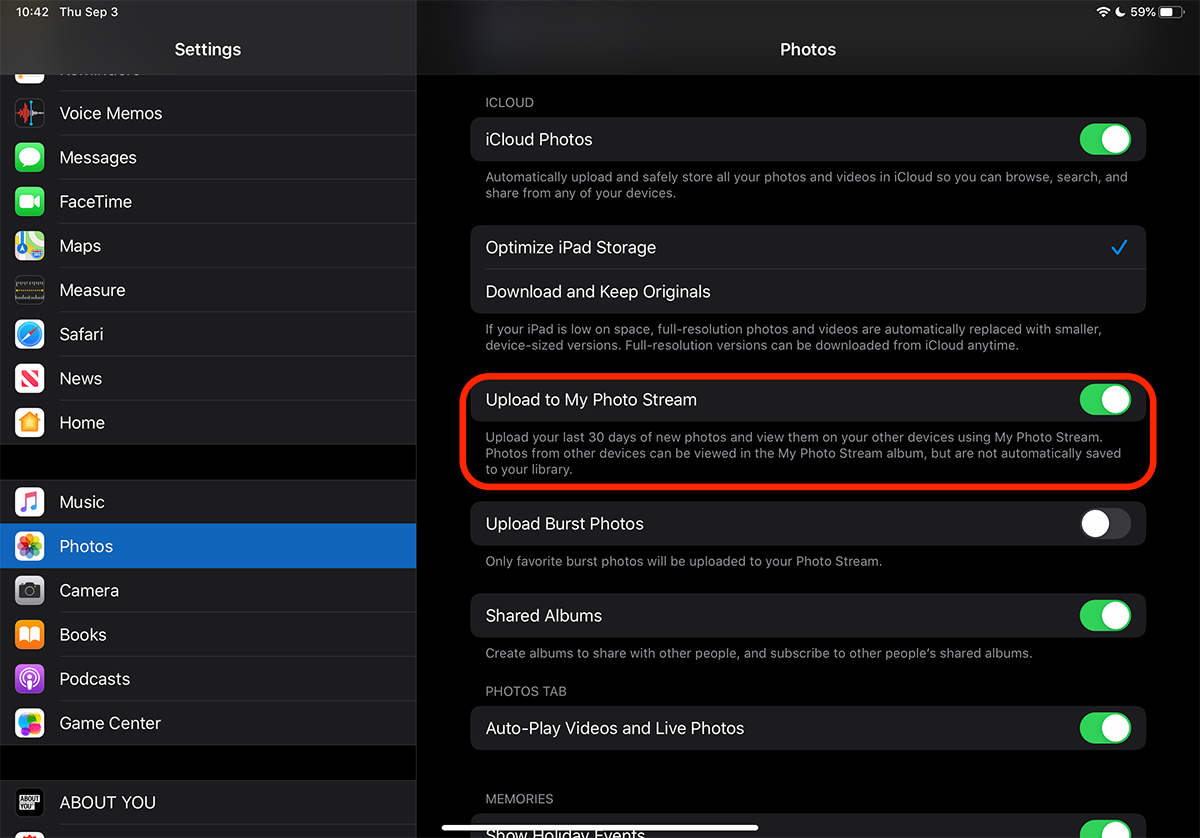
Once activated, the photos captured with the iPhone or iPad will be uploaded to this stream and will be available on other idevices with the active option. Of course, it must be the same authenticated Apple account.
Enable My Photo Stream on macOS
For macOS, it's just as easy to enable Photo Stream.
1. Open the "Photos" application and go to "Preferences".
2. Check the "My Photo Stream" option.
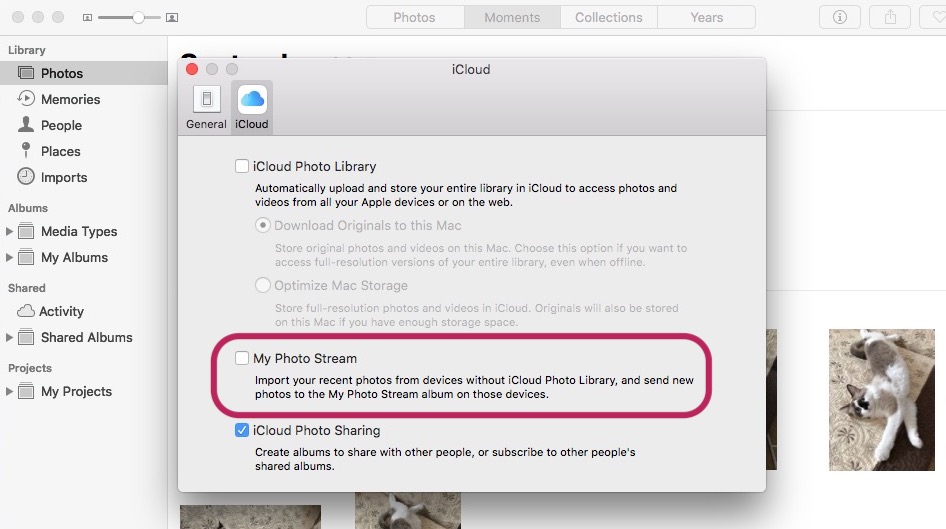
This option will not be visible if we have iCloud Photo Library activated.
Deleting a photo from the Photo Stream gallery will automatically remove it from all devices on which this service is active.
My Photo Stream usage scenario
The option is very useful in various scenarios, for those who have several Apple devices. Let's take the scenario we have an iPhone and a Mac.
On iPhone we have activated the option "iCloud Photos” (which will automatically upload to iCloud all the pictures and videos present in the Photos application) and the service “My Photo Stream“.
On the Mac, we don't want to have the "iCloud Photos" option active, but we want the most recent 1,000 photos taken with the iPhone to be automatically synchronized. Not older than 30 days.
In this scenario, activating the "My Photo Stream" option on iPhone and Mac is very useful. The photos will be automatically present on the Mac, from where they can be exported to the hard drive or imported into a local gallery of the Photo application, where the limit of 1,000 files and the 30-day period will no longer exist.




































