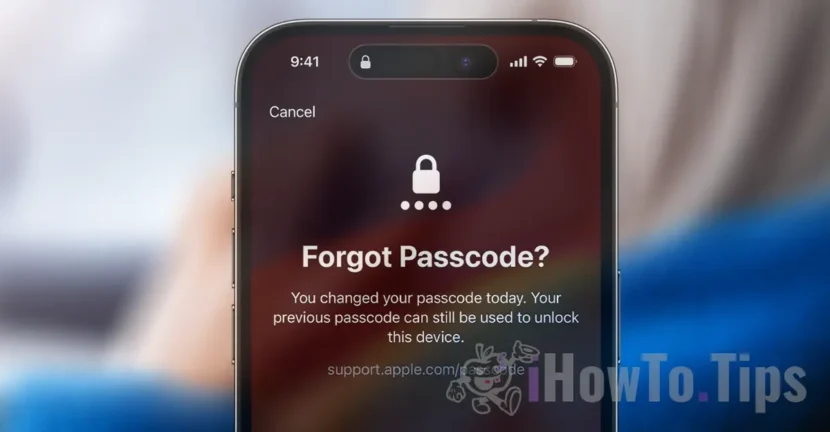

It is a frustrating situation when you forget the access code of your phone, but you do not have to worry. There are several ways to reset the iPhone's access code, but it is advisable to keep a data backup. In most situations, resetting the iPhone unlock code involves deleting all data on your device.
Starting with the iOS 17 version, Apple has also introduced a feature that you can use the old access code, if it has not been more than 72 hours since it was changed. A very useful option, because most of the time, the iPhone unlock code is forgotten after it has been changed.
Table of Contents
How do you reset the iPhone access code on iOS 17 using the old code
The steps that you can reset the iPhone unlock code are very simple, but it requires little attention. This method The iPhone's unlock code can only be reset if it was changed at most 72 hours ago.
A useful guide from which you learn how to reset the iPhone access code on iOS 17, without resetting your device and losing data.
1. From the lock screen of the iPhone, enter a password until the message "iPhone Unavailable" appears and the device asks you to try again later.
2. After the device becomes unavailable, it appears in the bottom of the option "Forgot Passcode?".
3. In the next screen, press the option by which you can use the old iPhone unlock code. "Enter Previous Passcode".
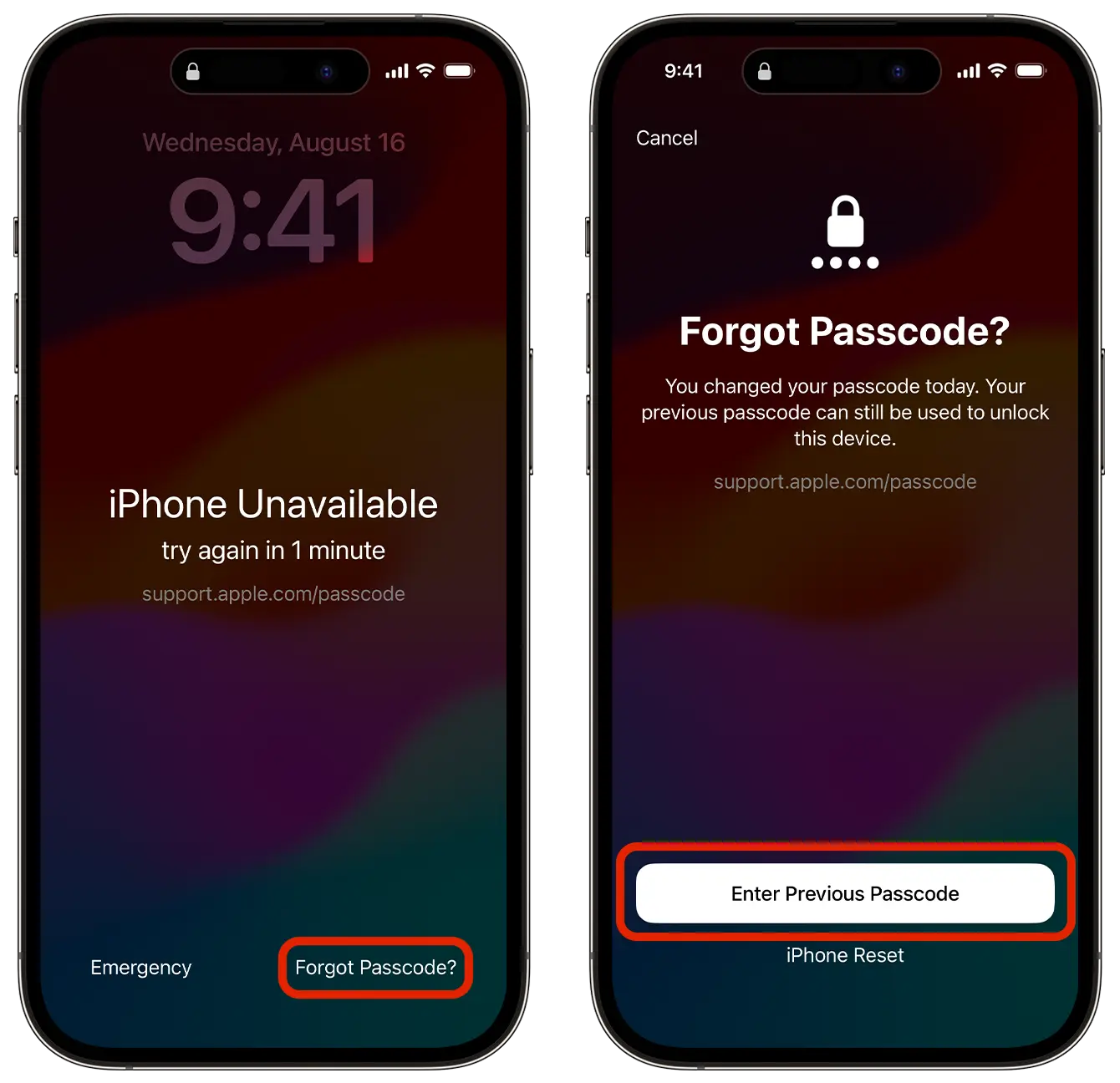
4. Enter the old access code to unlock iPhone.
This way you can reset the iPhone access code. After this step you must follow the instructions on the screen to establish a new iPhone access code.
If more than 72 hours have passed after changing the access code, you need to reset a new password. This process also involves completely deleting the data from the device, but they can be recovered if you have active iCloud synchronization for pictures, documents, applications and other data.
Complete Guide to Reset Iphone Access Code: How do you unlock iPhone if you forgot the access code. iPhone unavailable.
How do you cancel the use of the old access code on the iPhone?
Dacă ai schimbat codul de acces pe iPhone din motive de securitate și nu dorești ca acesta să mai poată fi utilizat pentru următoarele 72 de ore, deschide aplicația de setări (Settings), apoi mergi la “Face ID & Passcode” și invalidează utilizarea vechiului cod de acces. “Expire Previous Passcode Now”.




































