
I've seen many users that are interested about How can I connect through a protocol AFP, de pe Windows 10.
For those who do not know, APF is a protocol which allows access from Mac, some locations from the local network. Apple File Protocol (APF) It is used when we want to access a hard drive currently in LAN, a computer that has this sharing protocol open or one compatible. For example, if we have a hard drive connected to a wireless router Apple AirPort Extreme Base Station, the connection on Mac / Macbook to this hard disk will be done through the AFP protocol. Basically this protocol is also used by Time Machine – MacOS backup system.
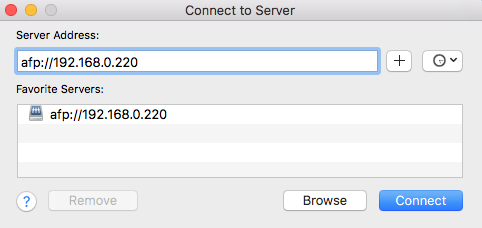
Connecting via AFP From Mac to a device / PC in the network, it is made very simple, using the function "Connect to server…"Available in Finder and typing the IP address of the device.
afp://ip_device_or_name_device_in LAN
If within the same local networks that I mentioned in the above scenario, there is also an Windows PC / laptop with Windows 7, Windows 8 or Windows 10, from which We want to connect via AFP At the hard disk on the Apple router, we have no chance. Windows 10 does not support Apple Protocol (AFP) connectionBut we have an almost similar protocol at hand, developed by Microsoft for our own operating systems.
Server Message Block (SMB) It is a protocol developed by Microsoft for Windows operating systems. Basically, the role of SMB on Windows is the same as AFP on Mac. Allows sending and receiving data in a local network. Like a short parenthesis, o vulnerability in SMB the prevalence of cryptographic WannaCry ransomware virus in tens of thousands of computers from all over the world.
How we connect from Windows 10 to a Mac or a hard disk attached to an Apple wireless router
First of all make sure that service / SMB protocol is active on Windows. Once it will be launched Windows 10 Fall Creators Update, Microsoft intends not to leave this feature of Windows 10 activated by default. We check whether or not the smb is activated from Windows Features. Taskam in Homepage > “Windows Features"And we open the panel"Turn Windows features on or off“.
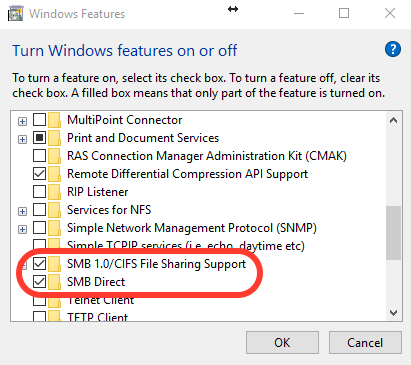
SMB / CIFS File Sharing Support must be activated / ticked.
After we make sure the protocol is active on Windows 10, we identify the local IP address of the deviceto which we want to connect and access it. In our scenario we have a external hard drive attached at a AirPort wireless router, cu IP-ul local: 192.168.0.220.
We open "Run ..." on Windows (order Win + R) and type in the dialog box: \192.168.0.220
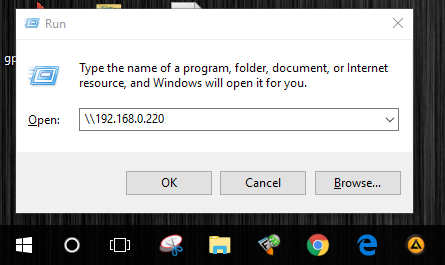
"Enter"Or click"OK"And we enter the data of device authentication.
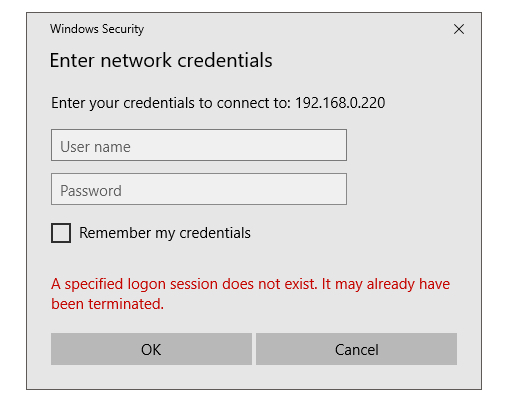
After entering the user and password, press OK to connect to the device.
In our case, we made the connection on Windows 10 to a backup hard disk that is used by Time Machine for the reserve copy of the files on the poppy.
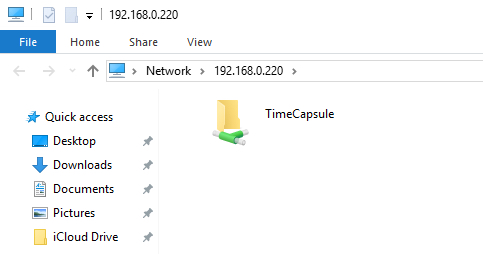
In case you fail to establish this type of connection, do not hesitate to leave our details in the comments.

































Excellent, it works very well, after reviewing by days it is very simple, as it should be.
Thank you great
works perfectly
How do you access it from outside the local network?
didn’t work for me. (Windows 10, 1903)
The problem is maybe my Synology Server.
Log in to your Synology device, and from the DSM desktop, double-click on the “Control Panel” icon on the left-hand side of the screen. In the new window that opens, find the “File Services” icon, and single-click it.
A new window will open; at the top of this new window, there are several option tabs, if it is not already selected by default, find the tab marked “SMB/AFP/NFS” and single-click on it… In this new tab, under “SMB” tick the “Enable SMB service” box. Now scroll down, and under the “AFP” heading, tick the “Enable AFP service” box.
Now, while you’re here, in the option tabs at the top of the screen, single-click on the “Advanced” tab… In this tab’s page, under the “Bonjour” heading, tick the box marked “Enable Bonjour service discovery.” Now scroll down a little to the “SSDP” section and tick the box to enable it (it’s the only box under that section). Now scroll down to the “WS-Discovery” section, and tick that box to enable it.
Finally, and most importantly, at the bottom of the window, YOU MUST CLICK THE “APPLY” BUTTON.
That’s it, it should work fine now… I understand that my comment is rather late for you, and you’ve quite possibly solved this already (being nearly 18 months later) but just in case, and also in case others are having this issue, I’ve posted this reply.
Hope it helps either way.
You say that Windows 10 won’t accept an AFP network connection… in fact you said, “we have no chance. Windows 10 does not support connection via Apple File Protocol (AFP)” But what about other non-Apple systems?
I am currently connected from a Debian system, to a DSM system (Synology’s propriety OS) using an AFP connection. It acts as a mapped drive on my Debian system, and I can freely transfer files to and fro, without issue.
The Debian is a headless Raspberry Pi machine operated by a Windows 10 system via RDP (The Synology NAS system is controlled in a similar way, except through HTTP(S) instead of RDP).
It would seem from this, that Linux, and Synology’s OS are quite compatible with AFP, straight out of the box. Is Windows 10 and ASP still incompatible at the time of posting this comment? (Feb 2021)… Perhaps the problem lies with Apple OS’s rather than the protocol itself. I can’t say for sure because none of my Win 10 machines are set up for network sharing (for network policy reasons) so I can’t try. A quick Google (well, actually it’s a quick DuckDuckGo-ing, but it doesn’t quite fit the zeitgeist)… a quick Google seems to indicate that it may not be an issue any more.
Any thoughts?
Thank you! The ‘win + r’ bit is what got me over the finish line! 😀
What if there is a domain name on the Windows machine? For example: CORP whereas there is none on the Mac?
For example my problem is that my login on the Mac is ‘admin’ but if Windows lets me only input CORPadmin 🙁
Fantastic !!! Even for me, the blonde was clear and logical 🙂 Thank you very much
I don’t see anything here about using AFP on windows. I see you connect to a computer using the \server_nameshare, but that’s not AFP is it?