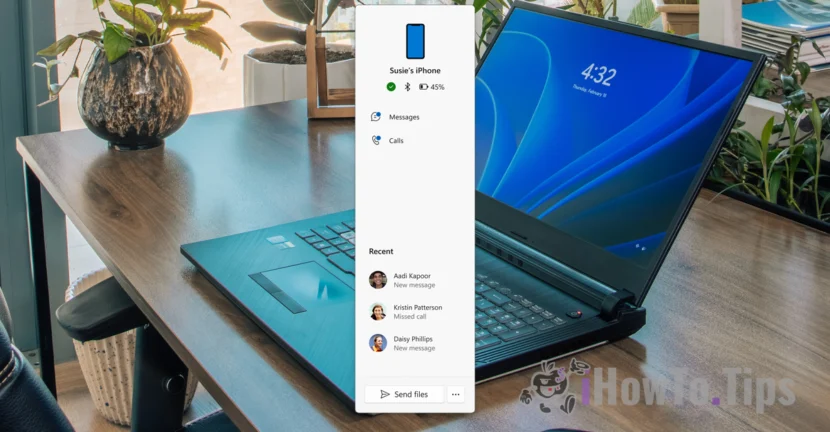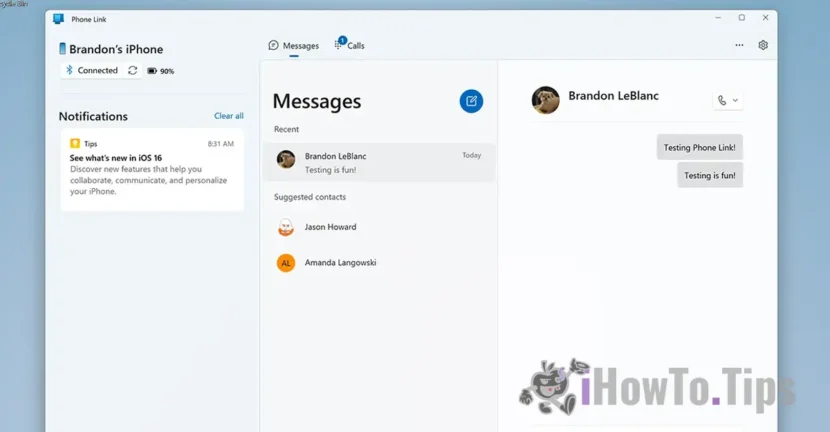

For Apple devices, interaction with the Windows operating system is a pretty old problem. Especially when it comes to iPhone synchronization on Windows 11, so you can receive or send SMS and IMSSages directly from your PC. In this tutorial you will see how you synchronize iPhone on Windows 11 with Phone Link.
Some time ago, Microsoft launched through Windows Insider Program, an app update Phone Link, which allows users iPhone synchronization with Windows 11. Thus, iPhone owners can use Windows PC to receive and send messages (SMS and IMSESAGES).
In addition to synchronizing messages, this association of iPhone devices with Windows 11 computers through Phone Link will allow users to synchronize contacts, phone calls and messages. However, there was a large set of limitations in this synchronization.
How do you synchronize iPhone on Windows 11 with Phone Link
To synchronize iPhone on Windows 11, first of all you have to associate the device and give it the necessary permissions for synchronization. In this tutorial you will see step by step how you do this.
1. You must have the iPhone device in the vicinity of your Windows 11 computer you want to associate. You must also activate the Bluetooth connection on both devices.
2. Open the App Store on the iPhone and install the app on iPhone "app"Link to Windows“.
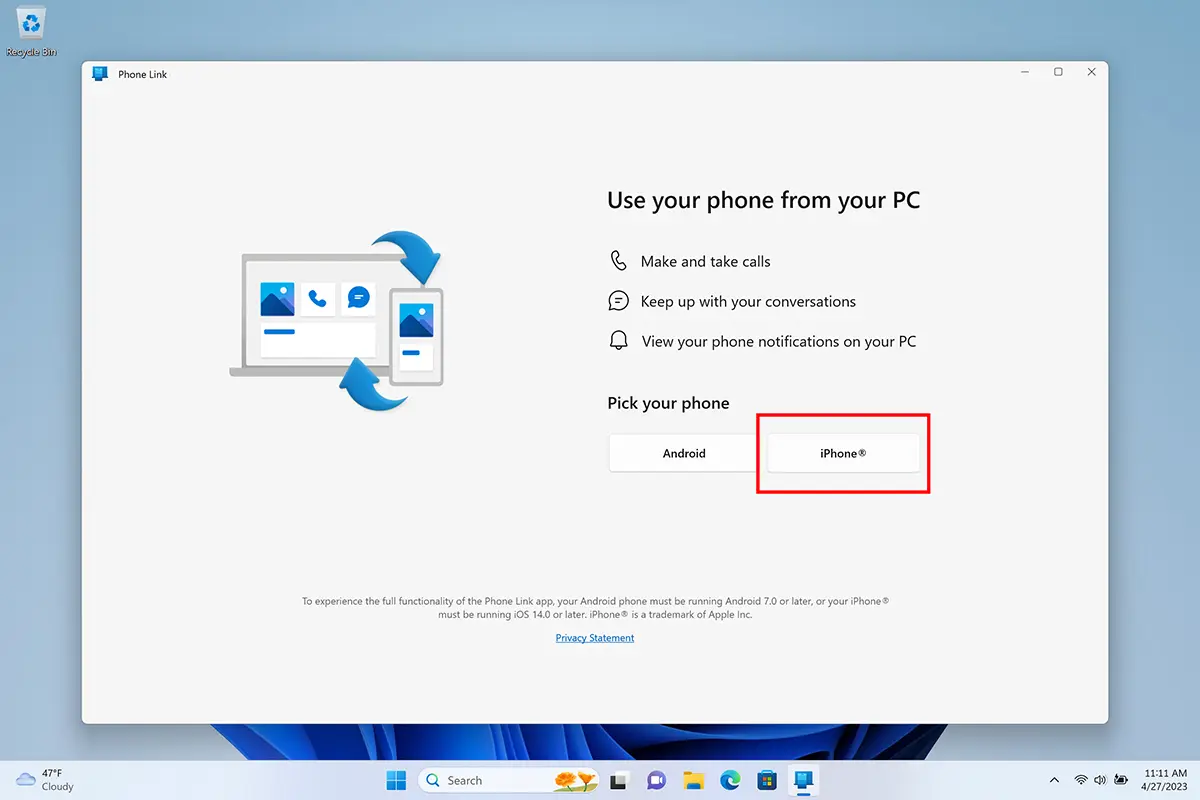
3. Open Phone Link app on Windows 11 computer and choose iPhone from Welcome Screen.
4. During the configuration steps you will need to scan a QR code with iPhone. This step is somewhat similar to WhatsApp Desktop authentication.
Related: Why is WhatsApp for Mac using a lot of CPU resources?
5. Confirm the check code in Phone Link and the one displayed on the iPhone.
6. Give content of content association. After this step the association between the iPhone and the Phone Link app on Windows 11 is completed.
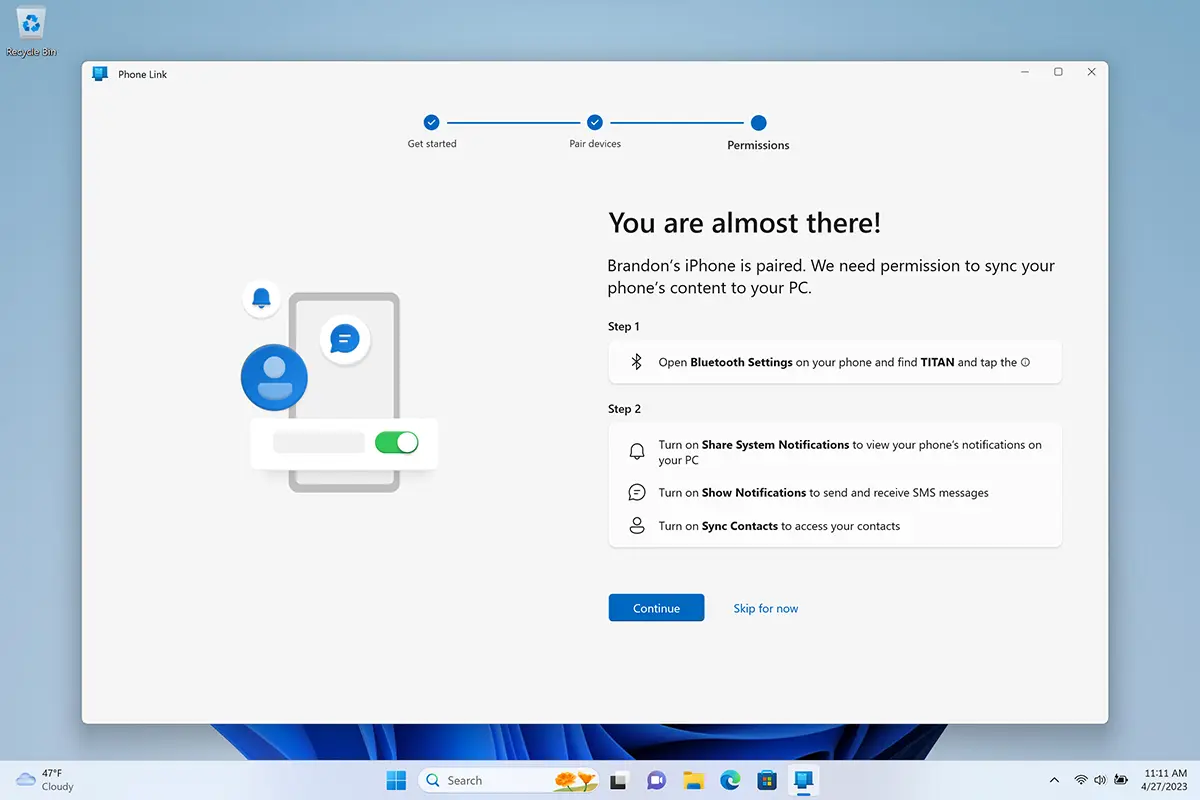
Next, you need to give Bluetooth permissions on the iPhone for the Phone Link app. This is an important step for the notifications and contacts on the iPhone to display correctly in the Phone Link on the Windows 11 computer.
Once completed the synchronization process between the iPhone and the Phone Link app, you will also receive the notifications for calls and messages on the Windows 11 computer.
In this way the iPhone synchronization process on Windows 11 has been done.
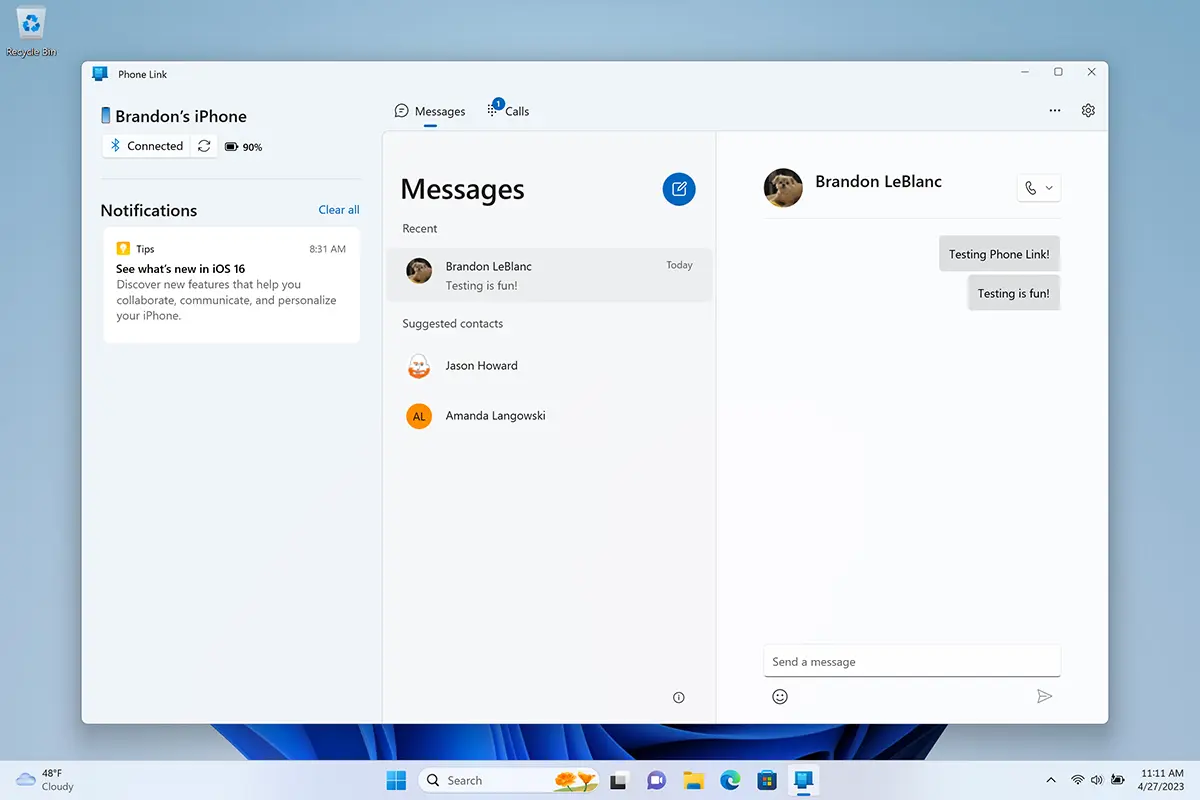
As I said at the beginning, synchronization comes with some limitations and cannot be compared at all with the synchronization between an iPhone device and a Mac computer. In the synchronization between iPhone and Windows 11 there are many limitations. The Phone Link app will not download the history of the messages from the conversations, nor the messages received or sent during the time you have not been to the PC. You will not benefit from the characteristics of IMESSAGES: Editing and deleting message sent, shipping and receiving media content in messages, memoji, group messages, plus many more.