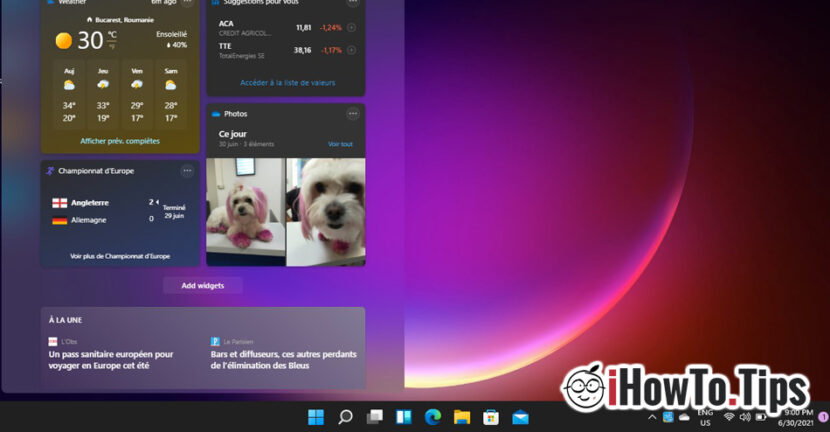

Windows 11 comes with many novelties on the design side, including the new field of widgets (Windows 11 Widgets) in which they are delivered the state of the weather (weather forecast), news, sports news, currency exchange and other information from various sources "by Microsoft".
After Microsoft officially launched Windows 11 in the "preview" version, many users encountered problems loading Windows 11 Widgets. Although the field dedicated to widgets opens immediately, they do not load and an empty space remains. Blank.
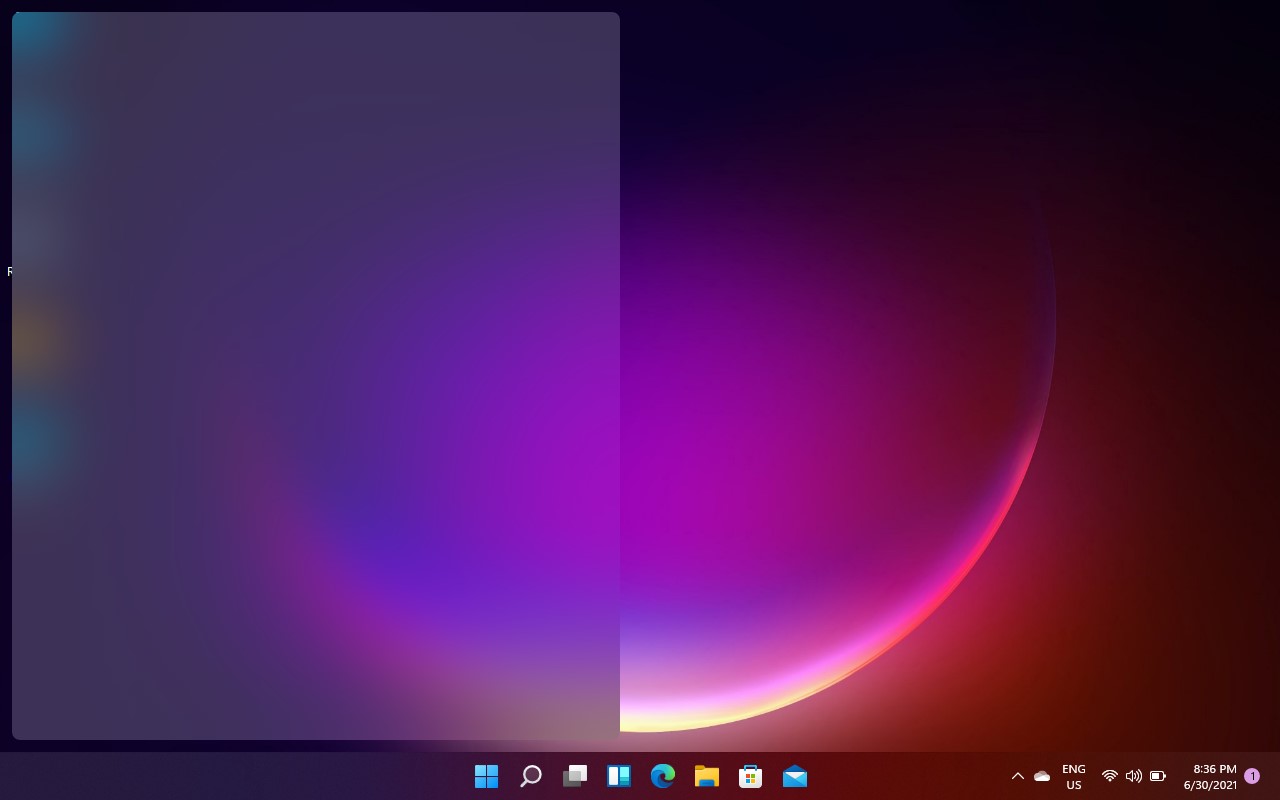
Fortunately, this problem can be solved very easily, and most probably in future versions of Windows 11 it will no longer exist at all.
Cum facem sa apara widget-urile in Windows 11 / How to fix Windows 11 Widgets not properly working
From what it seems, this problem appears on laptops and PCs with small displays or with an older generation integrated video chip / Intel HD Graphics 4000 for example.
We can make the Windows 11 widgets appear in the new field dedicated to them, if we deactivate and reactivate the video driver. We do this by following the steps:
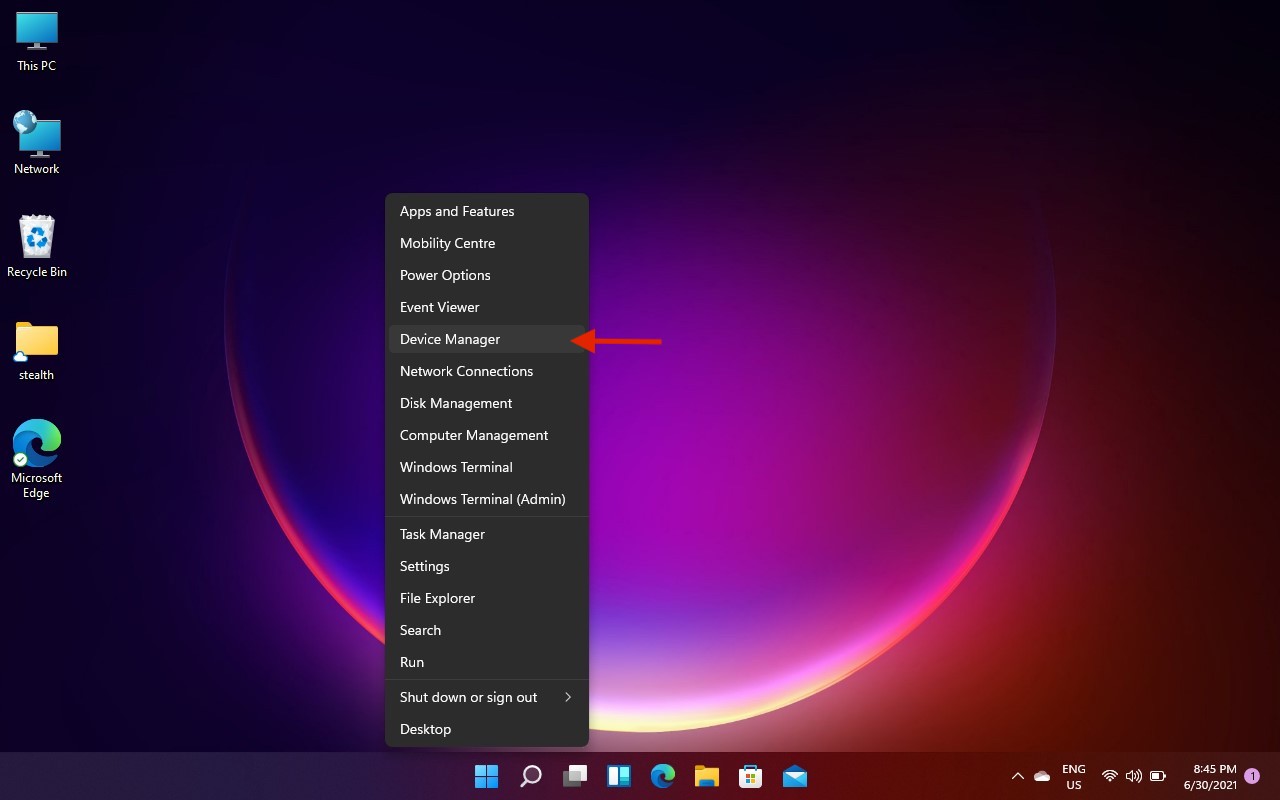
1. Right click on the button Homepage from Windows 11, then click on “Device Manager“.
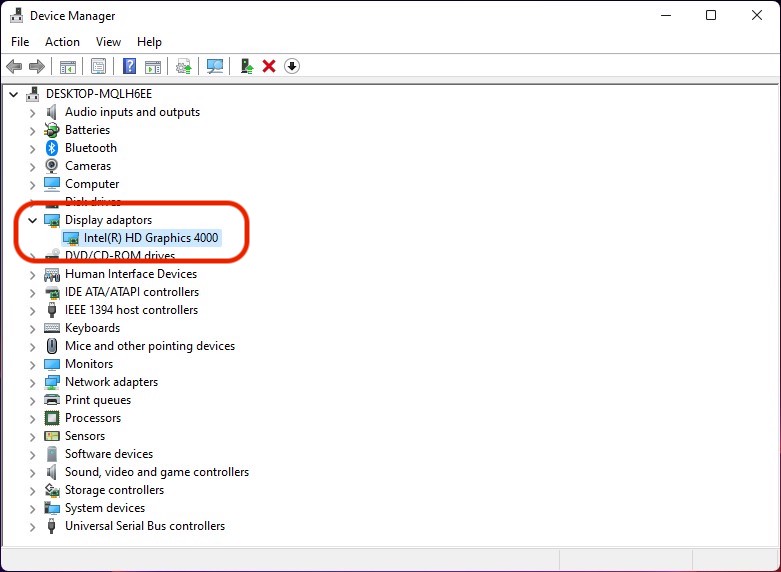
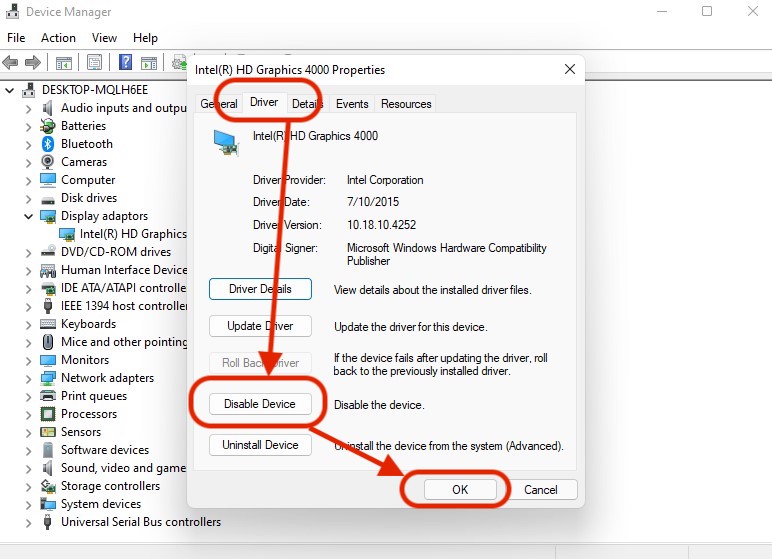
2. In "Device Manager" go to "Display adaptors", then double-click the display driver. Intel(R) HD Graphics 4000 In our case.
3. In the box that opens, go to "Driver", then click on "Disable Device" and confirm the action when you are asked if you are sure you want to do this. After disabling the display driver, the screen will remain black for a few seconds.
After the image returns, we go and open Windows 11 Widgets. We will notice that these are listed correctly, but the transparency effect of Windows 11 UI has disappeared. We return to "Diver" and activate the display driver. "Enable Device".
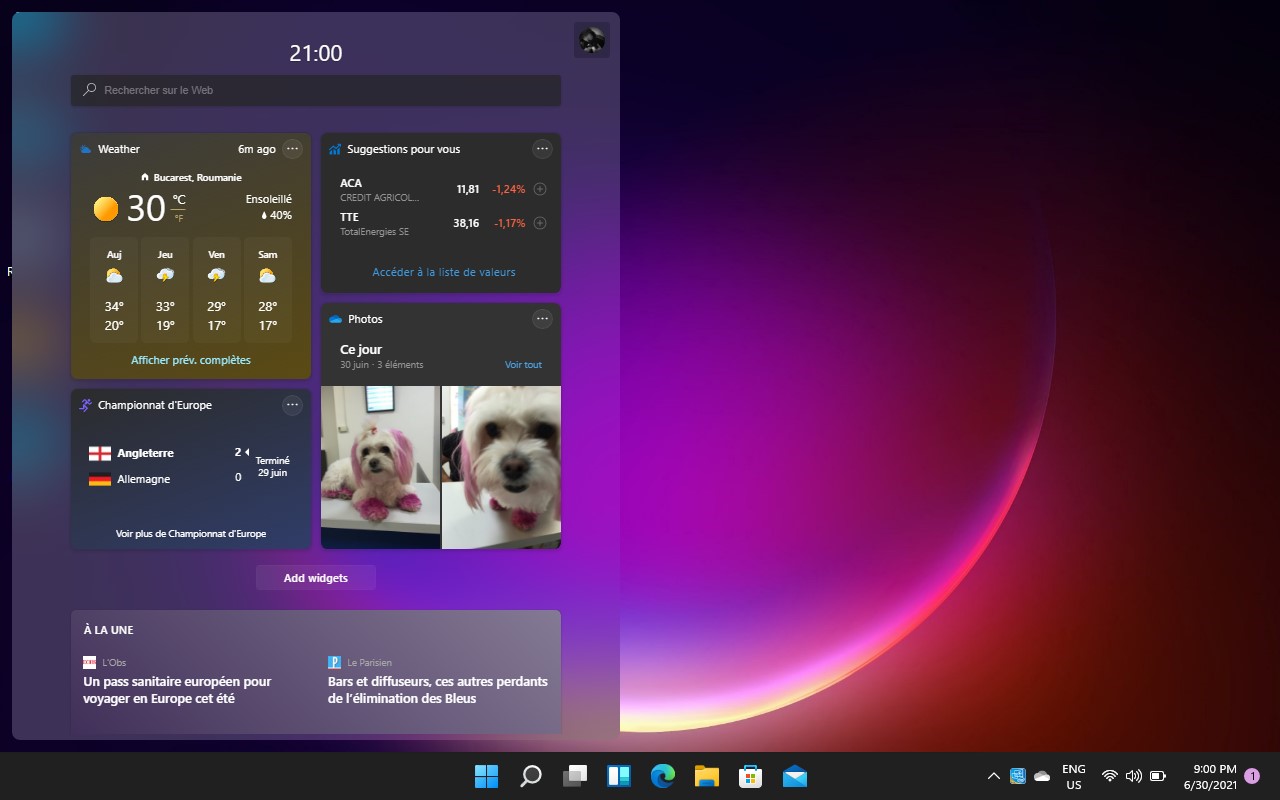
Unfortunately, this setting will not be maintained after restarting the Windows 11 operating system, but I am convinced that in the next period the problem of listing Windows 11 Widgets will be solved with a display driver update.

































Bonjour,
If you're talking about Intel HD Graphics 4000 (mine a 3000), then you've already cheated, like me. By installing W11 on an old PC in Legacy Mbr without TPM and without Secure Boot and with a Local account (W11 Pro)... how it is on the Net, the solution is already found
And if you have to block the analysis of the CPU model, that's not a problem either.
The problem will however only be resolved for those with a Microsoft account, as also on recent devices for the fingerprint reader or facial recognition, etc.
Haven't found it yet, I have to work on that side 😉
More boff
Salutations
Completely solved the problem of widgets appearing transparent!!
It's not a graphics card conflict.
It's a synchronization problem with Edge!
The solution is
Edge – 3 dots – Settings – Sync – Reset sync at the bottom – Tap Reset and then tap OK.
Turn off synchronization – after turning sync on again
When you run the widget, the screen appears clear!
bonjour
after testing all this, it doesn't work