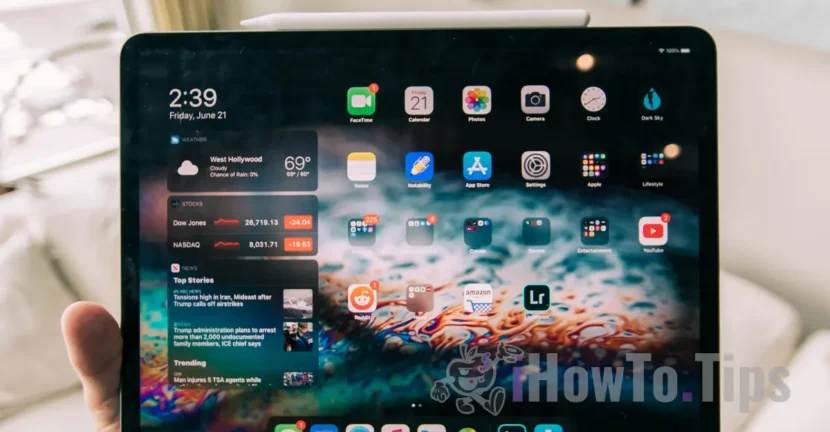

Apple has developed a lot in recent years generations of iPad, and for productivity in certain fields they have become more useful than a PC or laptop.
An iPad can be used for complete tasks, and when it has a mouse or a trackpad Connected, the work becomes very easy.
Along with the iOS 13, Apple started the separate development of the operating system for iPad. The system called Ipados is based on iOS, however, contains some carriers dedicated to iPad tablets.
A very important characteristic that Apple has emphasized in the latest updates, is the support for mouse and trackpad.
If you have one Magic Mouse or a Trackpad connected to iPad, you can do personalized settings for the speed of traveling the cursor or SA change the scroll direction din “natural” in “unnatural”.
Compared to other platforms, such as Windows or Android, Apple uses by default the reverse meaning of scroll. If on Windows, when we scroll on a web page, it will follow the movement of the fingers on the trackpad or on the magic mouse, on the devices with macos, iOS or iPados, the movement will be reverse.
This change in sense can confuse users who are used to non-Apple operating systems.
Fortunately, both on all Apple operating systems, the user can choose to change the meaning of the "natural" scroll (default apple) to the system, web pages, documents.
How we change the scroll direction on iPad - natural / unnatural
1. First of all we have to have mouse / magic mouse or trackpad. The connection is made via Bluetooth.
2. We go to "Settings” → “General” → “Trackpad & Mouse“.
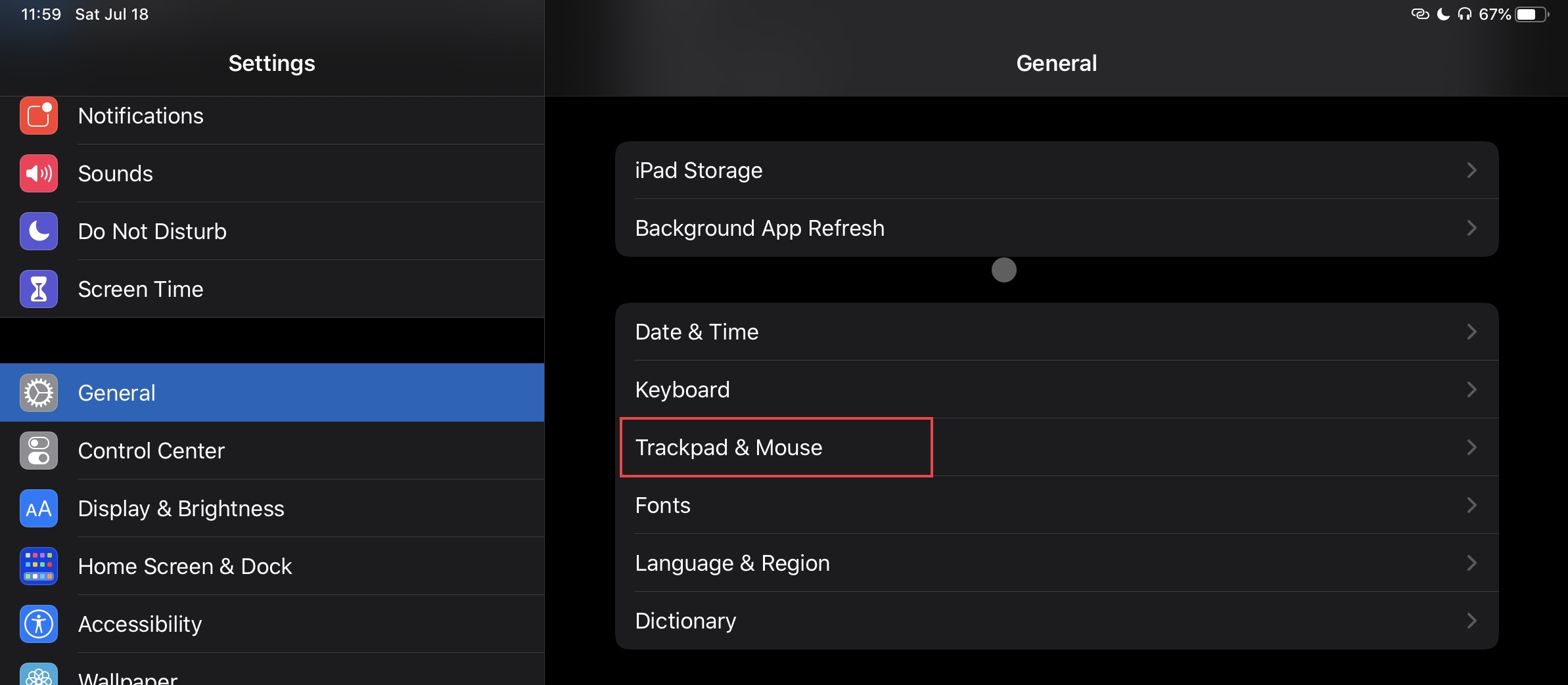
3. From the settings ”Trackpad & Mouse"We can change the scroll direction from" natural "to" unnatural "by simply cutting the option, and at the top we change the speed of the mouse / trackpad cursor.
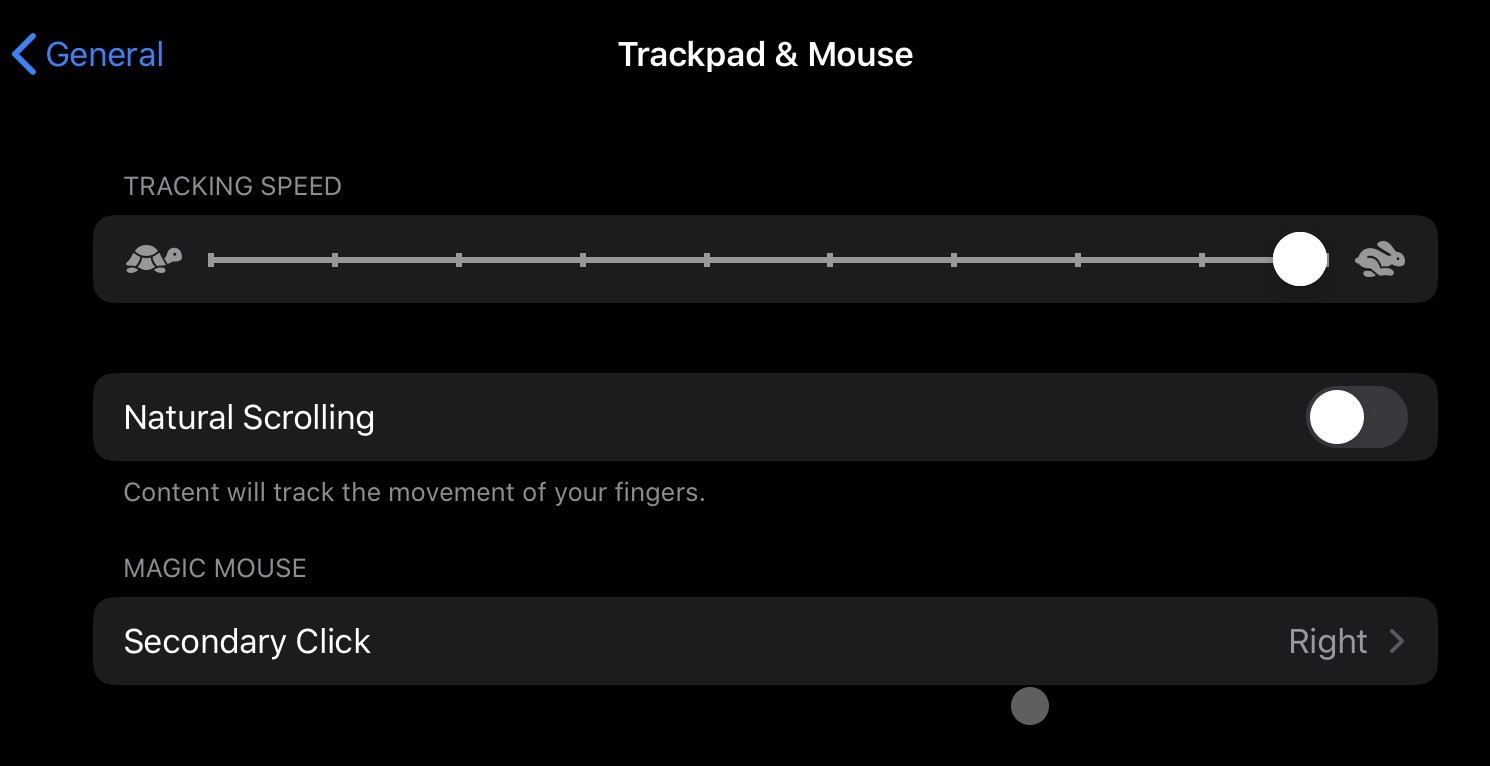
Also from here we can set secondary click (right click) for Magic Mouse.
For good experience it is necessary to have the latest version of iPados 13 or newer version.
Support for Tasted and trackpad was added with iPados 13.