

An option used by many owners of iPhone and iPad, it is synchronization and storage of photos in iCloud. So the pictures from the application Photos will be automatically taken to iCloud, the user also having the option of storage space optimization by keeping a lower quality copy on the device. The original quality of the picture can be accessed whenever it is open in Photos.
Photos saved in iCloud can be accessed and downloaded at any time from the Mac in the Photos application or online at icloud.com, after the user logs in with the same account on the iPhone.
The option for saving photos in iCloud and optimizing the storage space on the iPhone or iPad can be found in "Settings" → "Photos".
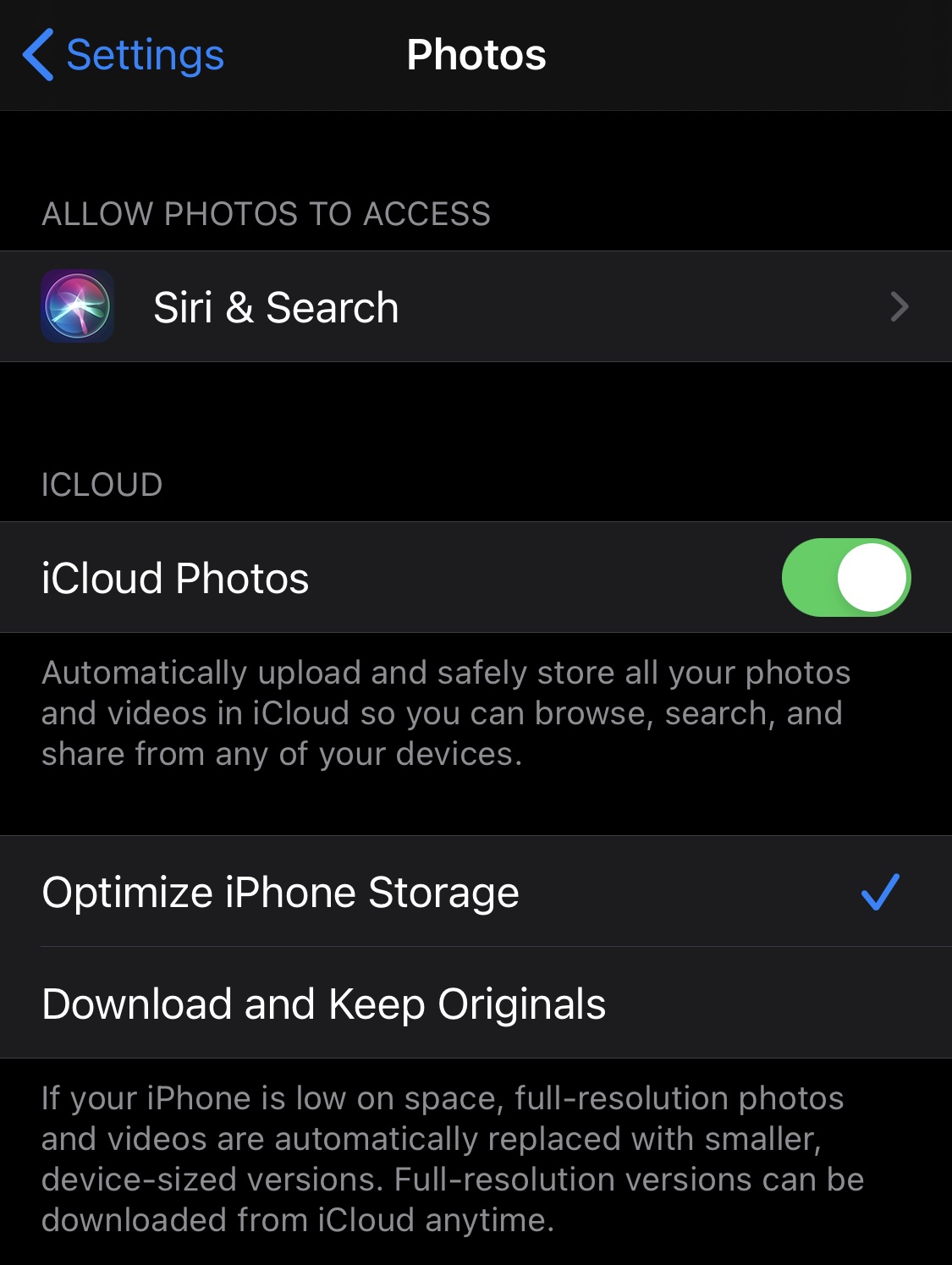
Sometimes this automatic upload of photos from the Photos application from the iPhone or iPad in iCloud stops, and the photos captured with the iPhone are not immediately transferred to iCloud Photos.
For Mac users, this stopping of the automatic upload is annoying, especially when they take a photo with their iPhone and want to access it immediately in the Photos application on the Mac.
Uploading photos from the application iPhone photos in iCloud it sometimes stops when the energy level of the battery is below 50%. Very useful for increasing the period of use of the iPhone until the next charge. It is known that during data transfer, the battery of a device is more demanding than usual.
How do we solve it so that the uploading of photos from the iPhone's Photos application to the iCloud account does not stop
If you are in the scenario where you took a picture or a screenshot with the iPhone, and the image is delayed in appearing on your iCloud account or in the Photos app on your Mac, first of all check your internet connection of both devices. Internet connection is required for upload / download.
Open the Photos app, go to “Photos” → “All Photos" and where does it appear "Upload paused for N items"press"Resume". Confirm "Resume Updates” and uploading photos to iCloud will start immediately.

Once the upload is complete, the photos will be accessible in the iCloud account and in the Photos application on the Mac (if it synchronizes as soon as it sees the change in iCloud).