
It happens quite rarely to need to reinstall iOS or iPados, but in certain situations, the reinstalling of Apple devices operating the solution can be a necessary solution. Whether you have technical problems, you want to return to a previous version of the system, or eliminate a beta version, the use of an IPSW image is an effective and safe method to reinstall iOS or iPados. In this tutorial I offer you a detailed guide, step by step, to bring this process to the end.
Table of Contents
What is the IPSW image for iPhone or iPad?
IPSW images are the firmware files used exclusively for Apple devices such as iPhone, iPad or iPod Touch. They contain the entire operating system and can only be installed using the iTunes (on Windows or MacOS or Finder (on modern macos versions). In other words, IPSW is the archive of the iOS operating system that can be installed. Before you start, it is important to make sure you have all the necessary resources and that you follow the steps carefully to avoid any errors.
How to reinstall iOS or iPados using the IPSW image - step by step
First of all, before you reinstall iOS or iPados, it is highly recommended to make a backup (backup) of the whole device to reinstall the operating system. During this process all data on the device will be deleted.
Related: How do you backup on all data on iPhone or iPad?
Preparations required before installation
1. Install the latest version of iTunes on Windows PC or Macos (or use Finder for Macos Catalina and subsequent versions).
2. Download the IPSW file according to your iPhone or iPad model. For safe sources, you can use the site ipsw.me. Make sure the file has Apple digital signature, because the unsigned firmware can no longer be installed.
3. Prepare a lightning or USB-C data cable.
4. Make sure you know the password of the device and, optionally, deactivate the Find My iPhone/iPad feature.
5. As I said before, it makes a complete backup of the data (pictures, documents, music, etc.), because all the information on the device will be deleted.
Connecting iPhone device to Mac or Windows PC and configuration iTunes
1. Opens the iTunes (or Finder) app and connects the iPhone or iPad device using the compatible data cable.
2. If this is the first time you connect the device to this computer, press "trust" on the iPhone/iPad and accept the connection in iTunes.
Selecting and loading IPSW file in iTunes or Finder
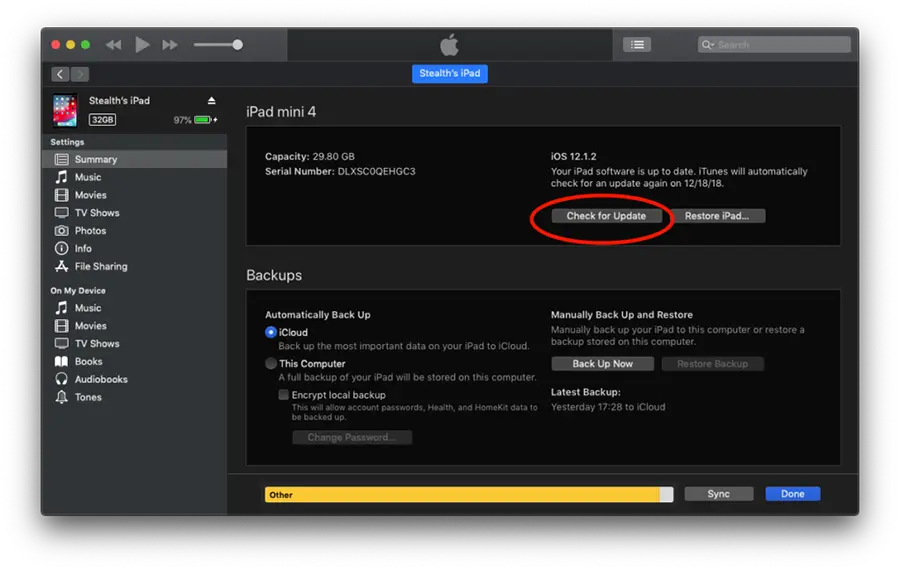
1. In iTunes, go to the Summy section of the device.
2. Hold the key Option (on Mac) or Shift (on Windows) and press the button Check for Updates.
3. Select the anteriorly downloaded IPSW file from your computer and press Open.
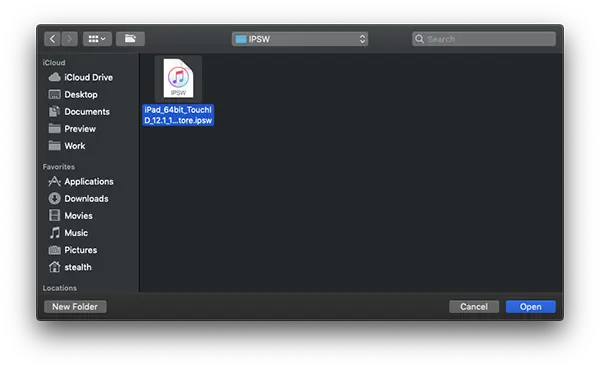
From this point will start the process by which you reinstall iOS or iPados with the selected IPSW image.
Initiation of the installation process
In the dialog window, presses on Update or Restore, depending on the option available and your purpose (update or clean reinstallation).
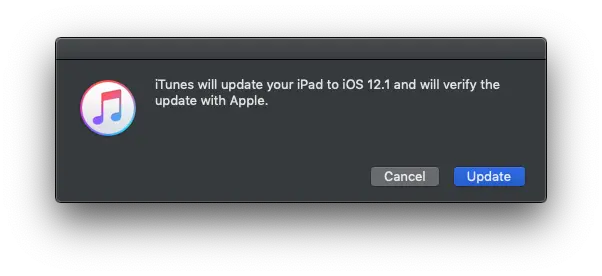
Wait for completing the process without disconnecting the device. It will be automatically restored several times during the installation.
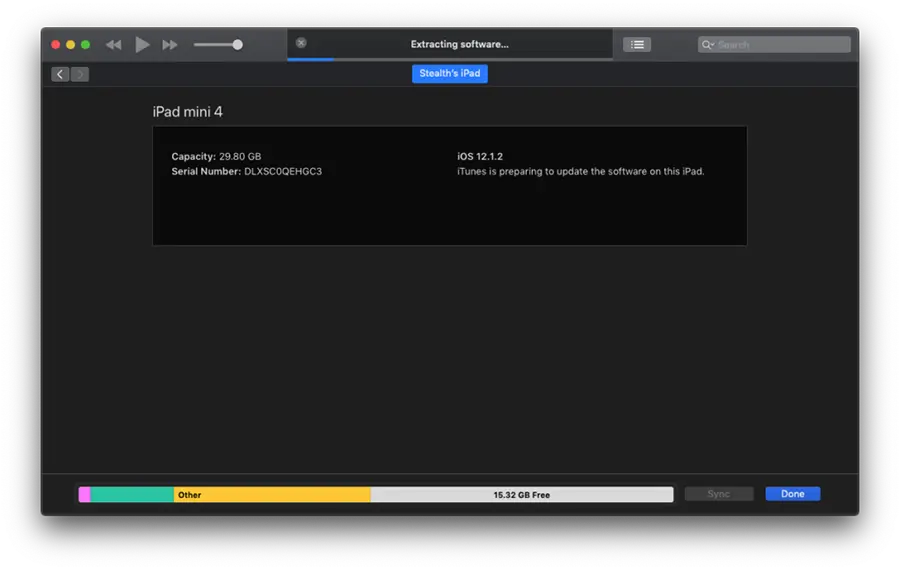
At the end of the process, the device will open with the operating system initiation screen, a sign that you have managed to reinstall iOS or iPados using the IPSW image.
Related: How do you get back from iPados or iOS beta to stable version?
Conclusion
Reinstalling iOS or iPados using the IPSW image is an effective procedure to solve software problems or to do a downgrade to a previous version. It is important to carefully follow all the steps and make sure you have a complete data backup, as the process will delete all the information on the device. This guide was designed to make the process as simple and accessible as possible, whether you are an advanced user or a beginner.
If you have any concerns about this process, leave us a comment.





































I have the iPad Pro, 2nd generation. I was using the iOS14.7.1 version with no problems. Once I did an upgrade to the 14.8 I lost the ability to access a group chat on a website called SilverDaddies.com. They use a websocket / webrtc. I have an older iPad using the old 14.1.7 iOS and it still works on that iPad/system. Appreciate any feedback you may have. I can also pass along to the webmaster of the site as well. Or, I could just give you his email.