
Backup is important to keep your data safe on your iPhone or iPad. A full device backup includes all information stored on it: photos, videos, data of installed applications and customized settings. If the device becomes inoperable or is lost, data can be restored to another device as long as you have previously backed up all data on your iPhone or iPad.
Keeping your photos, messages, notes and files safe is done in two ways: syncing this data to your iCloud account and making a full device backup, either in iCloud or on a personal Mac.
Table of Contents
How do you sync your photos, messages, notes, and personal files to iCloud?
Syncing your photos, messages, and notes to your iCloud account is one of the safest ways to protect your data if your device is lost or becomes unavailable. In addition, if you own an iPad, iPhone, and Mac), any change made on one of these devices will automatically be made on the others. For example, pictures taken with the iPhone will automatically appear on the iPad or Mac, if these devices also have iCloud synchronization enabled for the Photos app. It should be noted that if you delete pictures, notes or messages from one device, they will be deleted from all devices.
Syncing data to your iCloud account is recommended for users who have an iCloud+ subscription with more generous storage space.
Activating syncing of photos from iPhone to iCloud is done by following the steps below:
1. Open the settings app on your iPhone. (Settings)
2. Scroll to the bottom of settings and open “Apps“.
3. Look for the “Photos” app and activate the “iCloud Photos“.
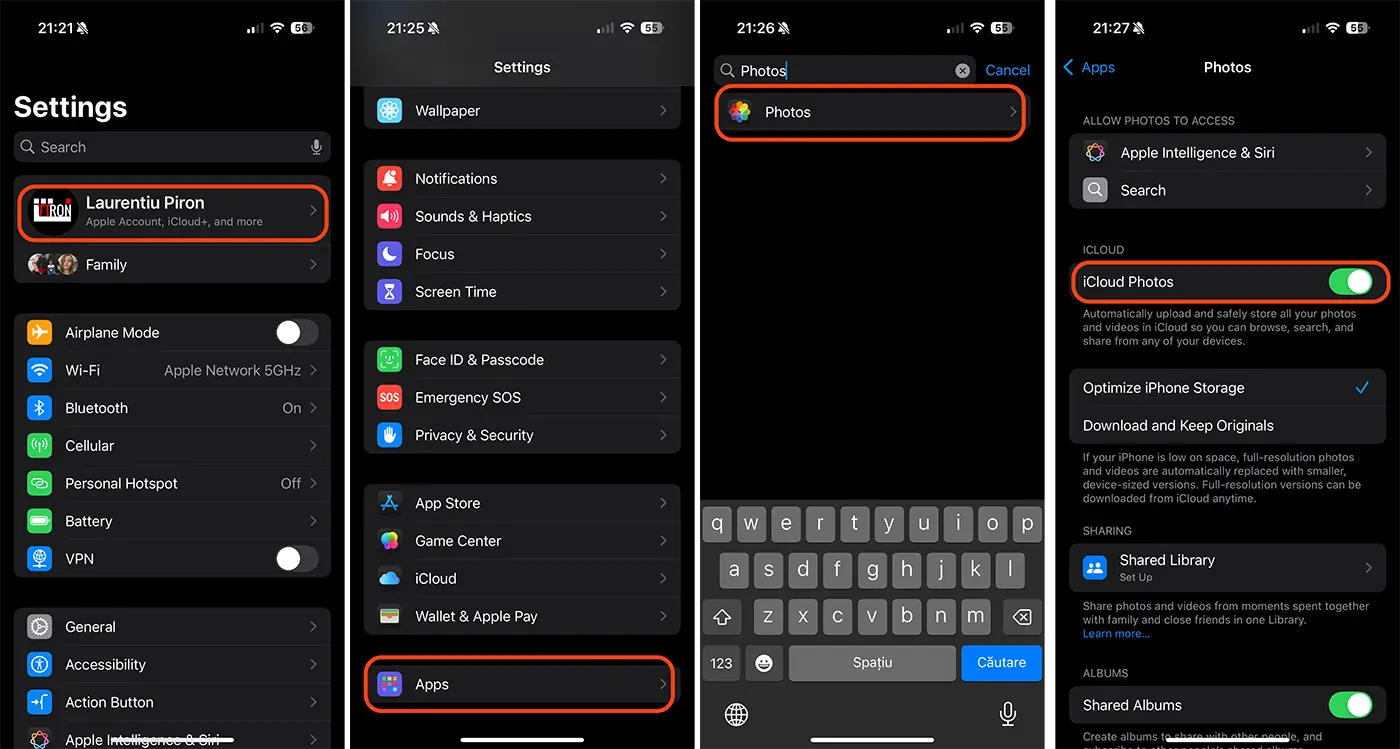
After this step, all the photos and videos on your iPhone will be uploaded to your iCloud account. Synchronization will be done automatically when the iPhone is connected to a Wi-Fi network and the device is not in Low Power Mode.
If you want to backup all your iPhone data, you can enable iPhone data sync by following the steps below:
1. Open the Settings app on your iPhone or iPad.
2. Tap your user account at the top of the settings menu.
3. Open the iCloud options in your Apple account.
4. Touch "See All" from the applications saved in iCloud (Saved to iCloud).
5. Enable iCloud saving of apps from the list.
In the image below I have illustrated how you can activate iCloud synchronization of data from applications on your iPhone or iPad.
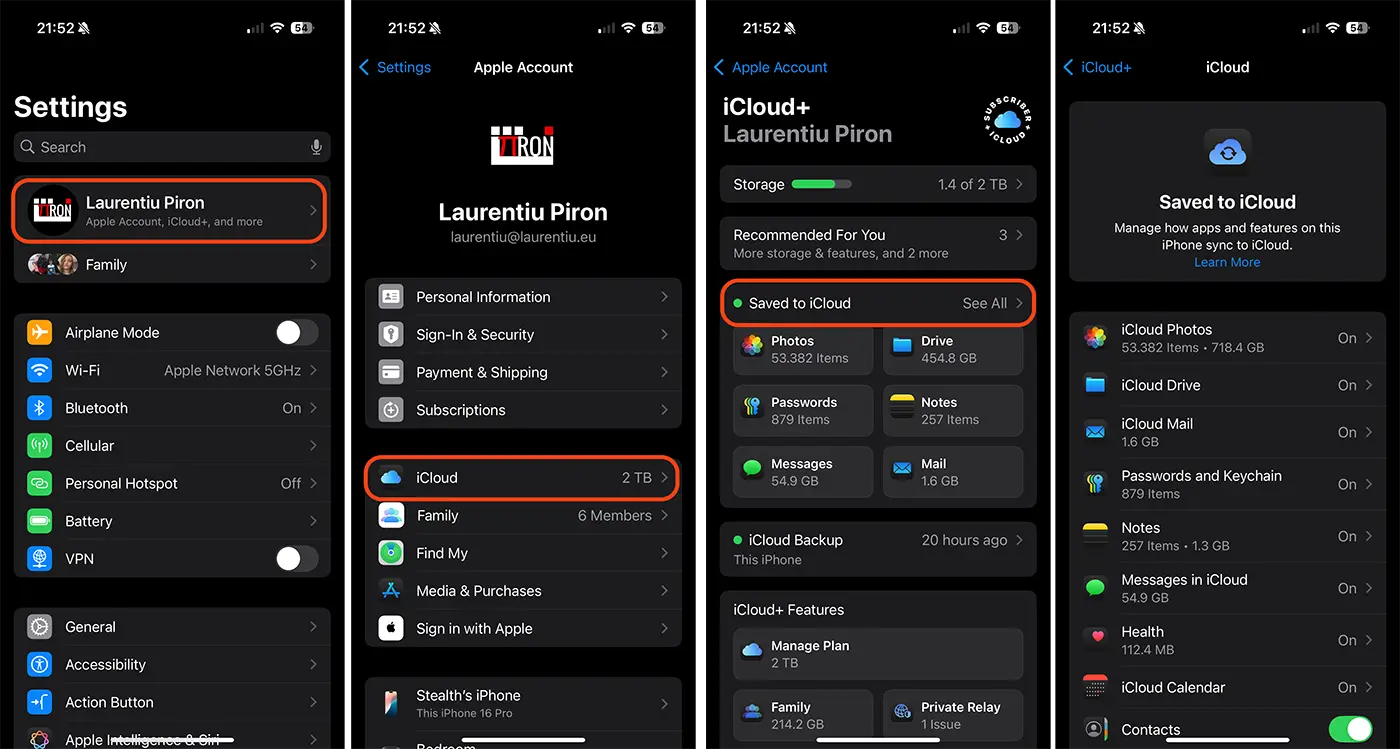
Once you've turned on sync for apps, they'll be kept up-to-date across all your devices whenever you make a change.
How can you backup all data on iPhone or iPad?
Separate from syncing photos, notes, and messages to iCloud, all data on your iPhone can be backed up, including your settings and installed apps. With the backup option turned on, iCloud automatically takes periodic snapshots of your data to ensure you can easily restore it every time you buy a new device. Your device settings, home screen layout, and app organization will be saved to iCloud.
Activating the option that allows you to backup all the data on your iPhone is done by following the steps in the guide below:
1. Open the Settings app on your iPhone or iPad.
2. Tap your user account at the top of the settings menu.
3. Open the iCloud options in your Apple account.
4. Go to "iCloud Backup" and activate the "Back Up This iPhone" option.
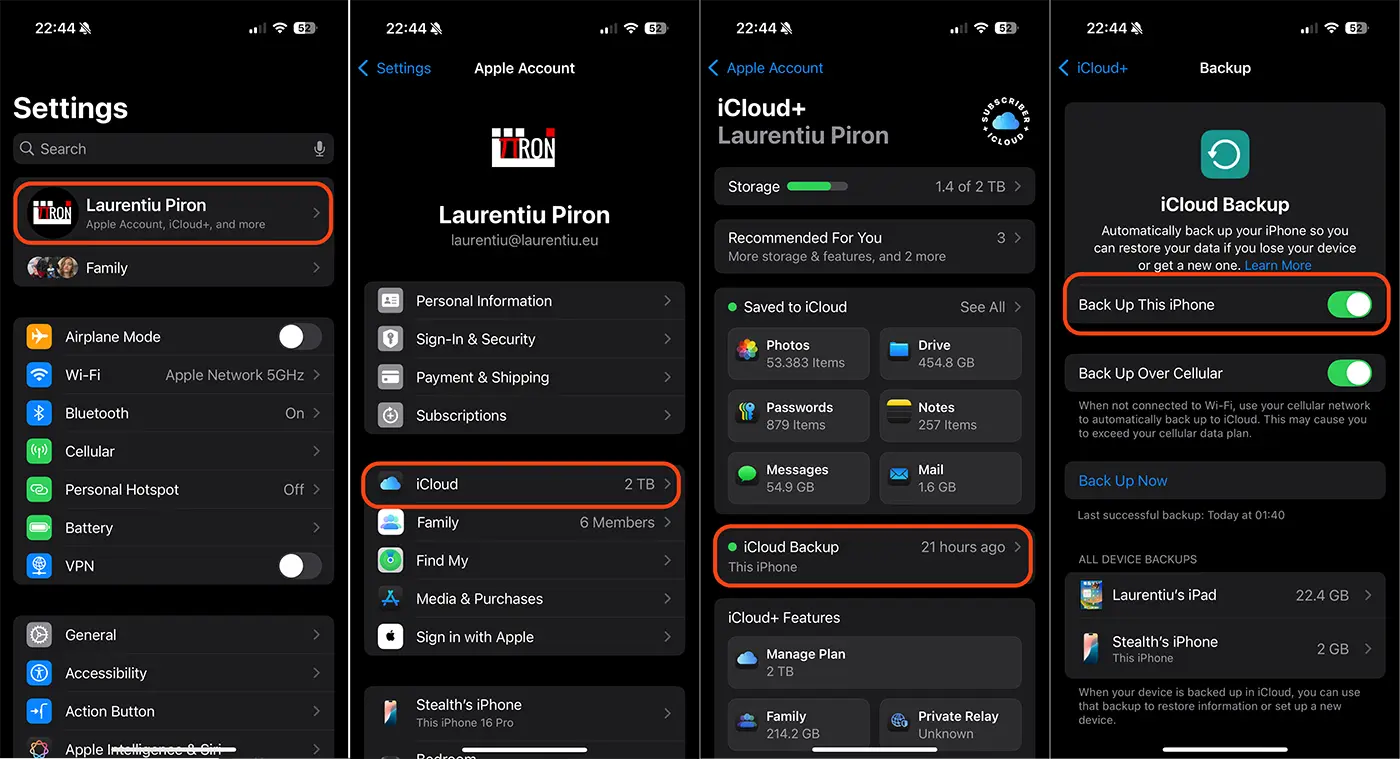
If you don't use iCloud sync for photos, messages, or notes, they'll all be picked up in this periodic backup. iCloud Backup also includes data from apps you've downloaded to your device. Third-party social networking apps, games, and messaging apps, as well as Apple apps that don't sync with iCloud.
Related: How can you cancel the iCloud+ subscription on iPhone or Mac
This form of backup to all data on iPhone is very useful for situations where you want to move all the content to a new iPhone device.
In conclusion, both iCloud data sync and full backup are two ways that your photos, videos, notes, messages, apps and other data will be safe if your device becomes broken or lost.




































