
When you no longer want to be addicted to the physical iPhone lock button or it doesn't work anymore, it is good to know how to add Shortcut for iPhone lock on Home Screen. By simply acting this shortcut, the iPhone will reach Lock Screen.
Without having to press the physical button each time lock/unlock for iPhone lock.
First of all, the Lock Screen feature in Shortcuts It was added by Apple starting with iOS 16.4. So, before you follow this tutorial, make sure that the iPhone is updated to the latest version of iOS.
Table of Contents
How do you create Shortcut for iPhone Lock on Home Screen
To create a shortcut to which you can quickly block an iPhone, without the need to operate the physical button, use the shortcuts utility and follow the steps below this tutorial.
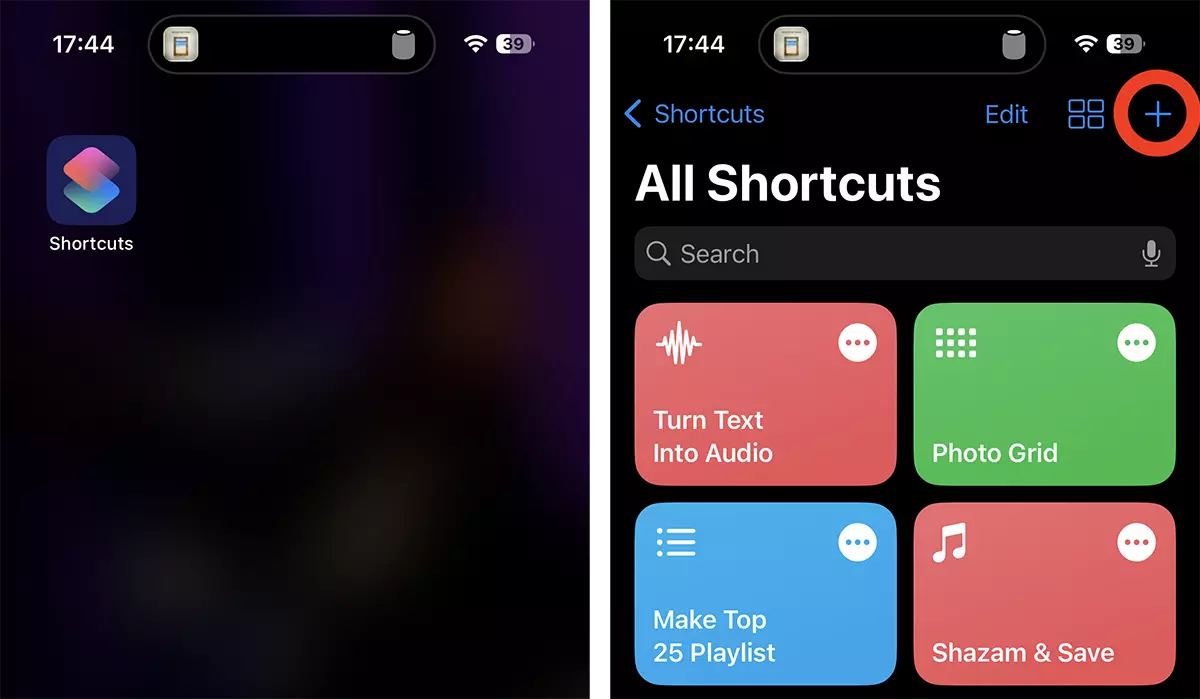
1. open the shortcuts utility and then press on the sign (+) on the top right of the application, to add a new shortcut.
2. Add a new action (Add Action), then look for Lock Screen.
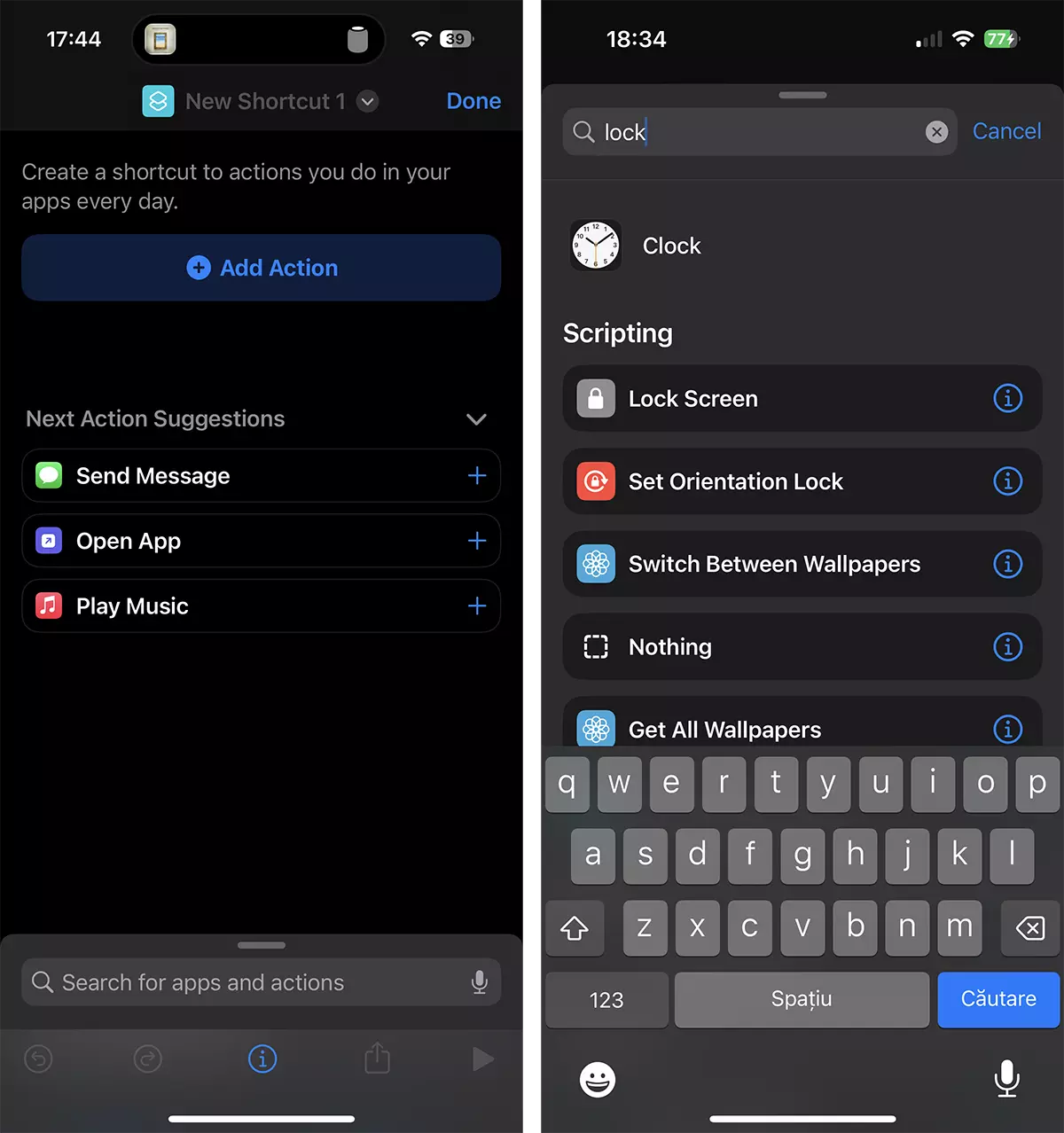
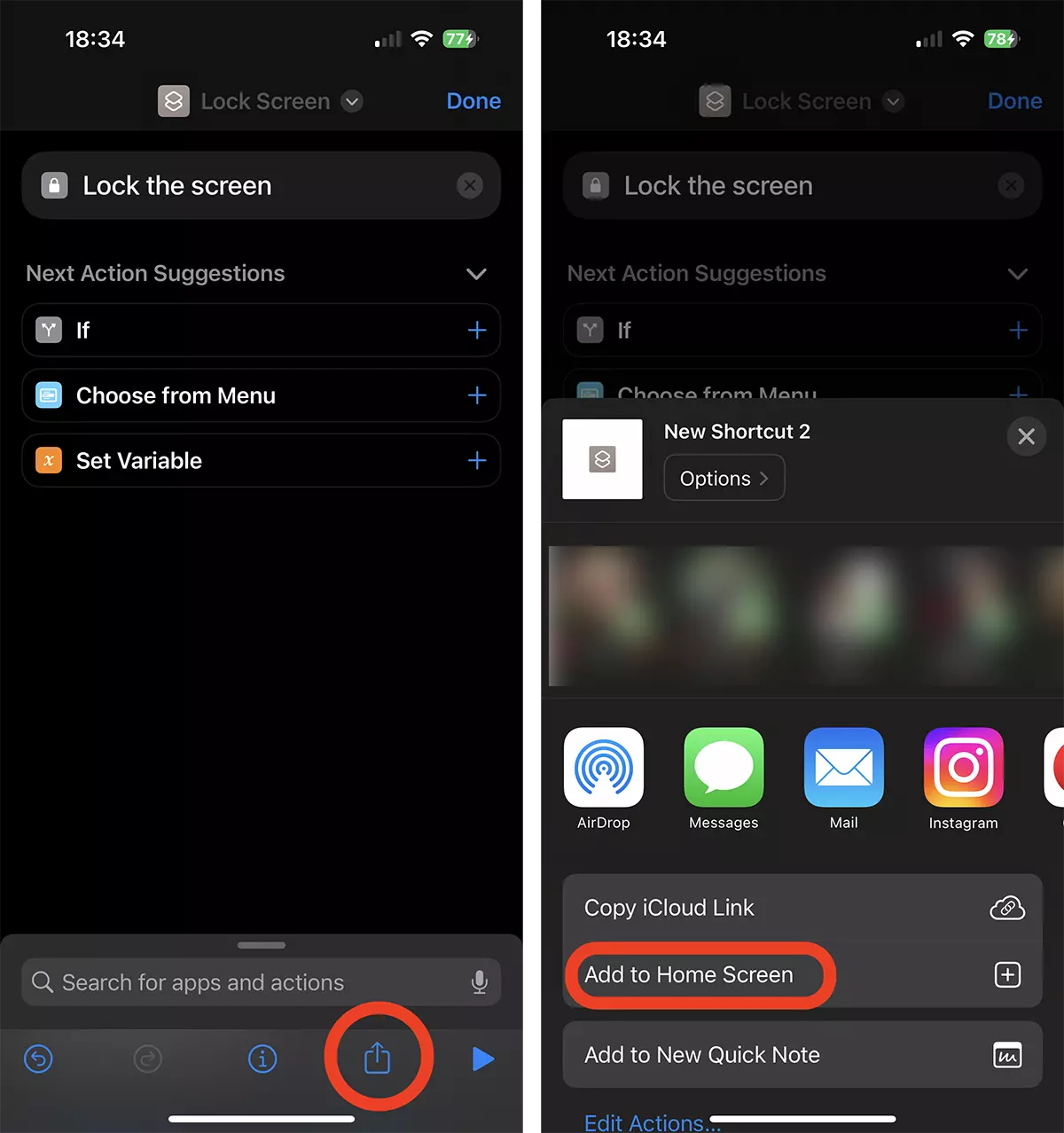
3. After selected Lock Screen, from the share button, choose to add the new shortcut to Home Screen. Add to Home Screen.
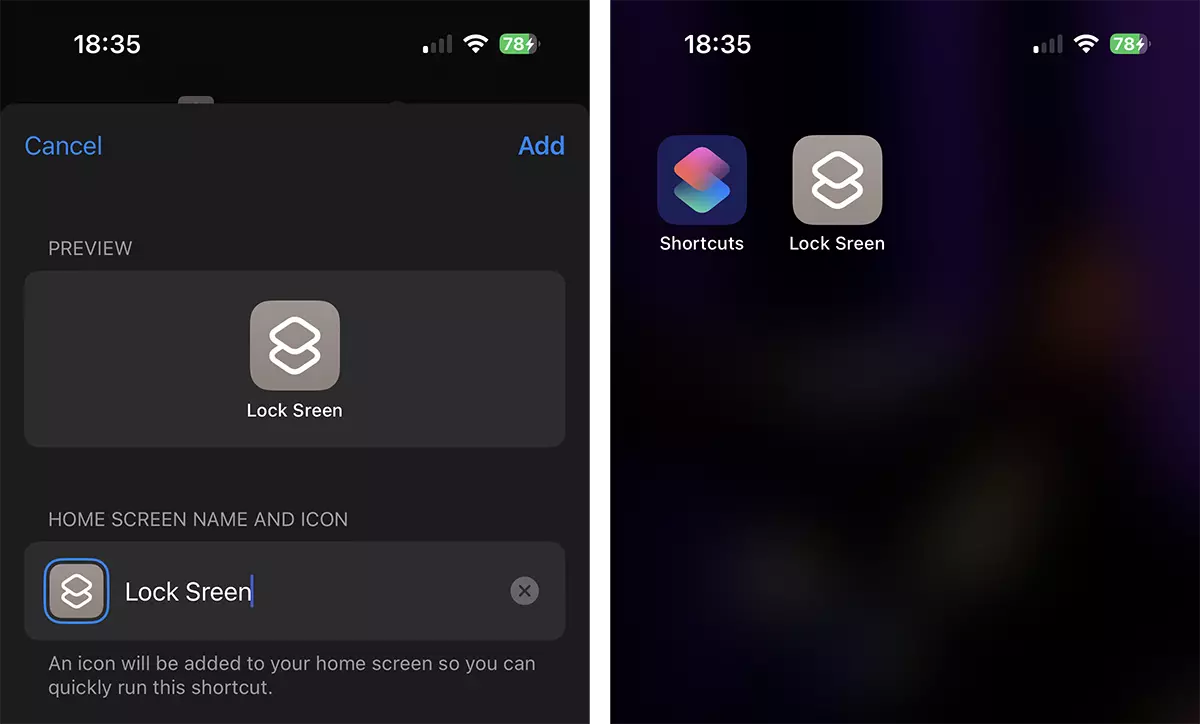
4. In the next step you can customize the icon of the new "applications" of shortcuts and you can choose a name.
How can you quickly block iPhone without pressing the side button
All you have to do to block the iPhone quickly is to act the new Shortcut on Home Screen. After pressing, Lock Screen will appear immediately, and for unlocking Face ID or Touch ID will be needed.