
Compared to laptops designed for Windows operating systems, the trackpad on MacBook devices offers a wide range of functions and gestures that the user can perform with two, three or four fingers. However, it is advisable to disable the trackpad when the mouse is connected to the MacBook, especially if you are using a Magic Mouse.
Table of Contents
Why is it useful to disable the trackpad when the mouse is connected to the MacBook?
Although the trackpad supports many multi-touch gestures, there are several reasons why it is advisable to disable it when the Magic Mouse is connected to the MacBook. First of all, accidental actions are prevented. When using a mouse it is possible to accidentally touch the trackpad with your palm or hand, which may result in unwanted clicks or cursor movements.
As good as the trackpad experience is, the mouse offers a higher level of precision and control than the trackpad, especially if you're using the Magic Mouse or another high-precision mouse. Reducing hand fatigue and increasing comfort while working are some other reasons why it is advisable to disable the trackpad when the mouse is connected to the MacBook.
How to disable trackpad when mouse is connected to MacBook
I don't know why Apple hasn't enabled by default to automatically disable the trackpad when the Magic Mouse is connected to the MacBook, but you can do this very easily from the macOS settings by following the steps in the guide below.
1. Open macOS System Settings, then go to Accessibility settings.
2. In the accessibility settings, go to the "Pointer Control" options, where you enable: "Ignore built-in trackpad when mouse or wireless trackpad is present."
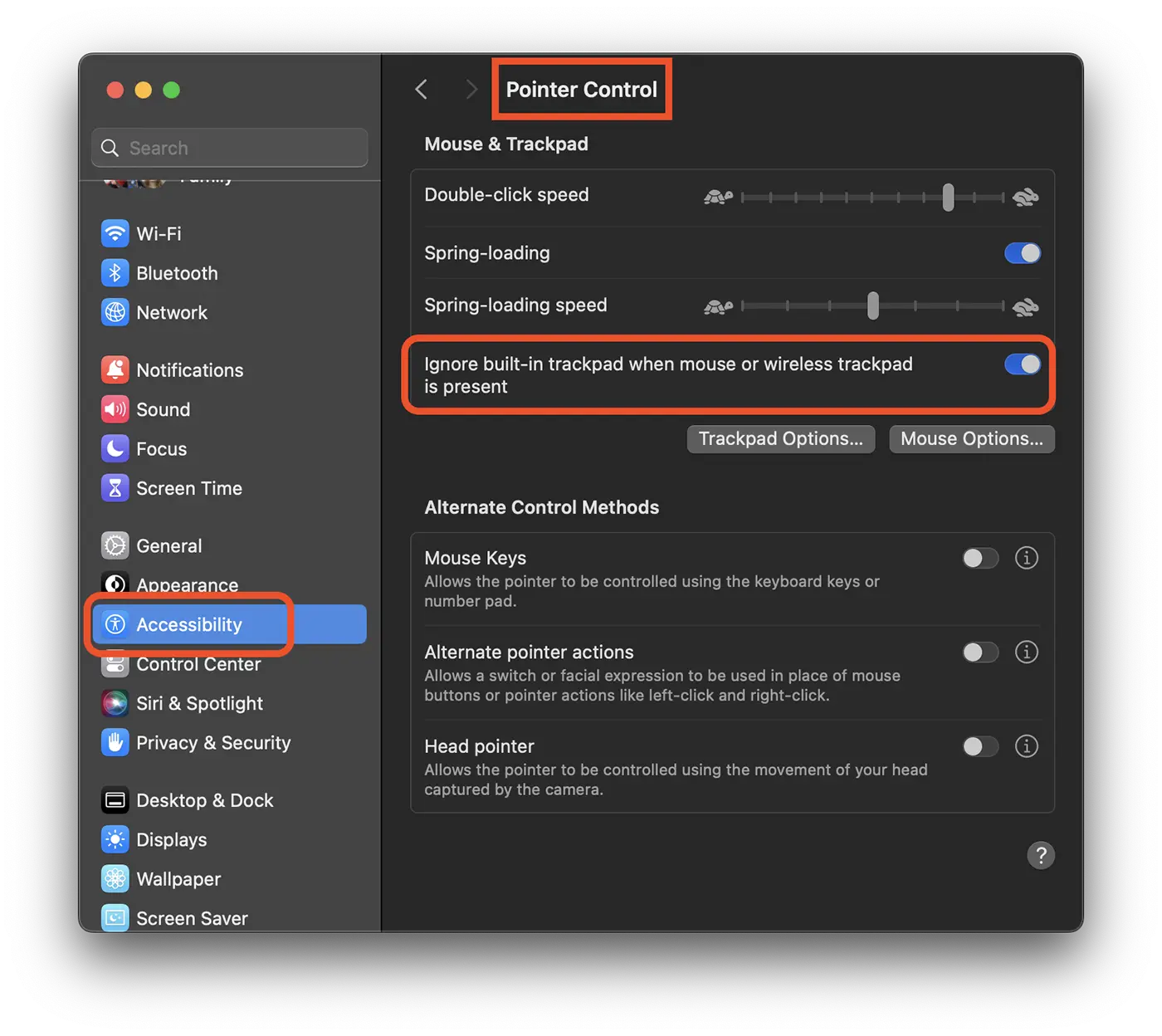
After enabling this option, the MacBook trackpad will automatically disable when a mouse or Magic Trackpad is connected to the device. Thus, clicks and accidental movements of the cursor will be prevented.
Related: How to block MacBook Pro keyboard to clean the keys (chip M3, M2)
The trackpad will automatically reactivate as soon as the mouse is disconnected, without the need for a restart or other user action.





































8.4