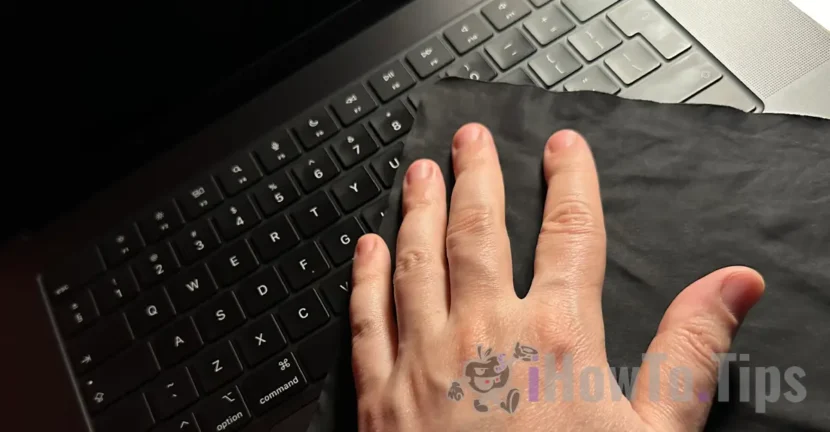

Since the end of 2020, Mac, MacBook has made the transition from Intel to Apple Silicon. A technology that has made amazing performance, but also a great disadvantage that Apple seems to be late to remedy. If you want to have a clean device, you need more special ways to block the MacBook Pro keyboard to clean the keys. The new MacBook Pro M3 models cannot be completely closed, and by pressing any key or by simply touching the device, the device will start immediately.
In other words, if you have traces of fingerprints on keys or trackpad, it is good to wipe them when the MacBook is on, as it will open automatically if you press a key or trackpad when the device is closed. You will also need applications or methods to block the MacBook Pro keyboard to clean the keys and trackpad.
Table of Contents
Two simple ways to block MacBook Pro keyboard to clean key
As for me I get used to cleaning the devices after I finish the work day and I don't like to leave the case, trackpad or traces on them. In the guide below I will show you step by step how you can lock the keyboard and trackpad on MacBook Pro devices with M3 or M2.
Application to lock keyboard on MacBook (OneMenu)
The OneMenu app is excellent to block MacBook Pro keyboard when you want to clean it. It is a free application, does not contain ads and can be installed very easily. After opening the application for the first time, you need to give it the system privileges to block the key.
Run the Opphenu app then activate the "Keyboard Cleaning" feature to block the MacBook Pro keys. Now you can clean the MacBook keyboard without the danger of performing unwanted commands. I tested the app and work very well on the MacBook Pro M3 with Macos Sonoma.
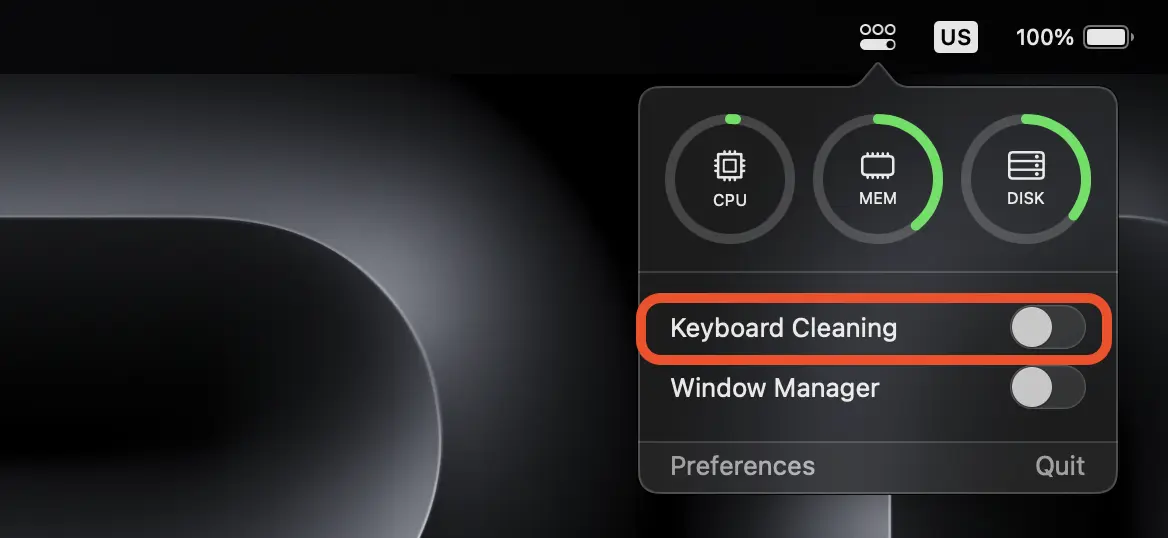
In addition to the MacBook (KeyBoard Cleaning) keyboard locking can be used as a Window Manager or as real -time system resources. CPU, RAM memory and storage use (disk).
Download the Opphenu app on the developer's official page: withmarko.com.
This app will not block the trackpad, but if you have Magic Mouse (or other mouse) connected to the MacBook, you can set deactivate trackpad when a mouse is connected. Disable trackpad from: Accessibility > Pointer Control > Ignore built-in trackpad when mouse or wireless trackpad is present.
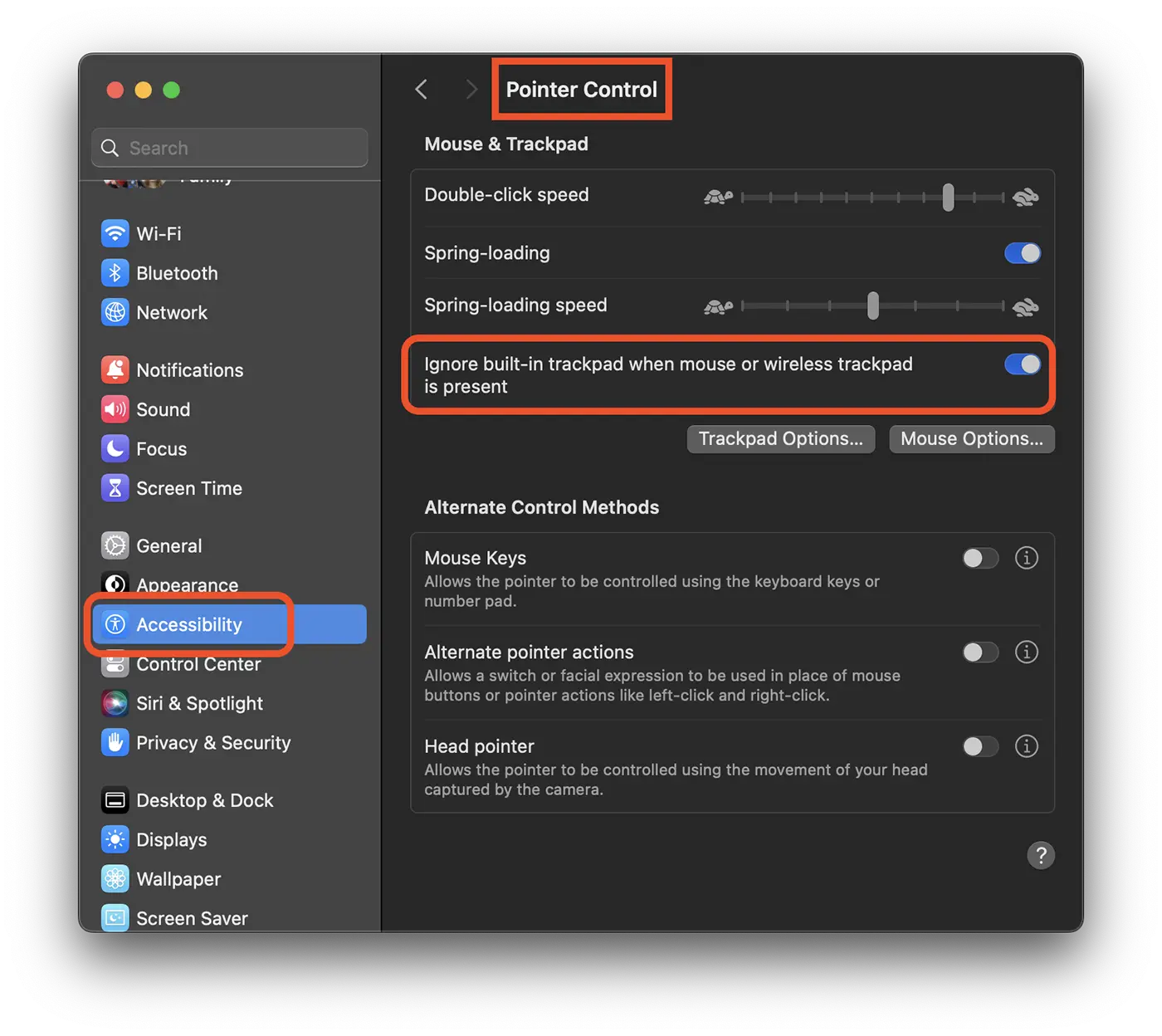
With the help of the OneMenu app and this setting above, you can block the MacBook Pro keyboard to clean the keys and trackpad.
Related: How do you disable trackpad on MacBook when mouse is connected.
Locking keyboard and trackpad on MacBook Pro by SMC reset (System Management Controller)
SMC (System Management Controller) reset is only recommended if MacBook has problems with keyboard lighting, cooling fans or power fans. However, SMC reset on MacBook Pro will close the device, and it will only be started by pressing the "Power" button. This way you will be able to clean the keys and trackpad without MacBook starting.
Before using this method to block the MacBook Pro keyboard to clean the keys, note that the SMC controls and monitors a number of system functions, such as battery management, thermal management, supply control and other hardware aspects.
If you still want to use this method, here's how you can turn off the keyboard and trackpad on the MacBook Pro M3:
1. Make sure the device is not connected to the power supply and the battery level is at least 50%.
2. Press and hold the keys for 7 seconds: Control + Command + Shift (right).
3. Keep the three keys, then press and hold the start button for another 7 seconds.
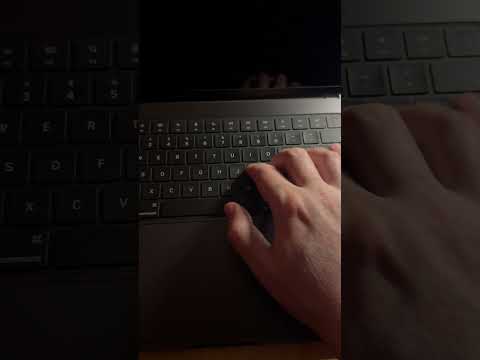
The device will close, and to restart it you need to press the Power button. MacBook will no longer start to press any key or trackpad.
In conclusion, the keyboard and trackpad on MacBook Pro models with M2 or M3 chip cannot be blocked from the operating system settings. However, there are ways by which the keys can be blocked to clean them safely. Let us hope that Apple will integrate into the future versions of the operating system a Keyboard Cleaning function.





































A wanna quit…kinda
Greetings etc.