

With Family Sharing in iCloud, a family member (adult, organizer) can share with five other family members Apple subscriptions, iCloud storage and purchases from the App Store, in a simple and efficient way. Each of the family members retains its own Apple account, but has access to the contents of the family group. Although Family Sharing is a very well organized system, many users who are members in a family group do not know how to add their own payment method in iCloud.
The scenario is as follows: you are a member of a family group and when you want to make an Apple subscription (iCloud storage, Apple Music, App Store or other services), purchases are made by the payment method set by the group's organizer. In other words, the organizer of the family group will automatically pay all the purchases made by the other members of the group. The problem gets even worse when you try to add your own payment method in iCloud, but this option does not appear.
Normally, when you want to add a payment method for your Apple account, the steps are as follows:
1. Open the Settings app on iPhone or iPad.
2. You access your Apple account settings (press on your name, from the top).
3. Mergi la opțiunile de adăugare metode de plată (Payment & Shipping).
Here is the problem for those who are in the group of family members. Instead of appearing the option by which they can add their own payment method for Apple services, it only appears that purchases are shared.
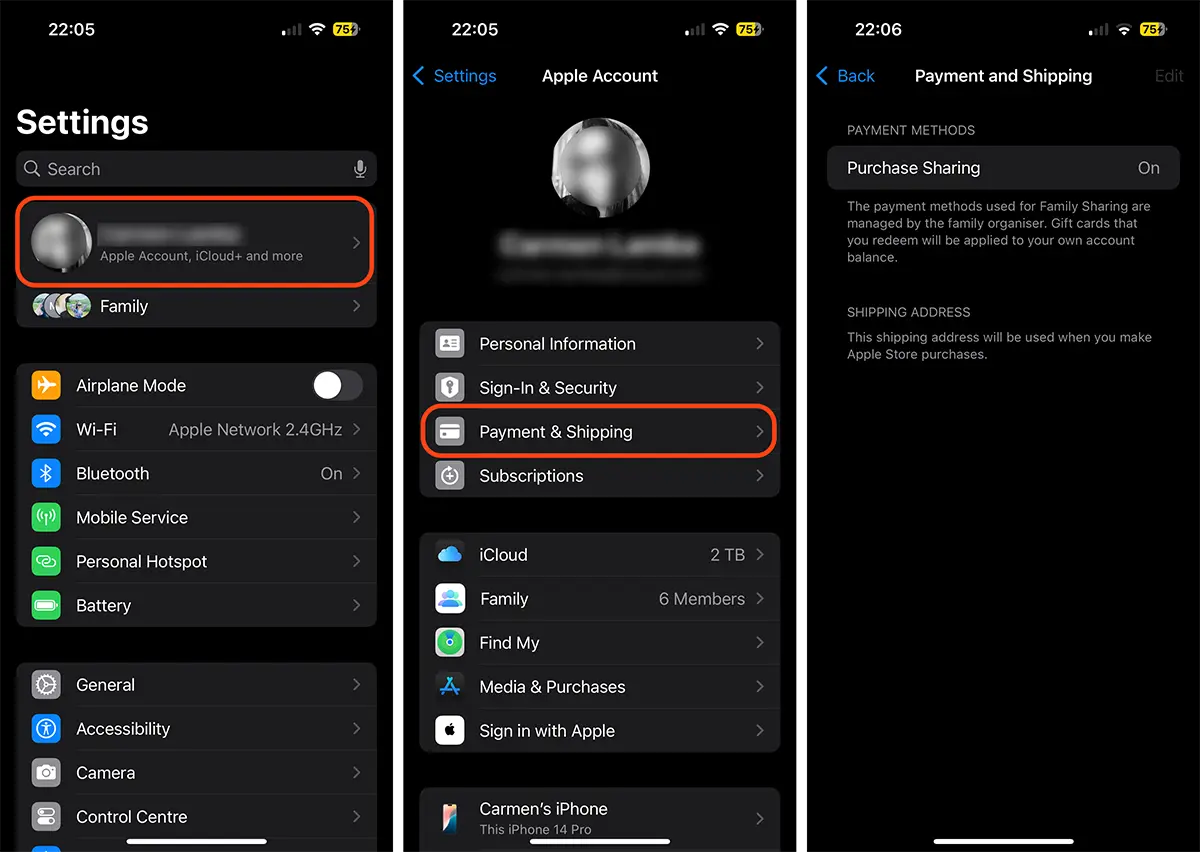
Table of Contents
What do you need to do for family members to add your own payment method to iCloud?
In order for Family Sharing members to be able to add their own payment method to iCloud, the group organizer must disable the Purchase Sharing (Purchase Sharing) option. When this option is activated by the family group organizer, all the purchases made by the family members will be invoiced using the payment method added by the organizer. In other words, no Family Sharing member will be able to buy apps or make an Apple services using your own bank card.
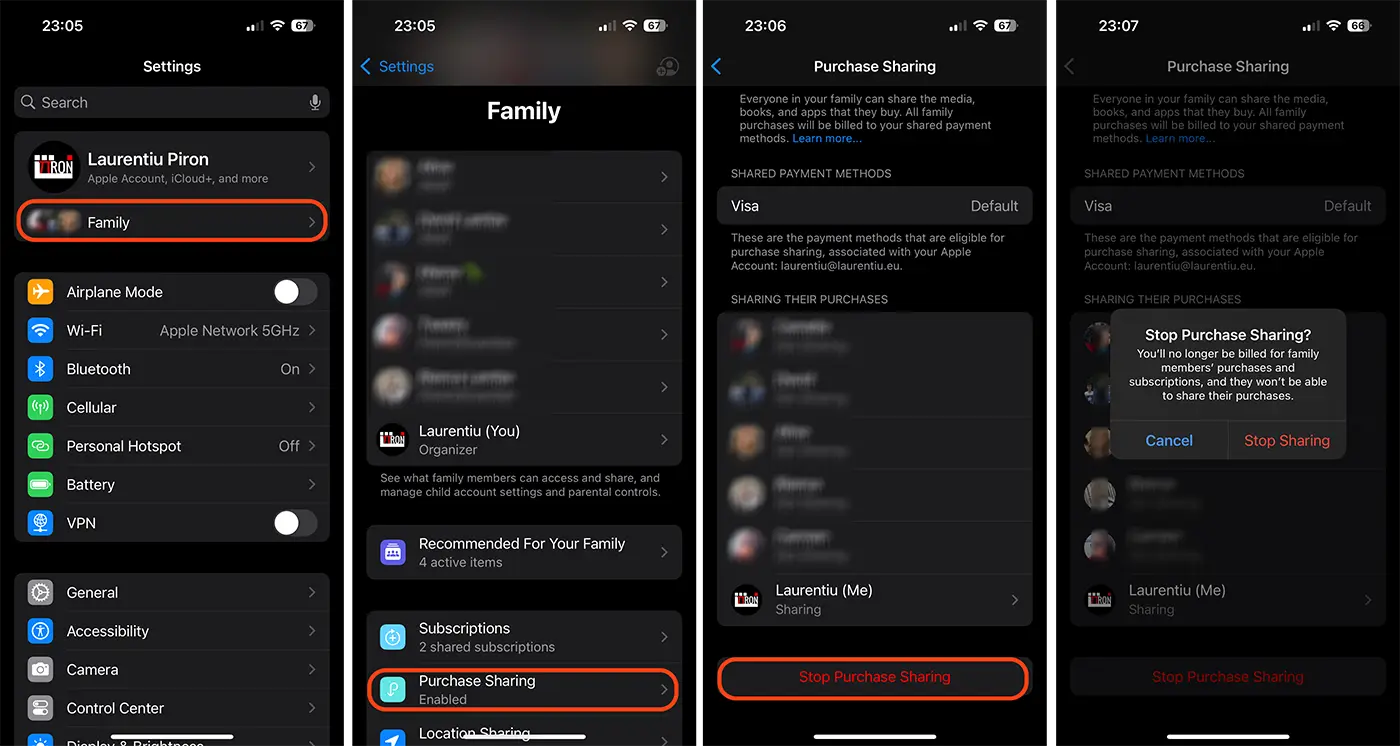
Therefore, the Family Sharing organizer must access the settings of the family group on the iPhone, iPad or Mac device, then deactivate the sharing of purchases. To do this, they must follow the steps below:
1. The Family Sharing organizer opens the Settings app.
2. Access the options and settings of the family group (Family). The option is in settings immediately below your Apple's personal account.
3. In family settings (Family), access the options for purchasing (Pirchase Sharing).
4. Disables sharing purchases with other family members.
5. Confirm deactivation of shopping (stop sharing).
The image below is illustrated by the steps to be followed by the Family Sharing group organizer to disable Purchase Sharing.
After sharing payments is disabled by the group's organizer, family members can add their own payment method in iCloud (Apple account), to make apps and subscriptions to Apple services. They can handle their own expenses and add their own payment card.
Deactivating the Purchase Sharing (Purchae Sharing) will not affect the sharing of the other services. iCloud+, Apple Music, Apple Arcade, Fitness+ and other services will continue to be shared with members of the "Family Sharing" group.
How can you add a payment method to your Apple's personal account?
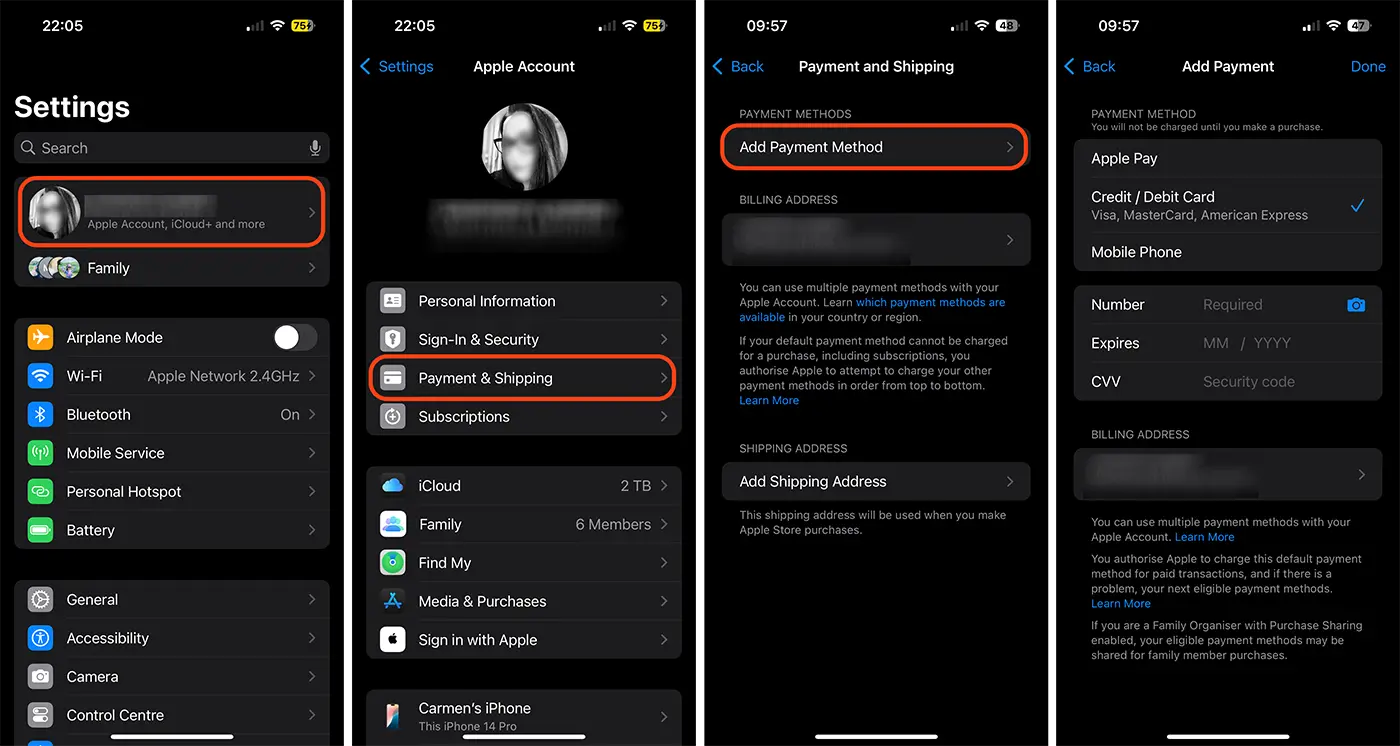
1. Open the Settings app on iPhone or iPad.
2. You access your Apple account settings (press on your name, from the top).
3. Mergi la opțiunile de adăugare metode de plată (Payment & Shipping).
4. Press on the option for adding payment method.
5. You can choose as a payment method: Apple Pay, credit / debit card, Apple Card or phone payment (available for some mobile operators).
After the payment method is added, the user can buy applications and games from the App Store or Apple subscriptions (iCloud+, Apple TV+storage with their own funds.
In conclusion, when the Purchase Sharing option is activated, family members cannot add their own payment methods for purchases. The organizers of the group can decide whether to keep this active setting or disable it to provide more financial freedom to family members.
What do you need to know about sharing Apple subscriptions with Family Sharing option
The purchases of Apple apps, games and services made by a group in the group will not be able to be shared with the other members of the Family Sharing Group if the Purchase Sharing option is deactivated. Only the organizing person can share Apple subscriptions and apps bought from the App Store.
If the group's organizer has a subscription that offers iCloud storage space, all group members will be able to use that storage for personal files, as well as this one. The Family Sharing group organizer will not be able to impose on the members of the group the use of the storage space allocated by the subscription.
If the option of sharing purchases is deactivated, any group member can add their own payment method and buy subscriptions to Apple services. When a member of the Family Sharing group, who is not an organizer, acquires an iCloud+subscription separately, it cannot be shared with the other members of the group. However, if this member of the group occupies the iCloud+ storage space by the organizer, all its data will be able to automatically be moved to your personal account.
Let's take the scenario in which the Family Sharing organizer has an iCloud+ subscription with 2 TB storage, of which he uses 200 GB, Sabrina (family member) uses 300 GB and other users occupy 500 GB together. This means that the storage space remained available in iCloud for the whole family is 1 TB. If the Sabrina user makes an iCloud+ subscription separately with 2 TB storage space, he will have the option to move the 300 GB busy from the organizer's to the personal one (the move is instantly made from the iCloud+ settings). Thus, the storage space available for the other members of the group will be 1.3 TB.
Related: How can you cancel the iCloud+ subscription on iPhone or Mac
In other words, the storage space purchased by another user in the group will not be added to the current one purchased by the organizer and will not be able to share it with other members of the Family Sharing.