

When we connect to a Wi-Fi network, most of the time, after a while the Wi-Fi password is forgotten. So if you want to connect with another device after a while or give the password to someone else, it's good to know how to see Wi-Fi passwords on iPhone or iPad.
For reasons of confidentiality, Apple has restricted the access of iPhone and iPad users to Wi-Fi relay passwords for a long time. Even if the credentials were entered manually, they could no longer be seen after connecting to the Wi-Fi network.
With iOS 16 and iPadOS 16, iPhone and iPad users can see the passwords of the Wi-Fi networks they are or have been connected to.
How do you see the Wi-Fi passwords on the iPhone or iPad
First of all, you must have an iPhone or iPad with the latest version of the iOS or iPadOS operating system. The option to see the Wi-Fi passwords of the networks you are connected to or have been connected to was introduced on iOS 16 and iPadOS 16.
open Settings on your iPhone or iPad, then go to Wi-Fi and press the sign “i” from the circle.
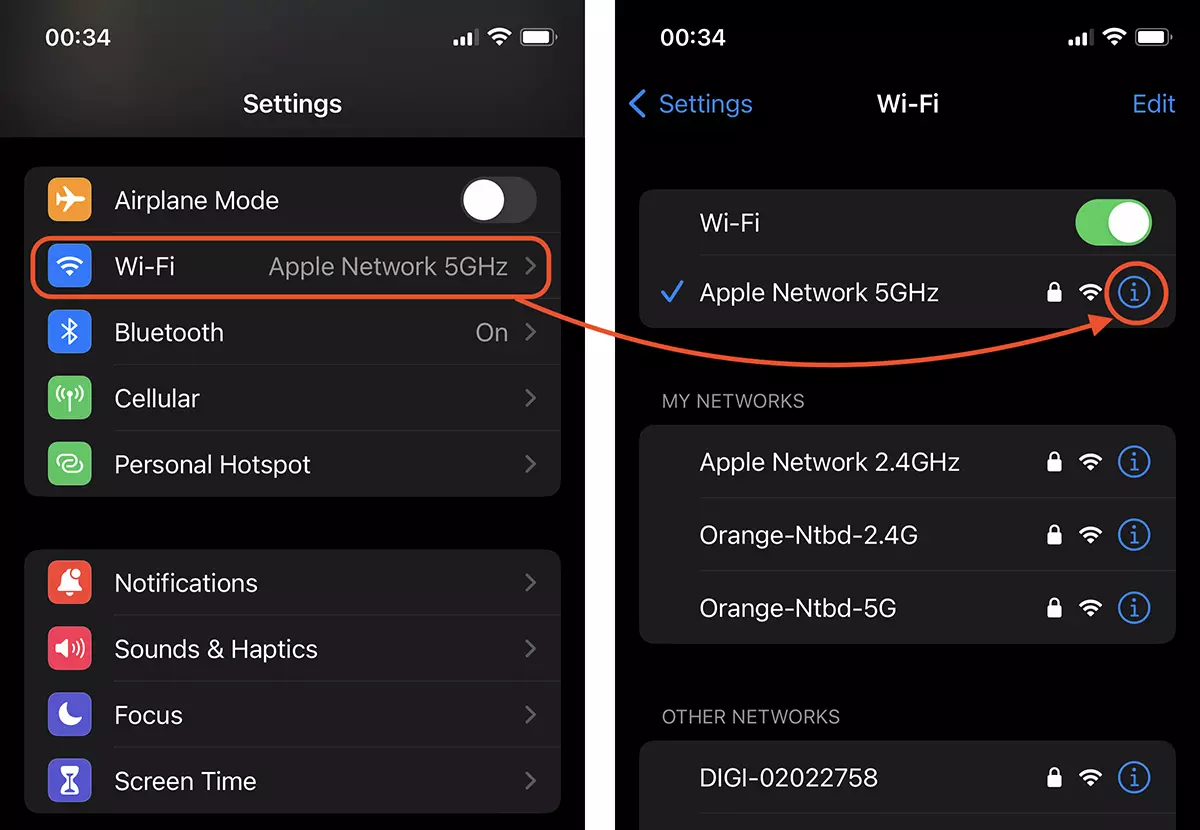
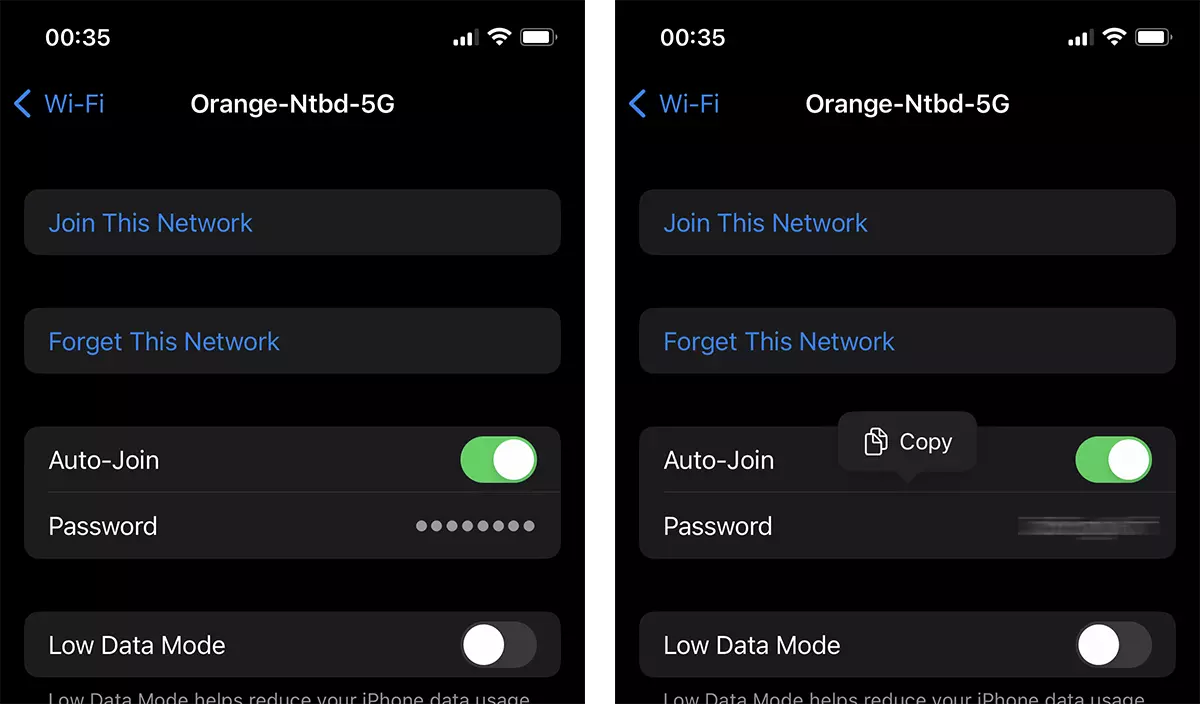
In the network connection settings, you can find the Wi-Fi connection password. The password appears with dots and you have to click on them to make them visible. It is necessary to confirm your identity with Face ID / Touch ID or device password.
- Share Wi-Fi Password for iPhone, iPad and MacBook-Wi-Fi connection without knowing your password
- How do I change the order of automatic connection to Wi-Fi saved on MacOS
- How do I change the order of automatic connection to Wi-Fi saved on MacOS
You can copy the password of the Wi-Fi network and send it to another person who wants to connect to that Wi-Fi network.
For the iPad, you must follow the same steps from the tutorial above and you will find out the Wi-Fi password of the network to which the device is or was connected. Saved Wi-Fi networks.



































1 thought on “How do you see the Wi-Fi passwords on the iPhone or iPad"