
By Default, MacBook / Mac automatically connects to the wireless networks for which we have saved passwords and which we have connected in the past. They are saved in the iCloud account, so if we connected in the past with iPhone to a Wi-Fi network, and Mac will automatically connect to this network without having to enter the password. In the worst case we will be asked to give share la parola wireless from the other device already connected.
In the situation where we are in the coverage area of several Wi-Fi networks for which we have saved passwords or we have a router with 2.1 GHz and 5 GHz, MacBook will not connect to the network with the strongest signal and the best quality of Internet but to the first network of available connections. If we want to change the network to which MacBook to connect automatically, we will have to go to this list and change the order from the list of Wi-Fi networks.
How do I change the order of automatic connection to Wi-Fi saved on MacOS
1. We go to "System Preferences” → “Network"
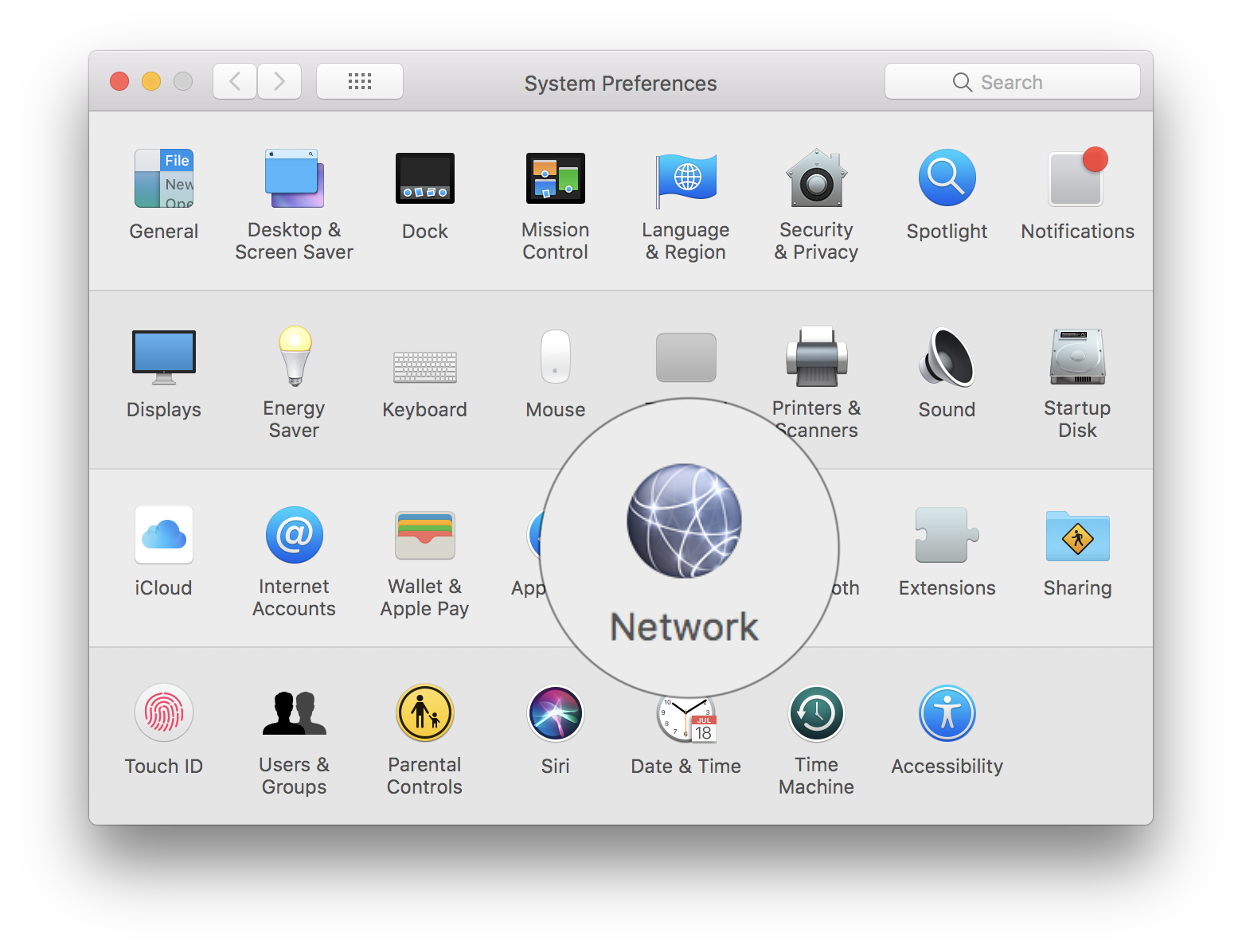
2. In “Network"We select"Wi-Fi"From the list on the left side, then click on the"Advanced"From the bottom.
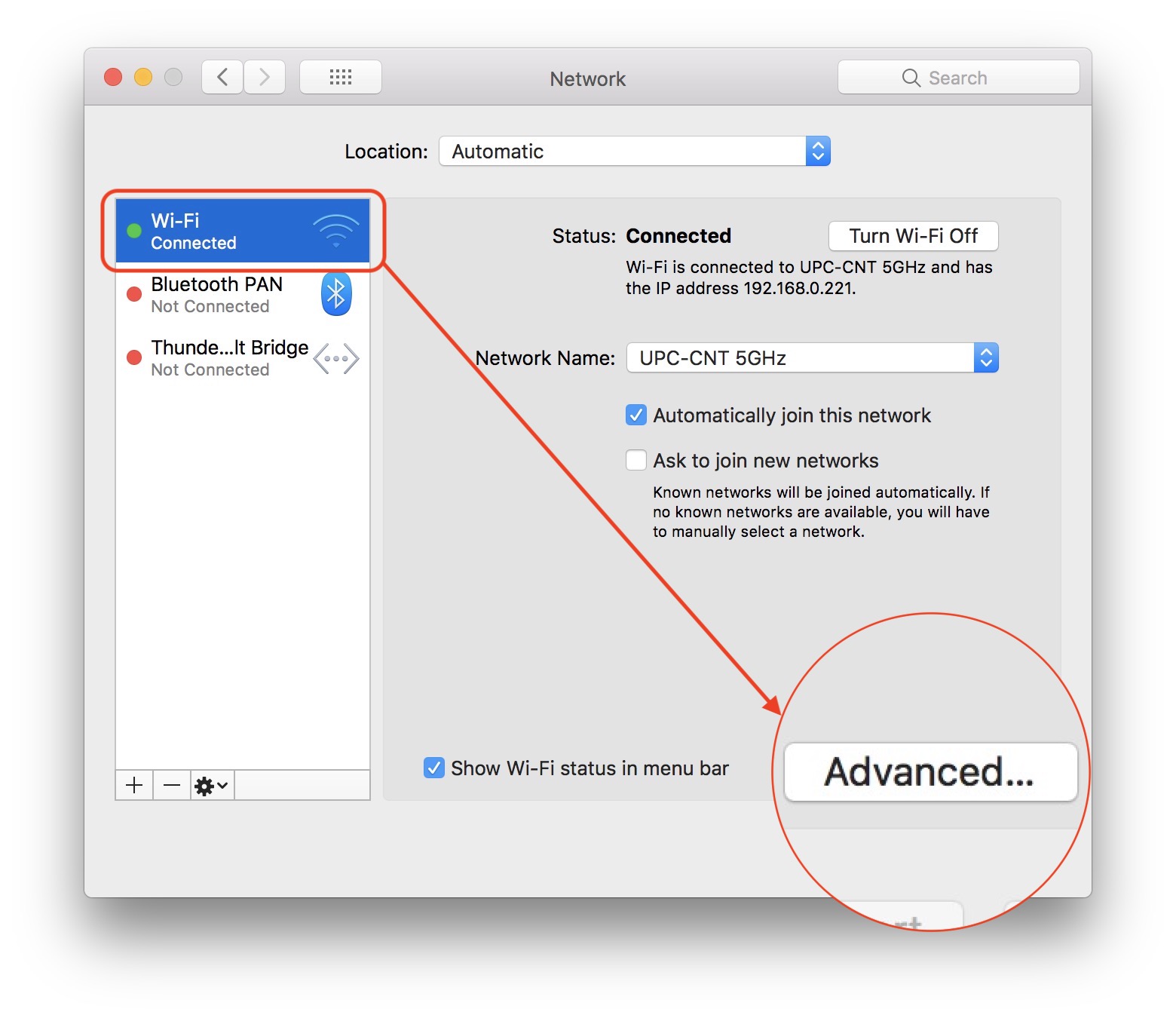
The name of the wireless network to which we are already connected appears. In our case: UPC-CNT 5GHZ.
3. In “Advanced” avem wireless network list stored to which Mac has connected over time. If we are in the coverage area of several Wi-Fi networks, the device will connect to the first of this list. In our case, we are in the network coverage: UPC-CNT 5GHz, Apple Network 5GHz, Apple Network and UPC-CNT.
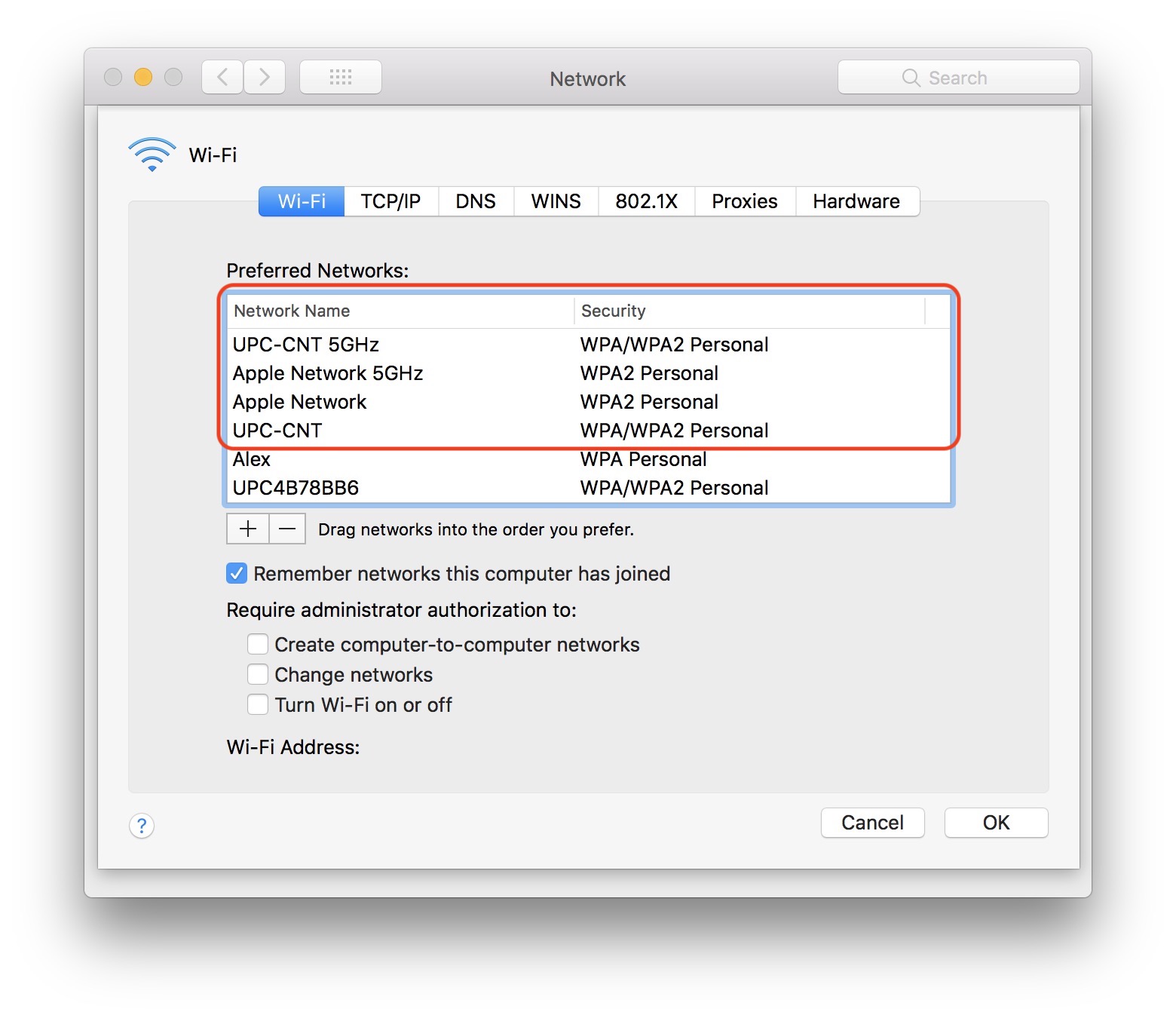
If we want MacBook not to automatically connect to UPC-CNT 5GHZ but to Apple Network %GHz, all we have to do is Select the network you want to connect automatically and bring the top of the list. We pull it with the mouse / cursor.
When restarting the MacBook operating system, it will connect to the first Wi-Fi network in this list.
From here we can delete or add new wireless networks.





































Inoperative under Ventura OS 13.2.1….
Yes, you are right. I didn’t know this. thank you!
There is still the option to uncheck automatic connection to the networks you don’t want it to connect to. Leave “auto join” only to your favourites.