

Whether you are in the middle of a sensitive project or you simply want to protect your curious eye data, it is good to know all the tricks that you can quickly close the screen of a Mac or MacBook.
By closing the entire screen of the MAC device or activating the lock screen quickly, by this protective measure, when a person comes to you, the data of the Mac or MacBook screen will not be seen.
Table of Contents
How can you quickly close a Mac or MacBook's screen
If you need to close the screen of a Mac or MacBook quickly, there are several methods, depending on the device.
How do you quickly close the screen of an IMAC?
The most handy way to immediately close the screen of an IMAC or Mac computer is to press the keys simultaneously: Command + Options + Eject.
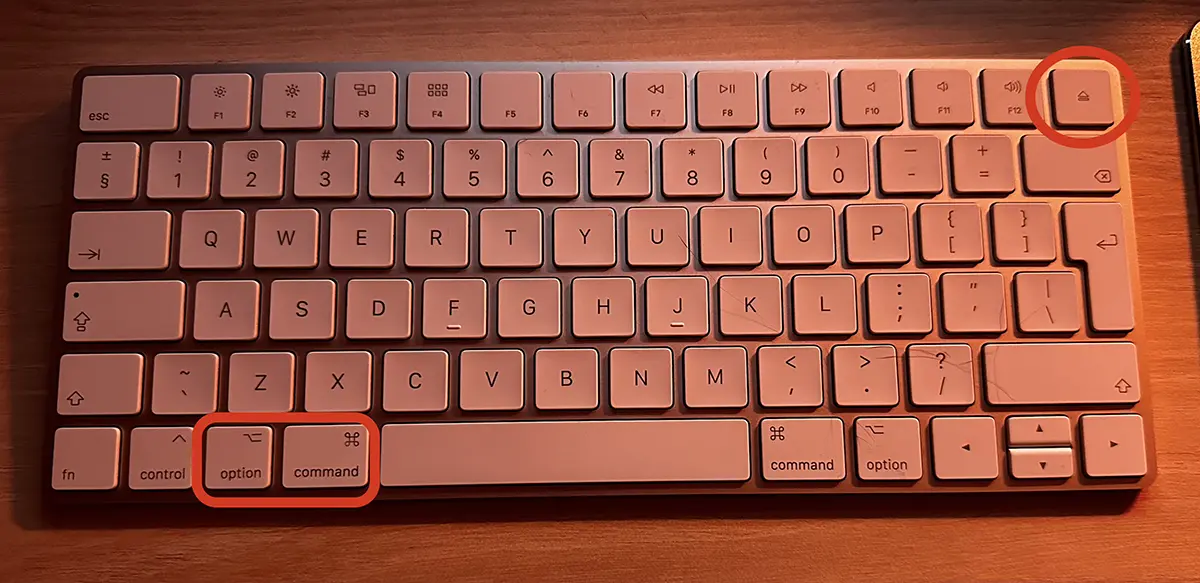
For newer Mac keyboards, the key combination is: Shift + Control + Eject or Shift + Control + Power.
The above commands will close the screen without putting the device in "Sleep" mode and without the system of entering the system when you restart it.
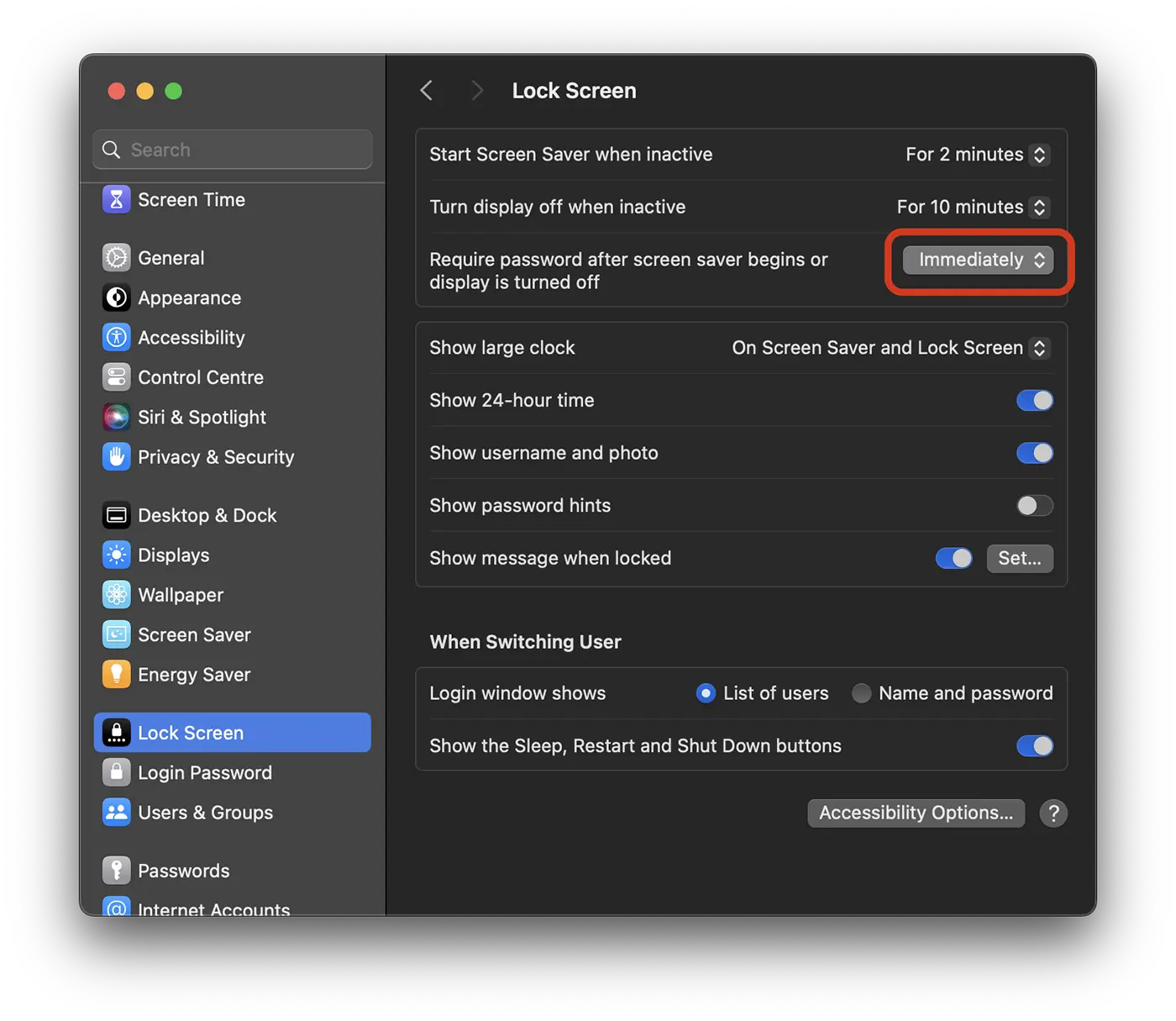
If you want to close the screen of a Mac or MacBook to be closed, you must set the password to be requested immediately after the screen is closed. Make this setting out of: System Settings > Lock Screen > Immediately. Require password after screen saver begins or display is turned off.
How can you quickly close a MacBook's screen?
For MacBook devices users, the quick -screen closing can be done by pressing the keys simultaneously: Control + Command + Q or Shift + Control + Eject for the models that have "eject" on the keyboard.
Related: How do you unlock a Mac computer with Apple Watch.
Of course, for MacBook, the simplest solution is to briefly press the "Power" button when another person is next to you and you don't want to see what is on the screen. Pressing the button or the "power" key will make the lock screen immediately appear and the password authentication will be required when reopening the system.




































