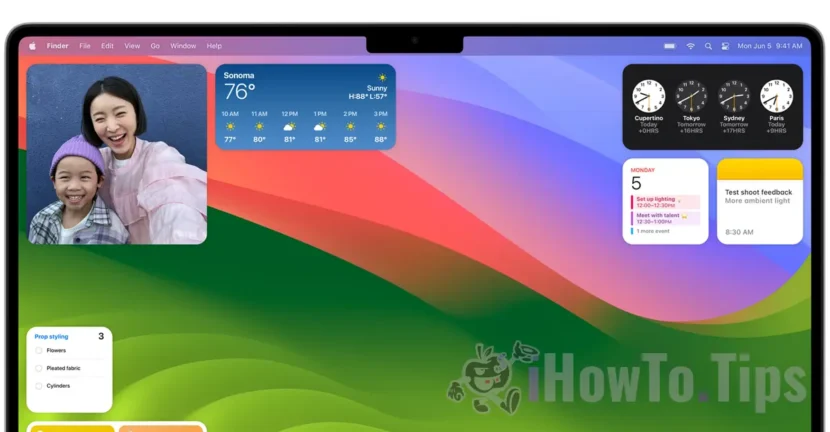

One of the most interesting features of Macos Sonoma are desktop widgets. A total novelty for maccos operating systems. In this complete tutorial, see how you can add or remove desktop widgets on Macos Sonoma.
Until the MacOS Sonoma operating system, the widgets were allowed only in the dedicated side area "Notification Center"These widgets can now be put anywhere, throughout the desktop space.
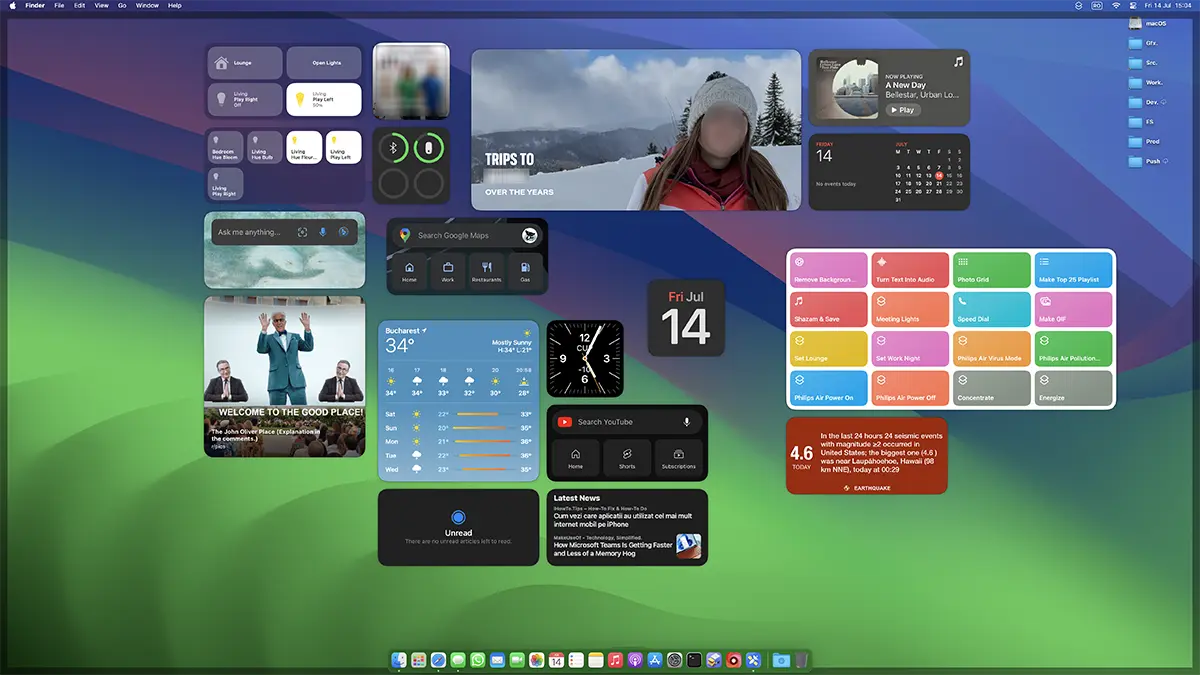
Table of Contents
How add or remove desktop widgets on Macos Sonoma
The way you can add widgets to the Macos Sonoma Desltop is very simple. Click-right on a free screen area, Click "Edit Widgets ...", then a panel will be opened from where you can add widgets directly to the workspace (desktop).
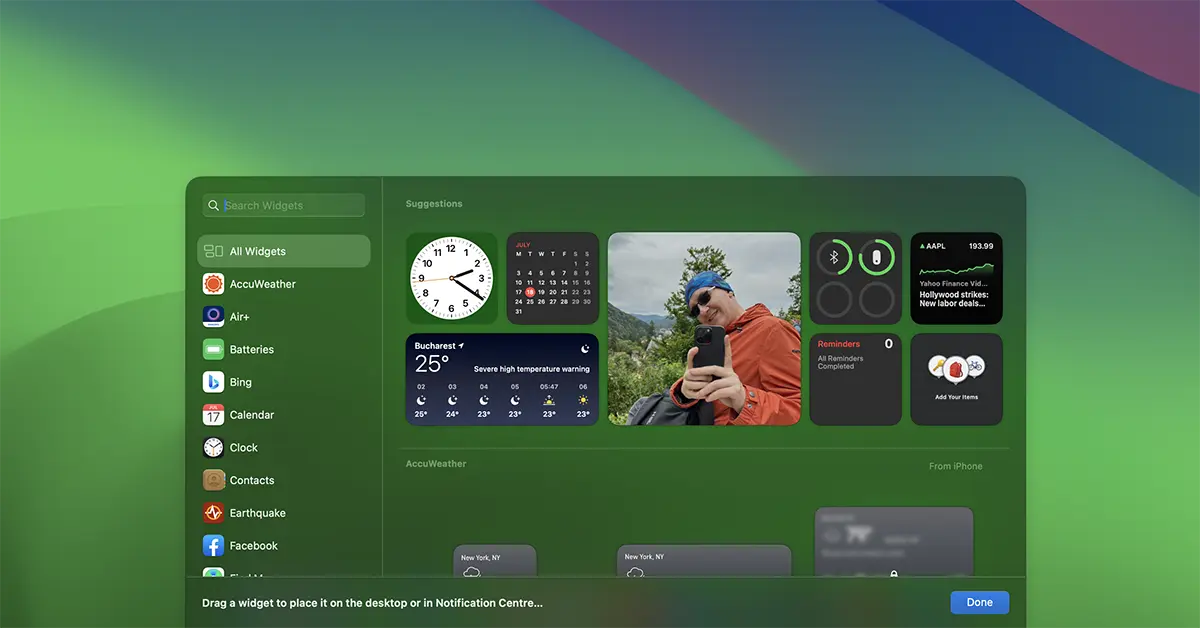
With a simple click on Widget, it will be added to the screen.
Another novelty, compared to the widgets so far, for both Macos Sonoma and for iOS 17, the new widgets sunt interactive. Specifically, if the user has Widget Reminders or the list Notes, the notes will be able to be checked directly from the widget, without the need to open.
iPhone widgets pe macOS Sonoma
If you have the iOS 17 version installed and iPhone is in the same wireless / LAN network where MAC is, then you will be able to add on the desktop widgets on the iPhone.
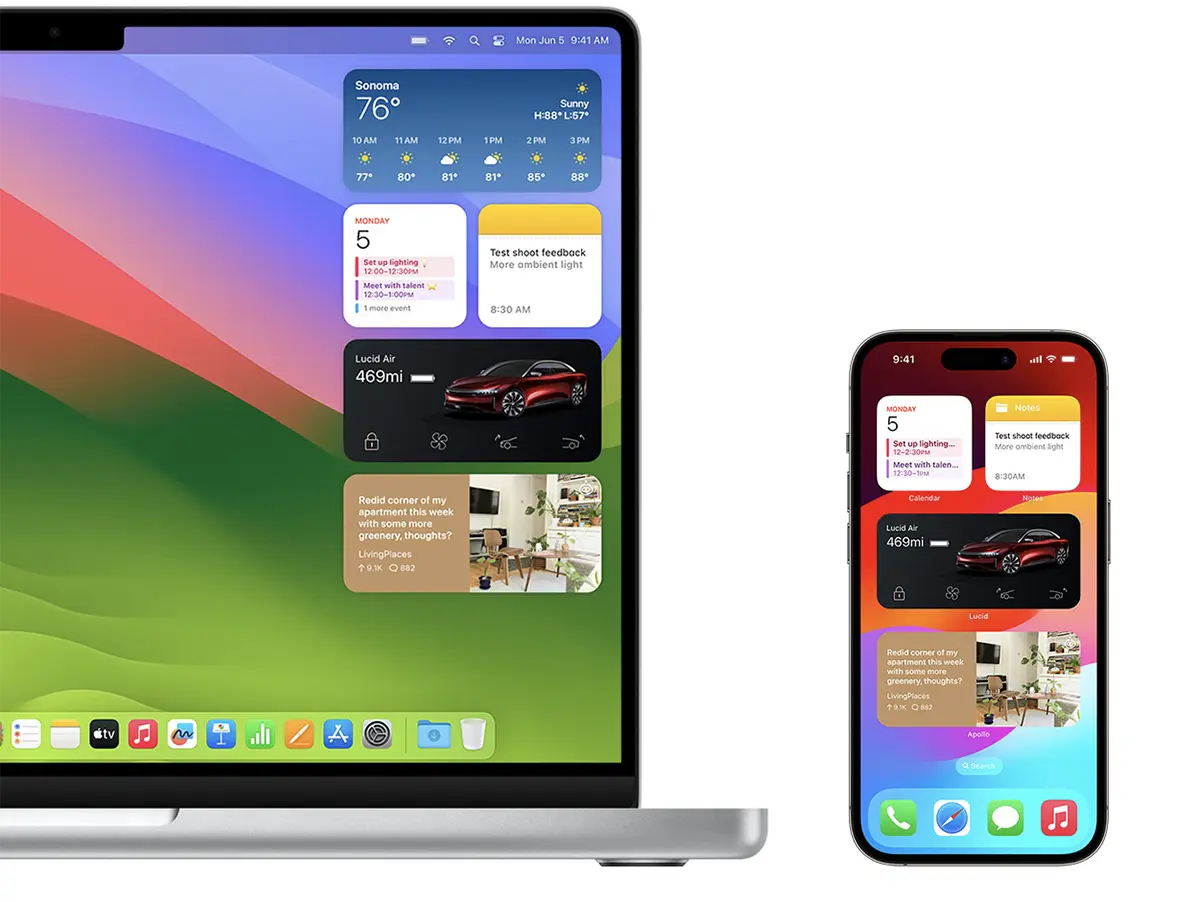
Also interactive are these iPhone widgets present on Mac. For example, if you put on Mac Widget with the Music app, with a simple click in this widget you will be able to start the music on the iPhone.
To add iPhone widgets on Macos Sonoma desktop, at the bottom of the widget panel are displayed from other devices.
Related:
If you want to give up a widget on the desktop, all you have to do is click on the widget, then click on the option ”Remove Widget“.




































