
The "Sidecar" feature appeared with Catalina macOS and iOS 13/iPadOS 13, but on the new operating systems macOs Big Sur and iOS 14, Sidecar capabilities have been greatly developed. We can say at the moment that Sidecar can transform iPad in a secondary display for Mac, where users can enjoy the experience touch screen and Apple Pencil in applications of graphics editing, text editing or browsing.
How can we use the iPad as a secondary monitor / display for Mac, iMac, MacBook Pro or MacBook Air
First of all, you must have one iPad and a Sidecar compatible Macs, and both devices to be connected to the same Wi-Fi network. Unfortunately, Sidecar will not work if the two devices are on a mobile internet connection (4G, 5G) or remotely, via internet connection.
Sidecar compatible iPad models (can be used as a monitor extension for Mac)
- iPad Pro, all models
- iPad, from the 6th generation (2018) or a newer generation
- iPad mini, from 5th generation (2019)
- Air iPad, 3rd generation (2019) or newer.
Sidecar compatible Mac models (supports display extension on iPad)
- Macbook Pro, 2016 or newer models
- MacBook, 2016 or newer models
- Macbook Air, starting with the 2018 models
- iMac, model 2017 or newer
- iMac Retina 5K, 27″, model year 2015 or newer
- iMac Pro, all models
- Mac mini, model year 2018 or newer
- Mac Pro, all models
Both Mac and iPad must be updated to the latest operating system. At the moment, a good Sidecar experience is with iPadOS 14 and macOS Big Sur.
The above conditions being met, enabling iPad as a display extension for Mac it's easier than you think.
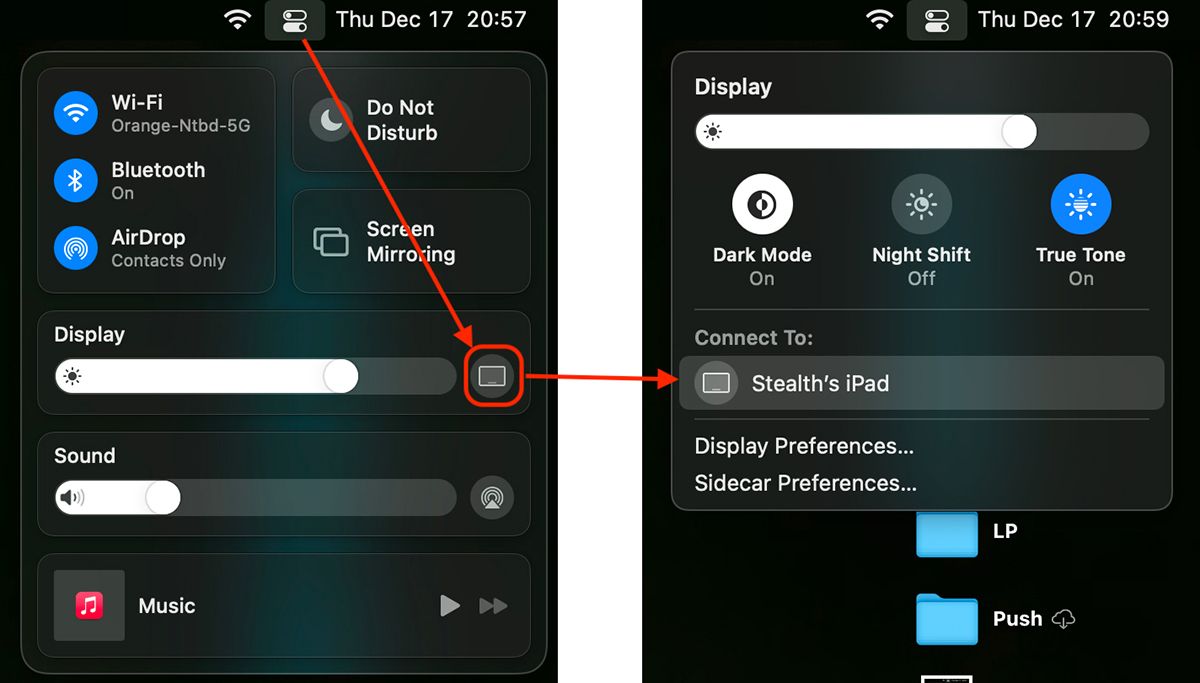
1. We go to Control Center in menu Bar and click on the option from Display, where next we will select the available device. "Stealth's iPad" in our case.
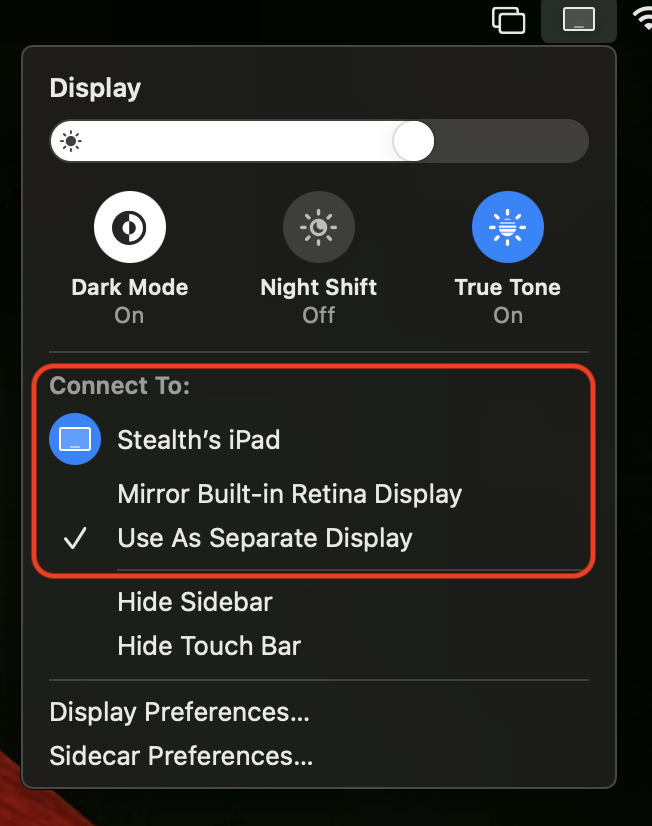
2. Once the iPad that we use as an additional display is connected, we have two options in which we can use it. Like the Mac display mirror (Mirror Built-in Retina Display) or as a separate display (Use As Separate Display), where we can display and work on applications launched on the Mac.
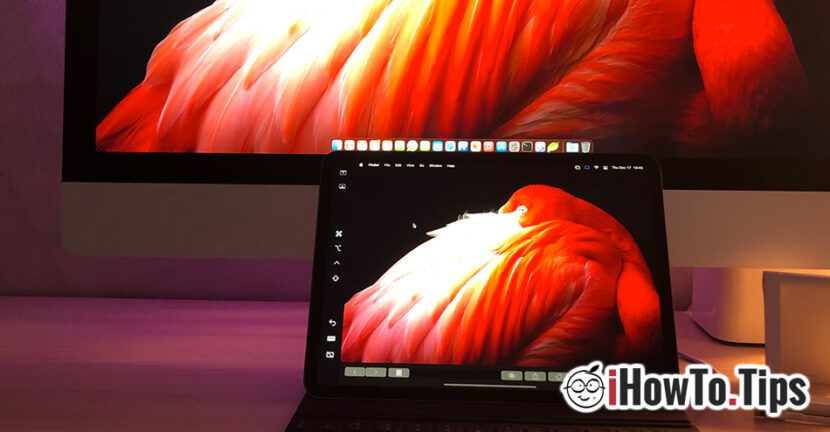
Here's how the Sidecar result looks between an iMac and an iPad Pro:
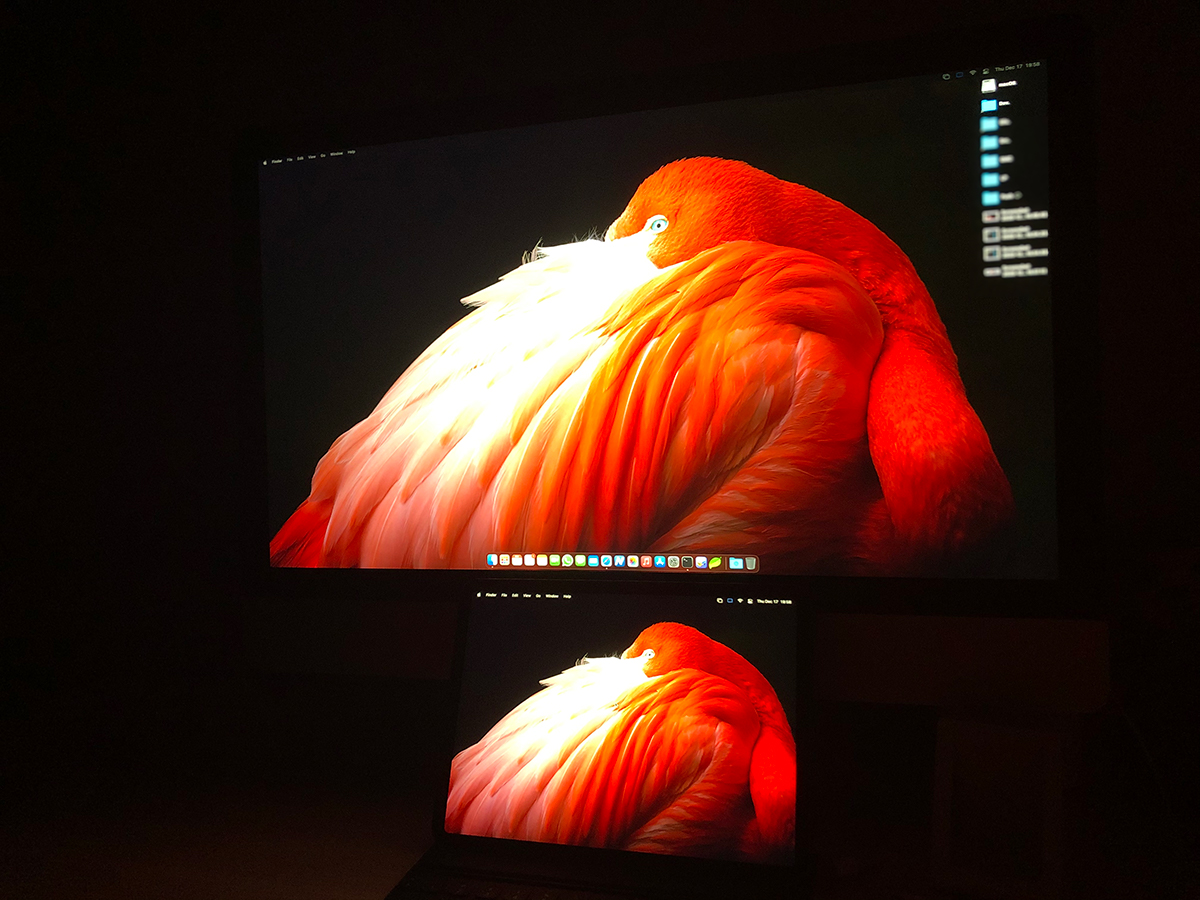
The interesting part is that by launching an application through Sidecar in auxiliary display mode (side as a separate display), you can use for the iPad both its smart keyboard, as well as the Mac keyboard and mouse.
The "Hide Sidebar" and "Hide Touch Bar" options in the Sidecar settings will leave more work space available on the iPad screen.
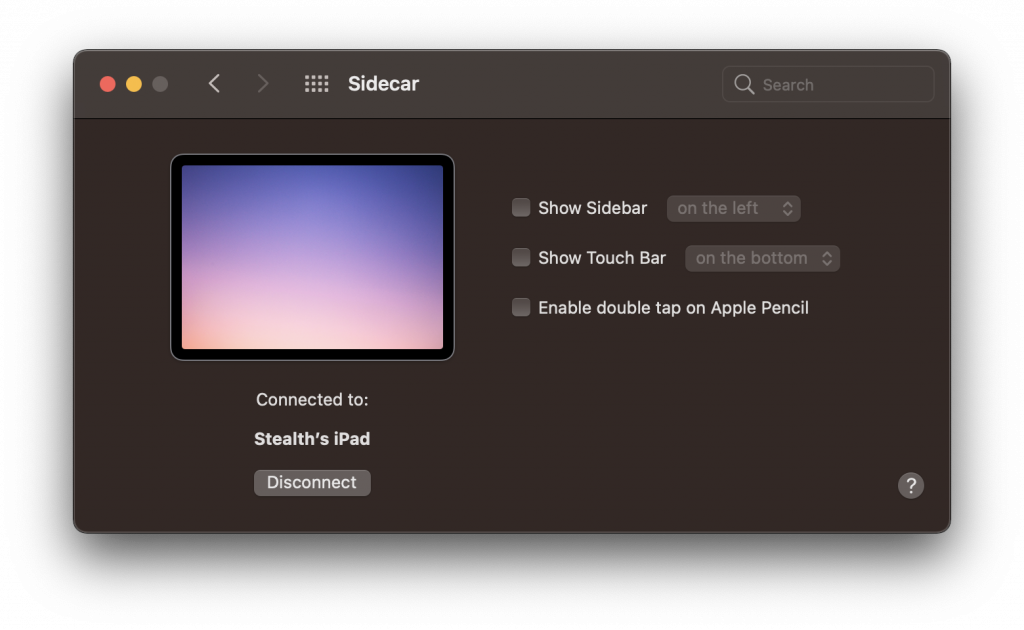
You only need the sidebar and touch bar if you choose to actually work in a Mac application on the iPad display.
Many users say that Sidecar is not a very important feature and that it is little used. Maybe it's true for most users. In production, however, extending the Mac display on the iPad is very useful for photo, video editing, document editing and much more.